How to iphone on no caller id: a practical step-by-step guide
Learn how to iphone on no caller id with practical steps to hide your number on iPhone, test privacy changes, and understand carrier limits for per-call blocking. Expert tips from Phone Tips Pro.


To hide your number on iPhone, disable Show My Caller ID in Settings > Phone, or use a per-call code if your carrier supports it. Availability varies by carrier and region, so some callers may still see your number. This quick guide covers typical approaches and privacy considerations.
What no caller ID means on iPhone
On iPhone, 'no caller ID' means your outgoing number is hidden from the recipient's screen. According to Phone Tips Pro, this is a privacy option that can protect you in certain contexts but isn’t guaranteed to work everywhere. If you’re wondering how to iphone on no caller id, this section explains the core concepts, including the difference between a global setting and per-call blocking, plus what limitations to expect across networks and regions. You’ll learn why some calls still reveal your number and how to test privacy changes safely.
Global vs per-call blocking: two paths to no caller ID
There are two broad approaches to achieving a no-caller-ID experience on iPhone. Global blocking applies to all outgoing calls, while per-call blocking relies on carrier features or per-call codes. Global blocking is convenient but can conflict with emergency services or legitimate caller-ID requirements in some regions. Per-call blocking offers flexibility but depends on carrier support and plan restrictions. Understanding the trade-offs helps you decide which path fits your needs and how to test outcomes responsibly.
Global iPhone setting: Show My Caller ID
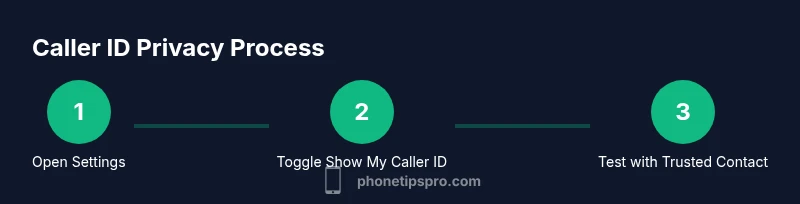
To hide your number for all calls, open the Settings app, then navigate to Phone and locate Show My Caller ID. If the toggle exists, switch it off to conceal your number for every outgoing call. If the option isn’t visible, your carrier may control it, or your region may block this setting. After changing the setting, make a quick test call to a trusted contact to confirm the effect and log the result for your records.
Per-call blocking codes: when to use *67 and similar
Some carriers support per-call blocking codes that hide your number for a single outgoing call. In the United States, the commonly used code is often dialed before the number (for example, *67 before the destination). Availability and exact codes vary by country and carrier, so verify with customer support or the carrier’s official site. Per-call blocking is useful when you don’t want to alter your global settings or when you’re calling a number that requires privacy.
Testing your changes: how to verify no caller ID
Testing is essential after any privacy change. Ask a trusted contact to answer a test call while you monitor whether their screen shows your number or a generic label like ‘Unknown’ or ‘No Caller ID.’ Repeat tests with different numbers and in different network conditions (Wi‑Fi calling vs cellular) to understand how reliable the change is. Document test results for future reference and ensure you’re complying with local rules.
Limitations and caveats
Blocking methods may not apply to all calls. Emergency services, some business lines, or international numbers might still display your ID due to legal or network requirements. Some carriers implement policies that override user settings, and some regions impose strict restrictions on privacy features. Always confirm with your carrier if you rely on no caller ID for important communications, and be aware of potential inaccuracies in caller-ID reporting.
Privacy, legality, and etiquette
Blocking caller ID is primarily a privacy tool, not a security feature. Use it responsibly and respect recipient expectations; some services rely on caller identification for fraud prevention. In many jurisdictions, misrepresenting your identity can have legal consequences, especially in sensitive contexts. If privacy is essential, combine no-caller-ID practices with other measures like secure messaging or verified contact methods.
Troubleshooting: what to do if Caller ID still shows
If your number still appears after changes, start with a device restart and a Settings refresh. Check for iOS updates and revalidate the Show My Caller ID setting or per-call options with your carrier. If the problem persists, contact your carrier’s support line, provide test results, and request a definitive answer on policy and availability. Keep a record of any communications for future reference.
Best practices and safer alternatives
Rather than relying exclusively on no-caller-ID, consider alternatives such as using a dedicated business line, encrypted messaging apps for sensitive conversations, or temporary numbers offered by legitimate services. Regularly review privacy settings and test changes. Stay informed about regional regulations and carrier updates to maintain control over your privacy without compromising essential communications.
Tools & Materials
- iPhone with latest iOS(Keep software up to date for privacy features)
- Active cellular plan(Needed for outbound calls and to test blocking)
- Settings app access(Navigate to Phone settings to adjust caller ID options)
- Carrier information(Have carrier policy details handy in case options differ)
- Trusted test contact(For verifying whether no caller ID is effective)
Steps
Estimated time: 10-20 minutes
- 1
Open the Settings app
From your Home screen, tap the Settings app to begin adjusting caller-ID options. This is the entry point for both global and per-call methods.
Tip: If Settings isn’t visible, use the search bar at the top of the screen. - 2
Tap Phone
Inside Settings, select Phone to access calling-related features and privacy controls.
Tip: You’ll see options related to caller ID, blocked numbers, and SIM settings. - 3
Toggle off Show My Caller ID (global blocking)
If the option is present, switch Show My Caller ID off to conceal your number for all outgoing calls.
Tip: If you don’t see this option, your carrier or region may control it. - 4
Dial a test call
Make a test call to a trusted contact to confirm whether your number is hidden.
Tip: Test from different networks (cellular vs. Wi‑Fi calling) if available. - 5
Consider per-call blocking if global is unavailable
If global blocking isn’t an option, check with your carrier about per-call blocking codes and how to use them.
Tip: Per-call codes are carrier-specific and may not work internationally. - 6
Test again after changes
Re-test after enabling per-call blocking or changing settings to ensure the result matches your expectation.
Tip: Document the results for future reference. - 7
Verify emergency and business calls
Be aware that some emergency services and business numbers may still reveal IDs.
Tip: Avoid misusing privacy features in critical situations. - 8
Consult carrier if issues persist
If blocked settings don’t apply, contact your carrier’s support for a definitive policy and possible exceptions.
Tip: Have your test results handy when you call. - 9
Review privacy options regularly
Privacy features and carrier policies evolve; re-check settings after iOS updates.
Tip: Set a recurring reminder to review your caller ID settings.
FAQ
Can I hide my number for all calls on iPhone?
Yes, you can hide your number globally by turning off Show My Caller ID in Settings > Phone. Some regions or carriers may restrict this option, so verify after changing the setting.
You can hide your number for all calls by turning off Show My Caller ID in Settings. If the option isn’t available, check with your carrier.
Do per-call blocking codes work internationally?
Per-call blocking codes vary by country and carrier. Check with your provider to confirm the exact code and any regional restrictions before relying on it.
Per-call blocking codes differ by country and carrier, so confirm with your provider before using them abroad.
Will emergency services still show my number?
In several regions, emergency services may still display your number, regardless of caller-ID privacy settings. Always know local policies before relying on privacy features.
Emergency services may reveal your number even when caller ID is blocked; check your local regulations.
What if I don’t see the Show My Caller ID option?
If the option is missing, your carrier or region likely controls caller ID. Contact customer support to confirm availability and any alternative methods.
If you don’t see the option, contact your carrier to confirm availability and alternatives.
Is it legal to hide my number?
Hiding your number is generally allowed for legitimate privacy reasons, but policies vary by country and context. Avoid misrepresenting identities or attempting to deceive recipients.
Hiding your number is usually legal for privacy, but rules vary. Don’t misrepresent yourself.
Why does my number still show after changes?
Settings may be overridden by carrier policies or regional rules. Revisit the carrier’s guidance and perform fresh tests after updates.
If it still shows, it could be carrier-driven; re-check policies and test again after any updates.
Watch Video
Quick Summary
- Hide your number via Settings or per-call blocking
- Carrier and region affect results
- Test to confirm privacy changes
- Emergency calls may override settings
- Coordinate with your carrier for exceptions