How to Use iMessage on iPhone: A Practical Guide
Learn how to use iMessage on iPhone—from enabling iMessage to group chats, attachments, and privacy tips. A step-by-step guide by Phone Tips Pro.


You will learn how to use iMessage on iPhone: enable iMessage, sign in with your Apple ID, and send iMessages, SMS/MMS, and group conversations. You’ll master read receipts, typing indicators, message effects, and apps in iMessage, plus troubleshooting common sending issues. This quick guide sets you up in minutes and helps you stay connected across devices.
What iMessage is and how it works on iPhone
According to Phone Tips Pro, iMessage is Apple's built-in messaging service that uses data to deliver messages between Apple devices. When both sender and recipient have iMessage enabled and an internet connection, messages appear in blue bubbles and are end-to-end encrypted. If data isn't available, messages fall back to SMS/MMS (green bubbles). iMessage also supports reactions, message effects, stickers, apps, and group chats, making it a central hub for iPhone conversations across devices. The Phone Tips Pro team notes that mastering iMessage can streamline daily communication and keep conversations synchronized across your devices. This section helps you understand the core idea behind iMessage and why people rely on it for personal and professional chats.
Prerequisites and setup
To use iMessage, you need an iPhone with a supported iOS version, an active Apple ID, and a stable internet connection (Wi‑Fi or cellular data). Sign in with your Apple ID if prompted, and turn on iMessage in Settings > Messages. If you expect to continue messaging from multiple Apple devices, enable Messages in iCloud to sync conversations across iPhone, iPad, and Mac. Also consider enabling Send as SMS as a fallback when data is temporarily unavailable. The more up-to-date your device, the fewer compatibility hiccups you’ll encounter.
Enabling iMessage and customizing core settings
Enabling iMessage is usually quick, but you may also want to tweak a few core settings for privacy and usability. Go to Settings > Messages and turn on iMessage. Then review Send Read Receipts if you want others to know when you’ve read messages, and consider turning them off for privacy. Check Send as SMS and MMS Messaging to determine what happens when iMessage can’t be delivered. If you use Messages in iCloud, ensure that 'Keep Messages' is enabled to maintain a complete chat history across devices. Finally, if you share a device, consider enabling a passcode to protect message content.
Sending messages, attachments, and group chats
With iMessage, you can do more than just text. Start a new conversation in Messages by tapping the compose button, choosing a contact with blue bubble indicators, and typing your message. Attach photos, videos, documents, or voice messages by using the App Drawer or the camera icon. Tap and hold to react with emoji, and use screen effects or bubble effects to add personality to your messages. In group chats, you can name the group, mute notifications, or mention specific people to gather attention. You can also add apps, stickers, or songs via iMessage apps to enrich conversations.
Troubleshooting common issues and connectivity tips
Common issues happen, but most are fixable. If iMessage isn’t sending, check your data connection, verify that iMessage is enabled on your device and that the recipient is online, and ensure you’re using the correct phone number or email. If problems persist, sign out of your Apple ID and sign back in, restart the iPhone, update iOS, and reset network settings if necessary. Turning on Airplane Mode briefly and then turning it off can reset network connections. These steps often resolve most sending or receiving errors. Phone Tips Pro Analysis, 2026 shows that iMessage is the preferred messaging method when data is available among Apple device users.
Privacy, security, and best practices
Security and privacy matter when using iMessage. All iMessages are end-to-end encrypted, but you should still practice good habits: keep iOS up to date, enable two-factor authentication for your Apple ID, and review which contacts can see your iMessage activity. If privacy is a priority, use Read Receipts selectively, and consider turning off 'Share Name and Photo' when replying to others. Finally, regularly back up messages if you enable iCloud Messages, so you don’t lose important chats. The Phone Tips Pro team recommends staying updated and mindful of privacy controls to ensure a secure messaging experience.
Tools & Materials
- iPhone with latest iOS installed(iMessage availability requires a supported iOS version)
- Apple ID and password(Needed to sign in and enable iMessage)
- Active internet connection (Wi-Fi or cellular data)(iMessage relies on data to deliver messages)
- Optional: iCloud account for Messages in iCloud(Syncs messages across devices)
Steps
Estimated time: 20-30 minutes
- 1
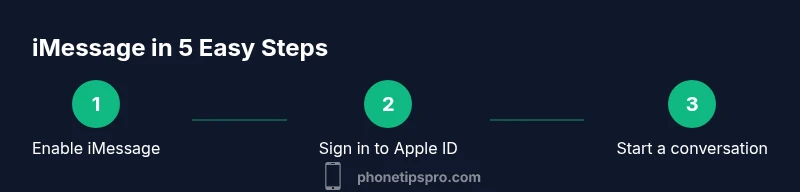
Open Settings and turn on iMessage
Open the Settings app, scroll to Messages, and toggle iMessage to the On position. This enables the service on your iPhone. If it’s already on, skip to the next step.
Tip: If iMessage doesn’t appear, update iOS or sign in with your Apple ID. - 2
Sign in with Apple ID if prompted
If prompted, sign in with your Apple ID and password. This step links iMessage to your account for syncing and personalization across devices.
Tip: Use a strong, unique password and enable two-factor authentication for security. - 3
Verify Send as SMS is enabled
In Settings > Messages, ensure Send as SMS is turned On so messages can fallback to SMS when iMessage delivery isn’t possible.
Tip: This helps ensure messages reach contacts with limited data connectivity. - 4
Check Read Receipts and privacy options
In Settings > Messages, enable Read Receipts if you want others to know when you’ve read messages; disable if privacy is preferred.
Tip: Read Receipts can be toggled per conversation by long-pressing the chat bubble. - 5
Start a new iMessage conversation
Open Messages, tap the compose button, select a contact (look for blue bubbles), and type your message. If the bubble is green, the contact may not use iMessage.
Tip: If you don’t see blue bubbles, the recipient may be on a non-Apple device or offline. - 6
Attach media and use effects
Tap the camera or App Drawer to add photos, videos, or apps. Long-press a message to react with emoji or apply screen/bubble effects for flair.
Tip: Experiment with effects to add personality while keeping messages clear. - 7
Manage group chats
Open a group chat, tap the group name to rename it, mute alerts, or mention members to draw attention.
Tip: Name groups clearly to prevent confusion in busy conversations. - 8
Enable iMessage in iCloud
If desired, go to Settings > your Apple ID > iCloud > Messages and turn on to sync conversations across devices.
Tip: This requires sufficient iCloud storage and a stable internet connection. - 9
Test the setup
Send a quick message to yourself or a trusted contact to verify delivery, read receipts, and group chat behavior.
Tip: If something fails, restart the iPhone and retry the steps above.
FAQ
What is the difference between iMessage and SMS?
iMessage uses data to send messages between Apple devices and is end-to-end encrypted. SMS uses cellular networks and is not encrypted in the same way. iMessages appear in blue, while SMS appear in green when data isn’t available.
iMessage uses data on Apple devices and stays secure with encryption, while SMS relies on the network and is less private.
How do I enable iMessage on iPhone?
Open Settings, tap Messages, and toggle on iMessage. If prompted, sign in with your Apple ID and ensure your device has an active internet connection.
Go to Settings > Messages and turn on iMessage. Sign in if asked and confirm you’re online.
Does iMessage work without internet?
iMessage requires an internet connection to send blue bubble messages. If data isn’t available, messages can be sent as SMS (green bubbles) if Send as SMS is enabled.
iMessage needs internet; otherwise, it will fall back to SMS if allowed.
How do I create a group chat in iMessage?
Open Messages, start a new message, add multiple contacts, and send. You can rename the group, mute alerts, or mention members to draw attention.
Start a new chat, add people, and manage settings like muting or naming the group.
How can I back up my iMessages?
If you enable Messages in iCloud, your chats are backed up and synced across devices. Regularly check iCloud storage and keep your Apple ID secure.
Turn on iCloud Messages to back up and sync chats, and maintain good iCloud storage.
How do I diagnose iMessage sending issues?
Verify data connectivity, ensure iMessage is enabled, check recipient status, and confirm the correct contact details. If problems persist, sign out/in of Apple ID and update iOS.
Check connection, toggle iMessage, verify contact info, and consider signing out and back in if needed.
Watch Video
Quick Summary
- Enable iMessage in Settings to start blue-bubble chats.
- Use data when available; fallback to SMS if needed.
- Leverage group chats and iMessage apps for richer conversations.
- Keep iMessage secure by updating iOS and enabling two-factor authentication.