Why is iPhone Sending SMS Instead of iMessage? A Troubleshooting Guide
Learn why your iPhone uses SMS instead of iMessage and how to fix common causes—from iMessage settings to network issues. Quick steps, diagnostics, and prevention tips to restore reliable messaging.


Most iMessage-to-SMS issues stem from iMessage being off or no internet. Start by confirming Settings > Messages > iMessage is enabled, then ensure the iPhone has an active internet connection (Wi‑Fi or cellular data). If the recipient doesn’t use iMessage, messages go SMS. If it persists, sign out and back into your Apple ID or reset network settings.
Understanding the messaging ecosystem on iPhone
Why is iphone sending sms instead of imessage? On iPhone, two core pathways control how messages travel: iMessage uses data (Wi‑Fi or cellular) and is tied to your Apple ID; SMS uses the cellular network. According to Phone Tips Pro, the most common culprits are simple configuration gaps or connectivity issues rather than hardware faults. In practical terms, ensuring iMessage is active, that you have a reliable data connection, and that the recipient's device supports iMessage resolves the majority of cases quickly. If the other person isn’t on iMessage, you’ll see green SMS bubbles. This article walks you through checks, fixes, and a clear diagnostic path to restore reliability.
Common Causes When iMessage Fails and Falls Back to SMS
- iMessage is turned off or not activated
- No active internet connection (Wi‑Fi or cellular data)
- Recipient isn’t using iMessage or is temporarily offline
- Your number isn’t registered for iMessage or Send & Receive is misconfigured
- Software issues or an outdated iOS version
Quick Checks You Can Do Right Now
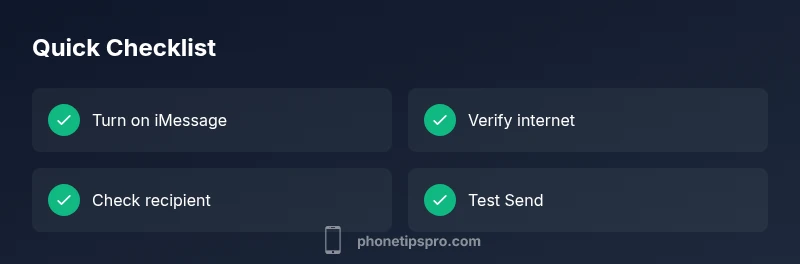
- Open Settings > Messages and ensure iMessage is toggled ON. 2) Verify your data or Wi‑Fi connection by loading a webpage. 3) Confirm the recipient is an iPhone user who uses iMessage. 4) Go to Settings > Messages > Send & Receive and confirm your phone number and Apple ID are checked. 5) If issues persist, sign out of Apple ID and sign back in, then retry sending.
Diagnostic Nuances: Edge Cases to Watch For
Sometimes problems aren’t obvious. If you recently changed your number, migrated from a SIM to eSIM, or switched carriers, iMessage may need to re-register. Also check for time/date skew, which can break secure connections. If you consistently see a failure across many contacts, the issue is likely device- or account-related rather than a single recipient.
When to Seek Help and What to Expect
If you’ve exhausted the above steps and still see green bubbles, you may be facing a deeper account or network problem. At that point, using Apple Support or visiting an Apple Store can provide hands-on diagnostics and service options.
Steps
Estimated time: 20-40 minutes
- 1
Verify iMessage is enabled
Open Settings > Messages and confirm iMessage is toggled ON. If it’s off, switch it on and retry sending.
Tip: If activation prompts appear, complete them. - 2
Check internet connectivity
Ensure your iPhone has an active internet connection via Wi‑Fi or mobile data. Browse a site to confirm connectivity.
Tip: Try toggling airplane mode to reset network state. - 3
Confirm recipient uses iMessage
Ask the contact if they’re on an iPhone with iMessage enabled. If not, green bubbles are expected.
Tip: Test with another iPhone user to isolate contact-specific issues. - 4
Review Send & Receive settings
Go to Settings > Messages > Send & Receive and ensure your phone number and Apple ID are checked. Set a clear default line.
Tip: If you have multiple emails/numbers, remove old entries. - 5
Sign out/in of Apple ID
Sign out of iCloud, then sign back in to refresh authentication for iMessage.
Tip: Backup important data before signing out. - 6
Reset network settings
Reset network settings via Settings > General > Transfer or Reset iPhone > Reset > Reset Network Settings.
Tip: Note: This erases saved networks and passwords. - 7
Check for iOS updates
Install any available iOS updates to fix known issues and improve messaging reliability.
Tip: Backup your iPhone before updating. - 8
Re-test and monitor
After steps, try sending again and observe whether iMessages route correctly.
Tip: If problems persist, collect logs or screenshots before seeking help.
Diagnosis: iPhone won’t send iMessages and reverts to SMS when messaging a contact
Possible Causes
- highiMessage is turned off or not activated
- highNo internet connectivity (Wi-Fi or cellular data)
- mediumRecipient does not use iMessage or is offline
- mediumYour number not registered in iMessage/Send & Receive settings
- lowSoftware bug or outdated iOS
Fixes
- easyToggle iMessage on/off in Settings > Messages
- easyEnsure active internet connection
- easyVerify Send & Receive settings and registered numbers
- mediumSign out/in of Apple ID, then test again
- easyReset network settings if needed
- easyUpdate iOS to the latest version
FAQ
Why does iMessage sometimes send SMS to iPhone users?
If iMessage can’t be delivered, the message falls back to SMS. Ensure iMessage is activated and devices have internet access.
iMessage isn’t available, so it uses SMS instead.
What should I do if iMessage activation is stuck?
Check internet, toggle iMessage off/on, and sign out/in of Apple ID. Activation can take a few minutes.
Try turning on and off iMessage and sign in again.
Can carrier issues impact iMessage?
Yes, carrier outages or restrictions can affect data delivery for iMessage. Check status with your carrier.
Carrier problems can block iMessage data paths.
Is updating iOS always helpful for iMessage?
Updates fix known bugs and improve reliability. Install the latest iOS when available.
Keep iPhone updated to stay stable.
What if the problem affects many contacts?
If it happens with several contacts, the issue is likely device/account related rather than a single contact.
Check device and iMessage settings.
When should I contact Apple Support?
If steps don’t help, Apple Support can provide deeper diagnostics and options.
Consider Apple Support for advanced help.
Watch Video
Quick Summary
- Verify iMessage is on and internet is active.
- Confirm the recipient uses iMessage.
- Follow the step-by-step fixes to re-establish iMessage.