Where Is iPhone Backup? Locate, Access, and Manage Your Backups
Learn where iPhone backups are stored, the differences between iCloud and local backups, and how to access and manage backups on iPhone, Mac, and Windows with practical, step-by-step guidance from Phone Tips Pro.


You can locate iPhone backups by checking iCloud settings on your device and using Finder on macOS or iTunes on Windows. Backups can live in iCloud or locally on your computer, depending on your setup. This guide shows exactly where to find, view, and manage your backups across devices. Whether you use iCloud or a computer, we'll cover both options clearly.
What counts as an iPhone backup?
An iPhone backup is a snapshot of your device data and settings that can be restored to the same iPhone or a new one. iCloud backups are stored in Apple’s cloud and include most app data, device settings, home screen layout, and health data, provided you have iCloud Backup enabled. Local backups, created via Finder on macOS or iTunes on Windows, copy similar information to the computer you choose. Important caveats: photos and videos that are already stored in iCloud Photos may not be included in the backup if that service is enabled, and encrypted backups require a passcode for security. Understanding what each backup contains helps you decide when to back up and how to access it when you need to restore from memory, migrate to a new device, or recover from data loss. This section also highlights common confusion between iCloud backups and iCloud Photos, which manage media differently than device configuration.
According to Phone Tips Pro, a clear grasp of backup scope prevents gaps in your recovery plan and reduces panic if you lose a device or upgrade. Regularly reviewing your backup settings saves time later and reduces the risk of missing important data during a restore.
Understanding iCloud backups vs. local backups
iCloud backups live in the cloud and are typically managed automatically when you have a stable Wi‑Fi connection and sufficient iCloud storage. Local backups are created when you connect your iPhone to a computer and choose to back up with Finder (macOS Catalina and later) or iTunes (Windows and macOS versions prior to Catalina). The advantage of iCloud is remote restoration without a cable; the advantage of local backups is faster restores and independent control of the backup file. Both types can be encrypted for security, which protects sensitive data like passwords, Wi‑Fi settings, and health data. If you rely on iCloud Photos, your photo library may be separate from the device backup, so consider both systems when planning data protection.
If you’re concerned about space, you may manage iCloud storage by reviewing app data sizes, photos, and backups in the iCloud settings. Phone Tips Pro analysis shows that users often underestimate how much space a backup may occupy, especially if they also store large media files elsewhere.
How to locate iPhone backups on iPhone
To see whether your iPhone is backing up to iCloud, open the Settings app and tap your name at the top, then tap iCloud, then iCloud Backup. Ensure the toggle is on and note the “Last Successful Backup” timestamp. If you want a recent local backup, you’ll need a computer. For iCloud backups, you can also check the list of apps using iCloud Drive and review the available storage. If you’re troubleshooting a restore, verify your Apple ID is the same one used to create the backup and ensure you have a stable internet connection during the recovery process.
Tip: If iCloud Backup is off, enable it and perform a manual backup before major device changes. Always disconnect from public networks when handling backups to avoid data exposure.
How to locate iPhone backups on macOS
On macOS, backups created by Finder appear in a hidden library path. Open Finder, choose Go > Go to Folder, and enter ~/Library/Application Support/MobileSync/Backup/. Each backup folder is named with a long hash, and you can inspect the manifest for dates. For the latest backup, compare the dates of the folders and keep a log of which device they belong to. If you use Time Machine, you can also back up your backups themselves, adding a layer of redundancy. This local backup method is often faster for restores, especially when you have limited bandwidth.
Note: Do not delete backup folders without confirming which device and backup you’re removing. Deleting a backup is permanent and cannot be undone from Finder.
How to locate iPhone backups on Windows (iTunes)
On Windows, backups created by iTunes live in the user profile under AppData. The typical path is C:\Users[YourUserName]\AppData\Roaming\Apple Computer\MobileSync\Backup. Use File Explorer to browse to that location and sort by date to identify the most recent backups. If you’re using the newer Finder-like interface from iTunes, you may still access the backups through iTunes’ Preferences > Devices, which lists available backups with dates and device names. If you want to move backups to an external drive, copy the entire Backup folder and paste it to the new location, then create a symbolic link if needed.
Important: Avoid renaming backup folders arbitrarily, as some restoration processes rely on the folder name metadata.
How to copy, delete, and manage backups safely
Managing backups involves a balance between protection and storage. Copy backups to an external drive to create offline safety, but always keep the copy encrypted if your data includes sensitive information. Delete older backups only after confirming you no longer need them, and label current backups with device name and date to avoid confusion during restoration. For iCloud backups, you can manage storage by removing unnecessary app data and consolidating photos, but app data might be essential for a complete restore. Consider establishing a backup schedule that aligns with device changes, software updates, and significant data additions. Keeping two reliable copies can protect you from hardware failures or accidental deletions.
Tip: Regularly test a restore on a spare device or simulator to ensure the backup works as expected and to verify your recovery plan.
Common pitfalls and troubleshooting
A frequent pitfall is assuming all backups are identical across iCloud and local storage. In reality, there are separate ecosystems for each backup type, and data scope may vary. Another issue is running out of iCloud storage, which can prevent new backups from completing; in that case, you’ll need to upgrade storage or delete old backups. Connectivity problems often interrupt local backups, so ensure a stable USB connection and sufficient power during the backup process. If a backup fails, examine the error message, verify your Apple ID, and retry. For encrypted backups, remember the password; losing it renders the backup unusable. Finally, if you’re migrating to a new iPhone, ensure you restore from the correct backup corresponding to the target device.
Pro tip: Keep backup logs with dates and device names to quickly identify which backup is suitable for restoration.
Security and privacy considerations
Backups contain sensitive data, including passwords, health information, and payment data in some cases. Always enable encryption for both iCloud and local backups, and use a strong passcode for devices that participate in backup. If you store backups on external drives, protect them with physical security and encryption. Regularly review which devices share your Apple ID and consider removing old devices from your account to minimize exposure. When restoring, verify that you’re on a trusted network and avoid saving credentials in plain text. Phone Tips Pro recommends adopting a routine assessment of backup settings at least quarterly to ensure continued protection.
Backups across devices: iPhone, Mac, PC
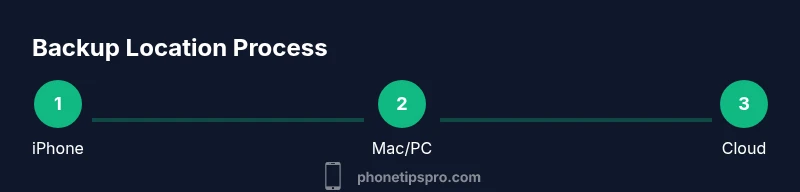
A robust backup strategy considers cross‑device coverage. An iPhone backup kept in iCloud can be complemented by a local Mac or Windows backup for fast restores. Use Finder on macOS for local backups and iTunes on Windows for older setups. Maintain consistency by labeling each backup with device names and dates. If you upgrade to a new device, test the restore process on a non-critical device to confirm that the data is accessible and intact. By aligning these methods, you gain flexibility and resilience against data loss.
Tools & Materials
- iPhone with latest iOS(Ensure the device is charged or connected to power during backup operations)
- Mac computer with Finder (macOS Catalina or later) or Windows PC with iTunes(Use Finder for macOS Catalina+; Windows users should have iTunes installed)
- USB cable for iPhone(Used for direct backups and data transfer)
- Internet connection(Needed for iCloud backups and some verifications)
- Apple ID credentials(Required to access iCloud backups and settings)
- External storage (optional)(Useful for copying local backups for offline safety)
Steps
Estimated time: 15-30 minutes
- 1
Confirm backup type and scope
Decide whether you will rely on iCloud backups, local backups, or both. Check your iPhone settings to confirm if iCloud Backup is enabled and note the last successful backup date. This helps you plan the restoration path and ensures you don’t miss any critical data.
Tip: Write down the last backup date for quick reference during restoration. - 2
Prepare your devices and credentials
Sign in to iCloud with the correct Apple ID on your iPhone and computer. If you plan local backups, connect your iPhone to the computer using the USB cable and unlock the device. Ensure your battery is sufficiently charged or connected to power.
Tip: Use a dedicated backup session to avoid interruptions from other apps. - 3
Locate iCloud backups on iPhone
Open Settings, tap your name, go to iCloud, then iCloud Backup to view the status and last backup date. If you want to restore now, you can initiate the setup process on a new device or after a factory reset, selecting Restore from iCloud Backup.
Tip: If iCloud Backup isn’t visible, verify you’re signed in with the correct Apple ID and that iCloud Backup is enabled. - 4
Locate local backups on macOS
On Mac, open Finder and navigate to Go > Go to Folder, then enter ~/Library/Application Support/MobileSync/Backup/. Identify the latest backup by date and device. You can copy the backup folder to another location if you want a secondary copy.
Tip: Do not rename the backup folders; the restoration relies on their internal metadata. - 5
Locate local backups on Windows
On Windows, open File Explorer and go to C:\Users\[YourUserName]\AppData\Roaming\Apple Computer\MobileSync\Backup. Sort by date to identify the most recent backup. If you use iTunes, you can review backups from Preferences > Devices.
Tip: Consider backing up to an external drive for redundancy. - 6
Copy, delete, and secure backups
Copy backups to an external drive for offline safety, encrypt if supported, and label backups with device name and date. Delete old backups only after confirming you no longer need them and keep at least one recent backup in a known location.
Tip: Test a restore from the backup to ensure it works before you need it in a pinch.
FAQ
Where is iPhone backup stored by default?
Backups can be stored in iCloud or locally on your computer, depending on your settings. iCloud backups are managed in your Apple ID account, while local backups reside in Finder (macOS) or iTunes (Windows).
Backups may be in iCloud or on your computer; you’ll access them via iCloud settings or your computer’s backup folder.
Can I access iCloud backup contents?
You can access the backup metadata and restore data to your iPhone, but you cannot view the full contents of an iCloud backup like a file explorer. Restoring is done during setup or from Settings.
You can restore from iCloud backup, but you can’t view the full contents directly like files on a drive.
How often should I back up my iPhone?
Aim for at least weekly backups, or immediately before major updates or device changes. If you rely on iCloud Backup, ensure it runs automatically when connected to power and Wi‑Fi.
Weekly backups are a good baseline, with extra backups before big changes.
How do I restore from a backup to a new iPhone?
During the setup of a new iPhone, choose Restore from iCloud Backup or Restore from Mac/PC backup depending on where your backup resides. Follow the on-screen prompts to complete the restoration.
When setting up a new iPhone, pick a backup source and follow the prompts to restore.
Should backups be encrypted?
Yes. Encrypting backups adds a layer of security that protects passwords, Wi‑Fi settings, and health data. This applies to both iCloud backups and local backups when encryption is supported.
Encrypt backups to keep your sensitive data safe.
What if my backup won’t complete?
Check your internet connection for iCloud backups, ensure sufficient iCloud storage, and verify device power. For local backups, ensure the USB connection is stable and there’s enough disk space on the computer.
If a backup fails, check network, storage, and connection stability, then retry.
Watch Video
Quick Summary
- Identify backup type (iCloud vs local) before starting.
- Check last backup date to validate currency.
- Back up regularly to minimize data loss risk.
- Secure backups with encryption and strong access controls.