Find My iPhone for Apple: A Complete How-To Guide
Learn how to locate, secure, and recover your iPhone using Find My iPhone. Step-by-step instructions, troubleshooting, and privacy tips to protect your data.


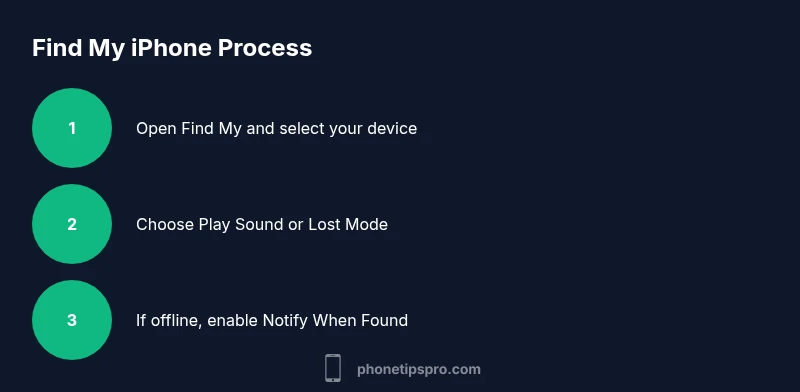
With Find My iPhone, you can locate, lock, or erase your iPhone from another Apple device or iCloud.com. Ensure Find My iPhone is enabled and you’re signed in with your Apple ID. Sign in, pick your device, and choose Play Sound, Lost Mode, or Directions. This is the core approach to 'find my iphone for apple'.
What Find My iPhone Does for You
If you’re trying to recover a misplaced iPhone, the Find My iPhone service is your first line of defense. The simple idea behind it is to let you locate, lock, or erase your device from another Apple device or via iCloud.com. For many users, the urge to search using the exact phrase 'find my iphone for apple' reflects the instinct to reach an official, integrated solution rather than third-party trackers. According to Phone Tips Pro, the true power of this feature lies in its seamless integration across Apple devices and its compatibility with modern privacy protections. When you enable Find My iPhone, you gain a central control panel that can show the device’s live location on a map, trigger a loud sound to help you locate it in a home or car, and place the device in Lost Mode so the screen can display a contact message and protect data. This block outlines the core capabilities you’ll rely on in a loss event.
The service relies on the device emitting a secure, encrypted signal when it’s online. That signal travels to Apple’s servers, which then relay its location to you on a map. Being able to take action from any trusted device reduces the time to recovery and minimizes potential data exposure. Phone Tips Pro emphasizes that the real value is not just finding the phone but keeping it safe while it’s out of reach. This block sets the stage for practical steps and safety considerations that follow.
Prerequisites: Set Up and Requirements
Before you can take full advantage of Find My iPhone, you must set up the feature and meet a few basic requirements. Make sure Find My iPhone is enabled on the device you want to locate (Settings > [your name] > Find My > Find My iPhone). Sign in with the Apple ID that manages the device, and confirm two-factor authentication is active to prevent unauthorized access. The device should be powered on or recently connected to the internet for live location updates, and location services must be enabled. If you’re using Family Sharing, ensure the relevant accounts are authorized to locate devices. Phone Tips Pro notes that completing these prerequisites in advance reduces friction during a real incident and makes the subsequent steps straightforward.
Accessing Find My iPhone: iCloud.com, iPhone, or Mac
There are several ways to access Find My iPhone, depending on the device you have handy. On iPhone or iPad, open the Find My app and sign in with your Apple ID if prompted. On a computer, go to iCloud.com and sign in to view your devices on a map. On a Mac, use the Find My app as well. The interface lists all devices under your account; selecting one reveals actions such as Play Sound, Directions, Lost Mode, or Erase This Device. If you’re using Family Sharing, the process is similar, but you’ll see the other family members’ devices if they’ve granted permission. Phone Tips Pro emphasizes keeping your software up to date, as occasional interface changes can alter the exact menu labels. The key is to be able to identify the correct device and to access the control panel quickly so you can act when time matters.
Locate and Secure: Play Sound, Lost Mode, and Directions
Once you’ve selected the device, you have several remote actions at your disposal. Play Sound triggers an audible ping, even if the iPhone is silenced, which is invaluable if you left it near sounds in a room or in a bag. Lost Mode locks the device, displays a message and phone number, and begins location reporting again if the device reconnects. Directions opens Maps to guide you to the device’s last known location. These tools help you recover the phone while keeping data protected. Phone Tips Pro urges you to use Lost Mode early if theft is suspected, and to include a clear message with a reachable contact. Remember that a reset to factory settings is only appropriate in extreme cases of data risk. In many cases, the combination of Play Sound and Lost Mode suffices to recover the device without anyone’s data being exposed.
What to Do If the Device Is Offline or Battery Dead
Some devices intentionally remain offline to preserve battery life or to avoid network tracking. In such cases, you won’t see a live location, but you can turn on Notify When Found. This feature sends you a notification as soon as the device reconnects to the internet, allowing you to act with updated location data. If the device is offline for a long period, focus on the last known location and consider surrounding areas where the phone might be hiding (homes, cars, or public spaces). Phone Tips Pro recommends you pair Notify When Found with a refreshed map view and periodic checks, because connectivity can resume unexpectedly. If you suspect loss due to theft, enable Lost Mode so the phone remains locked and your message remains visible, even if the phone’s battery dies later.
Security vs Privacy: When to Lock or Erase
Security decisions hinge on the risk of data exposure. Lost Mode locks the device and limits access while keeping location reporting possible. Erasing the device remotely wipes all data and settings; after erasure, the device cannot be tracked unless it’s set up again by the new owner. Phone Tips Pro recommends using Lost Mode as a first response in most cases, with remote erase reserved for sensitive data scenarios or if the device is unlikely to be recovered. Always consider whether you still require location updates after you erase. If the device is recovered, you can re-enable Find My and restore from a backup. The goal is to balance data protection with the possibility of recovery, avoiding unnecessary data loss.
Troubleshooting Common Issues
If you aren’t seeing the device on the map, start with basic checks. Confirm the device is signed into the same Apple ID and that Find My is enabled on the device itself. Check that the device has a working internet connection and that location services are on. Ensure your browser or the Find My app has permission to access location data. If you’re using iCloud, verify that the iCloud status is normal. Sometimes, the issue is a temporary service outage on Apple’s side, so checking Apple System Status can help. If you’ve recently changed your Apple ID password, sign out and sign back in to refresh credentials. Phone Tips Pro notes that patience is often required because location updates can lag or bounce due to signal quality and device state.
Privacy considerations and data safety when using Find My
Location data is encrypted and tied to your Apple ID, so you are the principal guardian of your own location information. Avoid sharing location with others unless necessary, and disable sharing when recovery is complete. Review who can locate devices in Family Sharing and monitor any third-party apps that may have access to location data. Apple provides controls to manage history, sharing, and data retention, which we discuss in practical terms. Phone Tips Pro recommends periodic privacy reviews after any recovery, including changing passwords if there’s reason to suspect compromise. By understanding the data flow—from device to Apple servers to your own screen—you can use Find My iPhone responsibly without sacrificing security.
Best practices for prevention and recovery
Adopt a proactive approach to reduce loss risk and speed recovery. Keep Find My enabled on all Apple devices, maintain up-to-date contact information in your Apple ID profile, and ensure two-factor authentication is active. Use Family Sharing to broaden the network of recoverable devices within your household. Schedule routine checks of location services and iCloud status, especially before trips or long periods away from home. Practice the steps you’ll take in a non-emergency context so you’re familiar during a real incident. Phone Tips Pro emphasizes building a simple, repeatable plan that you and family members can follow under pressure.
Authority Sources
For authoritative guidance on Find My iPhone, refer to:
- Apple Support: Find My iPhone guide: https://support.apple.com/guide/find-my-iphone/welcome/ios
- Apple Support KB: https://support.apple.com/kb/HT201493
- U.S. Federal Trade Commission privacy tips: https://www.ftc.gov/tips-advice/business-center/privacy-security
- NIST privacy and security basics: https://www.nist.gov/
Tools & Materials
- Apple ID and password(Need to sign in to iCloud/Find My)
- Active internet connection(Required to send location and remote commands)
- Find My app (iOS)(Available on iPhone, iPad, Mac)
- Trusted device(An alternative device to access Find My quickly)
Steps
Estimated time: 15-30 minutes (variable depending on device connectivity)
- 1
Open Find My
Launch the Find My app on your iPhone, iPad, or sign in at iCloud.com. Ensure you’re signed in with the Apple ID that manages the device you’re trying to locate.
Tip: If you’re using a public computer, sign out when finished. - 2
Select the target device
From the devices list, tap or click the iPhone you want to locate. Confirm you are tracking the correct device, especially if Family Sharing is enabled.
Tip: Double-check the device name to avoid targeting the wrong phone. - 3
Choose a remote action
Use Play Sound to locate by audible alert, Lost Mode to lock and display a message, or Directions to navigate to the last known location. Ensure location services are enabled for best results.
Tip: Lost Mode is helpful if the device is unattended in a public space. - 4
Handle offline scenarios
If the device is offline, enable Notify When Found to receive a ping when it reconnects. You can still rely on the last known location.
Tip: Keep hope alive—devices reconnect frequently when power is restored. - 5
Consider security actions
If you fear theft or data exposure, Lost Mode with a contact message can deter misuse while keeping your phone trackable. Erase is a last resort.
Tip: Use Erase Only if recovery seems unlikely. - 6
Act after recovery or continue monitoring
Once you recover the device, turn off Lost Mode, verify your account, and review recent location history for any suspicious activity.
Tip: Change your Apple ID credentials after a recovery.
FAQ
What is Find My iPhone and how does it work?
Find My iPhone is Apple's built-in service that helps you locate, lock, and protect your device from another Apple device or iCloud. It uses location data to show the device on a map and supports remote actions like Play Sound, Lost Mode, and Erase.
Find My iPhone helps you locate and protect a lost iPhone and you can do actions from another Apple device or iCloud.
Can I locate my iPhone if it’s offline?
If the device is offline, you’ll see the last known location and can enable Notify When Found to be alerted when it reconnects to the network.
Offline devices can still be tracked when they reconnect, using Notify When Found.
What should I do if my iPhone is stolen?
Put the device in Lost Mode if possible, erase if data safety requires, and contact authorities with any identifying information. Avoid attempting to retrieve it yourself.
If stolen, use Lost Mode and consider erasing if recovery seems unlikely.
Can Find My iPhone be used for family devices?
Yes, with Family Sharing you can locate devices used by family members who opt in. Ensure each device has Find My enabled and the family member is signed in.
Family Sharing allows locating devices for members who opt in.
Will Find My iPhone drain my battery?
Location services can consume battery, especially if location is checked frequently. The overall impact is usually small if settings are managed properly.
Location checks use some battery, but it’s usually not excessive.
Can I erase my iPhone remotely?
Erasing the device remotely is available, but this is permanent and will prevent further tracking until the device is set up again.
Remotely erasing is possible but permanent; use only when necessary.
Watch Video
Quick Summary
- Locate quickly with Play Sound
- Lost Mode protects data
- Offline devices can be traced later
- Erase is a last resort
- Practice Find My steps regularly