Parental Controls on iPhone: A Practical Guide
Learn how to enable Screen Time, set limits, and manage content on iPhone to protect kids and manage device usage with step-by-step instructions and best practices.


You will enable Screen Time to manage usage, content, and time limits on iPhone. Start by turning on Screen Time, optionally using Family Sharing to manage other devices, and set a passcode to prevent changes. This built-in setup covers most parental control needs without third-party apps. This quick guide will show you where to go, what to adjust, and how to review activity.
Why parents rely on iPhone built-in controls
If you're wondering how can i put parental control on iphone, the simplest answer is to start with Screen Time, Apple's built-in tool. Screen Time gives you a centralized dashboard to monitor usage, set limits, and restrict content. It works on your own device and on other family devices when you enable Family Sharing. The approach is non-invasive, doesn't require third-party apps, and respects user privacy while giving you essential guardrails. In practice, it's about balance: you want to protect during screen time without turning the device into a fortress. The consequences of unmanaged device use—disrupted sleep, shorter attention spans, and exposure to inappropriate content—underscore why many families begin here. With a clear plan, you can tailor settings to age, habits, and rules at home, then revisit them as your child grows or routines change. It's worth noting that some schools and workplaces restrict certain features, so check access on managed devices if relevant.
Screen Time is the foundation, but you can layer additional controls if your family needs them. This section helps you understand what it can do, what it cannot, and how to structure rules that are fair and enforceable. You’ll also learn how to approach this as a non-technical parent, so you don’t feel overwhelmed by settings you barely understand at first.
What Screen Time controls cover
Screen Time provides a broad set of controls designed to balance safety with independence. You can schedule downtime when only essential apps are allowed, place limits on app categories (such as games or social media), and require a passcode to modify settings. Content and Privacy Restrictions let you block mature content, restrict explicit websites, and control in-app purchases. You can customize allowances for specific apps and decide which features are always accessible—like phone calls for emergencies.
Beyond device-wide controls, Screen Time works with Family Sharing to extend management to a child's iPhone, iPad, or even a family member’s device. The key benefit here is a single dashboard: you can view usage patterns, adjust limits, and approve or deny requests without handling multiple accounts. When you set these rules, it’s wise to tailor them to the child’s age, daily routines, and school requirements. Regular review helps ensure the rules stay relevant as circumstances change.
Screen Time vs third-party options
Third-party parental control apps promise more granular tracking, remote management, and deeper reporting. However, they require additional subscriptions, can raise privacy concerns, and may have data-sharing trade-offs. For most families, Screen Time provides robust protections with fewer privacy concerns and simpler setup. If you need features like app-by-app monitoring or cross-platform coverage (Android and iOS), you might consider a reputable third-party solution, but proceed with caution: read the privacy policy, understand data retention, and ensure you remain in control of your child’s information. In short, Screen Time is a strong default choice for iPhone-only environments, while third-party tools can supplement when carefully evaluated.
Step-by-step setup overview
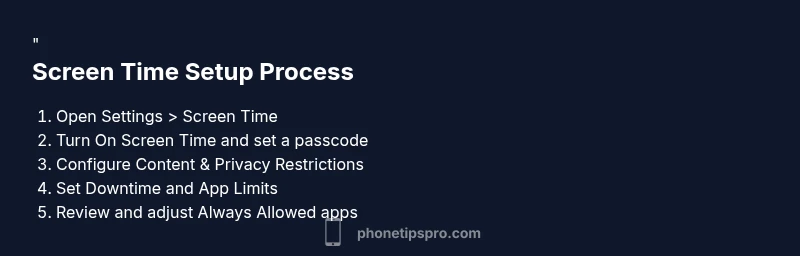
Setting up Screen Time is a multi-step process that becomes easier with practice. Start by enabling Screen Time on the parent device, then determine whether you will manage your child’s device directly or through Family Sharing. Next, configure Content & Privacy Restrictions to align with your family’s expectations. Finally, fine-tune Downtime, App Limits, and Always Allowed apps so that essential functions remain accessible. The goal is a clean, predictable routine that minimizes friction while keeping kids safe.
In this guide, you’ll find a clear sequence, practical screenshots, and troubleshooting tips to help you get everything working smoothly. Be patient; it may take a few minutes to verify settings and ensure the devices sync correctly.
Best practices by age group and home rules
Younger children benefit from strict downtime windows and content restrictions, while tweens may require moderate limits and more transparency. Teens often respond well to collaborative rule-setting, with clear boundaries and regular check-ins. Establish a predictable routine: after school, homework time, and bedtime are prime windows for focused activity and rest. In households with shared devices, consider a weekly review session to adjust limits as activities shift. Keeping rules visible and consistent helps reduce arguments and builds trust—kids know what to expect and why.
Practical tips include labeling screen time as a family policy rather than a punishment, using the Passcode to prevent accidental changes, and modeling healthy device use yourself. If your child encounters a request to bypass limits, use the Screen Time management tools to review the request together, guiding them toward responsible choices.
Troubleshooting and maintenance
If you don’t see Screen Time on your iPhone, verify that the device is updated to the latest iOS version and that you’re signed in with an Apple ID that has Family Sharing enabled if you plan to manage other devices. If the settings don’t sync across devices, sign out and back into iCloud, or toggle Screen Time off and back on. Remember to check content restrictions after updating iOS, as new features may shift where controls live. Regularly review passcodes and update them if you suspect they’ve been compromised, and keep a simple, documented rule set so youngsters understand the boundaries.
Finally, if you encounter a feature that’s locked by school or enterprise management, you may need to contact the administrator or adjust expectations accordingly. In most homes, the built-in Screen Time controls are sufficient for creating a healthy, balanced digital environment.
Review and iteration: keeping controls effective
Parental controls are not a one-and-done setup. Set a recurring schedule to review the rules every few weeks or at the start of a new term. Use real-world observations—sleep quality, school performance, and mood—as indicators of how well the controls are working. If you notice pushback or non-compliance, adjust gradually, rewarding positive behavior and making incremental changes rather than sweeping overhauls. The aim is long-term resilience: kids learn to regulate their own use while you maintain a safety net.
By treating Screen Time as a living policy rather than a static configuration, you’ll foster responsible digital habits that extend beyond device usage. This approach reduces battles and helps the family adapt to new apps, platforms, or routines as your child grows.
Tools & Materials
- iPhone with latest iOS(Ensure the device is updated to access Screen Time features)
- Apple ID and password(Needed to enable Family Sharing and sign in to iCloud)
- Stable internet connection(Wi-Fi is preferred during setup to sync across devices)
- Child's iPhone (optional)(Needed if you want to apply settings directly on their device)
- Parent device for configuration(Your iPhone or iPad used to manage Screen Time)
Steps
Estimated time: 20-25 minutes
- 1
Open Settings and select Screen Time
Unlock the iPhone and open the Settings app. Scroll to Screen Time and tap to begin. If Screen Time isn’t visible, ensure iOS is up to date and that you are signed into the device properly.
Tip: If you don’t see Screen Time, update iOS or search for 'Screen Time' in Settings to locate it quickly. - 2
Turn on Screen Time for the family
Tap Turn On Screen Time, then choose This is My Child's iPhone to enable family-based controls. If you’re using Family Sharing, you can assign a parent account to manage the child’s device.
Tip: Setting a Screen Time Passcode now prevents changes later by your child. - 3
Set a Screen Time Passcode
Create a 4- to 6-digit passcode that your child cannot guess. Do not reuse other device passcodes. This ensures your settings stay intact.
Tip: Remember the passcode yourself or store it in a secure password manager. - 4
Configure Content & Privacy Restrictions
Enter Content & Privacy Restrictions and toggle on the feature. Then customize allowed apps, websites, purchases, and privacy settings according to your family’s rules.
Tip: Review the defaults after enabling Restrictions to avoid inadvertently blocking essential apps. - 5
Set Downtime and App Limits
Schedule Downtime to limit device use during specific hours and set App Limits by category or app. This helps enforce breaks and study time.
Tip: Start with moderate limits and adjust gradually based on real-world use. - 6
Review Always Allowed and finalize
Choose which apps are always available during Downtime (e.g., Messages, Phone). Review your settings and ensure the device syncs across Family Sharing if used.
Tip: Periodic checks help you refine rules as routines change.
FAQ
What is Screen Time and how does it work on iPhone?
Screen Time is built into iOS to help manage device usage. It lets you set Downtime, App Limits, and Content & Privacy Restrictions, and can be controlled from a parent’s device using Family Sharing. It provides a clear view of usage without requiring third-party software.
Screen Time is built into iPhone to help manage how devices are used. You can set limits and restrictions and manage them from your own phone.
Can I apply parental controls on multiple iPhones with one account?
Yes. If you use Family Sharing, you can manage Screen Time settings for family members’ devices from a single parent device. Changes sync across devices connected to the family group.
Yes. Use Family Sharing to manage all connected iPhones from one place.
Do I need Family Sharing to manage another person's iPhone?
Family Sharing simplifies cross-device management, but you can also enable Screen Time directly on a child’s iPhone. However, managing via Family Sharing provides a centralized dashboard and easier ongoing oversight.
Family Sharing makes it easier to manage several devices from one screen.
What should I do if Screen Time settings don’t sync?
First, ensure both devices are on the latest iOS and signed into the same Apple ID family group. If needed, log out and back into iCloud, then re-check Screen Time on both devices.
Make sure both devices use the latest iOS and the same Family Sharing account, then retry syncing.
Can Screen Time block all apps or only categories?
Screen Time can block apps by category or individual apps, and you can allow certain apps during Downtime. It does not universally block everything; critical apps like Messages and Phone can be configured separately.
You can block by category or by app, and choose always-allowed apps.
Is Screen Time effective for older teens?
Screen Time works best when combined with open dialogue and agreed rules. For older teens, consider collaborative rule-setting and gradually increasing autonomy while keeping safety in perspective.
It helps, especially when paired with family conversations about healthy device use.
Watch Video
Quick Summary
- Enable Screen Time first for baseline protections
- Tailor downtime and app limits to age and routine
- Use Family Sharing for multi-device management
- Review and adjust rules regularly