How to Scan for iPhone: A Practical Security Guide
A comprehensive, step-by-step method to scan your iPhone for malware, misconfigurations, and privacy risks. Learn preparation, checks, remediation, and ongoing safety measures to keep your device secure.


To scan an iPhone for issues, start by checking for unfamiliar apps, sudden battery drain, unusual data usage, and Safari redirects. Update iOS, review app permissions, enable privacy protections, and run built-in diagnostics. This guide provides a clear, step-by-step approach to detect malware, misconfigurations, or performance problems on your device.
Why scanning for
What a thorough
Pre-scan preparation: backup and baseline settings
Before you start, back up your
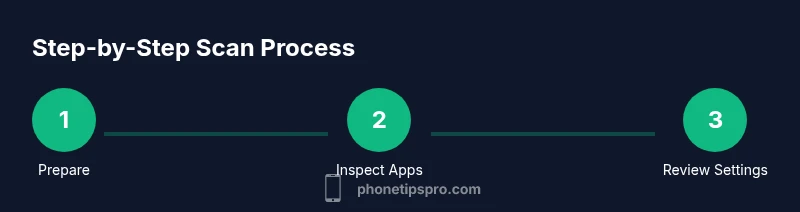
Step 1 — Inspect installed apps and permissions
Begin by reviewing the list of installed apps and their access permissions. Go to Settings > Privacy & Security (or Settings > Privacy on older
Step 2 — Review device management and profiles
Some organizations push configuration profiles to
Step 3 — Audit system settings and privacy controls
System settings often contain subtle misconfigurations that degrade performance or privacy. Check where your device stores data and which apps can access it. Review Safari settings for misleading redirects, pop-ups, or trackers and clear website data if necessary. Turn on Lock Screen and Passcode security features, enable two-factor authentication for your Apple ID, and ensure automatic updates are enabled. These steps reduce exposure to phishing, data exfiltration, and intrusions that exploit outdated software.
Step 4 — Check network activity and data usage
Data usage spikes and unusual network activity can indicate a problem. In Settings, review cellular data usage by app to spot rogue processes; in Settings > Wi-Fi, ensure you’re connected to trusted networks and disable auto-join for unknown networks. If you notice persistent background data transfers from an unfamiliar app, investigate and consider removing the app. For browsers, reset or clear cookies and cached data to reduce the risk of redirects or trackers that can accompany malware or adware. These checks help you separate normal app behavior from suspicious activity.
Step 5 — Update
Step 6 — Use built-in diagnostics and reputable checks
Step 7 — Interpret scan results and remediation decisions
No scan is perfect, but clear signals like unfamiliar apps, unexpected permissions, persistent data usage, or network anomalies should guide remediation. If issues are minor (misconfigured permission), revoke access or adjust settings, then re-scan. If you detect a suspicious profile, remove it and reset network settings if odd behavior persists. For confirmed malware or persistent issues, consider a full backup, then wipe and restore to a clean state from a trusted backup. Document changes and verify that issues do not recur.
Step 8 — Post-scan remediation: remove apps, reset if needed, and re-test
Execute remediation steps in the order that minimizes risk. Delete suspicious apps, remove untrusted profiles, and reset network settings to clear rogue configurations. After changes, re-run the scan to confirm the issues are resolved. If problems persist, repeat critical steps (update, review permissions, and check network activity) and consider a device reset as a last resort. Always re-test to ensure stability and security after remediation.
Step 9 — Ongoing monitoring and prevention
Scanning isn’t a one-off task; establish a routine: monthly checks, right after app installations, and following
Final checklist before concluding the scan
- Back up your data
- Update
AUTHORITY SOURCES
For further reading and validation, consult these reputable sources:
- CISA: https://www.cisa.gov
- Apple Privacy: https://www.apple.com/privacy/
- NIST: https://www.nist.gov
Tools & Materials
- iPhone with the latest iOS(Ensure device is updated to the current stable release.)
- MFi-certified USB-C/Lightning cable(For backups and data transfer if needed.)
- Trusted computer (Mac/Windows)(Only if you plan to back up locally or run diagnostics that require a computer.)
- Regular backup (iCloud or computer)(Back up before making major changes.)
- Two-factor authentication enabled on Apple ID(Protect identity during the scan process.)
- Stable internet connection(Needed for updates and cloud checks.)
- Access to official sources (Apple Support, CISA, NIST)(For reference and up-to-date guidance.)
Steps
Estimated time: 60-90 minutes
- 1
Prepare your device
Back up your data to iCloud or a computer. Note any current issues and confirm the device is on the latest iOS version. This creates a safe baseline before you start the scan.
Tip: Backups are your safety net; confirm completion before proceeding. - 2
Review apps and permissions
Open Settings > Privacy & Security and inspect each app’s permissions. Revoke any unnecessary access and delete unfamiliar apps. This reduces exposure to data leakage and misbehavior.
Tip: If unsure about an app’s purpose, remove it and observe impact. - 3
Inspect device management and profiles
Go to General > VPN & Device Management and review all profiles. Remove unknown or outdated ones to prevent configuration changes or data routing.
Tip: Profiles can control many device settings; exercise caution when removing. - 4
Audit system settings and privacy controls
Check global privacy settings, Safari data, and location services. Enable protections and reduce unnecessary data sharing. Re-verify after updates.
Tip: Enable App Tracking Transparency where possible for robust privacy. - 5
Check network activity and data usage
Review per-app data usage and ensure trusted networks. Reset network settings if you notice persistent oddities. Clear cache in Safari if redirects appear.
Tip: Unusual data spikes often signal background processes or trackers. - 6
Update and enable security features
Install any available iOS updates and review security features like Find My iPhone and two-factor authentication. Ensure automatic updates are on for ongoing protection.
Tip: Patches close known vulnerabilities; set updates to automatic when possible. - 7
Use built-in diagnostics and reputable checks
Check Battery, Storage, and Analytics sections for anomalies. Use trusted security apps to perform additional checks, but rely on Apple’s protections as the backbone.
Tip: Choose apps with strong reputations and clear data policies. - 8
Interpret results and remediate
Act on confirmed issues: remove rogue apps, delete suspicious profiles, or reset network settings. If problems persist, consider a full device reset from a trusted backup.
Tip: Document changes for future reference and future scans. - 9
Post-scan remediation and retesting
After remediation, re-run scans to verify resolution. Remain vigilant for new symptoms and schedule regular checks as part of a security routine.
Tip: Schedule monthly quick checks to maintain protection. - 10
Ongoing monitoring
Establish a routine to review permissions, updates, and data usage. Maintain backups and stay informed about security best practices.
Tip: An ongoing habit beats a one-off effort every few years.
FAQ
How can I tell if my iPhone is compromised?
Look for unfamiliar apps, abnormal battery drain, unexpected data usage, or unusual redirects. Review permissions and device profiles. If issues persist, perform a full backup and remediation.
Unfamiliar apps, battery problems, or odd data usage can indicate compromise. Check permissions and profiles, then back up and remediate as needed.
Can I scan without a computer?
Yes. Many checks can be performed entirely on the iPhone using Settings. Backups, iOS updates, and privacy reviews can be done without a computer.
You can do many checks right on the iPhone, including updates, privacy reviews, and backups.
Should I reset my iPhone to fix issues found during a scan?
A reset can fix stubborn misconfigurations or malware remnants. Start with a soft reset, then consider erasing all content and settings only if issues persist after other steps.
If issues persist after checks, a reset may be necessary, starting with softer options.
What steps should follow a scan?
Remove suspicious apps, revoke unknown profiles, update software, and re-run checks. Keep a log of changes and re-test to confirm stability.
After scanning, remove bad apps, update, and re-check to confirm the device is clean.
How often should I scan my iPhone?
Aim for a monthly quick check, plus immediate scans after installing new apps or applying major updates.
Do a quick monthly check, and scan again after big app installs or updates.
Can third-party scanning apps be trusted?
Choose only well-reviewed apps with clear privacy policies. Use them to complement, not replace, Apple's built-in protections.
Only use reputable apps; they complement, not replace, built-in protections.
Quick Summary
- Back up before scanning to protect data.
- Review permissions and profiles for hidden risk.
- Update iOS and enable security features promptly.
- Use built-in diagnostics plus trusted checks for a thorough view.
- Remediate and re-test to ensure issues are resolved.