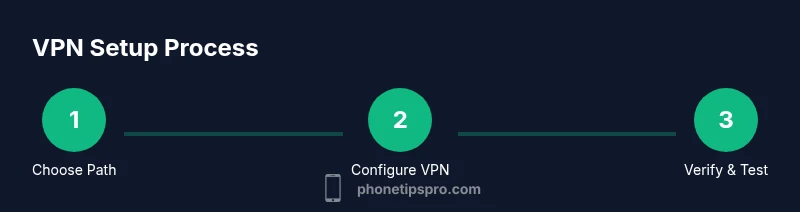
How to Use VPN on iPhone: A Practical Guide
Learn how to use a VPN on iPhone with built-in iOS options or third-party apps. Step-by-step setup, verification, and safety tips to protect your data on public networks.


By the end, you’ll know how to use a VPN on iPhone to secure public Wi‑Fi, hide your IP, and browse with greater privacy and control. You can enable a built‑in iOS VPN or install a trusted third‑party app. Before you start, select a reputable provider, subscribe, and ensure your iPhone runs the latest iOS.
What is a VPN and why use one on iPhone?
A virtual private network (VPN) creates an encrypted tunnel between your iPhone and the internet, masking your IP address and protecting data from eavesdroppers on public Wi‑Fi. On iPhone, using a VPN can improve privacy, bypass geo‑restrictions, and help prevent tracking across apps. According to Phone Tips Pro, even casual users benefit from a VPN by reducing exposure to unsafe networks. Before you decide which path to take, understand the basics: a VPN routes traffic through a remote server, using encryption protocols such as IPSec or WireGuard. When you choose a provider, read their no‑logs policy, check jurisdiction, and verify that they offer features like a kill switch and DNS leak protection.
Think of a VPN as a privacy tool for your internet traffic. It does not make you invisible, but it raises the barrier against local eavesdropping and data collection. If you frequently use public Wi‑Fi, travel internationally, or access work networks from home, a VPN is a practical safeguard. Phone Tips Pro analysis shows growing awareness among iPhone users about protecting online activity, which underscores the importance of choosing a trusted provider and configuring settings correctly.
Built-in VPN capabilities in iOS vs. third-party apps
iOS includes a system‑level VPN client that supports several standard protocols, and you can connect to many providers without downloading extra apps. Built‑in VPN is often lighter on battery and integrates with Settings, but some advanced features may require a dedicated app. Third‑party apps, on the other hand, may offer one‑tap connections, split tunneling, auto‑connect, and per‑app VPN. Phone Tips Pro notes that the best choice depends on your needs: simple remote access vs. enhanced privacy controls. In this block we’ll contrast setup, management, and everyday use of both approaches. For most casual users, starting with a trusted built‑in option is a risk‑reduced way to test VPN behavior on the device.
Setting up a VPN using iPhone's built-in VPN client
To use the built‑in VPN, go to Settings > General > VPN > Add VPN Configuration. Choose the Type (IKEv2, IPSec, or other supported protocol) and enter the server address, remote identifier, and authentication details provided by your VPN service. After saving, toggle the VPN switch to connect and authorize any prompts. Once connected, you can verify status in the VPN section and observe a protected connection indicator. If your organization uses certificates, install the certificate as instructed by your provider. This approach keeps your device lean and leverages iOS security features.
Installing and configuring a third‑party VPN app
If you prefer a one‑tap experience or need advanced controls, install a reputable VPN app from the App Store. Sign in with your account, grant necessary permissions, and let the app install its configuration. Open the app, select a server location, and tap Connect. Many apps provide a kill switch, DNS leak protection, and per‑app VPN choices. Always enable trusted features like auto‑connect on startup and a preferred protocol. Phone Tips Pro reminds you to review app permissions and avoid apps from unknown sources.
Choosing a reliable VPN provider: what to look for
When evaluating providers, prioritize strong encryption (AES‑256), a no‑logs policy, and a reputable jurisdiction. Check for a kill switch to prevent data leaks if the VPN drops, DNS leak protection, and fast, reliable servers across regions. Look for transparent privacy policies, independent audits, and clear terms about data collection. If you work with sensitive data, consider a provider with business plans and dedicated support. Phone Tips Pro analysis shows that users tend to stay with providers that publish audit results and offer robust privacy protections.
Testing, verifying, and troubleshooting your VPN connection
Verify your VPN is active by checking the status indicator in iOS or the app. Visit a site like 'whatismyipaddress.com' to confirm your visible IP differs from your real address and that the connection is encrypted. If the VPN appears to connect but traffic isn’t routing, try toggling the connection off and on, restarting the device, or reinstalling the app/config. For DNS leaks, flush your DNS or switch to a provider that offers DNS leak protection. If issues persist, contact your provider’s support and consult their knowledge base.
Privacy and security best practices when using VPN on iPhone
Treat a VPN as part of a broader privacy strategy. Use a provider with a strict no‑logs policy, enable multi‑factor authentication for your account, and keep the VPN app updated. Use strong device security (passcode, Face ID/Touch ID, and auto‑lock) and review app permissions regularly. If you travel or switch networks often, enable auto‑connect and test before handling sensitive tasks. The Phone Tips Pro team emphasizes avoiding free VPNs and sticking to trusted, audited services for consistent protections.
Common pitfalls and quick checks to optimize performance
Many users overlook server location choice, which can dramatically affect speed. Start with nearby servers and test latency. If performance dips, switch to different servers or protocols, and ensure your device isn’t running heavy apps in the background. Regularly update iOS and the VPN app to benefit from security patches. Finally, stagger re‑connections after waking the device to save battery and maintain a stable connection.
Tools & Materials
- iPhone (latest iOS version recommended)(Ensure the device is up to date for the latest VPN features and security fixes)
- VPN subscription (paid or trial)(Choose a reputable provider with a transparent privacy policy)
- Stable internet connection (Wi‑Fi or cellular data)(Prefer a strong, reliable network during setup and testing)
- Apple ID with two‑factor authentication(Required for app downloads and account security)
- VPN login credentials or configuration details(Keep credentials secure and ready during setup)
- Two‑factor authentication app or method(Optional but recommended for account security)
Steps
Estimated time: 15-25 minutes
- 1
Decide between built-in vs. app‑based VPN
Assess your privacy needs, preferred features, and whether you want a lightweight iOS integration (built‑in) or advanced controls (third‑party app). Consider factors like kill switch, per‑app VPN, and server count.
Tip: If you’re new to VPNs, start with built‑in settings to learn the basics before adding a separate app. - 2
Choose a provider and subscribe
Select a reputable VPN service and subscribe. Look for a clear privacy policy, audited audits, and a plan that fits your budget. If using a free option, review data handling policies carefully.
Tip: Avoid free VPNs for long‑term privacy; paid plans often offer stronger security guarantees. - 3
Gather configuration details
Collect the server address, VPN type, and any authentication data from your provider. If the provider uses certificates, download and save them securely on your iPhone.
Tip: Keep a secure jotting method or password manager entry with the server name and protocol. - 4
Configure VPN on iPhone (built‑in)
Open Settings > General > VPN > Add VPN Configuration. Choose the protocol (IKEv2/IPSec), enter the server and account details, and save. Then toggle Connect to establish the VPN.
Tip: If your organization uses certificates, import them via iOS settings or the provider app. - 5
Configure VPN via third‑party app
Download the app from the App Store, log in, and grant required permissions. Pick a server location and press Connect. Enable features like auto‑connect and DNS leak protection if available.
Tip: Use a trusted app store listing and review permissions before granting access. - 6
Verify connection and test security
Visit a site like whatismyipaddress.com to confirm your real IP is hidden and the VPN appears active. Run a quick DNS leak test and ensure the kill switch is functioning if supported.
Tip: Test on multiple servers to assess speed and stability before regular use.
FAQ
Do I really need a VPN on iPhone for everyday use?
For public Wi‑Fi and privacy concerns, a VPN adds encryption and IP masking that reduces tracking. It’s a good layer of defense for sensitive tasks, though it’s not a magic shield. Consider your risk level and data sensitivity when deciding.
A VPN provides encryption on public networks and can reduce tracking. If you handle sensitive data or frequently use public Wi‑Fi, a VPN is a smart addition.
What’s the difference between iOS built‑in VPN and a third‑party app?
Built‑in VPN integrates with iOS and can be lighter on battery, but may lack advanced features. Third‑party apps often offer one‑tap connections, split tunneling, and per‑app VPN, but require trusting an external provider.
Built‑in is simpler and lighter; third‑party apps give advanced controls but require choosing a provider you trust.
Is using a VPN legal in most places?
VPN legality varies by country. In most regions, using a reputable VPN for privacy is allowed, but some jurisdictions restrict or regulate VPN use. Always follow local laws and provider terms.
In most places VPNs are legal, but always check local regulations and provider terms.
Can a VPN slow down my internet connection on iPhone?
VPNs can introduce some latency due to routing through remote servers. The impact depends on server distance, provider quality, and network conditions. Try nearby servers or different protocols to optimize speed.
Yes, VPNs can slow you a bit, but nearby servers and good providers usually minimize the effect.
How do I test if my VPN is actually protecting my traffic?
After connecting, check your apparent location and IP address using online tests. Run DNS leak tests and verify there’s a secure tunnel. If you see your real IP or DNS responses leaking, reconfigure or switch servers.
Test the VPN by checking your IP and running DNS leak tests to confirm protection.
How do I disable VPN automatically when I’m on trusted networks?
Many VPN apps offer auto‑disconnect on trusted networks or per‑Wi‑Fi rules. Enable these if your usage is routine on safe networks to reduce unnecessary traffic routing.
Enable auto‑disconnect on trusted networks if available to keep traffic efficient.
Watch Video
Quick Summary
- Choose built‑in or app‑based VPN based on needs
- Verify VPN is active and protecting traffic
- Always use reputable providers and enable security features
- Test performance and privacy settings regularly