Protect Your iPhone from Hackers: A Practical Guide
Learn proven steps to protect iPhone from hackers with safe configuration, updates, and privacy practices. Build strong defenses, manage apps wisely, and stay vigilant with Phone Tips Pro guidance.


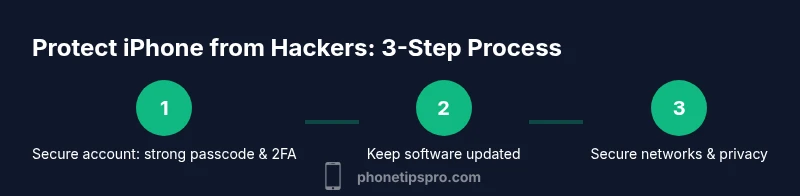
Goal: protect iPhone from hackers by strengthening core safety habits and device configurations. This guide walks you through building a robust defense with a strong passcode, enabling two-factor authentication, keeping iOS up to date, securing your Wi‑Fi and cellular networks, and tightening privacy settings so data stays yours. It also covers detection, incident response, and ongoing review routines.
Why protecting iPhone from hackers matters
In a world where smartphones are gateways to your personal data, protecting your iPhone from hackers is not optional—it's essential. Modern attackers target iPhone users through phishing emails, malicious apps, compromised Wi-Fi networks, and weak passwords. The device itself is a powerful computer with sensors, cameras, and cloud connections, which means a single security lapse can expose messages, photos, health data, finances, and location history. According to Phone Tips Pro Team, adopting a security-focused mindset reduces risk from the outset and makes you less vulnerable to sophisticated schemes. The goal is to shift from reactive fixes to proactive protection, so a breach becomes unlikely rather than unavoidable. Begin with fundamentals like a strong passcode, two-factor authentication, and keeping software current, then layer on network discipline and privacy-conscious app behavior.
Think of protection as a chain: every link matters. If one link is weak, the entire chain is at risk. By incorporating proven practices you’ll reduce exposure and gain peace of mind while using iPhone features you rely on daily.
Common threats to iPhone security
Hackers rarely rely on a single attack; they combine social engineering with technical exploits to compromise iPhone users. Phishing attempts imitate banks, apps, and services to steal credentials, while insecure Wi‑Fi networks enable man‑in‑the‑middle attacks that intercept data. Malicious apps or profiles can slip through when users sideload outside the App Store, or when permissions are granted too broadly. Data leakage can occur through overly permissive app settings, weak passwords, stale software, or untrusted backups. Even legitimate services can be compromised if your accounts aren’t protected with strong authentication. Staying aware of these vectors helps you design stronger defenses and recognize warning signs early, such as unusual login prompts or unfamiliar app permissions.
Phone Tips Pro analysis (Phone Tips Pro Analysis, 2026) emphasizes layered security—no single fix is sufficient. Instead, combine device hardening, account protection, network hygiene, and ongoing monitoring to reduce likelihood and impact of a breach.
Core security settings to enable
Your iPhone ships with powerful built‑in protections, but they only work if you enable them correctly. Start with a strong, unique passcode (preferably alphanumeric and longer than six digits). Turn on Face ID or Touch ID for convenience but require the passcode after a short idle period. Enable two‑factor authentication for your Apple ID and any critical accounts, and review trusted devices regularly. Activate Find My iPhone and Activation Lock to deter theft and make device recovery possible. Ensure that iCloud and app telemetry are configured with privacy in mind, and limit data sharing when possible. These settings create a strong baseline, reducing the likelihood that attackers can access your data even if credentials are compromised.
Practical tip: regularly review which devices are trusted for Apple ID sign‑ins and revoke any you no longer recognize.
Software updates and app hygiene
Keeping iOS and installed apps up to date is one of the most effective defenses against hackers. Updates close security gaps that attackers exploit, and many patches address zero‑day vulnerabilities. Enable automatic updates where feasible and schedule periodic manual checks to catch any pending patches. Be cautious with app installations outside the App Store; only install apps from trusted sources and review the permissions they request. Regularly prune unused apps and revoke unnecessary permissions. Jailbreaking or installing unverified tweaks dramatically weakens security, increases malware risk, and can void warranties. The best practice is to stay within the supported ecosystem and maintain a careful eye on what you authorize on the device.
If you do notice unexpected behavior after an update, perform a quick security check to ensure no suspicious profiles exist and that your accounts show no unknown sign‑ins.
Network security and browser hygiene
Public Wi‑Fi and untrusted networks are common attack surfaces. When possible, avoid transmitting sensitive information over unsecured networks. Use a reputable VPN on public networks to encrypt traffic and obscure activity from eavesdroppers. Adjust browser privacy settings to block cross‑site trackers, enable “Ask to be blocked” features for popups, and limit cookie tracking. Always verify HTTPS connections, especially on login pages. Consider disabling automatic connections to open networks and forget networks you don’t trust after use. These steps make it harder for attackers to observe your activity or redirect traffic.
For added protection, enable DNS privacy options and periodically clear browser data to minimize residual traces that could be exploited.
Data privacy practices and app permissions
Privacy controls extend beyond device security to govern how apps access data. Review app permissions regularly and revoke access you don’t need—especially for location, contacts, microphone, and photo libraries. Disable background app refresh for apps you don’t trust or don’t need real‑time data from. Turn off personalized ads and limit ad tracking if you value privacy. Be mindful of cloud backups: ensure backups are encrypted and accessible only by your credentials. Using a password manager for unique, strong passwords also reduces risk if a site is compromised. Educate yourself on each app’s privacy label and data‑sharing practices before installation.
A disciplined approach to permissions helps prevent data leakage and reduces the impact if one app site is breached.
Ongoing practices: backups, passwords, and phone hygiene
Backups are the safety net that guards against data loss after a hack, device failure, or malware incident. Enable regular encrypted backups to iCloud or a trusted computer, and periodically test restoring data to ensure you can recover quickly. Use a dedicated password manager to store long, unique passwords and enable two‑factor authentication for critical accounts. Schedule periodic security reviews to re‑assess settings, permissions, and connected devices. Finally, stay curious about new threats and keep learning about security best practices so vigilance becomes second nature.
A practical routine might include quarterly checks of account activity, device status, and backup integrity.
Quick-start checklist: begin protecting today
- Set a strong, unique passcode and enable 2FA for Apple ID.
- Update iOS and apps to the latest versions and enable automatic updates.
- Review app permissions; revoke unused ones.
- Use VPN on public Wi‑Fi and enforce privacy settings in Safari.
- Enable Find My iPhone and Activation Lock; keep backups encrypted.
- Periodically review trusted devices and login activity.
Tools & Materials
- Strong passcode (6+ digits or alphanumeric)(Create a unique code not used on other sites)
- Two-factor authentication enabled for Apple ID(Use an authentication app or hardware key if supported)
- Latest iOS version installed(Settings > General > Software Update; enable automatic updates)
- Find My iPhone and Activation Lock enabled(Ensure location services are on and device is linked to your account)
- Password manager(Store long, unique passwords across sites and apps)
- Trusted VPN service(Use on public networks to encrypt traffic and protect data)
- Encrypted backups(Regular backups to iCloud or a computer with encryption)
Steps
Estimated time: 25-45 minutes
- 1
Set a strong, unique passcode
Choose a long alphanumeric code and avoid easily guessable patterns. Enable auto‑lock after a short inactivity period to minimize exposure if the device is left unattended. This forms the first barrier against unauthorized access.
Tip: Enable a passcode length of at least 6 characters; use letters, numbers, and symbols. - 2
Enable 2FA and review Apple ID security
Turn on two‑factor authentication for your Apple ID and review trusted devices. This prevents attackers from accessing your iCloud data even if they obtain your password and adds a second verification layer.
Tip: Use a trusted device or authenticator app for the second factor. - 3
Update iOS and apps promptly
Install the latest iOS updates and keep apps current. Updates patch security flaws and close exploit avenues used by hackers. Automatic updates help ensure timely protection when you’re not paying attention.
Tip: Set updates to auto‑install overnight to minimize disruption. - 4
Review app permissions and revoke unnecessary access
Go through each installed app's permissions and revoke anything you don’t truly need (location, microphone, photos, etc.). Tightening permissions reduces data exposure in case an app is compromised.
Tip: Reassess permissions after installing new apps or OS updates. - 5
Secure networks with VPN and cautious browsing
When connected to public or untrusted networks, enable a reputable VPN. Avoid entering sensitive data on unfamiliar networks, and verify HTTPS connections before login.
Tip: Disable automatic connection to unfamiliar hotspots and forget networks you don’t trust. - 6
Back up data and manage passwords
Enable encrypted backups, choose a trusted backup location, and periodically test restoring data. Use a password manager to create and store unique passwords for every account.
Tip: Test restoring from backup quarterly to ensure reliability.
FAQ
What are the most common ways hackers target iPhones?
Phishing, insecure networks, and malicious apps are common attack vectors. Keeping software updated and using strong authentication reduces risk.
Phishing, insecure networks, and shady apps are common attack methods; stay updated and enable 2FA.
Should I jailrbreak my iPhone to get more control?
No. Jailbreaking bypasses built‑in security, increases malware risk, and can void warranties. Use official App Store and sanctioned settings.
No—jailbreaking weakens security and isn't recommended.
Is public Wi‑Fi safe for iPhone?
Public Wi‑Fi is risky; use a VPN, avoid sensitive transactions, and require login prompts.
Public Wi‑Fi can be risky; use a VPN and limit sensitive actions.
How often should I review app permissions?
Review permissions at least monthly, and after installing new apps. Revoke anything you don't use.
Check app permissions regularly, especially after installing new apps.
Does Find My iPhone protect against hackers?
Find My iPhone helps locate or erase a lost device, but combine with strong passwords and 2FA for protection.
Find My helps locate and protect your device, but is not a complete defense on its own.
What should I do if I suspect a compromise?
If you suspect a breach, change passwords, review account activity, enable 2FA, contact Apple Support, and consider a factory reset if needed.
If you suspect a hack, change passwords, review activity, and contact support.
Watch Video
Quick Summary
- Set a strong passcode and enable 2FA.
- Keep iOS and apps updated to patch security gaps.
- Limit app permissions and monitor network activity.
- Back up data regularly and verify restore ability.