Can You Restore Deleted Texts on iPhone? A Practical Guide
Learn proven methods to recover deleted iPhone texts, including backups, iCloud, iTunes, and carrier options. Step-by-step guidance, safety tips, and expectations for successful recovery.


Yes—it's often possible to recover deleted texts on iPhone. You can restore from a recent backup (iCloud or iTunes), use Messages in iCloud if enabled, or rely on carrier or third‑party recovery tools for more recent deletions. The right method depends on timing, backup availability, and device settings.
Can you recover deleted texts on iPhone? A practical reality
According to Phone Tips Pro, can you recover deleted texts on iphone? The short answer is yes for many users, especially if a backup exists or Messages in iCloud is enabled. This guide explains reliable methods, what to expect, and how to avoid overwriting data. Our aim is to help you recover as much of your conversation history as possible while maintaining your current data integrity.
Recovering deleted messages on iPhone hinges on three concepts: backups, available services, and how recently the deletion occurred. When you act quickly and choose the right path, you maximize your chances of bringing back important conversations. Throughout this guide, you’ll find practical steps, caveats, and sanity checks to help you decide which method fits your situation best.
What affects recoverability
Recoverability depends on timing, backup practices, and device behavior after deletion. If you deleted a chat yesterday and haven’t used the phone much since, the odds are higher that data remnants still exist. Conversely, if you unsubscribe from backups, erase the device, or perform heavy usage after deletion, the likelihood drops because new data can overwrite the old messages. Other factors include whether you used Messages in iCloud, whether you have an active iCloud backup, and if you recently synced with a computer. According to Phone Tips Pro Analysis, 2026 highlights that keeping regular backups dramatically broadens your recovery options and reduces data loss risk over time.
Recovery methods at a glance
- Restore from iCloud backup: Replaces the current device state with a prior backup that may include deleted texts.
- Restore from iTunes/Finder backup: Uses a computer backup to revert the device to a previous state.
- Use Messages in iCloud: If enabled, messages stay in iCloud and can synchronize back to the device after re-enabling.
- Check with your cellular carrier: Some carriers offer text history recovery or guidance for message retention.
- Consider trusted data-recovery software: For recent deletions not covered by backups, reputable software can scan the device or iCloud backups—beware of potential data risk and privacy concerns.
Recovering from an iCloud backup
- Confirm you have an iCloud backup from before the deletion by going to Settings > [Your Name] > iCloud > Manage Storage > Backups. If a suitable backup exists, you can proceed.
- Prepare the device: Ensure you have a stable Wi‑Fi connection and at least 50% battery, or keep it plugged in during the restore.
- Reset your iPhone: Settings > General > Transfer or Reset iPhone > Erase All Content and Settings. This step is necessary to restore from iCloud.
- Restore from iCloud during setup: Sign in to iCloud, choose the backup with your deleted texts, and wait for the restore to complete.
- After restoration: Check Messages for recovered conversations and re‑enable any services you use (e.g., Messages in iCloud).
Tip: Restoring from an older backup will replace the current data on your device, so consider backing up your present data first.
Recovering from an iTunes/Finder backup
- Connect the iPhone to your computer with the latest version of iTunes (Windows) or Finder (macOS).
- Select your device in iTunes/Finder, and choose Restore Backup. Pick a backup that predates the deletion.
- Wait for the restoration to finish, then disconnect and unlock the device to review recovered texts.
- Verify recovered conversations and perform a fresh backup to preserve the new state.
Caveat: Restoring from a local backup will overwrite current data on the device, so save any new content before starting this process.
Using Messages in iCloud
- On your iPhone, go to Settings > [Your Name] > iCloud and ensure Messages is turned on.
- If Messages in iCloud was disabled at deletion time, re‑enable it and allow time for messages to sync from iCloud.
- Verify that the deleted conversations appear after sync; if not, you may need to sign out and back in, or try a different recovery path.
- If you still don’t see the messages, check other devices connected to the same iCloud account that might hold copies.
Note: Messages in iCloud requires prior setup and may not recover messages deleted before activation.
No backup? Alternatives and caveats
If you have no usable backup, your options narrow but aren’t zero. Some recovery tools can scan iCloud backups or the device for remnants, but success is variable and depends on how much new data has overwritten the storage. Be cautious with third‑party software: use reputable, well‑reviewed tools and avoid software asking for your Apple ID credentials. In some cases, contacting your carrier for historical records is worth a try, though privacy and retention policies vary by provider.
Best practices to avoid data loss
Proactively back up your iPhone regularly using iCloud or a computer backup. Enable Messages in iCloud to keep messages synced across devices. Periodically review backup dates so you know what you can recover. Finally, avoid heavy device usage immediately after deleting important conversations to minimize data overwrite.
What to expect during the recovery process
Recovery isn’t guaranteed, and outcomes vary based on timing, backup availability, and system settings. If a backup exists from before the deletion, you typically get a clean restore; otherwise, recovery may be partial or unsuccessful. In high‑risk cases, consider professional data recovery support, but understand that success is never guaranteed.
Next steps and resources
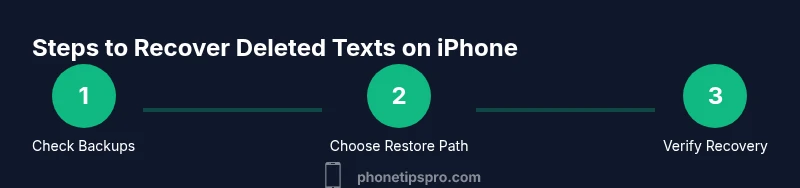
If you’re ready to try recovering texts, start with your most recent reliable backup and work through the methods in order of risk and practicality. Keep important new messages safe by backing up before attempting a restore. For more guidance, explore the video tutorial linked in the article and review your iCloud settings to optimize future recoveries.
Tools & Materials
- iPhone with sufficient battery(Have at least 50% battery or keep on charger during restore.)
- Access to iCloud account(You'll need your Apple ID and password.)
- Computer with iTunes/Finder(Needed for local backups restoration (Finder on macOS 10.15+ or iTunes on Windows/macOS < 10.15).)
- Stable Wi‑Fi or Ethernet connection(Required for iCloud restore or backup download.)
- Original Apple ID credentials and trusted devices(Helpful for two‑factor authentication during restore.)
- Optional: reputable data recovery software(Use only trusted tools and read reviews before use.)
Steps
Estimated time: 30-90 minutes
- 1
Verify backup availability
Check whether a backup exists from before the deletion. On iCloud, navigate to Settings > [Your Name] > iCloud > Manage Storage > Backups. On a computer backup, verify the date and device used to create the backup.
Tip: If you’re unsure, write down backup dates and compare against your deletion date. - 2
Prepare your device for restoration
Charge the iPhone or connect to power, ensure stable internet, and back up current data if possible to prevent loss of any new messages.
Tip: A quick, current backup can save your live data before overwriting. - 3
Restore from iCloud backup
During device setup, sign in to iCloud and choose a backup prior to the deletion. Allow the process to complete before checking Messages.
Tip: Restores can take 20–60 minutes depending on backup size and network speed. - 4
Restore from Finder/iTunes backup
Connect to the computer with a known good backup date, select Restore Backup, and wait for the process to finish.
Tip: This method replaces the phone’s content with the backup snapshot—confirm you want to proceed. - 5
Enable and sync Messages in iCloud
If you used Messages in iCloud, re‑enable it in Settings and let messages sync across devices.
Tip: Ensure all devices share the same Apple ID for consistent results. - 6
Verify recovered messages
Open Messages and review which conversations were restored. If needed, perform an additional backup after recovery to preserve the new state.
Tip: If some messages are still missing, try the other recovery method in this guide.
FAQ
Can deleted texts be recovered without a backup?
In many cases, recovery without a backup is unlikely, especially for older messages. Some might be recoverable using specialized software or carrier‑based options, but success is not guaranteed.
Recovery without a backup is possible in rare cases, but not common; backups greatly improve your odds.
Will restoring a backup remove newer messages added after the backup date?
Yes. Restoring a backup reverts the device to the state at the backup time, which can overwrite newer messages created after that date.
Restoring replaces current data with the backup, so newer messages may be lost if not backed up.
How long does an iCloud restore take?
Restore duration depends on backup size and network speed. It can take from several minutes to an hour or more.
The restore might take a while, so plan for a window without using the phone.
Are third‑party recovery tools safe to use on iPhone?
Only use reputable tools with good reviews and privacy policies. Some tools can compromise data or device security, so research before use.
Be cautious with third‑party apps—stick to trusted vendors and read permissions carefully.
What if I updated iOS after deleting messages?
An iOS update does not erase deleted messages, but it can affect how backups are accessed. If you restored an older backup, newer OS behavior may impact results.
OS updates don’t erase messages, but they can influence backup handling during restore.
Watch Video
Quick Summary
- Backups are your primary safety net.
- Choose the restoration method based on backup availability.
- Messages in iCloud can streamline recovery across devices.
- Always back up before attempting a restore to avoid data loss.