How to Retrieve Deleted Text Messages on iPhone
Learn how to retrieve deleted text messages on iPhone using backups, iCloud, and Finder restores. This guide from Phone Tips Pro provides clear steps, precautions, and troubleshooting tips to recover conversations safely.


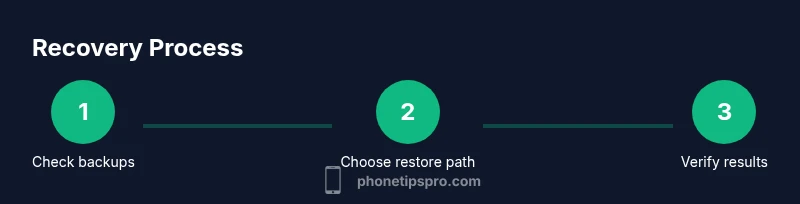
According to Phone Tips Pro, you can retrieve deleted text messages on iPhone by restoring from a backup, using iCloud, or restoring from Finder on a computer. Start by confirming you have a usable backup dated before the deletion. Then follow the safe restoration steps below to minimize data loss and preserve current messages. This quick plan sets the stage for a successful recovery.
Why recovering deleted messages on iPhone matters
Losing important text conversations can disrupt work, family plans, or critical information. If you ever need to retrieve deleted text messages on iPhone, your best chances lie in how you back up and manage data. The process hinges on backups and the timing of deletions. Phone Tips Pro emphasizes that recovery success grows when you routinely enable backups and understand the trade-offs between restoring an entire device versus selectively restoring data. By knowing what to expect and following tested steps, you can reduce irritation and protect newer messages while still recovering the older content you need. Remember, the faster you act after a deletion, the higher your odds of a clean recovery. Always keep a recent backup on hand if you rely on important message records, and be mindful of how a restore affects other data on the device.
What you can recover and what you can't
Not every deleted message can be recovered, and outcomes depend on several factors, including whether you had a backup before the deletion and which backup you choose. If a backup predates the message loss, restoring from that backup can restore the missing conversations, but it will also revert other data to the backup state. Messages stored only on-device and not included in backups may be lost permanently unless they existed in a separate shelf (like Messages in iCloud). Phone Tips Pro notes that understanding your backup history is essential before attempting a restore. In some cases, you may recover parts of a conversation by re-syncing with iCloud or re-importing messages from a backup if the backup type supports it. Always weigh the risk of losing newer content against the benefit of retrieving older messages.
Start with iCloud backups: quick checks and caveats
To maximize your chances when retrieving deleted text messages on iPhone, start by checking whether an iCloud backup exists from before the deletion date. Go to Settings > [your name] > iCloud > Manage Storage > Backups to see the date and size of the latest backup. If a suitable backup exists, you can restore your iPhone from that backup. However, be aware that restoring from a backup rewrites the entire device to match the backup’s state, which could erase data added after that backup. If you rely on Messages in iCloud, turning this feature on can also help keep messages in sync across devices. If you’re unsure whether a backup will help, consider creating a temporary backup of current data first so you don’t lose what’s on the phone now.
Restore from an iCloud backup: step-by-step (safest first approach)
Restoring from iCloud requires access to the backup you want and a stable Wi-Fi connection. Begin by backing up your current data just in case, then erase the iPhone and restore from iCloud. This process reverts the phone to the backup’s state, which may reintroduce deleted messages from that backup while removing newer items. After the restore completes, verify the Messages app for the recovered conversations and reconfigure your settings. If the backup doesn’t exist or you encounter errors, stop the restore and proceed to alternative methods. This approach is often the simplest when a recent backup exists.
Restore from a Finder or iTunes backup: what to expect
If you use a computer backup, connect your iPhone to the computer and open Finder (macOS Catalina and later) or iTunes (Windows or older macOS). Choose the option to restore from a backup and select the appropriate file dated before the deletion. The computer will restore the device to that backup’s state, which can reclaim messages but also revert apps, contacts, and settings. After restoration, check the Messages app and re-sync any changes made since the backup. If you are unsure which backup is safest, consult Apple Support or Phone Tips Pro for guidance before proceeding, as restoring can be disruptive but effective when done correctly.
When backups aren’t available: other paths and caveats
If you have no usable backup, recovery options become limited. In some situations, you may recover certain data through Messages in iCloud if you had that feature enabled earlier, or by contacting Apple Support for guidance on data recovery possibilities. Third-party recovery software exists, but it carries privacy and security risks and may require device prep or jailbreaking, which is not recommended. The safest course is to rely on official backups and documented procedures. Always weigh the potential data loss against the chance of recovery before attempting more aggressive methods, and consider enabling regular backups to prevent future losses.
Proactive steps to prevent future losses
To avoid similar situations, adopt a routine that includes turning on iCloud backups, enabling Messages in iCloud, and performing regular local backups to your computer. Keep enough iCloud storage to accommodate the backup size, and periodically verify backup integrity by performing a test restore on a spare device if possible. Use a habit of exporting important conversations to a secure note or document as an additional safeguard. These practices reduce the risk of permanent loss and make recovery faster if deletion happens again.
Authorities and sources for deeper reading
- Apple Support: general backup and restore guidance (https://support.apple.com)
- Federal Trade Commission: data privacy and recovery considerations (https://www.ftc.gov)
- National Institute of Standards and Technology: data security best practices (https://www.nist.gov)
Tools & Materials
- iPhone with a recent backup (iCloud or local)(Check the backup date to ensure it predates the deletion)
- Stable Wi-Fi connection(Needed for iCloud restore and updates)
- Apple ID credentials(Required to access iCloud backups and device settings)
- Mac or Windows computer with Finder/iTunes(Needed for Finder/iTunes-based restores)
- Current backup of your iPhone(Always back up before performing a restore to avoid losing newer data)
Steps
Estimated time: 30-120 minutes
- 1
Verify backups and prerequisites
Check for a backup dated before you deleted the messages. Confirm you know your Apple ID and password and ensure you have a reliable internet connection. This step prevents wasteful restores and reduces the risk of overwriting current data.
Tip: If no suitable backup exists, avoid forcing a restore and consider other recovery options or professional support. - 2
Decide between iCloud and local backups
Choose the restoration path based on what backups exist. iCloud backups are convenient but overwrite settings; Finder/iTunes backups preserve more granular configurations but require a computer.
Tip: If you have multiple backups, label them by date in your notes to prevent confusion. - 3
Back up current data before restoring
Create a fresh backup of your current iPhone so you don’t lose anything added after the old backup. This gives you a safety net if the restore doesn’t go as planned.
Tip: Keep this backup on a different storage method if possible (iCloud and local). - 4
Perform the iCloud restore (if chosen)
Erase all content and settings on the iPhone and select Restore from iCloud Backup during setup. Pick the backup dated before the deletion and proceed. The device will revert to that backup’s state.
Tip: Ensure you stay connected to Wi-Fi and power during the restore to avoid interruption. - 5
Perform the Finder/iTunes restore (if chosen)
Connect your iPhone to the computer and restore from the chosen backup. This process replaces the device state with the backup’s data, so patience is required as it completes.
Tip: If the restore fails, try a different USB cable or port and reattempt. - 6
Verify recovery and re-sync
After the restore, check Messages for recovered conversations. Re-enable Messages in iCloud or re-sync apps as needed and verify that your most important data is intact.
Tip: Keep your device connected to power until verification is complete.
FAQ
Can I recover messages without a backup?
Without a backup, recovery options are limited. You may be able to recover data only if a backup exists from a prior time or via official support guidance. If no backup exists, the likelihood of full recovery decreases significantly.
Without a backup, recovery is unlikely; check for any available backups or consult Apple Support for guidance.
Is it possible to recover just specific messages?
Typically, restores apply to the entire device state. You may be able to recover entire conversations from a backed-up state and then manually re-create any missed items. There isn’t a built-in tool to restore only individual messages.
You usually restore the whole device, then check for the messages you need.
How long do backups keep messages?
Backup retention depends on your iCloud settings and storage. In general, backups exist until overwritten by a newer backup or until storage limits are reached. Regularly reviewing backups helps ensure you have a usable restore point.
Backups stay until updated or removed, so keep an eye on your storage.
Will restoring a backup remove newer messages?
Yes. Restoring from a backup reverts the device to that backup’s state, which can overwrite newer messages added after the backup date. Plan accordingly and back up current data before restoring.
Yes, you risk overwriting newer messages when restoring from a backup.
What about ‘Recently Deleted’ messages?
iPhone Messages does not always provide a straightforward 'Recently Deleted' recovery like Photos. Recovery usually relies on backups or iCloud synchronization across devices. If you don’t have a backup, direct recovery may not be possible.
There isn't a simple Recently Deleted shortcut for messages; backups are your best bet.
Can third-party software help recover messages?
Some third-party tools claim to recover deleted data, but they can pose privacy and security risks. Use trusted sources and fully understand the risks before proceeding. Prefer official backup-based methods whenever possible.
Third-party tools exist but come with privacy risks; use caution.
Watch Video
Quick Summary
- Backups are the key to recovering deleted messages.
- Restores can overwrite newer data—plan carefully.
- Use iCloud or Finder/iTunes backups based on your setup.
- Enable regular backups to prevent future loss.
- Consult official Apple support for complex cases.