Find a Phone iPhone: Locate It Safe with Find My
Learn how to find a missing iPhone using Find My. Step-by-step guide, prerequisites, safety tips, and recovery actions. Expert guidance from Phone Tips Pro to protect data and recover your device.


Goal: Learn how to locate a missing iPhone using Find My, verify ownership, and take appropriate actions. You’ll need an iPhone or iPad with Find My enabled, access to iCloud, and internet. This guide covers step-by-step actions, safety tips, and recovery options.
Why finding an iPhone matters
Losing a phone can expose personal data and put you at risk of device misuse. For iPhone users, the Find My network provides a reliable way to locate, secure, and recover a missing device. According to Phone Tips Pro, enabling Find My iPhone before you ever need it is the single best preventive step. The Phone Tips Pro team found that most recoveries begin with accurate location data and clear remote actions. By understanding how Find My works, you reduce stress and protect your information and data from unauthorized access. This knowledge isn’t merely theoretical—it's practical, actionable, and designed to help you stay in control even when a device isn’t in your pocket.
Prerequisites and setup you should confirm now
To successfully locate a lost iPhone, you need several prerequisites in place before trouble strikes. Ensure Find My iPhone is enabled on the missing device, and that you know the Apple ID credentials associated with it. Have access to another Apple device with Find My installed or sign in via iCloud.com. A stable internet connection (Wi‑Fi or cellular) is essential so location data can be updated in real time. If you enable two-factor authentication, you boost security during the process. Finally, communicate a plan with family or colleagues if multiple people might help in the search. Phone Tips Pro recommends testing Find My on a spare device now so you’re prepared when you really need it.
Core actions: locating with Find My
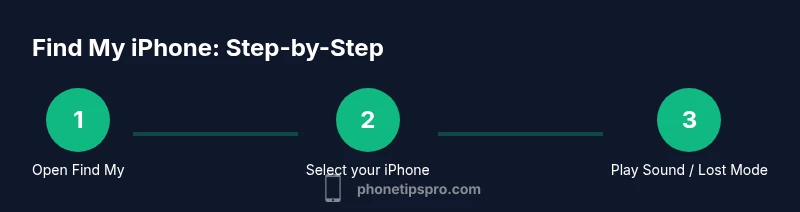
The core workflow starts when you open Find My and select the missing device. If the device appears on the map, you can assess the location and decide your next steps. Use the Play Sound feature to locate the phone when it’s nearby, even if it’s in another room. If the device is lost, Lost Mode locks the screen, displays a message, and provides contact information. If recovery seems unlikely or you must protect data, you can initiate a remote erase. Across these steps, keep in mind that location accuracy can vary and may lag if the device is offline or out of battery. A calm, methodical approach improves your chances of a safe recovery.
When the device is offline or powered off
A phone that's offline won’t share live location until it reconnects to the internet. In this case, you should enable notifications for any location update and monitor the map for the last known location. If Lost Mode was activated and the device later comes online, you’ll receive the updated location and can act quickly. Do not rely on a single data point; corroborate with nearby landmarks or activity reports from people who might have seen the device. Phone Tips Pro emphasizes patience and consistent checking rather than panic in offline scenarios.
Safety, privacy, and best practices during a search
During a Find My search, respect privacy and avoid misusing any information you uncover. Do not attempt to access accounts or personal data beyond what Find My allows. Use Lost Mode to display return instructions, and do not disclose sensitive information publicly. If the device is recovered by someone else, coordinate a safe handoff and confirm ownership with the original account. Security best practices include keeping the device locked, notifying your carrier, and reviewing recent account activity after recovery. The Phone Tips Pro team stresses that ethical handling protects both you and others in a sensitive situation.
Alternatives and limitations you should know
Find My is powerful but not infallible. If Find My is unavailable, you may contact your wireless carrier for assistance, or use other devices linked to your Apple ID to monitor the account. Some third-party solutions exist, but they often have limited capabilities or require additional permissions. If the iPhone is completely inaccessible due to hardware failure, seek in-person help from local authorities or use official channels for reporting a lost device. Phone Tips Pro reminds readers that preparation and quick action are your best defenses against data loss and misuse.
Post-find actions: what to do after you locate it
Once you recover the device, disable Lost Mode and verify you can unlock it normally. Change your Apple ID password if you suspect the device may have been compromised. Review account activity, update app credentials, and back up data regularly to minimize future losses. If you haven't already, enable two-factor authentication and consider enabling a stronger passcode. Finally, reflect on the experience to improve your future preparedness—Phone Tips Pro’s guidance is to keep Find My enabled on all devices and maintain a current backup strategy.
Tools & Materials
- iPhone with Find My enabled(Enable via Settings > [your name] > Find My > Find My iPhone; ensure Share My Location is on.)
- Another Apple device with Find My(iPad, Mac, or another iPhone to access Find My app or iCloud.com.)
- Stable internet connection(Wi‑Fi or cellular data required for live location updates.)
- Access to iCloud.com or Find My app(Location updates synchronize through iCloud.)
- Apple ID credentials(You need to sign in to iCloud to access the device.)
- Two-factor authentication (optional but recommended)(Adds security and prevents unauthorized use.)
Steps
Estimated time: 10-30 minutes
- 1
Open Find My
On an iPhone, iPad, or Mac, open the Find My app and sign in if prompted. This app centralizes your devices and lets you act remotely.
Tip: If you don’t have another Apple device handy, use iCloud.com on a web browser. - 2
Select the missing device
In the list, tap or click the iPhone you’re trying to locate. Confirm it’s the correct device by cross-checking the name and last known location.
Tip: If the device isn’t listed, verify that Find My is enabled on that iPhone and that it’s linked to your Apple ID. - 3
Check location and plan actions
Review the map for the latest location and decide whether you should go to the location or continue tracking updates.
Tip: Use “Play Sound” if you suspect the phone is nearby, even in silent mode. - 4
Enable Lost Mode if needed
Lost Mode locks the device, displays a message with contact info, and helps prevent unauthorized use.
Tip: Include a preferred contact method that’s easy for you to monitor. - 5
Consider remote erase as a last resort
If the device remains unrecovered and you’re concerned about data, initiate a remote erase to protect information.
Tip: Erasing data is permanent; ensure you have a recent backup first. - 6
Confirm recovery and secure your accounts
Once recovered, disable Lost Mode, test unlock, and change passwords if necessary. Review recent activity.
Tip: Enable two-factor authentication if not already enabled.
FAQ
Can I locate an iPhone if Find My is not enabled on the device?
If Find My is not enabled, you won’t be able to locate the device via Find My. In that case, contact your carrier for support and consider changing passwords and enabling Find My on other trusted devices for future protection.
If Find My isn’t turned on, you won’t be able to locate it through Find My. Contact your carrier for help and enable Find My on other devices for future protection.
What should I do if the location shows an old position?
Location can update slowly if the phone is moving or in a low-signal area. Check back frequently, verify another nearby location, and consider using Lost Mode to display contact info until you locate the device.
If the map shows an old location, check back often and use Lost Mode to share contact info until you find it.
Is it safe to play a sound on a found device?
Playing a sound is generally safe and helps locate the device if nearby. Ensure you are ready to go to the location if you hear the sound and never follow a sound into a risky situation.
Yes, playing a sound helps you find a nearby phone. Go to the location safely when you hear it.
Can I locate multiple devices at once?
Yes. You can view all devices tied to your Apple ID in Find My and switch between them to locate or secure each one as needed.
You can view and manage several devices tied to your Apple ID in Find My.
What if the device is offline for an extended period?
If offline, you’ll get updates when the device reconnects. You can leave Lost Mode active and wait for a notification once it comes online.
If it’s offline, wait for it to reconnect; Lost Mode will stay active and notify you when it’s online.
What privacy steps should I take after recovering my iPhone?
Immediately review account activity, update passwords, and enable two-factor authentication. Consider backing up data regularly to minimize risk in the future.
After recovery, check account activity, update passwords, and enable two-factor authentication.
Watch Video
Quick Summary
- Enable Find My on all devices you own.
- Sign in with Apple ID to access Find My reliably.
- Use Lost Mode for security and a return message.
- Erase data only as a last resort, after backups.
- Review account activity after recovery for safety.