How to forward number iphone: A practical iPhone call forwarding guide
Learn how to forward calls on your iPhone to another number, troubleshoot issues, and verify forwarding across carriers. Step-by-step setup, troubleshooting tips, and FAQs for reliable call forwarding.


You’ll learn how to forward calls on your iPhone to another number, troubleshoot issues, and verify forwarding works across carriers. This quick overview covers Settings-based forwarding, carrier-specific options, and best practices for personal and business use. By the end, you can reliably forward calls to a chosen number when you’re unavailable.
Why forward number iphone matters
According to Phone Tips Pro, the concept of forward number iphone is a practical strategy for staying reachable when you can’t answer a call on your primary device. It helps minimize missed opportunities during travel, meetings, or periods of weak reception. When you set up call forwarding, your iPhone delegates incoming calls to a secondary device or line, ensuring someone important can reach you no matter where you are. This is especially useful for professionals who juggle work and personal lines, caregivers coordinating family phone calls, or travelers who want a single hub for all their communications. The core idea is to make your availability predictable rather than dependent on one physical SIM or one network. In practice, you’ll benefit from fewer missed calls, lower voicemail backlog, and a smoother handoff between devices. It’s also a flexible solution for short-term emergencies, like a device upgrade or temporary coverage during a busy period. Overall, forward number iphone strategies should be chosen with your routines in mind, balancing convenience with privacy and cost considerations.
Prerequisites for successful call forwarding
Before you enable forwarding, make sure your iPhone and carrier support the feature. Call forwarding on iPhone relies on your mobile carrier’s network capabilities in addition to iOS settings. Check that your device is running a supported version of iOS and that you have an active cellular plan that allows forwarding. You’ll also need a destination number to forward to, with the correct country and area code. If you’re traveling internationally, confirm international forwarding rules with your carrier, since rates and availability can vary. Finally, test forwarding in a controlled setting (for example, from a trusted colleague’s phone) to confirm the setup works as expected. The key is to establish a reliable path from your primary line to the backup line, whether that backup is a coworker’s number, a mobile device, or a business line.
How forwarding interacts with voicemail and Do Not Disturb
Call forwarding can affect how voicemail handles missed calls, since forwarded rings may bypass your device’s voicemail temporarily. If you enable forwarding, callers may reach the destination number rather than your voicemail box attached to the iPhone. Do Not Disturb (DND) does not disable forwarding by default, but DND can influence how calls are routed in some configurations. If you rely on voicemail for important messages, consider testing how forwarded calls are logged and stored, and adjust your voicemail greeting if needed. Some carriers offer features that let you choose where voicemails land when forwarding is active, so review any carrier-specific settings for a seamless experience. In business use, coordinate forwarding rules with teammates to avoid duplicate ringing or misrouted calls.
Where to find and how to enable Call Forwarding on iPhone
To set up forward number iphone, open the Settings app on your iPhone, then tap Phone, followed by Call Forwarding. Turn on Call Forwarding and enter the destination number. If you don’t see Call Forwarding, check with your carrier or try the carrier’s app, as some providers gate this feature behind app-based controls. When you enter the destination, ensure you include the correct country/area code and verify formatting. After saving, test the setup by calling your number from another line to confirm the call rings at the forward destination. If scrolling through menus feels confusing, you can also access forwarding via your carrier’s online portal or support chat for guided steps.
Troubleshooting common issues and edge cases
If you can’t find the Call Forwarding option in Settings, the feature may be carrier-restricted, require activation in a carrier app, or be unavailable in certain regions. Network outages can temporarily disable forwarding, and if the iPhone itself is offline or out of coverage, forwarding won’t function until service resumes. Make sure you’re logged into a compatible carrier plan and that your SIM is active. Incorrect destination formatting or a blocked number can also prevent forwarding from taking effect. When testing, use a reliable second line to confirm that calls are being forwarded as expected. If forwarding still doesn’t work, reboot the iPhone, recheck the destination number, or contact customer support for a carrier-specific solution.
Best practices for personal and business use
For personal use, label each forward destination clearly in your contacts (for example, “Work Forward” or “Family Forward”) to avoid confusion. For business contexts, consider setting conditional or time-based forwarding so you stay reachable during business hours while reducing exposure after hours. Keep forwarding documented so you can disable it quickly when plans change, and always re-test after updating numbers to ensure reliability. Finally, review any potential costs associated with forwarding on your carrier plan, and update as your needs shift (vacation, business trips, or temporary coverage).
Advanced scenarios and how to handle them
Some situations require more complex setups, such as forwarding to multiple numbers or routing based on the caller’s identity. While iPhone’s native settings typically support a single forward destination, you can use carrier-level rules or third-party tools to implement multi-point forwarding or conditional routing. If you frequently switch between personal and work numbers, a dedicated business line or eSIM with a separate forwarding rule may offer cleaner control. Always document which scenarios use forwarding, so you don’t accidentally miss calls when you intend to be reachable. In all cases, keep your device updated and monitor for any changes your carrier might announce.
Summary and practical takeaway
Forwarding numbers on iPhone is a practical, configurable feature that improves reliability for calls when you’re away. The key is understanding your carrier’s rules, correctly setting the destination, and testing the flow across diverse scenarios. With careful setup and ongoing checks, you can ensure that critical calls reach you wherever you are, while maintaining control over when and how forwarding happens.
Tools & Materials
- iPhone with latest iOS(Ensure device is signed in and has cellular service.)
- Destination phone number(Include country/area code; test formatting.)
- Active carrier plan that supports call forwarding(Some carriers require enabling via app or support.)
- Stable internet connection (optional)(Helpful for carrier app access and iOS updates.)
- Notes for testing(Document numbers tested and results.)
Steps
Estimated time: 10-15 minutes
- 1
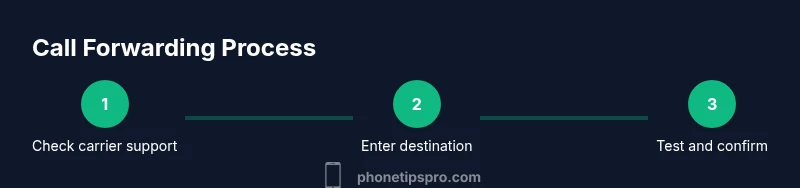
Check compatibility and plan availability
Confirm that your iPhone model and carrier support call forwarding. Review any fees or limits in your plan. This step prevents unexpected charges and ensures the feature will work when you enable it.
Tip: If you’re unsure, contact customer support or check your carrier’s app for compatibility flags. - 2
Prepare the destination number
Gather the exact number you want calls forwarded to, including the international code if applicable. Write it down to avoid mistakes when entering it in settings.
Tip: Format the number with a leading +countryCode when testing from abroad to avoid dialing errors. - 3
Open Call Forwarding settings
On your iPhone, go to Settings > Phone > Call Forwarding. If this option is missing, try the carrier app or contact support to enable it.
Tip: If you have multiple SIMs, ensure you’re adjusting the correct line in settings. - 4
Enable forwarding and enter the destination
Toggle Call Forwarding on and input the destination number. Save or confirm to apply the change. The screen will often show a live preview of the destination.
Tip: Double-check the number before saving; a small typo can forward to the wrong line. - 5
Test the setup
From a different phone, call your iPhone number to verify that the call rings on the forward destination. If it doesn’t, re-check the number format and try again.
Tip: If the destination is busy, wait a few moments and retry the test. - 6
Tweak or disable as needed
If you no longer need forwarding, return to Settings and disable Call Forwarding. You can also adjust the destination as plans change.
Tip: Keep a short note about why forwarding was enabled for future reference.
FAQ
How do I forward calls on iPhone?
Open Settings > Phone > Call Forwarding, toggle it on, and enter the destination number. If the option isn’t visible, check with your carrier or use their app for activation. Test the setup after saving.
Open Settings, go to Phone, choose Call Forwarding, and enter the number you want to forward to. If you don’t see the option, contact your carrier for activation.
Will call forwarding work if my iPhone is off or has no signal?
No. Forwarding requires your iPhone to be reachable by the carrier network. If the device is off or has no service, the call will not be forwarded until service resumes.
If your iPhone is off or has no signal, forwarding won’t work until service returns.
Can I forward calls to more than one number?
iPhone’s native settings typically support a single forward destination. For multiple destinations, check carrier features or use a business line with conditional routing.
You usually can forward to one number at a time; for multiple numbers, check carrier options or business tools.
How do I disable call forwarding?
Go back to Settings > Phone > Call Forwarding and turn the feature off. If you used a carrier app, disable forwarding there as well.
Turn off Call Forwarding in Settings or in your carrier’s app to stop forwarding.
What if I can’t find Call Forwarding in Settings?
Some carriers restrict access to the feature or require activation via their app. Check with support or install the carrier app to enable it.
If you don’t see it, check your carrier app or contact support for activation.
Does call forwarding affect voicemail?
Forwarding can move ringing away from your voicemail box. If you rely on voicemail, test the behavior and adjust settings as needed.
Forwarding can change where missed calls go; test voicemail behavior after enabling.
Watch Video
Quick Summary
- Forwarding is carrier-dependent and may vary by region
- Test after setup to confirm reliability
- Label destinations clearly to avoid misrouting
- Disable forwarding promptly when not needed
- Check voicemail behavior if important calls rely on it