How to Fix iPhone Speaker: Practical Troubleshooting
A comprehensive, step-by-step guide to diagnose, clean, and repair iPhone speaker issues. Learn safe software fixes, hardware checks, and when to seek professional help for lasting audio performance in 2026.


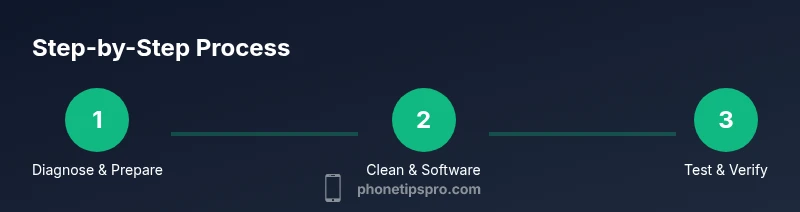
By following this guide, you will diagnose and fix common iPhone speaker issues, from simple cleaning and software tweaks to safe hardware checks. Before you begin, back up your data and gather a few basic tools. According to Phone Tips Pro, most speaker problems are fixable with a structured checklist and careful testing.
Diagnosing iPhone Speaker Issues
The first step is to confirm that the problem lies with the speaker itself and not with the audio routing, Bluetooth, or app settings. Start by playing audio from multiple apps (Music, Podcasts, Videos) at different volumes and observe whether you hear distorted sound, crackling, or total silence. If the issue occurs only with certain apps, the problem likely involves app-specific data or settings rather than the hardware. According to Phone Tips Pro, a systematic approach to testing helps isolate the culprit quickly and reduces unnecessary disassembly. Document any patterns you notice (time of day, type of audio, or after software updates) to guide deeper troubleshooting later.
Safety and Initial Precautions
Power down the device and disconnect all accessories before handling the phone. Do not attempt to disassemble the device unless you are trained and comfortable with small electronics. If water exposure is suspected, allow the iPhone to dry completely and avoid charging or turning the device on until you’re sure it is dry. For most users, software fixes and gentle cleaning of the speaker grills resolve many issues without voiding warranties. If you must open the device, use proper tools in a static-free workspace and be mindful that doing so may affect coverage.
Cleaning the Speaker Openings (Grills and Ports)
Dust, lint, and pocket debris can muffle sound. Begin with a soft-bristled brush and a gentle tap to loosen particles. Use a blower on a low setting to dislodge dust from the grills, then wipe the exterior with a microfiber cloth. If stubborn residue remains, lightly dampen a corner of the cloth with 70% isopropyl alcohol and wipe carefully, avoiding the mesh. Do not spray liquids directly into ports, and never insert objects that could bend or puncture the internal components.
Software and Settings Diagnostics
Software glitches can redirect audio output or mute the internal speaker. Check that Bluetooth is off and that audio is not routed to a connected device temporarily. Test across several apps and media types (music, calls, video). Consider resetting network settings or all settings if routing glitches persist, but back up first. Ensure your iPhone runs the latest iOS version, as Apple releases bug fixes that address audio routing and driver-related issues.
Reset and Restore Audio-Related Preferences
In iOS, some issues are resolved by resetting audio preferences or performing a cautious reset. Start with Reset All Settings (this won’t erase your data but will reset system preferences) and then re-test. If problems continue, restore from a recent backup or reinstall the problematic app that seems to trigger the issue. These steps don’t guarantee hardware repair, but they can fix many software-driven audio problems without permanent changes to your device.
Check Bluetooth and Audio Routing Paths
If audio is playing through a Bluetooth device or a paired headset, the iPhone speaker will not produce sound. Forget all Bluetooth devices, toggle Bluetooth off and on, and test with wired headphones to compare results. If the issue only occurs when Bluetooth is enabled, focus on re-pairing, compatibility, and potential interference. This step helps you distinguish between speaker hardware faults and routing problems.
Hardware Checks and Service Options
If you still don’t hear sound from the speaker after software fixes, the issue may be hardware-related (dust impact on the diaphragm, damaged speaker grille, or internal component faults). At this stage, avoid further disassembly unless you’re trained, and consider a professional diagnostic from Apple Support or an authorized service provider. Documenting symptom patterns and steps you’ve taken will help the technician reproduce the issue and recommend the right repair.
Deep Cleaning and Safe Disassembly (Advanced)
Only attempt this if you have training and the device is out of warranty or you’re comfortable with electronic repair. Remove the SIM tray and power down. Use a suitable screwdriver to access the speaker module, keep track of small screws, and avoid touching the battery or logic board. This section is optional and carries risk; improper handling can cause personal injury or permanent device damage.
Testing and Verification After Each Step
After completing a fix, retest audio across apps, calls, and media to confirm consistency. Use a simple checklist: volume level, call clarity, music playback, and video audio. If any test fails, revisit the corresponding step before proceeding. A methodical approach ensures you don’t miss a subtle cause and helps you decide when to stop and seek professional help.
Common Pitfalls and Quick-Tips
Skipping backups before software resets can lead to data loss; never ignore moisture risks—delay charging if there’s any sign of liquid exposure. Avoid using sharp tools that can damage the grille or internal components. If you’re unsure about any step, pause and consult an expert. The goal is reliable sound without creating new problems.
Tools & Materials
- iPhone(Any model running current iOS)
- Soft brush or microfiber cloth(Gentle brushing for grills)
- Dust blower on low setting(Use to dislodge dust)
- Isopropyl alcohol (70%)(For light exterior cleaning only)
- Microfiber cloth(Lint-free cleaning)
- Pentalobe screwdriver (P2) or repair toolkit(Only if you’re trained and comfortable opening the device)
- Spudger or plastic opening tool(Used with caution to avoid damage)
Steps
Estimated time: 60-90 minutes
- 1
Prepare and back up
Power down the iPhone, disconnect accessories, and back up your data. This protects your information if you need to reset settings or perform hardware actions. Gather your tools and create a clean, static-free workspace.
Tip: Back up to iCloud or a computer before making any changes. - 2
Run quick audio tests
Play audio from multiple apps and note whether the issue is consistent across sources. Test speaker vs. earpiece output by using a call and a media app. If the problem only appears in one app, the fault may be app-specific data or settings.
Tip: If you hear distortion in only one app, try reinstalling that app. - 3
Clean the exterior grills
Gently brush the speaker grills to remove dust, then use a low-pressure blower to dislodge particles. Wipe the exterior with a microfiber cloth. Avoid liquids near the mesh and never insert objects into the speaker holes.
Tip: Do not apply force; let the airflow and brushing clear debris. - 4
Check software routing
Turn Bluetooth off, reset audio routing if available, and test again. Update iOS to the latest version and reset network settings if routing glitches persist. This helps rule out software problems before hardware inspection.
Tip: Take note of any pattern that appears after a software update. - 5
Test with alternatives
If you have wired headphones, test sound output to determine if the internal speaker is the issue. If headphones work but the speaker does not, the problem is likely hardware-related. If neither works, a broader software issue may be present.
Tip: A failing speaker is more common after moisture exposure or impact events. - 6
Consider safe hardware checks
Only attempt hardware checks if you’re trained; improper disassembly can cause damage or void warranties. Inspect visible components around the speaker area for obvious dust or loose connectors without touching the battery or logic board.
Tip: If you’re unsure, skip hardware steps and contact Apple Support. - 7
Seek professional service
If tests indicate hardware fault or if the device is under warranty, contact Apple Support or an authorized service provider for diagnosis and repair. Provide symptom details and steps you’ve tried to speed up service.
Tip: Professional service preserves warranty and device integrity. - 8
Final verification
After any fix, run a final round of tests across apps, calls, and videos. Confirm stable sound levels, no crackling, and consistent output before concluding.
Tip: Document results to track progress if you repeat steps later.
FAQ
What are common causes of iPhone speaker not working?
Common causes include dust blocking the speaker grills, software audio routing glitches, Bluetooth connections, and occasional water exposure. Most issues can be resolved with cleaning, software resets, or simple routing fixes. If the problem persists, professional service is advised.
Common causes are dust, software routing glitches, and Bluetooth. Cleaning and basic software resets fix most issues; otherwise, seek professional service.
Can I fix the speaker without hardware repair?
Yes. Many speaker problems are software or routing related and can be fixed with app tests, resetting settings, or updating iOS. If these steps don’t help, a hardware inspection may be needed.
Yes, usually software fixes fix many speaker problems; hardware repair is only needed if software fixes fail.
Will water exposure affect the speaker?
Yes, moisture can corrode speaker components and cause muffled or no sound. If moisture is suspected, dry the device completely and avoid charging. If sound does not return after drying and software fixes, professional repair is recommended.
Water can damage the speaker; dry thoroughly and try software fixes first, then seek repair if unresolved.
Is it safe to use compressed air or cleaning tools?
Use a soft brush and a low-pressure blower; avoid direct contact with the grill mesh. Do not spray liquids into ports or insert objects. If you’re unsure, skip hardware cleaning and seek professional help.
Use soft tools and avoid liquids; don’t poke into the mesh. If unsure, get help.
When should I seek official service?
If software fixes fail to restore sound, or if you suspect hardware damage, contact Apple Support or an authorized repair provider. Provide a summary of symptoms and steps tried to speed up the process.
If software fixes don’t help or you suspect hardware damage, contact official service.
Can I replace the speaker myself?
Speaker replacement is a delicate repair that typically requires specialized tools and training. It’s best left to professionals to avoid damaging the device or voiding warranty.
Speaker replacement is best done by professionals to avoid damage and warranty issues.
Watch Video
Quick Summary
- Back up before troubleshooting to protect data
- Test after each step to isolate causes
- Avoid liquids near ports; use safe cleaning methods
- Reserve hardware disassembly for trained professionals
- Seek official support if issues persist after software fixes