How to Fix iPhone: A Practical Troubleshooting Guide
A comprehensive, step-by-step guide to fix common iPhone issues at home, with safe practices, backup tips, and guidance on when to seek official service.


According to Phone Tips Pro, fixing common iPhone issues at home is often possible when you follow a safe, structured troubleshooting routine. The goal is to restore basic functions—power, performance, display, and connectivity—without risking data loss or warranty status. The approach below emphasizes software fixes first, then careful hardware checks, and always recommends backing up before you start. Readers should know: if you encounter bent connectors, exposed circuitry, or moisture, stop immediately and seek professional service. For credibility, see the Authority Sources referenced later in the article.
Why fixing an iPhone yourself can be worth it
According to Phone Tips Pro, many common problems can be resolved at home when you follow a safe, structured plan. This section explains the rationale behind DIY troubleshooting, the risks involved, and how to decide when to escalate to professional service. You’ll learn why software issues tend to respond best to guided fixes, while hardware symptoms usually require authorized repair. The goal is to save time and money while preserving data. Authority sources and reputable guidance are provided later in the article to help you verify steps and avoid warranty pitfalls.
Key takeaway: Start with software checks and backups; avoid opening the device unless you have the right tools and training. If you see physical damage or moisture, contact a technician immediately.
Quick Diagnostics: Is it hardware or software?
Begin by categorizing the symptom. If the device boots but runs slowly, experiences app crashes, or shows odd behavior after a software update, the issue is often software-related. If the screen is unresponsive, the device won’t charge correctly, or temperatures spike, you may be facing hardware problems. Use a process of elimination:
- Check for a pending iOS or app update and install it.
- Try a forced restart to clear temporary glitches.
- Observe if the issue occurs in several apps or only one. If it’s isolated, focus on that app and its data.
- Test with official accessories to rule out accessory faults.
If hardware symptoms persist after software fixes, plan for professional service. This section avoids disassembly and sticks to non-invasive checks first.
Pro tip: Keep a log of symptoms, timing, and any changes after each step to help a technician reproduce the issue.
Power and charging issues: common culprits and fixes
Charging problems are among the most common reasons people seek solutions. Start with the simplest checks:
- Inspect the charging cable and adapter for wear or fraying; try a known-good cable and charger.
- Check the charging port for lint, dust, or pocket debris; use a soft brush or a can of compressed air to clean gently.
- Make sure the device isn’t in Low Power Mode or Airplane Mode, which can affect charging behavior.
- If the device charges slowly, test with a full charge cycle to see if it maintains power during usage.
If these steps do not resolve the issue, test in a different power outlet or with wireless charging if available. Avoid metal tools in the port, which can scratch or short connectors. If the device still won’t charge properly, file a service request with Apple or an authorized provider.
Note: Do not attempt battery replacement yourself unless you have model-specific repair experience and proper protective equipment.
Performance slowdowns and storage management
A slow iPhone is often the result of storage pressure, background activity, or software clutter. Start with a free up/storage cleanup routine:
- Check available storage under Settings > General > iPhone Storage. Review large apps and media, offload unused apps, or delete items you no longer need.
- Disable background app refresh for nonessential apps and restrict location-based background tasks.
- Update iOS and all apps; developer updates frequently optimize memory and battery usage.
- Restart the device to clear memory and apply changes.
By reducing background load and freeing space, you’ll often see noticeable speed improvements without hardware work. If performance remains poor after these steps, consider a factory reset as a last resort, after backing up data.
Display and touchscreen problems: what you can do
Touchscreen responsiveness and display quality can degrade due to software glitches or hardware wear. Try these steps:
- Clean the screen with a microfiber cloth; ensure your hands are dry and clean.
- Update software to rule out known touchscreen bugs resolved in later releases.
- If only certain areas are unregistered, test with a different app or wallpaper to rule out app-specific gestures.
- Enable Accessibility options like Touch Accommodations to adjust sensitivity if needed.
If the issue persists across apps and after a reboot, screen or sensor hardware may be involved. In that case, seek professional assessment rather than attempting risky internal repairs.
Connectivity: Wi-Fi, Bluetooth, and cellular
Connectivity problems often stem from software settings or network issues. Try these non-destructive steps:
- Forget and reconnect to your Wi-Fi network; reset network settings if needed (Settings > General > Reset > Reset Network Settings).
- Toggle Bluetooth off and on; remove stray connected devices and re-pair as needed.
- Check cellular data settings and carrier status; ensure you’re on the correct plan and updated profile.
- Update carrier settings if prompted by the device.
If connectivity remains unstable, test with another network or contact your carrier. Avoid aggressive factory resets unless you’ve backed up data.
Data safety, backups, and privacy during fixes
Before attempting any fix that could affect data, back up. Use iCloud or computer-based backups with encryption enabled. This protects your information in case a restore is required. When performing resets, confirm you’re erasing only what you intend and know how to recover:
- Create a fresh backup just before you begin.
- Ensure Find My iPhone is enabled so you can locate or protect the device if needed.
- If you use a shared device, sign out of accounts you don’t need on the repair day.
Security and privacy matter. Keep your device locked with a passcode and two-factor authentication, and limit what data you expose during a repair.
When to seek professional repair or replace your device
If you encounter persistent hardware symptoms such as screen bleed, unresponsive touch across multiple regions, water exposure, or battery swelling, professional assessment is essential. Opening an iPhone can void warranties or cause further damage if you’re not trained. In such cases, contact Apple Support or an authorized service provider for diagnosis and potential replacement options. If the device is old, evaluate the cost of repair versus replacement and consider extended warranty or AppleCare coverage where available.
Tools & Materials
- Pentalobe and Phillips screwdriver set(Model-specific sizes; ensure correct compatibility with your iPhone model)
- Plastic opening tools and spudger(Non-metal tools to avoid shorting connectors)
- Suction cup(Helps separate screen from frame on supported models)
- Microfiber cloth(Lint-free cleaning for screens and connectors)
- Replacement parts (screen, battery) specific to model(Only if you’re performing hardware replacement with the correct part)
- ESD wrist strap(Optional but recommended for static protection)
- Official Apple-certified cables and chargers(Safer charging and testing during fixes)
Steps
Estimated time: 60-90 minutes
- 1
Back up data securely
Begin by creating a complete backup of your iPhone to iCloud or a computer. Encrypt the backup if possible to protect passwords and health data. Verify the backup finished successfully before making any changes.
Tip: Verify backup integrity by attempting a quick restore on a separate device or a test file. - 2
Test charging hardware
Inspect cables and adapters for wear, and try a known-good charger. Clean the charging port gently with a soft brush and ensure no debris blocks contact. Confirm the device charges consistently on a power source.
Tip: Always unplug before inspecting connectors; use official accessories to reduce risks. - 3
Update software and apps
Connect to Wi-Fi and install the latest iOS update if available. Open the App Store and update all apps; restart after updates to apply changes.
Tip: Enable automatic updates to reduce future issues. - 4
Reset network settings
If connectivity is flaky, reset network settings to clear misconfigurations. This won’t erase personal data but will wipe saved networks and passwords.
Tip: Have your Wi‑Fi password handy to rejoin networks after the reset. - 5
Free up storage and limit background activity
Review storage usage, offload unused apps, and delete large media files you don’t need. Disable nonessential background refresh to reduce resource use.
Tip: A clean storage state often yields noticeable speed improvements. - 6
Test apps and screen behavior
Identify if a specific app is causing the issue; uninstall and reinstall it if needed. Observe a few days of normal usage to confirm the problem is resolved.
Tip: If a particular app repeatedly crashes, check for known bugs or alternatives. - 7
Factory reset as a last resort
If all else fails, perform a factory reset after backing up. Erase all content, then restore from the backup and test for resolution.
Tip: Only perform a factory reset when you’re prepared to restore data from a verified backup. - 8
Verify fix and monitor
After completing fixes, monitor the device for a few days to ensure stability. Recheck battery health and functioning across features.
Tip: Keep a note of any recurring issue to discuss with support if needed.
FAQ
Can I fix my iPhone myself without voiding the warranty?
Yes, many software issues can be fixed without opening the device, which keeps the warranty intact. Do not open the hardware unless you have model-specific guidance and tools. If in doubt, consult Apple Support.
Many software fixes won’t void your warranty, but avoid opening the device unless you’re sure you know what you’re doing.
What should I back up before attempting fixes?
Back up to iCloud or a computer with encryption enabled. Ensure the backup completed successfully before you begin any repair steps.
Back up to iCloud or your computer, and verify the backup before you start.
What if the screen needs replacement?
Screen replacement is a hardware repair that’s best handled by Apple or an authorized technician. Consider the cost versus device value and warranty options before proceeding.
If the screen needs replacement, go with an authorized repair service to avoid damage and preserve warranty.
How do I know if it’s a hardware issue?
Persistent unresponsiveness, charging irregularities, or heat when the device is idle typically indicate hardware problems. After software fixes, seek professional diagnosis.
If issues persist after software fixes, you likely have a hardware problem requiring service.
Can I fix water damage at home?
Water damage requires professional assessment. Do not power on a wet device; dry it carefully and contact support for a proper diagnosis.
Water damage needs professional help; don’t power on a wet iPhone.
Should I factory reset as the first step?
Factory reset is a last resort because it erases all data. Back up first, then perform reset only if software fixes fail to resolve the issue.
Avoid factory reset unless essential; back up first and then reset if software fixes don’t work.
Watch Video
Quick Summary
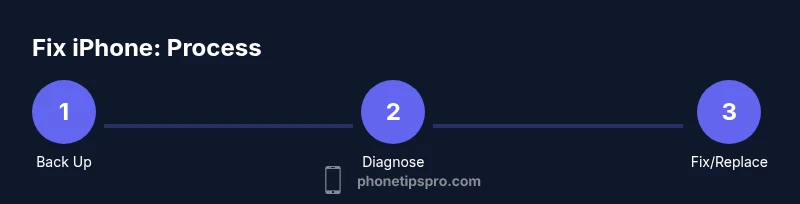
- Back up before you begin fixes
- Triage symptoms to separate software from hardware
- Start with software updates and safe resets
- Seek professional help for hardware issues