How to Get Back Text Messages on iPhone: A Complete Guide
Learn proven methods to recover deleted or lost iPhone texts. This guide covers iCloud and computer backups, carrier options, and practical steps to restore your messages safely.


If you’re wondering how to get back text messages iphone, start with the backups and built‑in recovery features first. Check Messages in iCloud and the Recently Deleted folder, then review iCloud backups, Finder/iTunes backups, and carrier options. This quick guide points you toward reliable paths and what to expect at each stage.
Why messages disappear and what this means for recovery
Messages on an iPhone can disappear for several reasons: accidental deletion, iOS updates, storage constraints, and backup settings that exclude messages. If you’re thinking about how to get back text messages iphone, you first need to understand where your messages live. In many cases, recent messages are retained locally, while older conversations may be preserved in an iCloud or device backup. By recognizing where to look, you can avoid unnecessary restores and focus on the most likely recovery path. This section sets the stage for practical methods and what you can realistically recover depending on your setup.
Recovery options at a glance
There are multiple recovery paths for iPhone messages, and the right choice depends on what backups you have and how you use Messages. Potential routes include Messages in iCloud (syncs across devices), restoring from an iCloud backup, or restoring from a computer backup via Finder (macOS) or iTunes (Windows). Carrier-based recoveries exist but are limited and not universal. If you want to know how to get back text messages iphone, the most reliable approach is to start with backups you control and cross-check what was backed up before the loss occurred.
Check Messages in iCloud and device settings
First, verify whether Messages in iCloud is enabled, and check the Recently Deleted folder in the Messages app for any conversations that were removed within the last 30 days. To check Messages in iCloud, go to Settings > [Your Name] > iCloud and ensure 'Messages' is toggled on. If Messages in iCloud is off, your messages may not sync across devices, limiting recovery options. The Recently Deleted folder can recover specific threads quickly if those messages were recently removed.
Restore from an iCloud backup (before loss occurred)
If you have an iCloud backup from a date before messages were lost, restoring from that backup can recover the deleted conversations. This method will replace the current data on your iPhone with the backup state, so any information added after the backup date will be replaced. Prepare by confirming you have sufficient iCloud storage and that the backup date is appropriate. Always back up your current data before performing a restore so you don’t lose newer, non‑backed content.
Restore from a computer backup (Finder or iTunes)
Another reliable route is to restore from a backup stored on your computer. Connect your iPhone to your Mac (with Finder) or Windows PC (with iTunes), select your device, and choose a backup made before the loss. Restoring from a computer backup can preserve messages that weren’t included in iCloud backups if you used local backups. Keep in mind that this process overwrites the device state, so review the backup date and content before proceeding.
Carrier options and alternative paths
In some cases, your mobile carrier may retain message data temporarily or offer recovery options for certain types of messages. Contact your carrier to understand what is possible and what data they can retrieve. If backups aren’t available, you may still recover certain attachments or conversations through other means, but it’s important to manage expectations. This section helps you weigh carrier options against your local backups and device settings.
Third‑party tools and caution
There are third‑party tools that claim to recover deleted messages from iPhones. If you consider this route, only use reputable vendors and understand the risks, including data privacy and device compatibility. Avoid tools that require jailbreaking or bypassing security. This section emphasizes safe, transparent approaches and why official backup routes are usually more reliable.
Preventing future loss: best practices
Once you’ve recovered or secured your messages, take steps to prevent future loss. Enable Messages in iCloud so conversations stay synced across devices, maintain regular backups (iCloud or computer), and periodically verify backup integrity. Establish a routine that ensures backups occur automatically or with minimal friction. These habits reduce the likelihood of future data gaps and simplify recovery when needed.
Common pitfalls and how to avoid them
Avoid restoring from a backup without verifying the date and content. Be cautious about restoring on a device with more recent data you want to keep. Always back up the current state before performing any restore. If you’re unsure, test recovery on a secondary device or consult official guidance to minimize risk.
Tools & Materials
- iPhone(Ensure it has enough battery or is connected to power.)
- Apple ID and password(Needed to access iCloud backups and settings.)
- Mac with Finder or Windows PC with iTunes(Used for local backups and restores.)
- USB/Lightning or USB‑C cable(For connecting iPhone to computer.)
- Stable internet connection(Required for iCloud operations and downloads.)
Steps
Estimated time: 60-120 minutes
- 1
Check backup availability
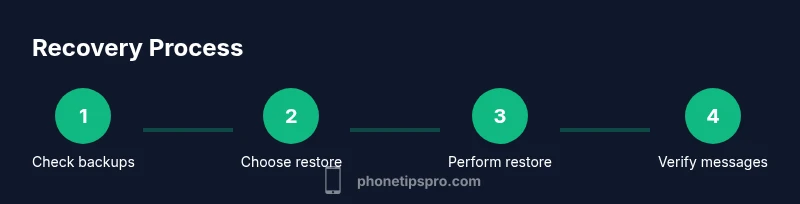
Review iCloud backups and any computer backups to see if a suitable restore point exists. Confirm backup dates and contents before proceeding to minimize data loss. If you’re unsure, jot down the backup dates for quick reference.
Tip: Tip: In iCloud, go to Settings > [Your Name] > iCloud > Manage Backups to view available backups. - 2
Decide restore method
Choose between an iCloud restore or a computer backup restore based on which backup contains the messages you need. Each method overwrites current data, so pick the option with the most relevant content.
Tip: Tip: If your last backup is recent, a targeted restoration reduces data loss risk. - 3
Prepare the device
Charge the iPhone to at least 50% and connect to a stable Wi‑Fi network. Back up your current data before you begin restoration to guard against unexpected losses.
Tip: Tip: For iCloud restores, a strong network speeds up the download of messages and media. - 4
Restore from iCloud backup
On iPhone, erase all content and settings, then choose Restore from iCloud Backup during setup. Sign in with your Apple ID and select the backup with the messages you want. Wait for the restore to complete and set up your device.
Tip: Tip: If you have two-factor authentication, keep your trusted devices handy for quick verification. - 5
Restore from computer backup (Finder/iTunes)
Connect your iPhone to the computer, open Finder or iTunes, select Backups, and choose a backup date. Initiate Restore and wait while the device restarts and the data is restored.
Tip: Tip: Ensure you choose a backup from before the loss; newer backups overwrite current data. - 6
Verify recovery and attachments
After restoration, open Messages to verify conversations and attachments. Some media may re-download after the restore. If needed, re-download large attachments on a strong network.
Tip: Tip: Check the date stamps on conversations to confirm you’re viewing the correct restore point. - 7
Document outcomes and plan next backups
Note what was recovered and which conversations remain missing. Set up automatic backups (iCloud or computer) to prevent future loss and keep a current backup schedule.
Tip: Tip: Turn on Messages in iCloud to keep messages synced across devices automatically.
FAQ
Can deleted texts be recovered after they were permanently removed from Recently Deleted?
Only if a backup contains the messages or the deletion was recent enough for a backup. The Recently Deleted folder itself stores items for a limited time, so backups are often the critical factor.
Deleted texts can be recovered only if a backup exists that includes them; check backups first.
Will restoring from a backup erase newer messages I created after the backup date?
Yes. Restoring from a backup reinstates data from the backup date and replaces current content, potentially removing newer messages created after that date.
Restoring uses the backup state, which may overwrite newer messages.
What if I don’t have any backups?
Recovery chances are limited without backups. You can try carrier options or third‑party tools, but success is not guaranteed. Always start backups moving forward to prevent this situation.
Without backups, recovery is unlikely; start backing up now to protect messages.
Does turning on Messages in iCloud impact future recoveries?
Yes. It keeps messages in sync across devices and can simplify future recoveries if you need to restore or switch devices.
Turning on Messages in iCloud helps future recoveries by syncing chats.
Do I need to erase my iPhone to recover messages from iCloud?
Typically, yes for iCloud-based restores, as the restore process replaces current data. You should back up before erasing.
A restore from iCloud usually requires erasing the device to rewrite with the backup.
Are there safe third‑party tools for message recovery?
There are tools that can help, but use only reputable vendors and avoid ones that require device Jailbreaks or privacy risks. Prefer official backup routes when possible.
Some tools exist, but be careful and prefer official backups for safety.
Watch Video
Quick Summary
- Backups are your first line of defense
- Messages in iCloud simplifies cross-device recovery
- Restoration overwrites current data—plan carefully
- Verify backup dates before restoring