How to Stop Spam Calls on iPhone: Practical Guide Now
Discover proven steps to stop spam calls on iPhone using built-in iOS controls, Silence Unknown Callers, carrier features, and trusted apps. Practical guidance.


According to Phone Tips Pro, by the end of this guide you will know how to stop spam calls on iPhone using built-in tools, carrier features, and trusted apps. You’ll enable Silence Unknown Callers, block numbers, create Do Not Disturb rules, and report spam. The steps cover iOS settings, carrier options, and safe third-party apps so you reduce interruptions without missing important calls.
The Spam Call Landscape on iPhone
According to Phone Tips Pro, spam calls remain a persistent nuisance for iPhone users, despite advances in caller ID and network filtering. In practice, many scammers spoof familiar numbers or switch tactics to bypass basic block lists. The good news is that a layered defense—combining iOS features, carrier tools, and selective apps—works better than any single solution. This section examines how spam calls operate on iPhone, why some attempts still slip through, and how you can fortify your device with practical, everyday steps. We’ll reference real-world patterns observed by the Phone Tips Pro team to illustrate what to expect and how to adapt. By understanding the landscape, you can tailor a plan that fits your calling habits while keeping legitimate calls intact.
Core Avenues to Stop Spam Calls
Stopping spam on iPhone requires a multi-pronged approach. First, leverage built-in iOS controls to filter and silence unknown numbers. Second, enable carrier-level protections that add an extra layer of screening before calls reach your device. Third, use Focus modes (formerly Do Not Disturb) to create rules that prioritize trusted contacts. Finally, consider reputable third-party apps that specialize in spam detection and caller-ID verification. The best outcomes come when you combine these methods rather than rely on a single tool. Phone Tips Pro has found that users who layer defenses reduce spam call volume by a noticeable margin while still receiving important calls when needed.
iOS Settings Deep Dive: Silence Unknown Callers and Blocked Numbers
The iPhone provides several effective filters for spam calls. Start by turning on Silence Unknown Callers so calls from numbers not in Contacts won’t ring. You can choose to silence them always, or only when the iPhone is locked. Next, routinely block numbers you identify as spam or nuisance callers. Blocking a number prevents future calls and messages, and you can apply this to text messages as well. For best results, periodically review recent call logs and add new numbers to your block list. Regular checks prevent new spam numbers from slipping through and help you keep your primary contact list clear. This approach aligns with the practical guidance from Phone Tips Pro and minimizes accidental silences of legitimate callers.
Carrier-Level Protections: Call Filtering and Reporting
Carrier-provided call-filtering features offer an additional belt-and-suspenders layer of protection. These services often include database-based scam call detection, real-time blocking, and the ability to report spam numbers directly from the call screen. To enable them, visit your carrier’s app or account portal and toggle on call-filtering, spam detection, and reporting options. If your carrier supports it, you can customize thresholds and allowlists to reduce false positives. Pairing carrier filters with iOS controls makes it harder for scammers to reach you, and reporting helps improve the system for everyone. Phone Tips Pro’s analysis shows that users who enable carrier protections experience fewer spam attempts over time.
Focus Modes and Custom Rules for Trusted Contacts
Focus modes (formerly Do Not Disturb) can be tailored to allow calls from specific groups while suppressing unknown numbers. Create a Focus profile that only rings from your Contacts or Favorites, and set it to activate automatically during work hours or at night. You can also create exceptions for certain numbers—family, colleagues, or essential services—so important calls always come through. This strategy provides peace of mind without forcing you to answer every call. Regularly updating your Focus rules helps ensure you don’t miss critical communication while reducing nuisance calls.
Safe Third-Party Tools: What to Consider
Third-party spam blockers can be powerful allies, but they must be chosen wisely. Look for apps with transparent privacy policies, clear permission scopes, and strong user reviews. Check how the app handles your contact data, call logs, and any cloud-based screening. Prefer apps from reputable developers and avoid those that request excessive access or require broad data permissions. When used thoughtfully, these tools complement built-in protections and carrier features, giving you a broader net against spam calls. This section keeps safety and privacy front and center, so you can improve protection without compromising your data.
Ongoing Management and Verification: Keeping Spam at Bay
Spam fights evolve as scammers update tactics, so ongoing management is essential. Schedule a brief weekly check of your recent calls and numbers blocked, and adjust rules if you notice new patterns. Periodically review your Focus settings and update allowed contacts as your routine changes (new coworkers, family members, or service providers). Stay current with iOS and carrier updates, since both frequently add new filters. By making small, consistent adjustments, you’ll maintain a lean defense against spam and preserve access to the calls that matter.
Tools & Materials
- iPhone with latest iOS(Ensure iOS is up to date (Settings > General > Software Update))
- Carrier settings access(Have your carrier login or support plan ready to enable call-filtering features)
- Do Not Disturb / Focus modes(Know how to configure Focus to allow contacts while blocking unknown numbers)
- Silence Unknown Callers(Located in Settings > Phone)
- Block a number(Use the number button in Call Screen or Recent calls)
- Third-party spam-blocker app (optional)(From reputable developers; check reviews)
- Backup method(Backup iPhone via iCloud or Finder before major changes)
- Stable internet connection(Wi‑Fi or cellular data during setup)
Steps
Estimated time: 15-25 minutes
- 1
Update iPhone and carrier settings
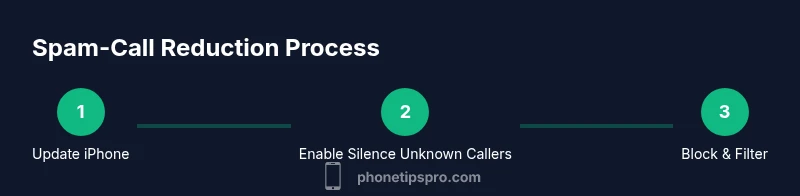
Check for the latest iOS update in Settings > General > Software Update and install if available. Also verify carrier settings by going to Settings > General > About and allowing any prompts. This ensures you have the latest filter capabilities and stability improvements.
Tip: Back up your data before applying updates to avoid potential loss. - 2
Enable Silence Unknown Callers
Open Settings > Phone > Silence Unknown Callers and set it to Always (or When I Phone is Locked, if you still want alerts while unlocked). This reduces interruptions from unfamiliar numbers while you adjust to safe contacts.
Tip: Test by calling from a number not in Contacts to confirm it’s silenced. - 3
Block spam numbers
In the Phone app, tap Recent or Voicemail, select the number, tap the info icon, then choose Block This Caller. Repeat for any other spam numbers you notice.
Tip: Don’t forget to block numbers that text with spam content as well. - 4
Configure Focus to allow trusted calls
Create a Focus profile (Settings > Focus) that allows calls from All Contacts or Favorites while silencing others. Schedule this Focus during work hours or when you don’t want disturbances.
Tip: Add essential contacts to Favorites so they bypass the filter. - 5
Enable carrier call-filtering features
Open your carrier’s app or the account portal and turn on call-filtering, spam detection, and reporting options. Customize thresholds if offered and review any allowed-list settings.
Tip: Some carriers offer automatic reporting; enable it to help improve future filtering. - 6
Use a reputable third-party blocker (optional)
Install a trusted spam-blocker app and configure its settings to integrate with iOS call blocking. Review permissions and privacy policies before granting access.
Tip: Limit data sharing by disabling unnecessary permissions in iOS settings after setup. - 7
Report spam and monitor trends
Use built-in reporting tools or carrier apps to report spam numbers. Track recurring numbers and adjust your block and filter rules accordingly.
Tip: Keep a small log of new spam numbers for quick blocking later. - 8
Review and maintain settings
Set a monthly reminder to review blocked numbers, Focus exceptions, and app permissions. Update as your calling pattern changes.
Tip: Regular maintenance prevents gaps that scammers exploit.
FAQ
Will Silence Unknown Callers block legitimate calls from my contacts?
No, those in your contacts will still ring. You can adjust Focus or Allowed Calls to ensure essential numbers reach you. If you rely on certain callers, add them to Favorites in Focus.
No—calls from your contacts will come through. Use Focus and Favorites to tailor which calls ring.
Can spam calls be completely eliminated on iPhone?
No single tool eliminates all spam, but a layered approach dramatically reduces interruptions. Regular updates and monitoring are essential to maintain effectiveness.
Not completely, but a layered defense greatly reduces spam calls.
How do I report spam calls to my carrier?
Most carriers provide reporting options via their apps or portals. Look for features labeled Call Filter or Report Spam and follow the prompts to submit details.
Use your carrier’s app or portal to report spam numbers with a few taps.
Are third-party spam-blocking apps safe?
Choose reputable apps with transparent privacy policies and permission scopes. Read reviews, and limit permissions to what’s necessary for blocking calls.
Select well-rated apps with clear privacy policies and minimal data access.
What should I do if I still receive spam after setup?
Revisit your settings, add new numbers to block, and ensure carrier protections are enabled. If needed, contact your carrier for advanced filtering or consider a temporary number change for high-risk periods.
If spam persists, tweak settings, block the new numbers, and contact your carrier for extra support.
Watch Video
Quick Summary
- Enable Silence Unknown Callers to reduce spam.
- Layer iOS, carrier, and Focus protections for best results.
- Block troublesome numbers and review blocked lists regularly.
- Choose trusted third-party tools with privacy in mind.