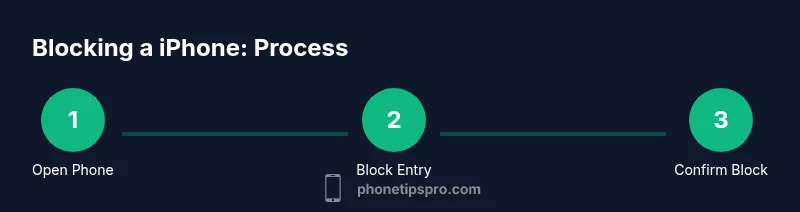
How to Block a iPhone: A Step-by-Step Guide
Learn how to block a iPhone across Phone, Messages, and Settings with a clear, step-by-step approach. This guide covers blocking contacts, unknown numbers, and spammers to protect privacy on iPhone. Practical tips, safety notes, and a structured plan from Phone Tips Pro.


Here's how to block a iphone: This quick, step-by-step guide shows you how to block a contact, unknown numbers, and spammers on iPhone using Settings, Phone, and Messages. It covers blocking from the Recents list and Messages threads to keep interruptions minimal. According to Phone Tips Pro, these steps empower you to manage privacy confidently.
Blocking on iPhone: Why blocking matters
Blocking is a simple, effective way to reclaim your time and reduce annoyance from unwanted calls and messages. On iPhone, blocking doesn't delete messages already received; it prevents future attempts from the blocked contact from appearing in most notifications and call logs. This is especially helpful for telemarketers, scam numbers, and persistent acquaintances. Phone Tips Pro Team notes that a clean blocking strategy can dramatically reduce daily interruptions, helping you focus on important conversations. When you block someone, iOS applies the block across apps that use the same contact database, including Phone, Messages, and FaceTime. However, it's important to remember that blocking is not a universal privacy shield: determined parties can work around basic blocks by using new numbers or apps not tied to your address book. Consider combining blocking with features like Silence Unknown Callers and Do Not Disturb for a layered approach to privacy. This article walks through the exact steps on how to block a iphone across the core apps, with tips to maintain a safe and respectful digital boundary. Phone Tips Pro analysis notes that many users value a straightforward blocking workflow to preserve focus and reduce interruptions.
how to block a iphone: Privacy benefits
Blocking a iphone offers tangible privacy benefits: it reduces unsolicited calls, limits distracting texts, and gives you control over who can reach you. By centralizing blocking actions in iOS, you create a predictable boundary that applies across Phone, Messages, and FaceTime. This consolidated approach is recommended by the Phone Tips Pro Team. Remember that blocking is a best-practice for personal safety and mental bandwidth, but it’s not a substitute for broader privacy hygiene, such as reporting scams, enabling two-factor authentication, and periodically reviewing your blocks list. The goal is to strike a balance between accessibility and protection, tailoring settings to your daily routines and risk level.
Selecting blocking options within iOS
iPhone offers several blocking strategies beyond the classic contact block. You can block specific numbers, block all unknown callers, or enable Silence Unknown Callers so that any call from numbers not in your contacts goes directly to voicemail. This layered approach aligns with best practices recommended by Phone Tips Pro and is especially useful for those who frequently encounter spam or robocalls. Keep in mind that blocking does not erase past messages; you may need to delete older threads if privacy is a priority, and you should periodically review your blocked list to remove entries that no longer pose a risk. In short, iOS provides flexible controls to fit your privacy needs, from precise blocks to broad silence settings.
how to block a iphone: Privacy benefits (continued)
For users managing multiple devices, remember that your blocks can propagate through iCloud syncing if you are using the same Apple ID across devices. This means a block on your iPhone can help prevent interruptions on iPad and Mac as well, streamlining privacy across your ecosystem. Phone Tips Pro Analysis, 2026, indicates that users who utilize cross-device blocking report fewer interruptions overall. The key is to keep your blocking choices consistent across all devices you use regularly, ensuring a uniform privacy boundary.
Tools & Materials
- iPhone with latest iOS(Update to the latest iOS for best blocking integration and new privacy features)
- Stable internet connection(Wi-Fi or cellular data to access Settings and ensure changes sync)
- Apple ID credentials(Necessary for accessing Settings across devices and syncing blocks)
Steps
Estimated time: 10-15 minutes
- 1
Open the Phone app and locate the contact
Launch the Phone app, go to Recents, and find the number or contact you want to block. If the number isn’t in Recents, locate the contact in the Contacts app or Messages thread. This initial access point sets the foundation for the blocking action.
Tip: If the caller is unknown, you can jump to Settings > Phone to enable Silence Unknown Callers as a quicker safeguard. - 2
Block from the Recents or contact detail
Tap the (i) info button next to the number, then scroll down and select Block this Caller. Confirm when prompted. Blocking here prevents future calls and texts from that contact across Phone and Messages.
Tip: Blocking from Recents blocks the current number only; if the same contact uses a different number, repeat the step for other entries. - 3
Block an entire contact from Contacts
Open Contacts, tap the contact, scroll to Block this Caller, and confirm. This is useful for persistent contacts with multiple numbers. Blocking at the contact level covers all numbers associated with that entry.
Tip: If the contact is tricky (company name, shared devices), block each relevant number to ensure comprehensive coverage. - 4
Silence Unknown Callers for unknown numbers
Go to Settings > Phone > Silence Unknown Callers and turn it on. This will silence calls from numbers not in your contacts, preserving your focus and reducing interruptions.
Tip: Test how it feels for a day before deciding to leave it on permanently; it can affect legitimate unknown calls. - 5
Block from Messages if needed
In Messages, open the thread from the number, tap the contact name at the top, choose info, and Block this Caller. This clears future messages and FaceTime attempts from that thread.
Tip: If you also use iMessage on other devices, ensure they inherit the block by being signed in with the same Apple ID. - 6
Verify the block and test
Call or text the blocked number from a separate line to verify that calls are redirected or silenced as configured. Regularly review your blocked list to ensure it still matches your privacy needs.
Tip: Keep a short personal log of blocks for reference if you need to unblock later.
FAQ
How do I block a specific contact on iPhone?
Open the Phone or Messages app, locate the contact, tap the info button, and choose Block this Caller. Confirm the action. This blocks future calls and texts from that contact across Apple apps.
Open the Phone or Messages app, tap the contact’s info, and select Block this Caller to stop future calls and messages.
Can I block numbers from Messages and Phone separately?
Yes. You can block a number from the Phone app to stop calls, and from Messages to stop texts from that thread. Blocking in one app often blocks related activity across the core Apple messaging and calling ecosystem.
Yes. Block from Phone to stop calls and from Messages to stop texts; it helps across the main Apple apps.
Will blocking a number also block FaceTime calls?
Blocking a number prevents calls from that number in Phone and FaceTime as long as it uses the same contact. If the caller uses separate identifiers, you may need to block those as well.
Blocking prevents calls in Phone and FaceTime as long as the number is the same; sometimes you must block additional numbers.
What happens to existing messages after blocking?
Existing messages from a blocked contact remain in your Messages app but new messages won’t notify you. You can delete old conversations if you want complete silence.
Blocking stops new messages from that contact; you may need to delete old chats if you want them gone.
Is there a quick way to unblock a number?
Yes. Go to Settings > Phone > Blocked Contacts, select the number, and choose Unblock. The contact can reach you again after unblocking.
Go to Blocked Contacts and choose Unblock for the number you want to allow again.
Watch Video
Quick Summary
- Block numbers via Phone and Messages to control reachability.
- Enable Silence Unknown Callers for broad protection against unknown numbers.
- Review blocked list regularly to stay current with your privacy needs.
- Phone Tips Pro recommends combining blocking with broader privacy practices for best results.