How to Get Rid of Stickers on iPhone: A Safe Removal Guide
Learn practical, device-safe methods to remove stickers from your iPhone. This step-by-step guide covers prep, heating, residue removal, and post-clean care for a pristine finish.


By following a careful, step-by-step approach you can safely remove stickers from an iPhone without damaging the display or coatings. Start by powering off the device, then gently loosen the edge with a plastic card, use light heat to soften adhesive, and finish with a gentle wipe using isopropyl alcohol 70% on a microfiber cloth. Avoid harsh chemicals and excessive force.
What to know before you start
Before you reach for tools, pause and plan how you will approach the sticker removal. A rushed peel can scratch the screen, crease coatings, or push adhesive into tiny gaps. According to Phone Tips Pro, the safest path is to identify the sticker type (paper, vinyl, glossy, or laminated) and its attachment strength. Powering down the iPhone and disconnecting it from any charger reduces the risk of short circuits while you work. Gather your supplies first: a plastic card, a soft microfiber cloth, isopropyl alcohol (70%), and, if needed, a small electronics-safe adhesive remover. If the sticker sits near the camera or sensors, exercise extra care to avoid smudging lenses or blocking sensors. Test any solvent on a hidden area first to avoid clouding the display. Finally, work in a clean, well-lit space to spot any lifted edges early and prevent further damage.
Sticker types and attachment strengths
Stickers come in several varieties, and each type bonds differently to surfaces. Paper-based and vinyl stickers often peel cleanly with minimal residue, while laminated or glossy stickers may leave a sticky film. Heat-softened adhesives tend to peel away easier, but over-aggressive peeling can pull at coatings. Pro tip: observe the sticker’s edge to gauge how tough the bond is. If you see tearing or edge lifting, slow down and switch to a gentler method rather than forcing the sticker loose. Phone Tips Pro’s guidance emphasizes patience over force, especially on glossy iPhone finishes that resist adhesive.
Quick prep and safety steps
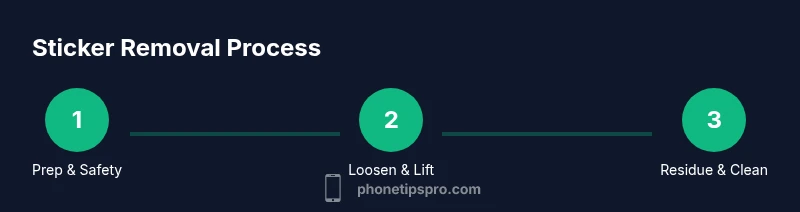
Proper prep reduces risk and makes the process smoother. Start by turning off the iPhone and, if possible, removing any case. Place the phone on a soft, non-slip surface to prevent accidental drops. Lightly test the edge of the sticker with a plastic card to confirm it isn’t bonded with a strong adhesive all around. If the sticker resists, you can apply a small amount of heat from a hair dryer held at a safe distance, but never exceed a gentle warmth that could warp the screen or loosen coatings. Wipe away any dust or debris with a microfiber cloth before you begin lifting.
Safe heat and lifting technique
Heat helps soften adhesive, making lifting easier, but excessive heat can damage the display or coatings. Hold a hair dryer 6–8 inches away on a low setting and warm only the sticker’s edge for 15–20 seconds. Then, insert the plastic card at a corner and slowly work the edge up, moving along the perimeter in short, controlled motions. If you encounter resistance, stop and re-warm slightly instead of forcing the edge. This technique reduces the risk of delaminating layers or scratching the glass.
Removing adhesive residue effectively
Even after lifting, a sticky film may remain. Dampen a microfiber cloth with 70% isopropyl alcohol and gently rub the area in small circles. For stubborn residue, apply a tiny amount of an electronics-safe adhesive remover to the cloth (never directly on the screen) and continue in gentle motions. Avoid acetone or citrus solvents, which can damage coatings. After the feel of stickiness fades, wipe again with a clean, dry portion of the cloth to remove any solvent residue.
Cleaning, protecting, and finishing
With the sticker removed and residue cleared, inspect the surface for streaks or faint residue. Clean any remaining marks with a fresh microfiber cloth dampened with isopropyl alcohol, then dry with a lint-free section. If the display shows hazy patches, re-wipe with a dry cloth and allow it to air-dry. Consider applying a screen protector or new clear case edge guard to prevent future sticker adhesion or residue buildup. Regular cleaning keeps the finish looking pristine and reduces long-term wear.
Troubleshooting stubborn stickers and edge cases
If the sticker won’t budge or if adhesive leaks into ports, stop and reassess. Reapply heat in shorter bursts, lift from alternate edges, and test a new edge lift. For stickers near sensitive components (e.g., camera, sensors), skip aggressive lifting and consult a professional if you note screen abnormalities or discoloration. In some cases, a light touch with a professional adhesive remover designed for electronics may be required, but always follow product instructions.
Avoiding common mistakes and best practices for the future
Common mistakes include using too much alcohol, direct application of solvents onto the screen, or pulling too quickly. Always test solvents on a hidden area first, use slight heat, and lift slowly. If you intend to place stickers again later, consider applying a protective clear film over the surface to prevent adhesive transfer and ease future removal. Regular cleaning after sticker removal helps restore clarity and reduce surface abrasion.
Final checks and next steps
After the removal process, power on the iPhone and test the touchscreen, camera, and sensors to ensure no residues affect performance. If you notice any lingering stickiness, repeat gentle cleanings with alcohol on a fresh microfiber cloth. If issues persist, contact Apple Support or a certified technician for a thorough inspection to avoid compromising device safety or warranty.
Tools & Materials
- Plastic card (credit-card sized)(Use the edge to gently pry sticker edges without scratching the glass.)
- Soft microfiber cloth(Lint-free for safe wiping; avoid abrasive fabrics.)
- Isopropyl alcohol 70%(Dampen cloth lightly; do not soak the device.)
- Electronics-safe adhesive remover(Choose a remover labeled safe for glass/plastic electronics; follow directions.)
- Hair dryer(Low heat setting; hold 6–8 inches away; do not overheat.)
- Cotton swabs(For small corners where a cloth cannot reach.)
- Gloves (optional)(Nitrile gloves can protect hands during chemical use.)
Steps
Estimated time: 30-60 minutes
- 1
Power off and prepare
Shut down the iPhone and remove the case if present. Clear a clean, well-lit workspace to spot edges easily. This initial setup reduces the risk of moisture intrusion and ensures you can see any adhesive residue as it loosens.
Tip: Powering off first minimizes the chance of accidental taps or short circuits during removal. - 2
Warm the sticker edge
Use a hair dryer on a low setting, 6–8 inches away, and warm the sticker’s edge for about 15–20 seconds. The heat softens the adhesive, making lifting easier without applying direct heat to sensitive components.
Tip: Keep the heat moving; avoid concentrating heat on one spot to prevent warping. - 3
Loosen with a plastic card
Gently insert the card under the edge and work it along the perimeter in small, steady motions. Avoid metal tools that can scratch the glass or coatings; if you feel resistance, rewarm slightly and try again.
Tip: Work in tiny sections to prevent tearing the sticker or snapping the card. - 4
Lift and peel slowly
Continue lifting the sticker gradually, keeping the card at a shallow angle. If the sticker resists, reapply light heat and reattempt from a new edge. Do not yank; patient peeling protects the screen.
Tip: If you hear tearing or feel excessive resistance, stop and reassess rather than forcing a release. - 5
Remove residue with alcohol
Dampen a microfiber cloth with 70% isopropyl alcohol and gently rub the adhesive film in small circles. For stubborn spots, apply a tiny amount of electronics-safe remover to the cloth and continue to wipe softly.
Tip: Avoid directly pouring liquid on the display; dampen the cloth instead. - 6
Final wipe and dry
Wipe the area with a dry part of the microfiber cloth to remove solvent residue. Inspect the surface under good light for any remaining stickiness or streaks. Allow a few minutes to air-dry completely before testing.
Tip: A thorough dry prevents liquid interference with touchscreen performance. - 7
Optional protection
Consider applying a thin protective film or screen protector after cleaning. This helps prevent future adhesive transfer and makes future sticker removal even easier.
Tip: Protective films simplify future maintenance and minimize surface wear. - 8
Address stubborn cases
If residue persists near sensitive components, pause and consult professional assistance. Do not attempt aggressive chemical treatments near cameras or sensors.
Tip: When in doubt, seek expert help to avoid accidental damage. - 9
Re-test and monitor
Power the device back on and check touch accuracy, camera clarity, and sensor responses. Ensure no liquid or residue remains around ports or buttons.
Tip: A quick test confirms that the removal did not affect device functionality.
FAQ
Can stickers damage the iPhone screen if removed improperly?
Yes, aggressive peeling or harsh solvents can scratch or dull coatings. Use gentle heat, a plastic card, and electronics-safe solvents to minimize risk. If you notice damage, stop and seek professional help to avoid further harm.
Yes, aggressive peeling or strong chemicals can damage the screen. Use gentle heat and a plastic card, and opt for electronics-safe solvents.
What household items are safe to use for sticker removal?
A plastic card, microfiber cloth, and 70% isopropyl alcohol are typically safe. Avoid acetone, citrus cleaners, and direct liquid sprays on the device.
A plastic card, microfiber cloth, and 70% isopropyl alcohol are usually safe. Avoid harsh chemicals and direct liquids on the iPhone.
Is heat necessary to remove all stickers?
Heat helps soften many adhesives but is not always required. If the sticker lifts easily, you can peel gently without heat. If it resists, apply brief, low heat and proceed slowly.
Heat can help, but you can often remove stickers without it by peeling slowly. Use heat only if needed.
What should I do if adhesive residue remains after cleaning?
Use a small amount of electronics-safe remover on a cloth and wipe gently. Follow with a final wipe of isopropyl alcohol and dry with a clean cloth. Do not over-wet the area.
If residue stays, apply a tiny bit of electronics-safe remover, then wipe with alcohol and dry.
Can removing stickers void the iPhone warranty?
Removing stickers usually doesn’t void warranty by itself, but using harsh or improper solvents could cause damage that affects coverage. If in doubt, consult Apple support or a technician first.
Warranty depends on damage and handling. If unsure, ask Apple support before proceeding.
What if the sticker is near sensitive components?
Avoid aggressive lifting near cameras or sensors. If unsure, stop and seek professional help to prevent misalignment or damage.
If it's near sensors, be extra careful or consult a professional.
Watch Video
Quick Summary
- Power off before starting.
- Lift edges slowly with a plastic card.
- Use mild solvents on a damp cloth only.
- Inspect and dry thoroughly after cleaning.
- Consider protective film to ease future removals.