How to know if you’re blocked on iPhone: a practical guide
Learn clear, practical checks to determine if you’re blocked on iPhone. Explore iMessage, FaceTime, and setting cues, plus step-by-step verification and recovery tips.


You can determine if someone blocked you on iPhone by checking iMessage delivery indicators, attempting to reach the contact via multiple channels, and reviewing Focus or Screen Time settings. Look for sent messages that never show a delivered/read receipt, phone call behavior, and changes in contact availability. If patterns persist across devices, consider testing with a trusted contact.
What it means to be blocked on iPhone
Being blocked on iPhone typically means your messages may not be delivered to the recipient, and calls may fail to connect. This status can result from deliberate blocking, account issues, or network problems. It’s important to differentiate between a true block and routine connectivity hiccups, because the behavior can resemble other issues like a temporary outage or a carrier delay. According to Phone Tips Pro, many users misinterpret delivery indicators or ringing patterns as a block, which leads to unnecessary worry. This section introduces how blocking operates across iMessage, FaceTime, and regular SMS, and explains how to approach verification without jumping to conclusions. By understanding the signals, you can decide whether to troubleshoot, wait, or attempt alternative contact methods.
The goal is clarity: determine if blocking is likely, identify potential non-blocking causes, and outline concrete steps to validate your status. You’ll also learn about privacy settings that can mimic blocking and how to test these signals safely. The guidance here is designed for iPhone users who want practical, actionable checks rather than guesswork.
How blocking works across iPhone apps
On iPhone, blocking primarily affects messaging and calling. iMessage messages to a blocked contact typically do not show Delivered or Read status, and attempts to call may fail to connect or go straight to voicemail. FaceTime calls may also fail to connect. SMS behavior depends on whether the sender is using iMessage or SMS and on carrier settings. It’s essential to test across multiple channels to avoid false conclusions. Phone Tips Pro notes that some users misread the lack of a Read receipt as a block when the recipient simply stopped using iMessage or has connectivity issues.
Another nuance: if the recipient has iMessage turned off temporarily or is offline, delivery indicators can disappear even when you’re not blocked. Therefore, checking across methods—iMessage, FaceTime, and SMS—increases accuracy and reduces false alarms. The broader takeaway: block status is not a single signal; it’s a pattern across several indicators.
Signs you might be blocked: practical cues to look for
Crucially, no single symptom proves blocking. Look for a consistent pattern across attempts and devices:
- iMessages that stay at Sent but never show Delivered or Read
- Calls that ring once or go directly to voicemail, without a ringing pattern on both ends
- Replies that never arrive, or a sudden drop in response from the contact
- Messages failing to deliver across multiple devices logged into your Apple ID However, network issues, carrier problems, and device settings can mimic blocking. Always corroborate with additional checks or a trusted contact to avoid misinterpretation. Phone Tips Pro emphasizes caution and a methodical approach to avoid false conclusions.
How to verify without jumping to conclusions
Use a controlled test: send a message to the target contact and observe the status. If possible, test with a second device or ask a trusted friend to reach the same contact from their device. If both attempts fail consistently while other contacts are reachable, blocking is more likely. Also check whether iMessage is enabled on both ends and whether the recipient uses SMS fallback when iMessage is unavailable. Context matters: a brief network outage or device issue on one side can mimic blocking for a short time, so give it a bit of time before concluding.
Quick checks in iPhone settings
Before concluding blocking, review settings that could affect delivery: Do Not Disturb or Focus mode, Screen Time restrictions, Blocked Contacts list in Settings > Messages and Settings > Phone, and ensure the iPhone’s date and time settings are correct. If you find a block there, removing the number will restore normal behavior. Additionally, verify that the contact information you’re using matches what the recipient has saved in Contacts. Mismatches can cause delivery cues to appear inconsistent.
Common myths and edge cases
Blocking is not the same as muting a conversation or using Focus; you can still receive notifications from other apps. Some carriers may route certain calls or messages differently, and roaming or international numbers can cause message delays. Also consider that the recipient may have multiple devices registered to their iCloud account; status indicators may lag temporarily during device changes or iMessage reconfiguration. A careful, multi-angle check reduces errors.
Step-by-step troubleshooting if you suspect you’re blocked
- Confirm via a trusted contact: if they can reach the person, you are likely blocked on iMessage, not a network issue. 2) Check alternative channels: try a text (SMS) from a different number or ask a mutual contact to test. 3) Review the recipient’s block list and device settings if you have permission; 4) Consider asking the recipient directly if appropriate, or attempt contact through an alternative method (email, social media) with respect for boundaries. 5) If you own a business or group chat with the person, consider a formal message through a mutual channel. 6) Reassess over time: sometimes blocks are temporary or accidental.
When blocking is a privacy choice and how to proceed
Blocking is a privacy tool people use for boundaries. If you are blocked, respect the other person’s decision and avoid harassing attempts. If you want to reconnect, propose alternative contact methods, such as email or a different messaging platform, and keep communications respectful. The aim is to maintain healthy boundaries while keeping options open for future interactions. This balanced approach aligns with practical guidance from Phone Tips Pro.
Authority sources
- Apple Support: https://support.apple.com/iphone
- Federal Trade Commission: https://www.ftc.gov
- The New York Times: https://www.nytimes.com
Tools & Materials
- iPhone or iPad with active service(Test across Wi‑Fi and cellular when possible)
- Alternative contact for cross-check(Have a different contact or device ready)
- Access to settings(You may need to review Do Not Disturb, Focus, Screen Time)
- Patience for testing(Wait times between checks to account for network delays)
Steps
Estimated time: 15-25 minutes
- 1
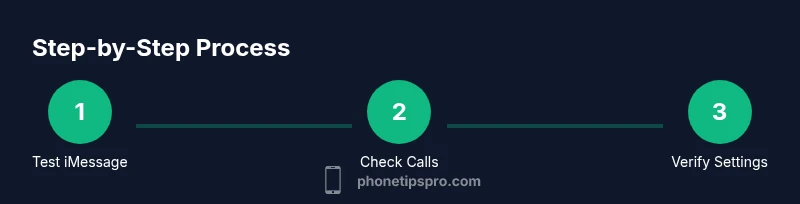
Test iMessage delivery
Send a message via iMessage to the contact and observe the delivery status. If it remains 'Sent' without 'Delivered' for an extended period, note the pattern and compare with other contacts.
Tip: Ensure iMessage is enabled on both ends and that the recipient is not offline. - 2
Attempt a direct call
Place a call to the contact. If the call rings briefly and goes to voicemail, this can indicate blocking or a network issue. Compare behavior with other numbers.
Tip: If multiple attempts fail while other numbers work, blocking is more likely. - 3
Try an SMS test
Send an SMS (text message) if available. If SMS also fails or behaves oddly while other contacts respond, this strengthens the blocking hypothesis.
Tip: Enable SMS fallback in Settings -> Messages if needed. - 4
Test with a trusted third party
Ask a mutual contact to message the person from their device to confirm cross-channel reachability. This helps distinguish device-specific issues from a real block.
Tip: Use a neutral, respectful approach when asking the other person. - 5
Review Focus and Do Not Disturb
Check Settings -> Focus (or Do Not Disturb) to ensure you aren’t inadvertently silenced by filters or exceptions, which can mimic blocking by delaying delivery.
Tip: Disable Focus temporarily to test normal delivery. - 6
Check Screen Time and Blocked Contacts
Inspect Settings -> Screen Time and Settings -> Messages/Phone -> Blocked Contacts. A block entry will prevent delivery or ringing.
Tip: If you find a block entry, removing the contact restores normal behavior. - 7
Restart and reset if necessary
If inconsistent results persist, restart the iPhone or reset network settings to clear potential glitches. This should be a last resort after confirming through tests.
Tip: Note that resetting network settings will remove saved Wi‑Fi passwords.
FAQ
What does it mean if my iMessage shows 'Not Delivered'?
Not Delivered can indicate network issues, the recipient is offline, or you may be blocked. Check other channels and wait a bit to re-test.
If you see Not Delivered, it could be network or block-related. Try a test with another contact to confirm.
How can I tell if I am blocked on FaceTime?
FaceTime does not provide an explicit 'blocked' indicator. If calls consistently fail to connect, and other contacts work, you may be blocked. Verify with alternative methods.
FaceTime doesn't tell you directly you’re blocked; pattern of failed calls suggests it might be the case.
Can someone block me but still receive SMS?
Blocking usually impacts iMessage delivery and FaceTime. SMS behavior depends on settings; it is not reliable as a sole indicator.
Blocking mainly affects iMessage; SMS outcomes vary by settings and carrier.
What should I do if I think I’m blocked?
Use a trusted third party to verify, test different channels, and consider asking the person directly if appropriate. Respect boundaries and avoid repeated pestering.
If you suspect you’re blocked, verify with a friend and choose respectful follow-up options.
Is there a guaranteed way to know for sure?
There is no official 'blocked' status on iPhone; you rely on indirect signals across apps and corroborating tests.
There isn’t a guaranteed method; you rely on multiple cues and tests.
Watch Video
Quick Summary
- Check multiple channels to verify blocking.
- Consider Focus, Screen Time, and Do Not Disturb before concluding.
- Test with trusted contacts to rule out device or network issues.
- Respect privacy and pursue respectful follow-up if appropriate.