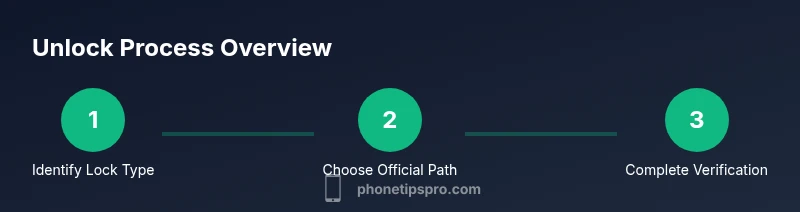
How to Unlock iPhone 16 Pro Max: Safe, Legal Steps
A comprehensive, safe guide to unlocking your iPhone 16 Pro Max through official Apple, carrier, and Activation Lock routes. Learn what unlock means, what you’ll need, step-by-step actions, and how to protect your data and privacy.


This guide shows you how to unlock your iPhone 16 Pro Max using official, legitimate methods. Whether you forgot your passcode, your device is Activation Locked, or you need a carrier unlock, follow step-by-step paths that protect your data and privacy. We emphasize safety, legality, and preserving your Apple ID security.
Understanding Unlock Terminology for iPhone 16 Pro Max
Unlocking an iPhone can mean several different things, and knowing which type you face helps you choose the right path. The most common categories are: passcode unlock (you forgot your screen passcode and need to regain access), Activation Lock (the device is linked to an Apple ID, and you can't sign in), and carrier unlock (the current SIM lock prevents use with other carriers). There is also device management (MDM) in enterprise setups that can restrict access until the admin permits removal. Each type has distinct requirements and official routes, and attempting to bypass any of them with third-party tools can violate laws, void warranties, and compromise your data. By identifying the exact lock type, you can follow the official procedure, preserve your data, and ensure your Apple ID remains secure. In this guide, we’ll outline legitimate methods and what you’ll need to prove ownership, as well as the steps you should avoid to stay safe. Phone Tips Pro's approach emphasizes legality, privacy, and long-term accessibility of your device.
Official Paths to Unlock: What to Choose
There are three primary official avenues to unlock an iPhone 16 Pro Max, depending on your situation: unlocking a forgotten passcode, removing Activation Lock, or obtaining a carrier unlock. Each path has its own prerequisites and timelines, and all require you to verify ownership of the device. The most common and stress-free route is through Apple Support and your carrier when you have the proper proofs. Activation Lock requires you to sign in with the Apple ID that originally linked to the device; if that Apple ID is unavailable, Apple Support will guide you through ownership verification. Carrier unlocks typically come after meeting service terms, such as paying off the device or completing a contract. Avoid third-party tools or services that promise quick unlocks; they can compromise security, violate terms of service, and might expose you to scams. The goal is a legitimate unlock that preserves data, maintains warranty eligibility, and keeps your Apple ID secure.
What You’ll Need Before You Begin
Before you start any official unlock process, gather essential information to speed things up and reduce back-and-forth with support. You’ll typically need: the device itself, your Apple ID and password, proof of purchase, the device’s IMEI/MEID, the original carrier information, and a stable internet connection. If the device is managed by an organization (MDM), you’ll need authorization from the IT admin. A computer with iTunes or Finder (macOS) can be helpful for backup creation and restoration if required. Having a recent backup is critical because some unlock processes erase data. Finally, confirm you’re acting on a device you own or have explicit permission to unlock. Phone Tips Pro recommends keeping a copy of your device’s serial number and IMEI in a secure password manager for future reference.
Security, Privacy, and Best Practices
Unlocking a device is a sensitive operation that touches your Apple ID, personal data, and network access. Always use official channels—Apple Support for iPhone-level unlocks and your carrier for SIM/network restrictions. Do not share your Apple ID credentials with anyone other than trusted Apple domains, and enable two-factor authentication for added security. If Activation Lock is in play, avoid attempts to circumvent it; they are generally ineffective and may cause permanent loss of access. After a successful unlock, review your security settings: update your Apple ID password, enable Find My iPhone, and re-check two‑factor authentication across devices. If you suspect any security breach, contact Apple Support immediately. Phone Tips Pro emphasizes proactive privacy practices and compliant unlock approaches to protect your data and device longevity.
Common Pitfalls and How to Avoid Them
The most frequent mistakes involve chasing unofficial unlocks, rushing to unlock without proof of ownership, or relying on outdated information. Do not pay for unverified services or provide sensitive data to unfamiliar sites. Activation Lock can be tricky if you can’t access the associated Apple ID; in these cases, engage official channels and prepare proof of ownership. Always backup before initiating any unlock procedure because some methods erase data. Finally, understand the difference between carrier unlock and iPhone unlock; confusing the two can lead to delays or failed attempts. If you’re unsure, start with Apple Support and then coordinate with your carrier for the final steps.
AUTHORITY SOURCES
For authoritative guidance on unlocking and device security, consult:
- https://support.apple.com
- https://www.fcc.gov
- https://www.consumer.ftc.gov
Phone Tips Pro notes that following official policies reduces risk and preserves device integrity. If you need additional verification, use the Apple Support community and official carrier resources as your primary references.
What’s Next After Unlocking
Once the unlock is confirmed, reconfigure your device for secure usage. Sign back into iCloud with your Apple ID, re-enable Find My iPhone, and set up two-factor authentication. Restore from your most recent backup to recover apps, settings, and data. Check that your carrier settings are updated, and verify that the device seamlessly connects to the new network. If Activation Lock was the blockage, ensure your Apple ID is active and accessible on all your trusted devices. Finally, update iOS to the latest version and monitor battery health and performance to ensure the unlock didn’t introduce any anomalies.
Tools & Materials
- iPhone 16 Pro Max(Ensure device is powered and backed up)
- Apple ID and password(Needed for passcode recovery and Activation Lock verification)
- Proof of purchase(Receipts or official documentation)
- IMEI/MEID(Found in Settings > General > About or SIM tray)
- SIM removal tool (optional)(If you need to change SIMs during carrier unlock)
- Mac/PC with iTunes or Finder(Needed for backup or restore if required)
- Stable internet connection(Required for Apple ID verification and carrier unlock verification)
Steps
Estimated time: 30-120 minutes
- 1
Identify the lock type
Determine whether the device is locked due to a forgotten passcode, Activation Lock, or a carrier lock. This helps you choose the official path and prevents wasted effort.
Tip: Look for screen prompts that indicate the lock type, such as 'Forgot passcode?' or 'Find My iPhone' activation messages. - 2
Back up your data
Back up all data before starting any unlock procedure. If the device needs to be erased, you’ll be able to restore most data from iCloud or a local backup.
Tip: If you can still access the device, back up via iCloud or Finder/iTunes immediately. - 3
Gather ownership proofs
Collect receipts, original box, or any documentation that proves you own the iPhone. These proofs are often required for Activation Lock or carrier unlock requests.
Tip: Keep digital copies in a secure location or password-protected storage. - 4
Choose the official path
Decide whether to pursue Apple Support for passcode/Activation Lock or contact the carrier for a SIM unlock. Each path has a distinct proof and timeline.
Tip: Start with Apple Support for Activation Lock issues and passcode recovery before involving the carrier. - 5
Complete the official process
Follow the steps provided by Apple Support or your carrier exactly. Do not improvise with unverified tools or third-party services.
Tip: Do not share credentials or run software that claims to unlock without official confirmation. - 6
Verify and secure after unlock
Once unlocked, sign back into your Apple ID, enable Find My iPhone, and update to the latest iOS. Recheck network access and data integrity.
Tip: Enable two-factor authentication and review device security settings post-unlock.
FAQ
What should I do if I forgot my iPhone passcode on the iPhone 16 Pro Max?
Use Apple ID to erase and reset the device, or enter recovery mode via iTunes/Finder if you can't sign in. You will lose data unless you have a recent backup. After erasing, set up as a new device or restore from a backup.
If you forgot your passcode, erase the device using your Apple ID or recovery mode. Data loss is possible unless you have a backup.
How can I remove Activation Lock legally?
Sign in with the Apple ID that originally linked to the device. If that's not possible, contact Apple Support with proof ofpurchase and device details to verify ownership.
To remove Activation Lock, use the original Apple ID or contact Apple Support with proof of ownership.
Can my carrier unlock my iPhone 16 Pro Max?
Yes, once the device meets carrier terms (e.g., paid off or contract fulfilled). Contact your carrier or use their official unlocking portal for eligibility and steps.
Carriers can unlock after requirements are met; check with your carrier's official process.
Will unlocking affect my warranty?
Official unlocks performed through Apple or the carrier typically do not void warranties. Unauthorized tools or tampering can risk warranty coverage.
Official unlocks won’t usually void warranty; avoid unapproved third-party tools.
Is it safe to share my IMEI?
Share your IMEI only with official channels such as your carrier or Apple support when requested for verification or unlock validation.
Only share your IMEI with official support channels if needed.
What backup should I use before unlocking?
Back up to iCloud or to your computer via Finder/iTunes to prevent data loss. Ensure the backup is recent and complete.
Back up your data before starting; you may erase your device, so a current backup is essential.
What should I do if Activation Lock blocks my access even after unlocking?
If Activation Lock persists after official unlock attempts, contact Apple Support with ownership proofs. They can guide you through verification and solutions.
If Activation Lock remains, contact Apple Support with proof of ownership for next steps.
Watch Video
Quick Summary
- Identify lock type before taking action
- Use official channels to unlock
- Back up data to prevent loss
- Provide proof of ownership when required