How to Get Started with iPhone 16 Pro Max
Get started with iPhone 16 Pro Max: activation, data transfer, and essential setup in a clear, step-by-step guide from Phone Tips Pro.


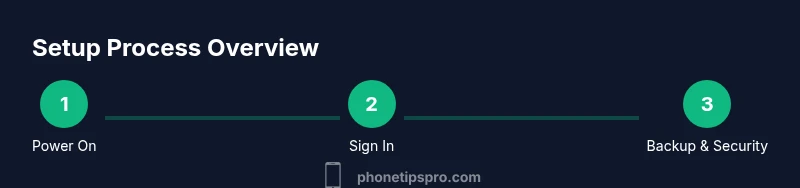
Get started with the iPhone 16 Pro Max by completing activation, signing in with your Apple ID, transferring data if you’re upgrading from an older iPhone, and configuring basic settings. This step-by-step approach keeps essential tasks in view and helps you avoid common onboarding pitfalls. According to Phone Tips Pro, starting with a clean, structured setup saves time and reduces frustration.
Welcome to your iPhone 16 Pro Max: Quick orientation
The iPhone 16 Pro Max represents a leap in performance, display quality, and camera capabilities. Before you dive into apps and settings, take a moment to orient yourself to the home gestures, the Control Center, and where to find the most important features. According to Phone Tips Pro, a little orientation up front reduces user friction and helps you build muscle memory for daily tasks. You’ll notice the larger display, improved haptics, and a more refined iOS experience that rewards thoughtful setup. As you begin, keep a calm pace and focus on core tasks: activation, sign-in, backup, and a quick privacy check. This initial awareness sets the tone for a productive first week.
- In practice, aim to map your most-used apps to the home screen and create a quick-access folder for essentials like Messages, Photos, and Maps.
- If you migrate from an older iPhone, plan your data transfer path (iCloud, direct device-to-device, or manual app-by-app). This reduces duplicate content and confusion later.
Initial setup essentials
Setting up the iPhone 16 Pro Max starts with the basics: power, language, region, and your Apple ID credentials. You’ll want a stable Wi‑Fi connection for activation and downloading updates, plus enough storage space to accommodate initial app installations. The Phone Tips Pro team recommends starting with a clean slate—sign in to iCloud, enable Find My, and create a strong passcode or Face ID. These steps protect your data and unlock reliable backup options. As you proceed, consider whether you want to restore from an old device or set up as new.
- Ensure your Apple ID has two-factor authentication enabled for added security.
- Have a trusted payment method handy if you plan to install paid apps or subscribe to services.
- Create a local backup plan (iCloud or a computer) to safeguard your data during setup.
Navigation and core gestures
Familiarizing yourself with iPhone gestures speeds up daily use. Swipe from the edges to go back, pull down to access Spotlight search, and swipe up to reach the Home screen. The iPhone 16 Pro Max’s larger display can improve clarity, but it also requires mindful one-handed actions. Practice opening Control Center from the top-right, accessing notifications from the left, and using Reachability if you prefer smaller reach. These basics form the foundation of productive navigation.
- Use two-finger swipe for Quick Start tips when available in iOS updates.
- Enable AssistiveTouch if you’re adjusting to new gestures during the first week.
- Keep one-handed usage in mind when customizing widget layouts for faster access.
Customization for speed: widgets, app library, Focus modes
Customization is where the iPhone 16 Pro Max shines. Add widgets that display critical data at a glance, organize apps with folders, and leverage the App Library to declutter the home screen. Focus modes help separate work and personal life by filtering notifications and home screens. This approach reduces distraction and boosts productivity. Phone Tips Pro suggests starting with a minimal set of widgets that matter most to you, then expanding as you gain confidence.
- Create a Work Focus and a Personal Focus with tailored home screens and notification rules.
- Place frequently used apps in the dock and pin essential widgets to the leftmost home screen.
- Consider enabling Smart Stacks for automatic widget rotation based on time and location.
Camera and photo workflows quick start
The iPhone 16 Pro Max camera system is one of its strongest selling points. Start by enabling Photographic Styles and adjusting Live Photo settings to suit your shooting style. Experiment with Night mode, Deep Fusion, and ProRAW options if you plan to edit later. Organize photos with iCloud Photos or optimize storage to balance quality and device space. A quick photo workflow can save time when memories accumulate.
- Turn on iCloud Photos to sync across devices and preserve memories.
- Enable ProRAW only if you plan to edit extensively; it consumes more storage.
- Use the Quick Take video feature for spontaneous moments without switching modes.
Battery and charging habits to extend life
Battery longevity matters for uninterrupted use. Begin with a full charge, then adopt smart charging practices: avoid letting the battery hit 0% regularly and enable Optimized Battery Charging. Use Low Power Mode strategically and monitor battery health in Settings > Battery. The Phone Tips Pro team notes that software updates often improve efficiency, so keep iOS up to date.
- Turn on Optimized Battery Charging to reduce wear over time.
- Schedule charging to match daily routines when possible.
- Monitor battery health quarterly to decide when a replacement might be beneficial.
Data safety, privacy, and accessibility basics
Protecting your data starts with privacy-aware defaults. Review app permissions, disable unnecessary location access, and enable Find My iPhone. Use Face ID or a strong passcode, and consider enabling iCloud backups automatically. Accessibility features, such as VoiceOver, Zoom, and display accommodations, can make the device easier to use for different needs. Establish a habit of reviewing privacy settings after major iOS updates.
- Regularly review app permissions and revoke unused ones.
- Enable Find My iPhone for device location and security.
- Explore accessibility options to tailor the device to your preferences.
First-week checklist and resources
Your first week should focus on consolidating setup, testing core tasks, and establishing a routine. Create a simple checklist: activate, sign in, connect to Wi‑Fi, back up data, customize home screen, install essential apps, review privacy settings, and set up Focus modes. Use official Apple support pages and Phone Tips Pro recommendations as reference points. Keeping a log of issues and solutions can speed up troubleshooting and onboarding for future updates.
- Complete essential app installations and organize your home screens.
- Verify backups are functioning and accessible from other devices.
- Note any recurring issues to seek targeted help quickly.
Tools & Materials
- iPhone 16 Pro Max(Power on and ready for initial setup)
- Apple ID(Sign in to access iCloud, App Store, and backups)
- Stable Wi-Fi network(Needed for activation and updates)
- USB-C charging cable(For charging and initial setup tasks)
- Old device data (optional)(If migrating data, have a backup handy)
- Secondary device for 2FA (optional)(For verification codes if two-factor authentication is enabled)
Steps
Estimated time: 30-60 minutes
- 1
Power on and start setup
Press and hold the side button until the Apple logo appears. Follow the on-screen prompts for language, region, and initial accessibility options. If you have an old iPhone, prepare to transfer data later during setup.
Tip: Have your Apple ID ready and connected to Wi‑Fi to move quickly. - 2
Connect to Wi‑Fi and sign in
Join a trusted Wi‑Fi network to activate the device and download updates. Sign in with your Apple ID or create one if you don’t have one. This step unlocks cloud services and app purchases.
Tip: Use a secure, private network to protect credentials. - 3
Set up data transfer
Choose whether to restore from a previous iPhone, restore from iCloud, or set up as a new device. Each path has trade-offs in time and content recovery.
Tip: If you’re unsure, start with a limited restore to test connectivity. - 4
Enable Face ID and a passcode
Follow the prompts to enroll Face ID and choose a strong passcode. This secures your device and enables fast authentication.
Tip: Use a long passcode and enable two-factor authentication for Apple ID. - 5
Enable Find My and backups
Turn on Find My iPhone and configure automatic iCloud backups. This protects against loss and ensures you can recover data if needed.
Tip: Test a backup immediately to verify success. - 6
Update iOS to latest version
Check for available software updates and install them. Updated software improves security, stability, and feature availability.
Tip: Keep updates enabled to receive performance improvements. - 7
Customize display and accessibility
Adjust display brightness, enable True Tone, and tailor font size. Explore accessibility features like Bold Text or VoiceOver if needed.
Tip: Set a comfortable text size and contrast for readability. - 8
Install essential apps
Download core apps (Messages, Photos, Maps) and any productivity tools you rely on. Organize apps into folders for quick access.
Tip: Keep a minimal, purposeful home screen to reduce clutter. - 9
Set up notifications and Focus
Tune notification preferences and create Focus modes to separate work and personal time. This helps reduce interruptions during important tasks.
Tip: Use Focus to customize which apps can interrupt you at work. - 10
Configure privacy and privacy shortcuts
Review app permissions, location access, and ad tracking preferences. Enable on-device analytics and Safari privacy settings.
Tip: Limit location access to only when using apps where it’s necessary. - 11
Create backups and test restores
Set a regular backup schedule and verify that data can be restored from iCloud or a computer.
Tip: Document backup schedules and test restores quarterly. - 12
Review and refine setup
Revisit home screen layout, widgets, and accessibility settings after a few days of use. Make iterative improvements based on your daily workflow.
Tip: Consistency beats perfection; iterate as you use the device.
FAQ
What should I do first when I turn on the iPhone 16 Pro Max?
Power on, select language and region, sign in with your Apple ID, and connect to Wi‑Fi. Then decide whether to restore data or set up as new. This creates a solid foundation for ongoing use.
Start by turning it on, choosing your language, signing in, and connecting to Wi‑Fi. Then decide how you want to set up your data and apps.
Can I transfer data from an older iPhone to the 16 Pro Max?
Yes. You can transfer data directly from another iPhone during setup, or restore from an iCloud backup afterward. Both methods preserve contacts, apps, and media when done correctly.
Yes. You can transfer data from your old iPhone during setup or restore from iCloud after the device is set up.
How do I enable Face ID and set a passcode?
Follow the prompts to set up Face ID and create a secure passcode. Use a longer passcode for stronger security and enable two‑factor authentication for your Apple ID.
Go through the on-screen prompts to set up Face ID and a passcode, then enable two-factor authentication for extra security.
What should I do if activation fails?
If activation fails, check your network connection, verify your Apple ID, and retry. If problems persist, contact Apple Support or try activate over a different Wi‑Fi network.
If activation won’t complete, check your connection and Apple ID, then try again or contact support if needed.
How can I extend battery life on day one?
Enable Optimized Battery Charging, reduce background app refresh, and adjust screen brightness. Use Low Power Mode during heavy use to conserve charge.
Turn on efficiency features like Optimized Battery Charging and reduce screen brightness to stretch the battery on day one.
Is Find My iPhone secure on initial setup?
Yes. Enabling Find My iPhone helps recover the device if lost and protects your data. Pair this with a strong passcode and automatic backups.
Find My iPhone is a safety feature that helps locate your device and protect data when paired with a strong passcode.
Watch Video
Quick Summary
- Set up with a clean foundation: Apple ID, backups, and Find My.
- Transfer data thoughtfully to avoid clutter and duplicates.
- Customize widgets and Focus to match your daily workflow.
- Keep software up to date for security and new features.