How to Find My iPhone: A Practical Guide
Learn how to locate your iPhone quickly using Find My. This comprehensive guide covers setting up Find My, locating via the app or iCloud, handling offline devices, and safety steps to protect your data.


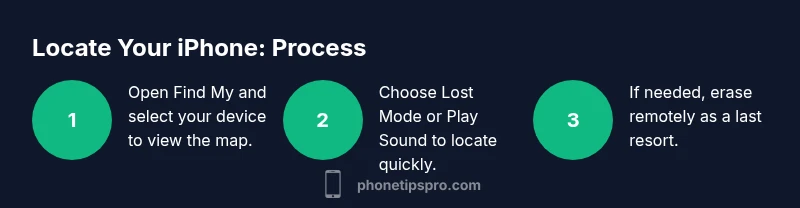
With Find My enabled, you can locate your iPhone from another device or iCloud.com. Open Find My, select your iPhone, and view its location on a map. You can play a sound, mark as lost, or erase remotely if necessary. Have your Apple ID credentials ready to sign in and confirm ownership.
Understanding Find My iPhone basics
If you’re researching how to locate your iPhone, the primary method is Find My, Apple’s built-in service. According to Phone Tips Pro, Find My combines device location data, crowdsourced location signals from other Apple devices, and remote control options to help you recover a lost or stolen iPhone quickly. This service shows the device’s location on a map, notifies you when it’s found, and lets you take action to protect your data. The system relies on your Apple ID, an internet connection, and the iPhone being signed in to iCloud with Find My iPhone enabled. If any of these are missing, you’ll have limited visibility or none at all, so verification ahead of time matters. You’ll learn how to prepare, verify prerequisites, and use the tools effectively in real-world scenarios.
Phone Tips Pro emphasizes that preparation reduces response time when a device goes missing. Keep your Apple ID updated, ensure Location Services are on, and confirm Find My iPhone is toggled on in Settings. Once enabled, you can act quickly from another iPhone, iPad, or a computer.
Preparing to locate your iPhone
Before you start, gather credentials and verify prerequisites. Phone Tips Pro analysis shows that most successful recoveries begin with a signed-in Apple ID and Find My enabled on the device. If you can’t sign in or the device isn’t linked, you won’t see real-time location. Check iCloud settings on a trusted device: Settings > [your name] > Find My > Find My iPhone, and confirm that Find My iPhone is toggled on, and that Offline Finding is available if you have the feature enabled. Ensure you have access to another Apple device or a computer with a web browser to use Find My via the web. Finally, alert family members if you use Family Sharing so you can coordinate. The objective is to establish reachability and ownership verification to act quickly if the phone is misplaced or stolen.
Check settings and prerequisites
Verify Location Services are on and that your iCloud account is signed in on the device you’ll use to locate it. In Settings, ensure Find My iPhone is enabled, and that you’re signed in with the correct Apple ID. If Location Services are off, location data won’t update, and you’ll miss accurate positioning. For the best results, also enable Send Last Location so Apple stores the device’s last known position before its battery dies. If any of these settings are missing, follow the on-device prompts to enable them before attempting a locate.
How Find My works in practice
Find My uses a combination of GPS data, nearby Apple devices in the Find My network, and secure, end-to-end encrypted sharing to display your iPhone’s location. This means you can see the device on a map even if it’s not actively connected to the internet, thanks to nearby devices helping relay its location. Privacy controls allow you to manage who can see location data, and you can customize what information is shared in Lost Mode. In practice, you’ll usually start from Find My on iPhone or iCloud.com, select the target device, and decide whether to locate, play a sound, or secure the device remotely.
Locating via iCloud.com
If you don’t have another Apple device handy, you can locate your iPhone by signing into iCloud.com with your Apple ID. Open the iCloud Find My iPhone page, choose the device from the All Devices list, and view its position on the map. From here you can play a sound to help you locate it in a house, enable Lost Mode to display a message and contact information, or erase the device if you believe it’s lost for good. The browser interface mirrors the Find My app, with all the same core actions available.
What to do if the device is offline or powered off
If your iPhone is offline, you won’t see real-time location until it reconnects. Enable Offline Finding if your device supports it, and keep an eye on location updates as soon as the device regains connectivity. Lost Mode can still be activated to lock the device and show a message, while you wait for an online beacon. If you suspect theft, contact authorities and provide the device’s last known location. Erasing should be a last resort if you’re sure you won’t recover the device.
Safety, privacy considerations
Never share your Apple ID credentials with others, and beware of phishing attempts asking for login information to access Find My. Use strong, unique passwords and enable two-factor authentication for your Apple ID. After a loss, change passwords for any linked accounts if you fear a data breach. If you recover your device, disable Lost Mode and review permissions in your iCloud settings. These practices help protect your privacy while maximizing the chances of recovery.
Common issues and troubleshooting tips
If the location doesn’t update, check your internet connection, ensure Location Services are enabled, and confirm that the device’s battery isn’t dead. If you can’t see the device in Find My, sign out and back in to your Apple ID, then refresh the Find My app. For iCloud users, ensure you’re signed into the correct account and that the device isn’t hidden under a different Apple ID. In rare cases, you may need to contact Apple Support for additional verification steps.
Tools & Materials
- Apple ID and password(Needed to sign in to iCloud/Find My)
- Access to another Apple device or a computer(To run Find My from the app or a web browser)
- Stable internet connection(Required for real-time location updates)
- Find My iPhone enabled on the target device(Enable in Settings > [your name] > Find My > Find My iPhone)
Steps
Estimated time: 15-25 minutes
- 1
Open Find My on a trusted device
Launch the Find My app on another iPhone/iPad or open the Find My iPhone page on iCloud.com. Sign in with your Apple ID if prompted. This initial step confirms you’re operating with the correct account and access rights.
Tip: If you’re using iCloud.com, use a computer for a larger screen and easier navigation. - 2
Select the target iPhone
From the device list, choose the iPhone you want to locate. The map will show the device’s approximate location and the last known position if the device is offline.
Tip: If the device isn’t listed, verify that Find My iPhone is enabled on that device and that you’re signed into the correct Apple ID. - 3
View location and options
Observe the map to determine the location. Use the available actions: Play Sound, Directions, Lost Mode, or Erase iPhone. These functions help you locate quickly or protect data.
Tip: Play Sound is useful if you believe the device is nearby, such as at home or work. - 4
Use Lost Mode if needed
Enable Lost Mode to lock the device, sign a message with contact information, and track its location. This helps deter unauthorized use and makes it easier for you or others to reconnect with the device.
Tip: Include a short, clear message and a contact number in Lost Mode. - 5
Consider remote erasure if recovery seems unlikely
If you’re convinced the device won’t be recovered, you can erase it remotely to protect data. Note this will disable further location updates and prevent you from tracking the device afterward.
Tip: Only erase as a last resort after attempting other recovery options. - 6
Confirm recovery or take next steps
If the device returns online, refresh the location and status in Find My. If not, contact local authorities and your carrier to report the loss and suspend service as needed.
Tip: Document the last known location and timestamps for reference.
FAQ
How do I enable Find My iPhone?
Go to Settings > [your name] > Find My > Find My iPhone and toggle it on. Ensure Location Services are enabled for accurate tracking.
To enable, open Settings, tap your name, choose Find My, and turn on Find My iPhone and Location Services.
What if my iPhone is offline when I try to locate it?
If offline, you’ll still see the last known location and can enable offline finding if available. Location updates occur when the device reconnects.
If it’s offline, you’ll see the last known location and wait for it to reconnect to update.
Can I locate someone else’s iPhone without permission?
Location tracking requires the account owner’s Apple ID and consent. Do not attempt to access someone else’s device without explicit permission.
No, you should only locate devices you own or have explicit permission to track.
What should I do before erasing my iPhone remotely?
Erase is irreversible for location tracking. Use Lost Mode first, and only erase if you’re sure the device won’t be recovered.
Erase only if recovery seems unlikely and you’ve tried other options like Lost Mode.
I can’t sign in to Find My. What now?
Check Apple ID credentials, reset your password if needed, and ensure two-factor authentication is active. If issues persist, contact Apple Support.
Make sure you’re using the right Apple ID and that your password works; contact support if problems continue.
Watch Video
Quick Summary
- Verify Find My iPhone is enabled before loss.
- Use Find My app or iCloud.com for location and actions.
- Lost Mode helps protect data during loss.
- Offline devices can still report location when back online.
- Erase should be a last resort after attempts to recover.