Find My iPhone: Locate, Ring, and Secure Your Device
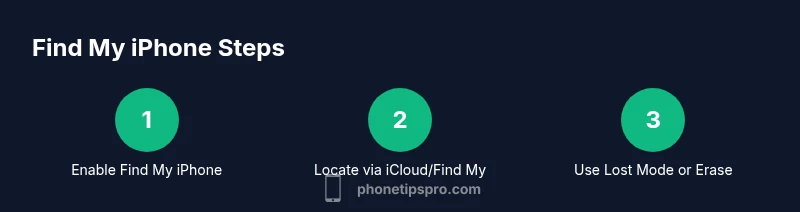
Learn to locate, lock, and protect your iPhone using Find My. This guide covers enabling Find My, locating via iCloud or another iPhone, and using Lost Mode and remote erase when necessary.


Find My helps you locate your iPhone, play a sound, enable Lost Mode, or erase data remotely. This guide covers turning Find My on, locating your device via iCloud or another iPhone, and protecting your information if it’s lost or stolen. You’ll learn practical steps for the common case of iphone find my phone.
What Find My iPhone Does for You
According to Phone Tips Pro, Find My iPhone is not just a locating tool; it’s a security hub that helps you recover a misplaced device and safeguard your data. With it, you can view the device’s last known location, play a sound to help you find it, lock the screen, display a message for a finder, or erase data remotely if the device is truly lost. The feature also supports sharing locations with trusted friends or family, which can be crucial if you’re worried about the device’s safety. For most users, enabling Find My iPhone is a one-time setup that pays off in minutes of time saved during a loss event.
As you explore iphone find my phone capabilities, you’ll notice two related services: Find My iPhone on iCloud and the Find My app on iOS. Both interfaces provide similar options, but the iCloud web interface is handy when you don’t have your device handy. Phone Tips Pro analysis shows that most recoveries occur when you immediately use Lost Mode and share your location with someone you trust.
Key benefits include real-time location updates when the device is online, the ability to lock the device remotely, and a safeguard against unauthorized use by enabling Activation Lock. In urgent situations, these features can dramatically increase the chances of recovery and reduce data exposure.
For peace of mind, remember: the sooner you act, the higher the likelihood of recovery. This section lays the groundwork for using Find My effectively in everyday scenarios and emergencies alike.
Prerequisites: Ensure Find My iPhone is Enabled
Before you can locate or protect your iPhone, you must ensure Find My iPhone is enabled on the device. The quickest way is to visit Settings > [Your Name] > Find My > Find My iPhone and toggle it to on. Also turn on Share My Location and Find My network if available. You’ll need your Apple ID credentials to access Find My from another device or iCloud. The Phone Tips Pro team emphasizes enabling these settings proactively, so you’re not scrambling after a loss. Once enabled, the device can be located even if it’s offline using the Find My network when it reconnects.
If you’ve recently changed passwords or activated two-factor authentication, recheck that Find My is still authorized to use your account. In some cases, a sign-in refresh is required to keep location services active. Pro-tip: keep a trusted device nearby for easier access in future losses, and ensure that all family members who might help have the required permissions to view your location when needed.
Locating Your iPhone from iCloud.com
To locate your iPhone from a web browser, sign in to iCloud.com with your Apple ID. Open the Find iPhone app there, then select your missing device from the All Devices list. The map will show the device’s approximate location if it is online, and you can choose actions like Play Sound, Lost Mode, or Erase. If the device isn’t showing up, it could be offline or powered off. In that case, enable Notify When Found to receive an alert once it reconnects. Phone Tips Pro highlights that iCloud access is a dependable fallback when you don’t have another Apple device handy.
When the device is located, you can remotely display a message with contact instructions. This is a lightweight yet effective way to improve chances of a quick return. If you’re dealing with a shared or family account, make sure everyone who needs access can see the device’s status without exposing sensitive information.
For privacy, keep in mind that location data can reveal sensitive patterns. Use Lost Mode to lock the screen and replace your contact details with a simple, safe message.
Using the Find My App on an iPhone or iPad
On an iPhone or iPad, open Find My, tap Devices, and select the missing device. The map shows its location, and you can perform actions such as Play Sound, Directions, Lost Mode, and Erase. Playing a sound is helpful if you misplaced the device nearby, such as at home or in an office. Lost Mode locks the device, displays a message, and can enable the device to be tracked even if it’s locked.
Phone Tips Pro notes that Lost Mode can also suspend credit card use if your device supports Apple Pay, depending on your settings. If you’ve enabled Activation Lock, the device remains protected from unauthorized use even if someone attempts to reset it. If you don’t see the device on the map, ensure that it’s signed into iCloud with Find My enabled and that the iPhone has an active internet connection.
Keep your Apple ID secure and avoid sharing your login details. For critical recoveries, use a second trusted device to check the location and statuses, ensuring you don’t rely on a single point of failure.
Practical Uses: Lost Mode, Sound, and Erase
Lost Mode is the primary tool for securing data while you locate a missing iPhone. It locks the device, displays a custom message with a contact number, and keeps Activation Lock enabled to deter unauthorized use. Use Lost Mode when you suspect the device was misplaced outside your home and you want to deter theft or unauthorized access. If the device is located, you can unlock it by the rightful owner after verifying your credentials.
Sound can be a life-saver if you think the device is nearby, such as under a couch or in a desk drawer. Erasing remotely should be a last resort when the data on the device is truly at risk and recovery seems unlikely. Note that erasing the device will remove all data and disable Activation Lock, but you can still locate the device after erase if it returns online. The Phone Tips Pro team suggests prioritizing data protection with Lost Mode before resorting to erase.
Consider also enabling location sharing with trusted contacts so someone else can help you tracking the device’s location. This proactive approach reduces anxiety during a loss event and improves the chances of recovery.
Offline Devices and Privacy Considerations
If your iPhone is offline, Find My can’t display real-time location until it reconnects. In these cases, set up Notify When Found to receive a notification as soon as the device comes online. For offline devices, you can still use Lost Mode to lock the device and preserve your data, and Activation Lock will continue to protect against unauthorized use.
Phone Tips Pro reminds readers that every location update is subject to privacy policies and user consent. Only share your location when absolutely necessary, and avoid exposing sensitive information in Lost Mode messages. If you’re the target of stalking or harassment, contact local authorities and your carrier for additional protection and guidance; remote controls are helpful, but they are not substitutes for safety precautions.
To prevent future losses, consider enabling “Notify When Found” and keeping your trusted devices updated. Regularly review which devices are linked to your Apple ID and remove any that no longer belong to you.
Privacy and Security Considerations for Find My
Location data is sensitive. Use Find My responsibly and enable notifications only for devices you control and trust. Regularly review your privacy settings and restrict location sharing to trusted individuals. Activation Lock enhances security by making it harder for an unauthorized user to erase or re-activate the device.
Phone Tips Pro emphasizes keeping your Apple ID credentials private and enabling two-factor authentication for added protection. In case of a lost device, avoid confrontations with a possible thief. Instead, use the official Find My controls to maximize your chances of safe recovery.
With proper setup and prompt action, Find My can be a powerful ally in protecting your data and increasing the odds of recovering a misplaced iPhone.
Common Pitfalls and Troubleshooting Tips
If you don’t see your device on the map, verify that Find My iPhone is enabled on the device, that you’re signed into the correct Apple ID, and that the device has an active internet connection. If location services are disabled on the device, location cannot be updated. For a missing device, ensure you’re checking the correct account and consider re-signing into iCloud or Find My app if you’ve recently updated your password or enabled two-factor authentication.
Another common issue is the device showing an inaccurate location; this can be caused by poor signal or obstructions. In such cases, refresh the map view and wait for a more precise update. If the device was recently reset or erased by a thief, you won’t be able to track it, and the best course is to use Lost Mode and contact authorities.
To maximize reliability, keep the Find My app updated, ensure all devices linked to your Apple ID are on the latest iOS or macOS versions, and maintain a secure password for your Apple ID. These measures improve the accuracy and reliability of location data and device protection.
The Phone Tips Pro Take: Best Practices for iphone find my phone
According to Phone Tips Pro, the best practice is to enable Find My iPhone and Share My Location from day one, and to review location-sharing permissions quarterly. Keep your Apple ID secure, use two-factor authentication, and maintain up-to-date contact details in Lost Mode messages. The Phone Tips Pro team recommends testing Find My once every few months to ensure you’re prepared if loss occurs. By combining proactive setup with quick action, you can dramatically reduce stress and improve recovery outcomes.
Tools & Materials
- iPhone with Find My iPhone enabled(Settings > [Your Name] > Find My > Find My iPhone on, and ensure Find My network is on if available)
- Apple ID credentials(Used to sign into iCloud/Find My on any device or web browser)
- Trusted device (iPhone/iPad/Mac)(A second device helps you access Find My quickly if your lost device is unreachable)
- Reliable internet connection(Wi‑Fi or cellular data needed to update location in real time)
- charger or power source for active device(Useful if the device is borderline powered and you’re nearby)
Steps
Estimated time: 5-20 minutes
- 1
Check prerequisites and sign in
Open Settings and confirm Find My iPhone and Share My Location are enabled, then sign in with your Apple ID on a trusted device. This ensures future location data can be retrieved from iCloud. Time estimate: immediate.
Tip: Verify you’re using the same Apple ID across devices to avoid sign-in mismatches. - 2
Open Find My on iPhone or iPad
Launch the Find My app on another iPhone or iPad, or sign in to iCloud.com on a computer. Ensure you can see your missing device in the Devices list. Time estimate: instant if you have access to a trusted device.
Tip: If you don’t see the device, check that location services are enabled for Find My. - 3
Select the missing device
From the list, choose the iPhone you want to locate. The map will display the device’s approximate location if it is online. Time estimate: immediate upon selection.
Tip: If the device doesn’t appear, it may be offline or out of battery. - 4
Play Sound to locate nearby
Tap Play Sound to trigger the phone to emit a loud sound, even if silenced. This is the quickest way to find a nearby device within reach. Time estimate: immediate.
Tip: This helps locate a device hidden in a room or under furniture. - 5
Enable Lost Mode
If you can’t recover the device quickly, use Lost Mode to lock the screen and display a message with a contact method. This also prevents unauthorized use. Time estimate: immediate.
Tip: Include a simple contact method and avoid sharing sensitive information. - 6
Remotely erase if necessary
If the device seems irretrievably lost or data is at risk, you can erase it remotely. This is a last resort and will remove data and disable Find My activation lock if the device goes online again. Time estimate: immediate if chosen, note consequences.
Tip: Only erase if recovery is unlikely and data protection is critical. - 7
Notify When Found
If the device is offline, enable Notify When Found so you’ll get a notification as soon as it’s online. This is helpful when the device’s connectivity is intermittent. Time estimate: depends on network status.
Tip: Stay patient; sometimes devices move after being lost and come back online later. - 8
Review privacy and security after recovery
After recovery or action, review your account security: change passwords if needed, verify two-factor authentication is active, and confirm that no unknown devices are connected to your Apple ID. Time estimate: 5–10 minutes.
Tip: Regularly update security settings to minimize risk in future incidents.
FAQ
Do I need Find My to be enabled before the phone is lost?
Yes. Find My must be enabled before the loss occurs to locate, lock, or erase the device. If it wasn’t enabled, you can only rely on other account security measures and any data protections you have in place.
Find My needs to be enabled before loss to locate or lock the device.
Can Find My locate an iPhone that’s offline or powered off?
You can’t see live location while offline, but you can enable Notify When Found to receive an update once the device goes online again.
Offline devices can’t be tracked in real time, but you’ll get a notification when they reconnect.
What should I do first after realizing my iPhone is missing?
Open Find My on another device or iCloud, check the list of devices, and start with Play Sound if nearby, then enable Lost Mode to protect data.
Open Find My and act quickly with Lost Mode if needed.
Is it safe to erase my iPhone remotely?
Erasing should be your last option when recovery seems unlikely and data protection is at risk. It removes data and could prevent you from tracking later.
Erase only if you’re sure recovery won’t happen and data needs protection.
Will Find My work if Activation Lock is on?
Yes. Activation Lock helps prevent reactivation by others even if the device is erased. You’ll need your Apple ID to reactivate.
Activation Lock keeps your device secure even after erase.
Watch Video
Quick Summary
- Enable Find My and Share My Location now.
- Use iCloud Find My to locate your device quickly.
- Lost Mode protects data before you recover the device.
- Remote erase is a last resort when data is at risk.
- Offline devices can still trigger a Notify When Found.