Pop Up Block iPhone: Troubleshooting Guide 2026
A practical, step-by-step guide to stop pop up block iphone issues, remove unwanted alerts, and restore control on iPhone with expert tips from Phone Tips Pro (2026).


You will learn how to identify and stop pop up blocks on your iPhone, remove unwanted alerts, and prevent future interruptions. Basic steps include checking Safari settings, app permissions, and malware scans.
What 'pop up block iphone' means and why it happens
When users search for solutions to pop up block iphone, they’re usually dealing with interruptions ranging from Safari banners to full-screen alerts that appear during browsing or app use. Not all popups are the same: some stem from a website, some from an app, and a few are system notifications misconfigured by settings. The underlying pattern is disruption and diminished trust in the device. According to Phone Tips Pro, three common causes explain most popup issues: aggressive website scripts, misused notification permissions, and ad-supported apps. Identifying which category your case fits is the first critical step toward restoring a calm iPhone experience. In this guide we’ll identify sources, apply safe fixes, and set safeguards so future pop ups are less likely to appear. This approach reflects the Phone Tips Pro Team’s proven methods.
Diagnosing the popup types on iPhone
Popup interruptions on iPhone fall into a few familiar types: website-driven popups from Safari or in-app browsers, push notifications from installed apps, and occasional system alerts that misbehave due to permission settings. To diagnose, note when the popup appears, the site or app involved, and whether you can reproduce it with a specific action. Check Safari settings under Settings > Safari for Block Pop-ups and Fraudulent Website Warnings. Review Notification settings under Settings > Notifications to identify culprit apps. If the popup originates after visiting a site, clear website data. If it follows a recent app install, consider removing or updating that app. A careful audit often reveals the root cause in minutes.
Quick wins: immediate fixes you can try
Start with safe, non-destructive steps you can perform in under 15 minutes:
- Close the popup without tapping any links, then take a note of its text for clues.
- In Safari, toggle Block Pop-ups on (Settings > Safari > Block Pop-ups) and clear history and website data.
- Review Notifications and disable permissions for unfamiliar or suspicious apps (Settings > Notifications).
- Check for recently installed apps that may be serving ads or redirects and uninstall them if needed.
- Restart the iPhone after changes to reset temporary states, which often stops stubborn popups.
- If a pop up persists, reset network settings (Settings > General > Transfer or Reset iPhone > Reset > Reset Network Settings) to fix possible DNS or proxy quirks.
Deep-dive: Safari, apps, and notifications settings
This section details how to methodically adjust Safari and app-related settings to curb pop-ups. In Safari, disable JavaScript if a rogue site relies on it for popups (Settings > Safari > Advanced > JavaScript). Turn on Fraudulent Website Warnings and disable cross-site tracking (Settings > Safari). Clear site data for suspicious domains (Settings > Safari > Advanced > Website Data > Remove All). For apps, review permissions and background activities (Settings > Privacy > Tracking, Location, Notifications). Some popups are caused by ad-supported apps; uninstall those apps and restart the device. Finally, inspect system notifications (Settings > Notifications) and disable banners or sounds for apps that behave aggressively. Keeping a habit of updating iOS ensures new protections land on your device.
Long-term prevention: maintenance and safe browsing
Prevention is better than cure. Adopt a routine that minimizes future pop ups: keep iOS updated to the latest version, enable automatic updates for apps, and limit website data by clearing it periodically. Use safe browsing habits: avoid visiting suspicious sites, only install apps from the App Store, and read reviews before granting additional permissions. Regular backups (iCloud or computer) protect data if a reset becomes necessary. Consider using a strong passcode and enabling Find My iPhone so you can quickly recover from unwanted changes. Finally, establish a quick-check ritual after installing new apps or visiting unfamiliar sites to confirm that no popup toggles were inadvertently enabled.
When to seek professional help
If the popup issue persists after applying the steps above, or if you notice abnormal device performance, seek professional support. Contact Apple Support or visit an Apple Store for a diagnostic. Persistent pop ups can indicate deeper software anomalies or configuration drift that requires hands-on inspection. The moment you feel overwhelmed by repeated interruptions, a pro assessment can save time and protect data integrity. Phone Tips Pro recommends documenting the behavior (time of day, apps involved, screenshot of the popup) to expedite support.
The Phone Tips Pro approach: a reliable method
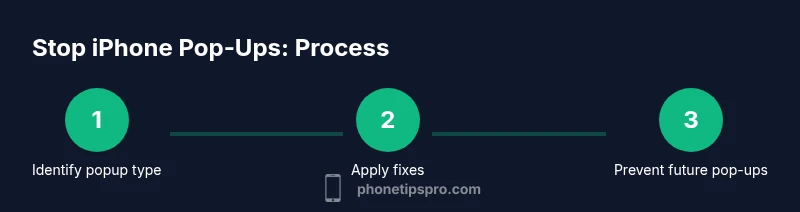
Phone Tips Pro uses a structured, evidence-backed approach to troubleshoot pop ups on iPhone. Start by identifying the popup’s source, apply targeted fixes, and finish with preventive habits that reduce recurrence. We emphasize non-destructive steps first (disabling features, uninstalling suspect apps) before suggesting a factory reset. Our guidance aligns with best practices from official sources and practical experience, ensuring you gain control without losing data or peace of mind. This method helps iPhone users regain a smoother experience and sustain a healthier device ecosystem.
Real-world scenarios and common mistakes
Real-world scenarios often involve a mix of Safari popups and misbehaving apps. Common mistakes include clicking popup links (which often leads to more popups or malware), neglecting to back up data before performing resets, and failing to revoke unnecessary permissions granted to apps. Another pitfall is ignoring app updates that fix popup-related issues. Practicing careful site data management and app permission audits reduces future occurrences and reinforces a safer browsing habit on iPhone.
Tools & Materials
- iPhone with latest iOS(Update to the latest iOS version before troubleshooting to ensure compatibility and fixes.)
- Stable internet connection(Wi‑Fi preferred for updates and testing; cellular data acceptable if needed.)
- Backup of data(Back up to iCloud or computer before major changes.)
- Access to Safari and Settings apps(You will modify Safari and Notifications settings during the fix.)
- Optional: a list of recently installed apps(Helpful for identifying culprits if popups started after installation.)
Steps
Estimated time: 25-40 minutes
- 1
Identify the popup type
Observe when the popup appears, which app or site triggers it, and whether it shows on Safari or as an app notification. This step guides you to the right fix path and prevents wasted effort.
Tip: Note the popup text and URL if shown; a screenshot helps with later support. - 2
Pause and avoid interacting with the popup
Do not tap links or buttons inside the popup. Interaction can sponsor redirects or malware. Close the tab or app, then move to the recommended settings changes.
Tip: Use Command/Control + W to close a tab in Safari if needed. - 3
Block pop-ups in Safari and clear data
Go to Settings > Safari and enable Block Pop-ups. Clear history and website data to remove persistent banners from sites.
Tip: Clearing data prevents stale scripts from reappearing on revisit. - 4
Review notification permissions
Open Settings > Notifications and disable alerts for apps that seem suspicious or unnecessary. Revoke permissions that aren’t essential.
Tip: Only allow notifications from trusted apps to reduce noise. - 5
Uninstall or update suspect apps
If a popup started after a new installation, uninstall the app. If you cannot identify it, update all apps from the App Store and monitor behavior.
Tip: Check App Store reviews for any reports of popups or ads. - 6
Clear website data for problematic sites
In Settings > Safari > Advanced > Website Data, remove data for the problematic site. This stops repeated popups from that site.
Tip: Regularly clearing data helps with recurring issues from sites. - 7
Reset network settings (as last resort)
If the problem involves network routing or DNS redirects, reset network settings. This preserves most data while clearing network configurations.
Tip: You may need to re-enter Wi‑Fi passwords afterward. - 8
Backup and consider a factory reset (rare)
If all else fails, back up data and perform a factory reset to restore default device state. This is a last resort that often resolves stubborn issues.
Tip: Factory reset erases personal data; ensure a current backup is available.
FAQ
Why do pop ups appear on iPhone even after I’ve installed fewer apps?
Pop ups can come from websites you visit, misconfigured notifications, or apps that inject ads. Even if you uninstall an app, lingering website data or notification permissions can keep triggering popups.
Pop ups can come from websites, misconfigured alerts, or ads from apps; clearing data and reviewing permissions helps identify the source.
Is it safe to click on a popup to see what it does?
No. Clicking popups often leads to more popups or malware. Close the popup and avoid following any links it contains.
Avoid clicking popups; they can be traps for malware or scams.
How can I block pop-ups in Safari on iPhone?
Go to Settings > Safari and turn on Block Pop-ups. Clear history and website data if a site is repeatedly problematic.
Use Safari settings to block popups and clear data for troublesome sites.
Could a factory reset fix the issue?
A factory reset is a last resort when other fixes fail and you have a full backup. It restores iPhone to its original state but erases data.
A factory reset is a last resort and will erase data; back up first.
Can ad-supported apps cause recurring popups after removal?
Yes, some ad-supported apps can trigger popups or redirects. Remove or avoid such apps and monitor the device after updates.
Ad-supported apps can cause popups; remove suspicious apps and check again.
What should I do if the problem keeps coming after all fixes?
If popups persist, contact Apple Support. They can run diagnostics and help identify deeper software issues.
If it still happens after fixes, contact Apple Support for help.
Watch Video
Quick Summary
- Identify the popup source before acting
- Tighten Safari and notification settings to reduce flare-ups
- Uninstall suspicious apps and clear site data
- Back up data and consider resets only as last resort