What iPhone Battery Percentage Is Bad: Practical Guidelines
Explore what constitutes a 'bad' battery percentage on iPhone, why the reading alone isn't enough, and practical steps to protect battery health and longevity.


What the battery percentage tells you
If you’re wondering what iphone battery percentage is bad, there isn’t a fixed number. The percent simply indicates how much charge remains. It doesn’t reveal the underlying health of the battery. According to Phone Tips Pro, the health of the battery—its maximum capacity and aging—matters far more for performance than the current charge. A reading of 50% could correspond to a fresh battery on a healthy cycle, or a worn battery near the end of its life. Use the Battery Health metric in Settings to gauge true condition; the percent alone won’t tell you everything. This distinction is essential for iPhone users who want long-term reliability. Phone Tips Pro’s analysis emphasizes health status over raw percentage to guide maintenance and replacements.
Why a percentage reading can mislead you
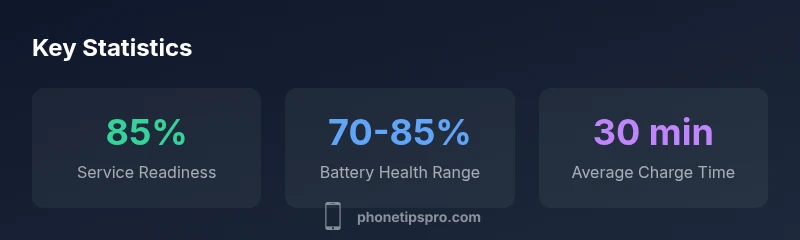
Battery percentage is a dynamic indicator influenced by recent use, temperature, and system activity. It doesn’t account for how much capacity the battery has lost over time or whether the phone can sustain peak performance. Features like Optimized Battery Charging and iOS power management can disguise underlying degradation by delaying full charging or throttling performance. For instance, a phone may show 80–85% charge but still perform well if the battery health remains high. Conversely, a phone with similar percent charge but lower health can run into unexpected shutdowns. In short, the percent is a snapshot, not a full diagnosis. Phone Tips Pro highlights the need to triangulate the reading with Battery Health and performance data.
What counts as 'bad' battery percentage
There isn’t a universal bad percentage. The key signal is battery health and behavior, not the number on the screen. A current reading of 10–20% can be perfectly normal near the end of a cycle if the battery health is good and the device is optimized, but a persistent 10% reading accompanied by a Battery Health warning or frequent slowdowns indicates deterioration. When Battery Health drops toward or below the 80% range, you’ll likely notice reduced peak performance and shorter runtime. In practice, users should treat the health metric as the primary indicator of need for service rather than chasing a specific percent.
Practical guidelines to manage battery percentage and longevity
- Keep the charge between roughly 20% and 80% when feasible to reduce aging from high-voltage stress at full charge. This isn’t a hard rule, but a widely recommended habit for longevity.
- Enable Optimized Battery Charging (Settings > Battery > Battery Health). This macOS/iOS feature learns your routine and reduces time spent at 100%, slowing chemical aging.
- Adjust screen brightness and enable Auto-Lock to minimize unnecessary battery drain. Disable unused background processes and limit push-heavy apps where practical.
- Avoid leaving the phone plugged in at 100% for long periods and avoid deep discharges to 0% if possible. Small changes in daily habits can compound into meaningful health benefits over years.
- Calibrate occasionally by letting the battery drain to around 5–10% and then fully recharge to help the system learn your usage patterns, though this is optional with modern iPhones.
How to check battery health and interpret warnings
To assess true condition, open Settings > Battery > Battery Health. Look for the Maximum Capacity percentage and the Peak Performance Capability status. A Battery Health reading around or above 80% is common for devices in mid-life; anything below that warrants attention, especially if performance issues appear. If the device shows a 'Service Battery' message or if you notice unexpected shutdowns, plan a battery replacement. Phone Tips Pro emphasizes that ongoing health checks are more informative than daily percent readings.
When to replace the battery and how to plan
Replacement timing depends on health and your usage. If Maximum Capacity slips toward 80% or lower, you’ll experience shorter runtimes and more frequent charges. Prices vary by model and region, but planning ahead saves stress: schedule an appointment if you notice rapid drop-offs, reduced performance, or if the device frequently overheats during charging. Compare authorized service options and remember that a new battery can restore peak performance, even if the percent still reads above 50%.
Tools, habits, and solutions to extend life
Beyond settings changes, consider practical habits such as charging on workdays, avoiding heat exposure, and using native troubleshooting steps for performance throttling. Invest in a good case that dissipates heat and keep your iOS updated to benefit from battery-management improvements. Phone Tips Pro recommends focusing on health-related indicators rather than chasing the percentage, since health tracks aging and replacement needs more reliably.