Mastering iPhone Battery Health: Practical Tips and Troubleshooting
Learn practical steps to optimize iPhone battery health, diagnose issues, and extend lifespan with safe, proven charging habits and settings adjustments.


By following this guide, you’ll extend your iPhone battery life and make smarter charging choices. It covers how to assess battery health, adjust settings to reduce drain, optimize background activity, and adopt proven charging habits. You’ll also learn how to spot performance issues and determine when a replacement is warranted. Use the step-by-step actions below to improve longevity with minimal disruption to daily use.
Understanding
Tools & Materials
- iPhone with latest iOS(Ensure device is up to date to access the latest battery health features)
- Apple-certified charger or MagSafe charger(For charging tests and to observe charging behavior safely)
- Settings access (no extra tools needed)(Navigate to Battery settings to read health metrics and optimize charging)
Steps
Estimated time: 1-2 hours
- 1
Open Battery Settings
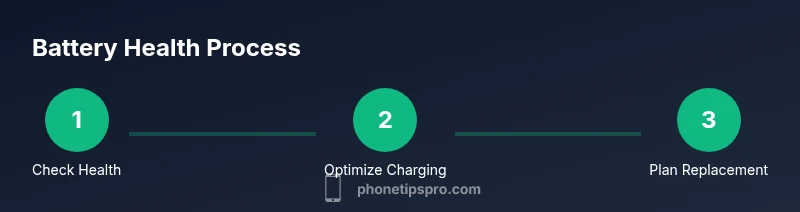
Open Settings, then tap Battery and Battery Health to view Maximum Capacity and Peak Performance. Note the health percentage and whether the device is operating at peak performance. If many hours of screen time are needed between charges, your battery may be aging. This step sets the baseline for all further actions.
Tip: Take a screenshot of the health values for easy comparison later. - 2
Update iOS and enable Optimized Charging
Make sure iOS is up to date, then enable Optimized Charging under Battery Health. This feature learns your daily charging routine and reduces time spent at 100%, which slows aging of the chemical cells.
Tip: If you use a regular charging schedule, keep it consistent to maximize learning. - 3
Adjust Charging Habits and Environment
Avoid charging in hot environments and remove the phone from direct heat during charging. Prefer schedules that keep charging within comfortable temperatures and avoid overnight charging in hot rooms.
Tip: Charge in a cool, well-ventilated area and use a stand to prevent heat buildup. - 4
Fine-tune Settings to Reduce Drain
Reduce background activity by disabling unnecessary refresh, limit location services, and set fetch to longer intervals. Lower screen brightness and enable Auto-Brightness to save power without sacrificing usability.
Tip: Review battery usage by app to identify culprits and adjust or remove them. - 5
Plan Replacement if Health Is Low
If Maximum Capacity is low and you experience unexpected shutdowns, it’s time to consider a battery replacement through Apple or an authorized service provider. Prepare a backup of your data beforehand.
Tip: Check warranty status and service options before scheduling a replacement. - 6
Test After Adjustments
Observe a full day of use to see if runtime improves and if there are fewer unexpected outages. Recheck Battery Health after a week to confirm gains or assess if replacement is still needed.
Tip: Keep a daily log of charge cycles and runtime for clear evidence. - 7
Schedule Replacement and Verify Performance
If a replacement is chosen, confirm the new battery restores performance and runtime comparable to a healthy battery. After service, monitor performance over the following weeks and adjust habits accordingly.
Tip: Back up data prior to service and verify device is sealed against hot environments post-repair.
FAQ
How can I check my iPhone battery health?
Go to Settings > Battery > Battery Health to view Maximum Capacity and Peak Performance. This shows the remaining life of your battery and whether the system is throttling performance.
Open Settings, tap Battery, then Battery Health to view capacity and performance.
When should I consider replacing the battery?
If Maximum Capacity is low and you experience unexpected shutdowns, diminished runtime, or significantly reduced performance, replacement is typically warranted through Apple or an authorized provider.
If your battery health is poor and you notice shutdowns, consider replacement.
Does Low Power Mode help long-term?
Low Power Mode reduces drain in the short term but does not fix aging batteries. Use it during heavy tasks to extend runtime.
Yes, use Low Power Mode for temporary relief when needed.
Can I replace the battery myself?
Self-replacement is not recommended due to safety risks and warranty concerns. Seek Apple or an authorized service provider.
It’s safer to go to Apple or a certified technician.
Will replacing the battery restore performance?
A new battery can restore peak performance and runtime, though other hardware issues can still impact efficiency.
A new battery usually improves performance and longevity.
Is fast charging bad for the battery?
Fast charging is generally safe with proper chargers, but excessive heat can degrade the battery. Avoid charging in hot environments.
Fast charging is fine with proper chargers, but avoid heat.
Watch Video
Quick Summary
- Check battery health regularly and act early
- Enable optimized charging to reduce aging
- Lower heat exposure during charging
- Reduce background activity to extend runtime
- Replace the battery if health is degraded but maintain data backups