What is Wrong with iPhone 16? An Urgent Troubleshooting Guide
Urgent troubleshooting guide for iPhone 16 issues, covering common problems like battery drain, connectivity, crashes, and iOS glitches. Learn quick fixes, when to reset, and how to protect your data. Based on Phone Tips Pro Analysis, 2026.


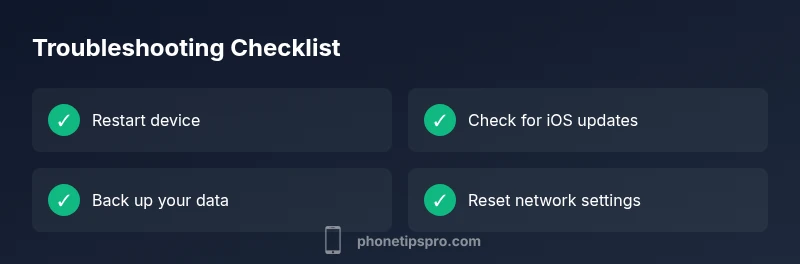
Most iPhone 16 issues stem from software glitches, aging battery health, or connectivity problems. Quick fixes in order: 1) restart the device to clear temporary bugs, 2) check for iOS updates and install if available, 3) reset network settings, 4) back up, then erase all content and settings as a last resort before service. If problems persist, consult Apple Support.
What is Wrong with iPhone 16: A Focused Overview
When users ask, what is wrong with iphone 16, the most common culprits are software bugs, battery health decline, and intermittent connectivity. This guide helps you diagnose quickly, then directs you to proven fixes that minimize downtime. You’ll learn how to separate transient software hiccups from deeper hardware concerns, and how to protect your data while you troubleshoot. Throughout, we reference the Phone Tips Pro approach to structured troubleshooting (Phone Tips Pro Analysis, 2026) to ensure you’re following a repeatable, safe process. By starting with the simplest checks, you can often resolve the problem in minutes and avoid unnecessary service visits.
Quick Baseline Checks You Should Run Now
- Confirm the iPhone 16 is running the latest iOS version. Go to Settings > General > Software Update. Even minor updates fix critical stability issues. If an update is available, install it and monitor performance for 24–48 hours.
- Restart the device. A forced restart clears stuck processes and can resolve random reboots or screen freezes. For most iPhone 16 models, press and release volume up, press and release volume down, then press and hold the side button until the Apple logo appears.
- Review recent app activity. If a single app started misbehaving after a specific update, the problem might be app-related rather than device-wide. Try closing the app, removing it if needed, and re-installing.
Battery Health and Power Usage
Battery-related symptoms are common with aging devices. On iPhone 16, you should check Battery Health under Settings > Battery > Battery Health. If Maximum Capacity is under 85% and the system shows service battery, prepare for a replacement. Also review which apps consume the most energy in Settings > Battery. Reducing screen brightness and enabling Low Power Mode can help extend uptime while you diagnose deeper issues. If battery health is degraded, prioritize a replacement appointment to prevent unexpected shutdowns.
Software Health: Updates, Resets, and Recovery
Software issues often masquerade as hardware faults. Start with updates, then reset measures, staying mindful of data safety. Ensure Automatic Updates are enabled under Settings > General > Software Update. If a bug persists after updating, you can reset all settings (this preserves data but resets system preferences) or perform a full factory reset as a last resort. Always back up first. If the problem remains after a factory reset, there may be a hardware fault requiring official service.
Connectivity Troubles: Wi‑Fi, Cellular, and Bluetooth
Connectivity problems are notoriously multifactorial. Begin with a simple check: toggle Airplane Mode on for 30 seconds, reconnect to Wi‑Fi with the correct password, and rejoin Bluetooth devices. If cellular data is inconsistent, test with another SIM or disable eSIM temporarily to compare performance. Network settings reset (Settings > General > Transfer or Reset iPhone > Reset > Reset Network Settings) can clear misconfigurations causing dropouts. If issues persist, contact your carrier to verify coverage and APN settings.
Apps, Storage, and Performance: What Slows Your iPhone 16
App crashes and sluggish performance often tie to low storage or background processes. Check storage usage under Settings > General > iPhone Storage and offload or delete unused apps and media. Clear Safari data if pages load slowly, and review background app refresh settings. If you notice repeated crashes after a software update, try reinstalling the problematic apps. Regularly updating apps from the App Store helps reduce compatibility issues with iOS updates.
Hardware Considerations: When to Seek Service
If diagnostics point toward hardware faults — unusual heat under light use, screen flicker, unresponsive hardware buttons, or camera/module malfunctions — schedule service. Physical damage, water exposure, or battery swelling also necessitate professional evaluation. Always back up before service appointments. In some cases, Apple Support and Apple Authorized Service Providers can run diagnostics to identify components needing replacement.
Data Safety and Backup: Protect Your Information While Troubleshooting
Before performing resets or factory restores, ensure recent backups are current. Use iCloud or a local computer backup to secure photos, messages, and app data. Verify compatibility of apps with the iPhone 16’s iOS version and consider enabling iCloud Drive for critical documents. If you prepare for a factory reset, log out of iCloud, Turn off Find My iPhone, and disable activation lock as needed, then re-enable after restoration.
Proactive Maintenance: How to Keep Your iPhone 16 Stable
Adopt a routine that minimizes problems: keep iOS and apps updated, monitor battery health, manage storage well, and limit background activity for nonessential apps. Regular reboots after major updates can prevent lingering bugs. Install only trusted apps from the App Store, and enable security features like Find My iPhone and two-factor authentication. Following these practices reduces the chance that what is wrong with iphone 16 becomes a recurring issue.
Steps
Estimated time: 60-90 minutes
- 1
Back up your data
Connect to iCloud or a computer and ensure your photos, messages, and app data are safely stored. This guards against data loss during resets or factory restores. Verify the backup completed successfully before proceeding.
Tip: Use a wired backup when possible for speed and reliability. - 2
Update iOS and apps
Open Settings > General > Software Update and install any available updates. Then open the App Store and update all installed apps. Updates fix known bugs that may cause instability on iPhone 16.
Tip: Enable automatic updates to reduce future friction. - 3
Reset network settings
If connectivity feels flaky, reset network settings to clear misconfigurations. This does not erase media but will remove saved Wi‑Fi networks and passwords.
Tip: Reconnect to your networks with fresh credentials. - 4
Reset all settings
If problems persist, reset all settings to restore default system preferences without erasing data. This can resolve deep-seated misconfigurations but will require re-entering some preferences.
Tip: Note the changes you make, to reapply them quickly after the reset. - 5
Factory reset and restore
As a last resort, perform a full factory reset and restore from your backup. This often resolves stubborn software issues but is time-consuming and requires reattachment of services and accounts.
Tip: Only proceed if you have a complete backup and have tried lighter fixes first.
Diagnosis: Phone experiences random resets, battery drain, or unstable performance on iPhone 16
Possible Causes
- highSoftware bugs or outdated iOS
- mediumDegraded battery health
- mediumConnectivity misconfigurations and background activity
- lowHardware fault (screen, sensors, or battery swelling)
Fixes
- easyUpdate iOS to latest version and install all available app updates
- easyReset network settings and review background activity
- hardBackup, then erase all content and settings if issues persist
- easyConsult Apple Support or visit an Authorized Service Provider for hardware faults
FAQ
What should I do first when my iPhone 16 starts acting up?
Start with a soft restart, check for iOS updates, and review recent app activity. If the issue persists, try resetting network settings and, as a last step, back up and factory reset.
First, restart, then update and check apps. If needed, reset network settings and back up before a factory reset.
How can I tell if the battery is causing problems on iPhone 16?
Check Battery Health under Settings > Battery > Battery Health. If Maximum Capacity is low or the system recommends service, plan a battery replacement. Sudden shutdowns without warning are also a red flag.
Check battery health. If capacity is low or it wants service, plan a replacement. Sudden shutdowns are another warning sign.
What if the problem is only with one app?
Close the app, restart the phone, and reinstall the app if the issue recurs. Check for updates for that app; if it persists, report the bug to the developer.
Close and reopen the app, then reinstall if needed, and look for app updates.
When should I perform a factory reset on iPhone 16?
Only after lighter fixes fail and you have a complete backup. Factory reset can resolve stubborn software issues but wipes settings and accounts.
Only after trying lighter fixes and backing up. It can fix stubborn software issues but wipes settings.
Is hardware failure common on iPhone 16?
Hardware failures are less common but can occur, especially after drops, heat, or water exposure. If you notice screen deterioration, button failure, or camera issues, seek professional service.
Hardware faults are less common but can happen after damage. See a professional if you notice serious hardware symptoms.
How do I prevent problems with iPhone 16 in the future?
Keep software updated, manage storage, monitor battery health, and perform periodic reboots. Regular maintenance reduces the risk of recurring issues.
Keep things updated, manage storage, and reboot periodically to prevent issues.
Watch Video
Quick Summary
- Identify whether issues are software-based first
- Back up before any reset or restore
- Keep iOS and apps updated to reduce bugs
- Seek professional help for hardware concerns