Why Your iPhone Won't Connect to CarPlay (Troubleshooting Guide)
An urgent, step-by-step CarPlay troubleshooting guide for iPhone users. Learn how to diagnose common causes, perform quick fixes, and prevent future CarPlay connection failures.


Most CarPlay connection issues stem from a loose USB cable, outdated iOS, or misconfigured car settings. The quickest fix is to try a different certified USB cable, ensure your iPhone runs the latest iOS, and reconnect CarPlay using the car’s USB port. If wireless CarPlay fails, reset Wi‑Fi and Bluetooth on the iPhone and re-pair.
How CarPlay Fails: Why iphone won't connect to carplay and what to do first
When a user asks, why iphone won't connect to carplay, the answer usually points to a handful of failure modes that are easy to test. Most problems come from the cable, the iPhone software, or the car’s infotainment settings. Start with the simplest checks and avoid jumping to conclusions. This section will help you identify which category your issue belongs to, so you can pick the right fix quickly. Remember: the goal is to restore a stable link between your iPhone and the car’s display, not to reset everything at once. Brand guidance from Phone Tips Pro emphasizes a methodical approach to save time and reduce frustration.
Quick checks you can do right now (easy wins)
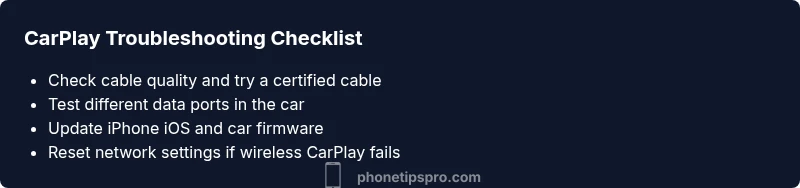
- Inspect the Lightning/USB cable for signs of wear, kinks, or fraying. If the cable is damaged, replace it with a certified cable from your car manufacturer or Apple-certified accessory.
- Try a different USB port in the car, preferably a port labeled for data or CarPlay. Some ports are power only and won’t establish a data connection.
- Ensure CarPlay is allowed on the iPhone and not restricted by a screen time or restrictions setting.
- Update iPhone to the latest iOS version and restart both the iPhone and the car’s infotainment system before reconnecting.
- For wireless CarPlay, make sure Wi‑Fi and Bluetooth are enabled on the iPhone and that the car supports wireless CarPlay. Forget and re-pair if needed.
These quick wins cover the most common causes and can save you a trip to the dealership or service center. Phone Tips Pro suggests validating the basics first, then moving to deeper checks if the issue persists.
Deep dive: software, firmware, and CarPlay profiles
If the quick wins don’t fix the problem, the issue is more likely tied to software or firmware. Outdated iOS, a stale CarPlay profile, or an infotainment system that needs a firmware update can all block a connection. On the iPhone, reset network settings if necessary, which clears stale Bluetooth/Wi‑Fi data that can interfere with CarPlay pairing. On the car side, check for available infotainment updates from the manufacturer; apply them if available. Always back up before performing firmware updates on the car’s system, and ensure the vehicle is parked in a safe location during updates. Phone Tips Pro notes that a clean, updated stack reduces repeated failures and improves long-term reliability.
Hardware considerations: cables, ports, and adapters
Damaged USB cables are the leading hardware culprit. A cable with intermittent data lines will fail to establish a stable CarPlay session. Use Apple-certified or brand-certified cables, preferably the original if still supported. Inspect the car’s USB ports for debris or oxidation; a dirty port can prevent proper contact and data transfer. If you’re trying to use an adapter (e.g., USB-C to Lightning), ensure the adapter supports data transfer and is designed for CarPlay. If you have a Wi‑Fi-based CarPlay setup, verify that the car’s wireless module is functioning and that no other device is hogging the network channel. Hardware issues often require a replacement cable or a professional inspection of the port.
Wireless CarPlay: differences you should know
Wireless CarPlay adds complexity because it relies on multiple wireless technologies working in tandem. If you see a generic connection failure, start by forgetting the CarPlay connection on the iPhone and re-pair from scratch. Check that Bluetooth and Wi‑Fi on the iPhone are on, and that the car’s infotainment system is discoverable. If the car repeatedly fails to appear or to stay connected, try rebooting the car’s system and resetting the iPhone’s network settings. In some cars, a factory reset of the infotainment system is the last resort after exhausting software and cable checks. Phone Tips Pro emphasizes a staged approach: verify simple causes first, then escalate to firmware updates and professional help if needed.
When to seek professional help and what to tell the technician
If CarPlay still won’t connect after completing the diagnostic flow, it’s time to consult dealership service or Apple Support. Bring your iPhone model, iOS version, the exact car make/model, and notes about any firmware updates you’ve applied. Mention steps you performed, including cable changes, ports tested, and whether wireless pairing was attempted. This information helps technicians reproduce the issue quickly and determine whether the fault lies with the iPhone, the car’s infotainment, or a compatibility quirk that requires a software patch.
Prevention: how to keep CarPlay reliable over time
To reduce future problems, establish a regular maintenance routine for software and firmware. Keep the iPhone updated, replace worn cables, and install available infotainment updates as soon as they’re released. When using CarPlay, avoid third-party apps that drain bandwidth or create conflicts with the system. Periodically reset network settings to clear stale pairings and reconnect cleanly. Apply simple, consistent steps for every drive so you can trust CarPlay to work when you need it.
Quick recap: what to do next if you’re stuck
- Re-test with a certified USB cable and a different USB port.
- Update iPhone iOS and the car’s infotainment firmware, then re-connect.
- If wireless, re-pair CarPlay after forgetting the device on the iPhone.
- If issues persist, contact support with detailed steps you tried.
The overarching message from Phone Tips Pro is to approach the problem with a clear diagnostic flow and keep software and hardware up to date to minimize future interruptions.
Steps
Estimated time: 30-60 minutes
- 1
Check iPhone compatibility and iOS version
Verify your iPhone model supports CarPlay and that you’re on the latest iOS build. Go to Settings > General > Software Update. Install any available updates and restart your iPhone.
Tip: A quick reboot can fix lingering connection caches. - 2
Test with a different USB cable/port
Connect using a certified cable to a data-capable USB port in the car. If CarPlay appears, your previous cable or port was the likely culprit.
Tip: Avoid long or cheap third-party cables. - 3
Check CarPlay settings on iPhone and in the car
On iPhone, go to Settings > General > CarPlay, and ensure your car is allowed. In the car, navigate to CarPlay/Phone settings and enable CarPlay for this vehicle.
Tip: Make sure restrictions aren’t blocking CarPlay. - 4
Try a fresh wireless pairing (if supported)
On the iPhone, forget CarPlay in Settings > Bluetooth, then re-pair via Wi‑Fi. Ensure Bluetooth and Wi‑Fi are enabled during pairing.
Tip: Keep your phone near the car console during pairing. - 5
Reset network settings if wireless fails
Resetting network settings clears stored Bluetooth/Wi‑Fi connections. Then re-pair CarPlay from scratch.
Tip: You will need to re-enter Wi‑Fi passwords afterwards. - 6
Update car infotainment firmware
Check with the manufacturer for available updates and install them according to the manual. A firmware update can resolve compatibility gaps.
Tip: Only update when parked safely and with stable power. - 7
Test after each step
After each fix, try CarPlay to confirm whether the issue is resolved before moving to the next step.
Tip: By testing incrementally you’ll identify the exact fix quickly. - 8
Escalate to support if needed
If CarPlay still won’t connect after all steps, contact Apple Support or your car dealer with details of the steps tried.
Tip: Provide model numbers, iOS version, and firmware version of the infotainment system.
Diagnosis: CarPlay won't connect or stays stuck on the CarPlay screen
Possible Causes
- highLoose or damaged USB cable / poor cable quality
- highOutdated iOS or CarPlay firmware
- mediumCarPlay disabled or restricted in iPhone Settings
- mediumFaulty car USB port or infotainment module
- lowWireless CarPlay pairing issues (Wi‑Fi/Bluetooth)
Fixes
- easySwap to a certified USB cable and try a different port
- easyUpdate iPhone to the latest iOS and apply available car firmware updates
- easyRestart both devices and re-pair CarPlay (wired or wireless)
- easyReset network settings on iPhone if wireless fails or forget-carPlay on iPhone and re-pair
- hardFactory reset the car's infotainment system as a last resort, after backups
FAQ
Why won't CarPlay connect at all on my iPhone?
CarPlay not connecting can be caused by cables, outdated software, or settings. Start with a certified cable and a simple reboot, then update iOS and car firmware if needed. If it persists, follow the diagnostic flow described above or contact support.
CarPlay not connecting is usually due to a cable or software issue. Start with a fresh cable and a quick reboot, then update your iPhone and car firmware. If it still fails, follow the steps in this guide or reach out for help.
Can I use wireless CarPlay if my car doesn’t support it well?
If your car supports wireless CarPlay, ensure Bluetooth and Wi‑Fi are enabled on the iPhone and the car system is discoverable. If it still fails, try a wired connection first to confirm the issue is wireless-specific.
If your car supports wireless CarPlay, check Bluetooth and Wi‑Fi and try discovering again. If that doesn’t work, use a wired connection to troubleshoot the problem.
What does 'No USB device found' mean on CarPlay?
This usually points to a bad cable, a non-data USB port, or a faulty USB port in the car. Try a different data-capable port, and replace the cable with a certified one before testing again.
No USB device typically means the cable or port isn’t data-capable. Swap cables and try another data port, then test CarPlay again.
Should I reset network settings to fix CarPlay?
Resetting network settings can clear lingering Bluetooth/Wi‑Fi data that blocks CarPlay. It helps for wireless pairing issues but will erase saved networks and passwords, which you’ll need to re-enter.
If wireless CarPlay won’t pair, resetting network settings can help, but you’ll need to reconnect to Wi‑Fi afterward.
Do I need a car firmware update for CarPlay to work reliably?
Firmware updates often fix CarPlay compatibility and stability issues. Check with your car manufacturer or dealer for available updates and apply them following the official instructions.
Car firmware updates can improve CarPlay reliability. Check for updates from your car maker and install them as directed.
Why does CarPlay work sometimes and fail other times?
Intermittent failures usually come from a flaky cable, dirty USB port, or a partially completed pairing. Replacing the cable, cleaning ports, and re-pairing often resolves the inconsistency.
If CarPlay is inconsistent, try a new cable, clean the port, and re-pair CarPlay to stabilize the connection.
Watch Video
Quick Summary
- Start with a cable and port check to rule out hardware faults
- Keep iPhone iOS and car firmware current
- Use incremental fixes and test CarPlay after each step
- Reset network settings only if wireless CarPlay fails
- Escalate to support if issues persist after all steps