Why iPhone Won't Connect to Bluetooth: A Practical Troubleshooting Guide
Urgent, step-by-step guide to fix Bluetooth pairing on iPhone. Learn common causes, quick fixes, and prevention tips from Phone Tips Pro to restore reliable wireless connections.


Most iPhone Bluetooth problems are caused by a quick software hiccup or a mispaired device. Start with a fast reset: turn Bluetooth off, then on; restart your iPhone; and re-pair the accessory. If issues persist, update iOS and consider resetting network settings. Phone Tips Pro finds these steps fix the majority of cases quickly.
Why Bluetooth on iPhone Fails More Often Than You Think
Bluetooth problems on iPhone can seem mysterious, but the root causes are usually straightforward. When you search for why iphone won’t connect to bluetooth, the issue is rarely a hardware failure. In most cases, a quick software hiccup, stale Bluetooth caches, or a mispaired accessory blocks the connection. According to Phone Tips Pro, these failures often trace back to outdated software, misconfigured settings, or residual Bluetooth profiles that confuse the pairing process. By recognizing common failure patterns, you can address the issue with confidence and speed. In practice, the most frequent triggers occur after an iOS update, after you add or remove a device, or after long periods of idle connection attempts. The good news is that most cases are solvable with a concise sequence of checks and resets, avoiding costly service. The goal is to reestablish a clean pairing channel and restore expected behavior quickly.
Quick Checks You Can Do Without Tools
Begin with the simplest, high-impact checks. Make sure Airplane Mode is off, Bluetooth is enabled, and you are within close range of the accessory. If you can see the device but can’t connect, try forgetting it and re-pairing. A quick device restart can clear stuck Bluetooth sessions. If multiple devices are paired, temporarily disconnect or forget some to reduce interference. Ensure the accessory has sufficient battery life, as low power can prevent pairing. These quick checks lay a solid foundation for deeper troubleshooting if needed, and they align with Phone Tips Pro’s practical, no-nonsense approach to solving Bluetooth issues.
Common Causes and How to Confirm
Several recurring factors drive Bluetooth failures on iPhone. An outdated iOS version can create compatibility issues with accessories; always check for updates. Incompatibility or a device that has reached its maximum pairings can stop new devices from connecting. Lingering Bluetooth caches can corrupt the pairing flow; if the cache is polluted, you may see intermittent failures. Interference from other wireless devices or a crowded 2.4 GHz spectrum can degrade performance. Proximity matters too: even a small distance between iPhone and accessory can cause drops. If a cable or accessory is faulty, or if the accessory’s battery is depleted, pairing may fail. Finally, recently resetting settings or installing unmanaged profiles can block Bluetooth. The Phone Tips Pro team notes that methodical elimination of these causes commonly reveals the real fault without expensive diagnostics.
The Diagnostic Flow: Symptom to Solution
Follow a practical diagnostic pathway to identify the root cause and apply an effective fix. Start with the symptom: is the iPhone not discovering the device, or does it discover but fail to connect? If the device is not visible, confirm pairing mode and proximity; if visible but not connecting, attempt to pair on another iPhone to rule out device-specific issues. Consider the likely culprits: software glitches, stale caches, or accessory issues. Each cause has a corresponding fix set. If the problem persists after basic fixes, progress to more advanced actions in order: update iOS, reset network settings, and finally reset all settings or seek hardware checks from Apple Support. Maintain a concise log of changes to track what helped. This approach keeps you in control and minimizes downtime while restoring connectivity.
Step-by-Step Fixes for Most Bluetooth Issues
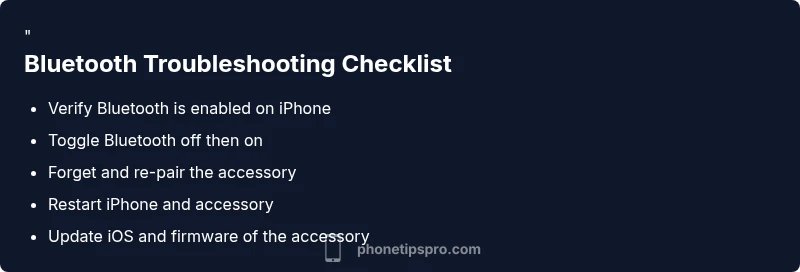
- Toggle Bluetooth: Turn Bluetooth off, wait a few seconds, then turn it back on. 2) Reboot the iPhone: A simple restart often clears stubborn cache. 3) Forget and re-pair: Forget the device in Settings > Bluetooth, then re-pair. 4) Update iOS: Check Settings > General > Software Update and install any pending updates. 5) Reset network settings: This resets Wi‑Fi, Bluetooth, and cellular settings, but preserves apps and data. 6) Reset all settings: If needed, reset all personalized settings (no data loss, but you’ll need to reconfigure preferences). 7) Test with another accessory: If another device pairs successfully, the issue likely lies with the original accessory. 8) Seek hardware support: If nothing works, hardware issues or incompatibilities could be at fault. Perform steps in order and test after each change. Estimated time: 30-45 minutes.
Prevention: Keeping Bluetooth Healthy
To reduce future failures, practice good habits: keep iPhone updated, avoid excessive multi-device pairing, close apps that constantly poll Bluetooth, and monitor battery levels. Use a clean pairing process by forgetting old devices you no longer use. Regularly reboot the iPhone to refresh Bluetooth subsystems. If you rely on car kits or wireless headphones, update firmware on those accessories as well. Phone Tips Pro recommends a monthly quick check: verify Bluetooth devices appear and connect reliably, and remove any unused pairings. This proactive approach minimizes downtime and extends healthy Bluetooth performance for everyday use.
When to Seek Help and How to Document It
Most Bluetooth problems are solvable with the steps above, but some cases require professional help. If you notice persistent hardware issues, loose connectors, or interference that hinders multiple devices, contact Apple Support or visit an authorized service provider. When you reach out, provide details: iPhone model, iOS version, accessory make/model, how long the issue has persisted, and steps you have already tried. A concise log speeds up diagnosis. Phone Tips Pro suggests keeping a record of firmware versions, pairing attempts, and any network setting changes. If your device is under warranty, leverage it for formal diagnostics and support without extra cost.
Steps
Estimated time: 30-45 minutes
- 1
Check basic state of Bluetooth and proximity
Ensure Bluetooth is enabled and the accessory is within a short distance (a few feet/meters). If Airplane Mode is on, disable it. Revisit the device's pairing mode and confirm it is discoverable.
Tip: Doing this first avoids wasted steps on devices that are simply not visible. - 2
Restart devices involved in the pairing
Restart your iPhone and the accessory. A clean reboot often clears stuck Bluetooth sessions and resolves transient glitches.
Tip: A restart is faster than you think and can reset stubborn connections. - 3
Forget and re-pair the accessory
In Settings > Bluetooth, tap the device name, choose Forget This Device, then put the accessory back into pairing mode and reconnect.
Tip: Only re-pair after both devices are ready to pair to avoid repeat failures. - 4
Check for software updates
Go to Settings > General > Software Update and install any available updates. Updates often fix known Bluetooth issues and improve compatibility.
Tip: Even a minor update can resolve a critical driver issue. - 5
Reset network settings if needed
Resetting network settings clears Bluetooth caches, saved networks, and cellular settings. This step can resolve persistent pairing problems but requires re-entering Wi‑Fi passwords later.
Tip: Backup important credentials before performing resets. - 6
Test with a different accessory
Try pairing a different Bluetooth device. If that works, the original device may be faulty or incompatible.
Tip: This helps isolate whether the issue is device-specific. - 7
Consider more drastic options
If issues persist across multiple accessories, reset all settings or seek Apple Support for hardware diagnosis.
Tip: Hardware faults require professional assessment. - 8
Document changes and outcomes
Record what you tried and the results to inform support conversations or future troubleshooting.
Tip: A detailed log speeds up diagnosis and resolution.
Diagnosis: iPhone won't connect to a Bluetooth device or device doesn't appear in the list of available devices
Possible Causes
- highBluetooth is turned off or airplane mode is enabled
- highOutdated iOS or a software glitch causing pairing failures
- mediumAccessory is not in pairing mode or is out of range
- mediumResidual Bluetooth cache or corrupted profiles
- lowHardware issue with iPhone Bluetooth radio or accessory
Fixes
- easyToggle Bluetooth off, then back on
- easyRestart iPhone
- easyForget the device and re-pair
- easyUpdate iOS to the latest version
- mediumReset Network Settings (Wi‑Fi/Bluetooth settings)
- hardReset All Settings (no data loss, reconfigure preferences)
FAQ
Why is my iPhone not pairing with Bluetooth devices?
Common causes include a software hiccup, outdated iOS, or a mispaired accessory. Start with simple resets and re-pairing before exploring advanced steps.
Most pairing problems come from software glitches or mispaired devices. Try turning Bluetooth off and on, then re-pair your accessory.
I can see the device but can’t connect. What should I check?
Check that the device is in pairing mode, within range, and has sufficient battery. Restart the iPhone and the accessory, then try again. If the problem persists, update iOS and reset network settings.
If it’s visible but won't connect, ensure pairing mode is active and the battery is good, then retry after a restart.
Will resetting network settings delete my data?
Resetting network settings removes saved Wi-Fi networks, Bluetooth pairings, and cellular settings but does not affect apps or personal data. You’ll need to re-enter passwords after the reset.
Resetting network settings only affects network data, not your apps or photos.
Does updating iOS fix most Bluetooth issues?
Updating iOS can fix Bluetooth compatibility issues by refreshing drivers and fixing known bugs. Always back up before updating.
Yes, a fresh iOS update often resolves Bluetooth glitches.
When should I seek professional help?
If Bluetooth still won’t connect after all steps across multiple accessories, or if you suspect a hardware fault, contact Apple Support or an authorized service provider.
If nothing works after trying the steps and the issue spans multiple devices, it’s time to get professional help.
Watch Video
Quick Summary
- Start with simple, fast resets to fix most Bluetooth issues
- Update iOS and re-pair devices to reestablish clean pairing channels
- If issues persist, test with another accessory to isolate the fault
- Reset network or all settings only after confirming no hardware fault
- Document steps and results for faster help if you need support