Why iPhone Won't Turn Off: Urgent Troubleshooting Guide
Experiencing an iPhone that won’t power down? This urgent guide from Phone Tips Pro walks you through safe fixes, force restarts, data backups, and when to seek expert help.


If you're wondering why iphone won't turn off, this quick guide helps you diagnose and fix the issue safely. Most freezes come from software, not hardware, so start with a force restart, check for apps, and apply a known-good update. If the device remains unresponsive, follow the diagnostic flow and proceed to deeper fixes.
Common reasons an iPhone won't turn off
When your iPhone won't power down, the issue is most often a software hang rather than a physical failure. Apps can become unresponsive, background processes can loop, or a recent update can leave the system in a temporary state. Other frequent culprits include a stuck side button, a drained battery, or a background task that prevents the system from entering the shutdown sequence. If you notice screen freeze, apps lag, or the device continues to show activity even after you press and hold the power button, start by ruling out simple causes. A modest check of charging status, recent app activity, and iOS version can reveal a straightforward fix. Throughout this guide from Phone Tips Pro, you’ll find actionable steps grounded in real-world troubleshooting, designed to minimize data loss and downtime.
Safety first: what not to do when your iPhone won't turn off
Safety matters when you’re troubleshooting power-down issues. Do not attempt to pry open the device or charge it in unsafe conditions. Avoid exposing the phone to water, heat, or extreme cold while testing; aggressive handling can worsen hardware problems. If you rely on iPhone as your daily driver, consider placing it on a cool, dry surface and disconnect any accessories that might trigger a false shutdown signal. Importantly, never ignore a phone that is overheating or emitting unusual smells—these signs require professional attention. By following conservative safety practices, you reduce risk and keep your data intact during the diagnostic process.
Step-by-step quick checks you can perform
To quickly triage the issue, run through these checks in order:
- Confirm the screen is responsive and the side button isn’t physically stuck.
- Plug into a charger and observe if the screen shows charging or a shutdown prompt.
- Close recently used apps (double-press Home or swipe up and hold on iPhone X and later) and try powering off again.
- Verify you’re on the latest iOS version by going to Settings > General > Software Update.
- If the phone still won’t turn off, attempt a forced restart using model-specific instructions.
- Document any error messages and unusual behavior to share with support if needed.
If this doesn’t resolve the issue, move to the diagnostic flow for deeper checks and potential restorations.
How to differentiate software freeze from hardware issue
A software freeze typically presents as a fully responsive screen that won’t turn off, but the device still shows signs of activity (loading indicators, app animations, or a stuck Apple logo). Hardware issues usually involve physical buttons, a screen that won’t register touches, or an obvious heat buildup. You can test this by trying a force restart; if the device responds normally after restart, the problem is more likely software-related. If the side button feels stuck or you suspect hardware damage, schedule a professional inspection. Document battery health and any recent changes (new apps, updates, or accessories) to help isolate the root cause. Phone Tips Pro’s guidance emphasizes separating software quirks from hardware faults to avoid unnecessary resets or data loss.
Forcing a restart: method by model
Different iPhone generations require different restart methods. For iPhone 8 and later, press and release Volume Up, press and release Volume Down, then press and hold the Side button until the Apple logo appears. For iPhone 7, press and hold both the Sleep/Wake (Side) button and Volume Down until the Apple logo shows. For iPhone 6s and earlier, press and hold the Home button and the Sleep/Wake button until the Apple logo appears. If the device is completely unresponsive, these steps are your first line of defense. Always ensure you’re using the correct method for your model to avoid prolonged downtime and potential data loss.
How to back up data before deeper troubleshooting
Before performing deeper troubleshooting or restoration, back up your data to protect photos, messages, and documents. Use iCloud for a quick backup by going to Settings > [your name] > iCloud > iCloud Backup > Back Up Now. Alternatively, connect to a Mac or PC and use Finder (macOS Catalina and later) or iTunes (older macOS/Windows) to create a local backup. If you have limited storage, delete temporary files or offload photos to free space before backing up. Regular backups create a safety net that makes it safer to apply more invasive fixes, such as restoring the device or performing a DFU recovery if required.
Deeper fixes: reset options and what they do
If the shutdown issue persists after a force restart and software update, you may need deeper options. A standard reset (Settings > General > Transfer or Reset iPhone > Reset) clears settings without erasing data, but a full factory reset erases all content. A DFU (Device Firmware Update) restore reinstalls the operating system from scratch and is used as a last resort. Each option carries different risks: the standard reset preserves data, the factory reset wipes data, and DFU restores require a computer. Ensure you have a current backup before attempting any reset. After performing resets, monitor whether the problem recurs and consider hardware diagnostics if software fixes don’t address the root cause.
When professional help is needed and how to prepare
If none of the above steps resolve the issue, it’s time to seek professional help. Contact Apple Support or visit an Apple Store or authorized service provider. Bring your device’s serial number, proof of purchase, and a record of troubleshooting steps you’ve taken. Prepare a recent backup to minimize risk of data loss and be ready to describe when the problem started and what actions you took. Professional technicians can diagnose obscure hardware faults, battery issues, or firmware problems that go beyond home troubleshooting. The Phone Tips Pro team recommends documenting all symptoms and steps taken for a faster, more accurate assessment.
Steps
Estimated time: 45-75 minutes
- 1
Prepare your data
Back up your iPhone using iCloud or a computer to protect photos, messages, and apps before deep troubleshooting. Ensure you have enough storage and verify the backup completed successfully.
Tip: Regular backups reduce stress during troubleshooting. - 2
Force restart the device
Use the model-appropriate method to force restart: iPhone 8 or later: Volume Up → Volume Down → Side button hold; iPhone 7: Sleep/Wake + Volume Down; older models: Home + Sleep/Wake. The Apple logo indicates a successful restart.
Tip: If the screen is unresponsive, keep holding until the Apple logo appears. - 3
Check for hardware interference
Inspect the side button for sticking, debris, or physical damage. If you suspect hardware fault, avoid forceful manipulation and seek service.
Tip: Use a soft brush to remove debris around the button. - 4
Update iOS and close apps
Go to Settings > General > Software Update to install the latest version. Close recently used apps to reduce background activity and test the power-off behavior again.
Tip: A fresh update often resolves bugs causing boot anomalies. - 5
Try recovery options if needed
If the device still won’t power down, consider a recovery approach: restore via Finder/iTunes or DFU mode. This should be done only after backing up.
Tip: DFU is a last resort and requires careful steps to avoid data loss. - 6
Confirm resolution and monitor
After fixes, monitor device behavior for a few days. If the issue recurs, document symptoms and prepare for professional assessment.
Tip: Keep a log of events to help technicians diagnose the root cause.
Diagnosis: iPhone won't turn off or responds sluggishly when attempting to power down
Possible Causes
- highSoftware freeze or unresponsive app
- mediumApp or background task causing a loop
- lowHardware button issue (stuck side button)
- lowiOS bug after update
Fixes
- easyForce restart following model-specific steps
- easyCharge the device and retry power-off
- easyUpdate iOS to the latest version
- hardRestore via Recovery/DFU mode on a computer if needed
FAQ
Why won't my iPhone turn off even after pressing the power button?
That usually means a software freeze or a stuck background process. Start with a force restart, check for app activity, and ensure you’re on the latest iOS. If it persists, use recovery options or seek professional help.
A software freeze is the most common cause. Try a force restart, update iOS, and back up before deeper fixes.
Is there a risk of data loss when I force restart an iPhone?
A standard force restart generally doesn’t erase data. However, performing deep resets or restores can lead to data loss if backups aren’t current. Always back up first.
Force restarts usually don’t delete data, but deep restores can. Back up first to be safe.
What should I do if force restart doesn’t work?
If a force restart doesn’t help, try updating iOS, closing unresponsive apps, and checking hardware issues. If the problem continues, use recovery mode via Finder or iTunes, or contact Apple Support.
If force restart fails, update the OS and consider recovery mode or Apple Support.
Can a recent update cause shutdown issues?
Yes, occasionally a problematic update can cause power-down issues. Keeping iOS updated to the latest patch usually resolves this, and a fresh restore can help if needed.
A faulty update can cause freezes; updating or restoring often fixes it.
When should I seek Apple Support for this problem?
If the device remains unresponsive after standard fixes, hardware symptoms appear, or you can’t back up safely, contact Apple Support or visit an authorized service provider.
If problems persist after fixes, get professional help.
Are there safe home remedies for this problem?
Stick to official steps: backups, software updates, force restarts, and recovery options. Avoid third-party tools that claim to repair firmware without guidance.
Follow official methods; avoid risky third-party repair tools.
Watch Video
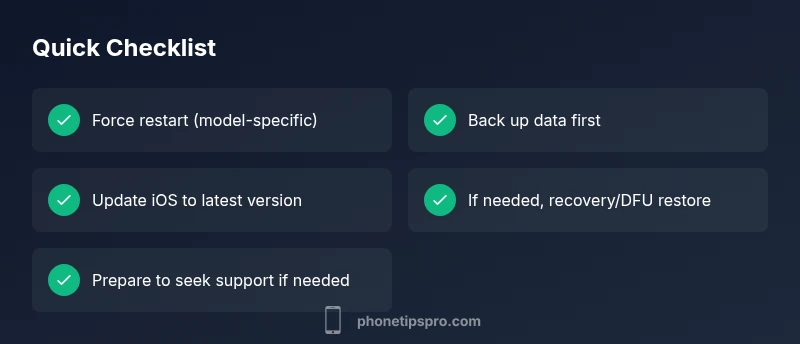
Quick Summary
- Back up data before attempting deep resets
- Force restart and update often fix soft freezes
- Check hardware buttons for sticking or damage
- If unresolved, restore via recovery mode on a computer
- Contact Apple Support if the issue persists