What to Do When iPhone Freezes: The Urgent Troubleshooter
If you’re asking what to do when iphone freezes, this urgent guide from Phone Tips Pro covers fast steps, resets, storage checks, and when to seek professional help.


Most iPhone freezes are software glitches or resource bottlenecks. Start with a forced restart, then close background apps, update iOS, and free up storage. If issues persist, reset network settings or reset all settings, and back up before a potential full restore. When in doubt, contact support for personalized guidance today.
Why iPhone Freezes Happen
If you're wondering what to do when iphone freezes, the most common causes are software glitches, app conflicts, or momentary resource shortages. When your iPhone becomes unresponsive, you might see the spinning wheel, a black screen, or a frozen app that won’t close. According to Phone Tips Pro, most freezes stem from software issues rather than hardware faults, and they often clear up after a simple restart or a storage cleanup. In this section we break down typical triggers—from overzealous background processes to outdated iOS—and set the stage for rapid, non-destructive fixes you can try before more drastic steps. Understanding these patterns helps you act quickly and protect your data.
Quick Fixes You Can Try Immediately
The fastest way to regain control is to start with low-risk, high-impact steps. First, perform a forced restart to clear the current state without erasing your data. If the screen remains unresponsive, try closing all apps running in the background and then reopen the ones you need. Next, check storage and delete or offload large apps or media you don’t need; low storage is a common reason for freezes. Make sure you’re running the latest iOS version by going to Settings > General > Software Update. If issues persist, reset network settings to resolve any network-related glitches. Finally, consider resetting all settings if no other fix works, but back up first to avoid data loss.
Step-by-Step Deep Dive: Most Common Causes
Most freezes come from software issues rather than hardware faults. A poorly-behaving app or a background task can spike CPU usage and memory, causing apps to hang. Running too many apps simultaneously, especially on older devices, reduces available RAM and can trigger freezes. Storage pressure is another frequent culprit: when the disk fills up, iOS may throttle performance. Overheating can also force the system to slow down or freeze to protect internal components. By isolating these causes, you can choose the right remedy without unnecessary risk.
When to Reset or Restore
If standard fixes fail, you have a few options, ordered from least to most invasive. Start by resetting all settings (no data will be erased) to refresh system preferences. If the problem persists, you may back up your data and perform a full erase and reinstall via Finder (on macOS) or iTunes (on Windows). For persistent freezes that follow a software update or after restoring from backup, a clean install may be warranted. Always back up first to protect photos, messages, and app data.
Preventive Tips to Avoid Future Freezes
To reduce the chances of future freezes, keep iOS updated to the latest version, as updates fix known bugs and improve performance. Manage storage by offloading or deleting unused apps and large media files, and enable iCloud Photos to keep media in the cloud. Limit background app refresh and automatic downloads, especially on older devices. Restart your iPhone periodically to clear memory, and monitor battery health since aging batteries can indirectly affect performance. Finally, install apps from trusted sources and review recent app updates if freezing begins after a new install.
Troubleshooting Checklist at a Glance
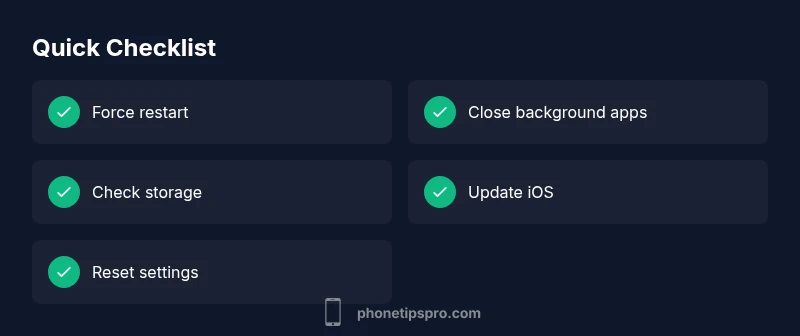
- Force restart
- Close background apps
- Check storage and remove large items
- Update iOS
- Reset network settings
- Reset all settings (last resort, after backup)
- Backup and restore if needed
- Contact Apple Support if the issue persists
What to Do If Problems Persist
If your iPhone still freezes after performing these steps, it’s time to seek professional help. Contact Apple Support or visit an Apple Store for diagnostics, especially if you notice abnormal battery drain, unexpected restarts, or hardware symptoms like overheating. Preserve your data by backing up before any service. A technician can run hardware diagnostics to rule out battery or logic board issues and advise on repair options.
Steps
Estimated time: 30-60 minutes
- 1
Force restart the iPhone
Press and quickly release Volume Up, press and release Volume Down, then hold the Side button until the Apple logo appears. This clears the current state without erasing data.
Tip: This is the fastest first step and safe for most devices. - 2
Close all apps and reboot
Double-click the home gesture or swipe up to view recent apps, swipe away apps to close them, then restart the device to refresh memory.
Tip: Eliminate stubborn apps that may hang in memory. - 3
Check storage usage
Go to Settings > General > iPhone Storage and review large apps or media. Offload or delete items you don’t need, then restart.
Tip: Low storage is a common hidden culprit. - 4
Update iOS to latest version
Open Settings > General > Software Update and install any available updates. Updates fix bugs that cause freezing.
Tip: Keep automatic updates enabled for ongoing protection. - 5
Reset network settings
Resetting network settings can clear router-related glitches. Go to Settings > General > Transfer or Reset iPhone > Reset > Reset Network Settings.
Tip: Note that you’ll need to rejoin Wi‑Fi networks. - 6
Reset all settings (backup first)
If problems persist, reset all settings to restore defaults without erasing data. You’ll reconfigure preferences afterward.
Tip: Back up before performing this step. - 7
Backup and restore from a clean install
Back up your data, then restore the iPhone via Finder (macOS) or iTunes (Windows). This replaces system files that may be corrupted.
Tip: A fresh install often resolves stubborn issues. - 8
Factory reset as last resort
If freezing continues after all steps, erase all content and settings and restore from a clean backup. This should be last resort after backing up.
Tip: Only proceed if you have a verified backup.
Diagnosis: iPhone freezes or becomes unresponsive
Possible Causes
- highSoftware glitch or iOS bug
- mediumInsufficient storage or memory
- mediumResource-heavy background apps
- lowHardware issue (battery/temperature)
- lowFaulty third-party apps
Fixes
- easyForce restart to clear temporary state
- easyClose all background apps and reboot
- easyFree up storage and offload large files
- easyUpdate iOS to the latest version
- mediumReset all settings if needed (back up first)
- hardBackup and restore from a fresh install via Finder/iTunes
FAQ
Why does my iPhone freeze suddenly?
Freezing is often caused by software glitches, heavy apps, or insufficient memory. Updates and restarts fix many cases. If the issue persists after basic steps, move to more in-depth troubleshooting.
Freezing is usually software-related. Start with a restart, update iOS, and check storage.
Should I reset my iPhone if it keeps freezing?
Resetting settings is less drastic than a full erase and can resolve many issues. Always back up first. If the problem continues, consider a full restore from a backup.
Reset settings first, then consider a full restore if needed.
Can freezing be caused by low storage?
Yes. Low storage can slow down iOS. Free up space by removing large apps, videos, or photos, or offload to iCloud to improve performance.
Low storage often causes freezes; free up space and try again.
Will updating iOS fix freezing issues?
Updating iOS fixes known bugs and can improve stability. Keep auto-updates on and install new versions as soon as available.
Yes, updates fix bugs that cause freezing.
When should I seek professional help?
If freezes persist after fixes or you notice hardware signs like overheating or battery swelling, contact Apple Support for diagnostics.
If it keeps freezing, get expert diagnostics.
Is a hard reset safe during a freeze?
A force restart is safe and non-destructive. If the device remains unresponsive or battery heats up, stop and seek assistance.
A force restart is safe; avoid repeated resets if hot.
Watch Video
Quick Summary
- Restart first to clear temporary state
- Update iOS to fix bugs
- Free up storage to restore performance
- Back up before resets or restores
- Seek official support if issues persist