Why Is iPhone Orange? A Troubleshooting Guide
Discover why an iPhone screen may appear orange and how to fix it fast. Learn about True Tone, Night Shift, color filters, and when to seek professional help in 2026.


Short answer: An orange tinge on an iPhone screen usually comes from display color settings or adaptive lighting, not a hardware failure. Start by toggling True Tone and Night Shift off, reset color filters, and check for app-level color profiles. If the tint persists after these checks, seek professional assessment.
why is iphone orange
If you’ve noticed an orange tint on your iPhone, you’re not alone. You’re likely asking why is iphone orange, and the most common culprits are software-driven color adjustments rather than a failing display. In most cases, adjusting a few settings restores accurate colors within minutes. According to Phone Tips Pro, understanding how True Tone, Night Shift, and color filters influence what you see helps you quickly isolate the problem. The goal is to reproduce the problem under controlled conditions and rule out ambient lighting as a factor. This article walks you through practical checks, screen tests, and safe steps to bring back true color fidelity in 2026.
Common culprits: software settings are usually the cause
Color on an iPhone is driven by multiple layers: hardware panel, software profiles, and environmental lighting. When the display looks orange, the culprit is often a software setting rather than a hardware fault. True Tone adjusts color temperature to match ambient light, Night Shift warms the screen after dark, and Color Filters apply a tint for accessibility. Each tool has a purpose, and misconfiguration can make whites appear orange. If you recently updated iOS or installed new apps, re-check these features first. Keeping your color settings consistent is the fastest way to verify whether the issue is user-level or hardware-related.
How environment and lighting affect perceived color
Ambient lighting strongly influences how we perceive screen color. A dim room with warm bulbs can push whites toward amber, making a screen look orange even when settings are correct. Conversely, bright daylight can reveal true colors more accurately. To test, compare your iPhone screen under different lighting conditions, including natural daylight, lamp light, and room lighting. If the tint only appears in certain lighting, you’re likely dealing with perceptual shifts rather than a device fault. This distinction helps you avoid unnecessary resets or service calls.
Diagnostic approach in plain steps
A systematic diagnostic flow helps you identify the root cause without guessing. Start with software checks, then move to hardware tests if needed. This flow is designed to be quick, safe, and reversible, and it aligns with best practices from Phone Tips Pro Analysis, 2026. By documenting what changes you observe, you can see which setting is responsible for the orange tint and which steps resolve it.
Quick checks you can do in Settings (software first)
To begin, go to Settings > Display & Brightness and locate True Tone. If True Tone is on, compare the screen with True Tone off. Then check Night Shift by going to Settings > Display & Brightness > Night Shift and disabling it for a test. If you use any Color Filters (Accessibility) or other display overlays, disable them temporarily to see if the tint changes. These checks are safe and reversible and often fix the problem without professional help.
Step-by-step fixes for the most common causes
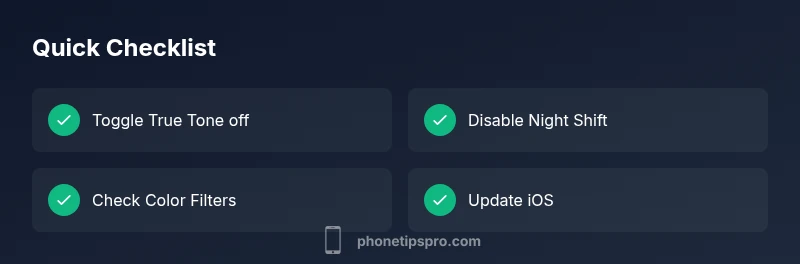
- Turn off True Tone: Settings > Display & Brightness > True Tone, toggle off. 2) Disable Night Shift: Settings > Display & Brightness > Night Shift, switch off. 3) Check Accessibility Color Filters: Settings > Accessibility > Display & Text Size > Color Filters, turn off any active filter. 4) Test with a reboot and iOS update: restart your iPhone and install any available updates. 5) If the tint persists, reset all settings: Settings > General > Transfer or Reset iPhone > Reset > Reset All Settings. These steps are designed to be safe and reversible; back up if you’re worried about losing preferences.
When hardware issues are possible and how to handle them
If the orange tint remains after software fixes, you may be facing a hardware-related issue such as a miscalibrated panel or PWM-related fault. In this case, avoid panicking and schedule a service appointment with Apple or an authorized provider. Document the symptoms, including when the tint occurs and under what lighting, to help the technician diagnose the problem more quickly.
Lighting, calibration, and ongoing prevention
Ambient light and display calibration influence perceived color. Keep your iPhone out of extreme lighting, and avoid applying external screen protectors that shade the screen oddly. Regularly updating iOS helps ensure color management is current. If you frequently work in bright environments, consider adjusting lighting to reduce glare and prevent misperception of color temperature.
Steps
Estimated time: 30-60 minutes
- 1
Open Display settings
Navigate to Settings > Display & Brightness and locate True Tone. Toggle it off and observe the screen color without changing other settings.
Tip: Note the baseline color before toggling. - 2
Test with Night Shift off
Go to Settings > Display & Brightness > Night Shift and disable it. Compare the color against the previous setting to see if there’s a shift.
Tip: You can schedule Night Shift to test different times of day. - 3
Check Color Filters
Open Settings > Accessibility > Display & Text Size > Color Filters and ensure it is off unless you specifically need it.
Tip: Even a temporary filter can drastically change perceived color. - 4
Restart and update
Restart your iPhone to refresh software state. Then check for iOS updates and install any available.
Tip: Back up your data before major updates. - 5
Reset settings if needed
If the tint remains, reset all settings (not content) to return system defaults.
Tip: This won’t erase data but will reset network and display preferences.
Diagnosis: Orange tint on iPhone screen
Possible Causes
- highTrue Tone or color temperature adjustments
- highNight Shift or Color Filters enabled
- lowDisplay hardware issue (rare)
Fixes
- easyToggle True Tone off and test
- easyDisable Night Shift and Color Filters
- easyUpdate iOS and restart device
- easyReset all settings if needed
- mediumSeek professional assessment if persists
FAQ
What causes an orange tint on an iPhone screen?
The tint is usually due to software color settings like True Tone, Night Shift, or Color Filters. Hardware faults are rarer but possible. System updates can also reset color behavior.
Most orange tint issues come from software settings. Try turning off True Tone and Night Shift, and check color filters.
How do I disable True Tone on my iPhone?
Go to Settings > Display & Brightness > True Tone and toggle it off. Check the screen color, then re-enable if you prefer warmer tones later.
Open Display & Brightness and switch off True Tone, then compare the colors.
Can resetting the phone fix the problem?
Resetting all settings can fix persistent color issues without erasing data. Back up first and reapply settings slowly.
Resetting settings can help, but back up before you start.
Will orange tint affect photos and videos?
Color changes will affect how media appears until the settings are corrected. Re-test after fixes to confirm colors look normal.
Color adjustments can change how media looks; fix settings to restore accuracy.
When should I see a professional?
If the tint persists after all software fixes, it may indicate a hardware fault. Schedule a service appointment with Apple Support or an authorized provider.
If it still looks orange after fixes, get a professional check.
Is Night Shift the same as Color Filters?
Night Shift warms colors after dark, while Color Filters apply a tint for accessibility. True Tone adjusts color temperature automatically.
Night Shift warms the screen; Color Filters tint content; True Tone adapts to ambient light.
Watch Video
Quick Summary
- Identify software controls first
- True Tone, Night Shift, Color Filters common culprits
- Software fixes resolve most cases
- Hardware faults require professional help
- Regular updates aid color accuracy