Why Is My iPhone Too Dark? A Troubleshooting Guide
Urgent guide to fix a dim iPhone screen today. Learn quick checks, step-by-step fixes, and prevention tips for why your iPhone looks dark, with a clear diagnostic flow and safety notes.


Most often, a dark iPhone screen is due to brightness or display settings, not a hardware fault. Start by turning up brightness, turning off Auto-Brightness, and disabling True Tone or Night Shift if active. If the screen remains dim, check Accessibility Display settings and verify that Low Power Mode or Display Zoom isn’t reducing brightness. If issues persist, seek professional help.
Understanding the problem and your environment
If you're asking why is my iphone too dark, you're not alone. The normal brightness of your iPhone can feel dim due to several software-based settings rather than hardware failure. Start by checking the brightness slider in Settings > Display & Brightness and verifying it's not muted by Auto-Brightness. Also review Control Center brightness, which can differ from the main slider. Then inspect True Tone and Night Shift as they can subtly alter perceived brightness by warming colors or reducing brightness in certain light. If you recently updated iOS, new display features may apply temporarily until settings settle. Finally, consider whether your device is in Low Power Mode, which can dampen overall performance, including brightness.
Quick checks you can perform to rule out common causes
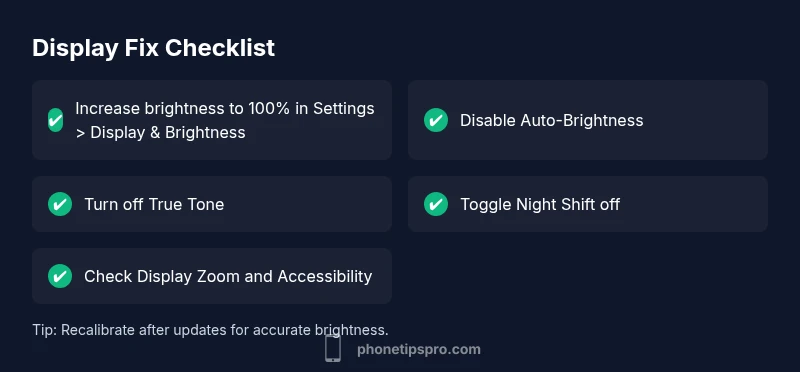
Begin with quick, safe adjustments. Increase brightness to full in Settings > Display & Brightness or via Control Center. Disable Auto-Brightness if it seems to keep the screen dim. Turn off True Tone in the same menu. If you use Night Shift, toggle it off to compare brightness. If you use Display Zoom, switch back to Standard view. After each change, test with a bright image to see if the display improves.
How iOS features dim the display (Auto-Brightness, True Tone, Night Shift)
Auto-Brightness uses the ambient light sensor to adjust screen brightness automatically; in very dark rooms it may reduce brightness below what you expect. True Tone adjusts color temperature to match ambient light, which can feel like a dimming in some environments. Night Shift shifts colors toward warmer tones after sunset or on a schedule, which can create a perception of reduced brightness. Understanding these features helps you decide which to disable for a bright read.
Accessibility and display settings that can dim text or UI
Some accessibility options intentionally alter contrast or color to aid readability. Check Settings > Accessibility > Display & Text Size. Ensure 'Increase Contrast' is off and 'Reduce White Point' is off. If you use Bold Text or Larger Text, the screen may feel dimmer due to UI scaling. Re-test brightness after adjusting these settings.
Hardware vs software: When to consider a repair or replacement
If the screen remains stubbornly dim after all software checks, the issue may be hardware-related such as a failing backlight or a damaged display panel. In such cases, contact Apple Support or visit an authorized service provider. Before spending on repairs, back up your data and note any patterns (time of day, apps) that accompany the dimming.
Prevention and best practices to keep your screen bright
To prevent future dimming, keep iOS updated, maintain a reasonable brightness range, and disable unnecessary automatic features in specific situations (e.g., bright outdoor lighting). Use a consistent ambient-light environment when calibrating brightness. Regularly review Accessibility settings and perform a quick brightness check after software updates.
Steps
Estimated time: 15-25 minutes
- 1
Increase brightness and disable Auto-Brightness
Open Settings > Display & Brightness and slide brightness to 100%. If Auto-Brightness is on, toggle it off to see if that fixes the dim display. Test by opening a white photo or high-contrast app screen.
Tip: Always test changes with a plain white screen to gauge true brightness. - 2
Turn off True Tone and Night Shift
In the same menu, disable True Tone and Night Shift. These features adjust color temperature and can alter perceived brightness depending on ambient light.
Tip: If you rely on warmer tones for night use, re-enable later after testing brightness. - 3
Check Accessibility settings
Go to Settings > Accessibility > Display & Text Size. Ensure 'Increase Contrast' is off and 'Reduce White Point' is off. If you use Display Zoom, revert to Standard view to verify brightness.
Tip: Only adjust one accessibility option at a time to track impact. - 4
Update iOS and reboot
Check for pending iOS updates and install them. A simple restart sometimes resolves a software-related dim screen.
Tip: Back up important data before major updates. - 5
Reset settings if necessary
If nothing else works, reset all settings (Settings > General > Transfer or Reset iPhone > Reset > Reset All Settings). This preserves data but resets system preferences.
Tip: Note which settings you reapply after reset.
Diagnosis: Screen appears too dark even at full brightness
Possible Causes
- highLow brightness or auto-brightness enabled
- mediumTrue Tone, Night Shift, or Display Zoom dimming colors
- lowAccessibility features (Increase Contrast, reduce white point) active
- lowSoftware glitch or outdated iOS
Fixes
- easyIncrease brightness to 100% and disable Auto-Brightness
- easyTurn off True Tone and Night Shift in Settings > Display & Brightness
- easyDisable Zoomed Display or adjust Display Size under Accessibility
- mediumReset all settings if issues persist (without erasing data)
FAQ
Why is my iPhone screen dark even when brightness is high?
The issue is often caused by Auto-Brightness, True Tone, or Night Shift. Check these toggles in Settings > Display & Brightness and adjust accordingly. If the problem continues, rule out accessibility settings and software glitches.
Usually Auto-Brightness or display features cause this. Check brightness and toggle features off, then update if needed.
Could Night Shift make the screen look dim?
Yes. Night Shift warms colors and can reduce perceived brightness after sunset. Turn it off temporarily to compare brightness.
Night Shift can make the screen look warmer and a bit dimmer—try turning it off to test.
Should I reset all settings if the screen stays dark?
If software settings cause the dim display, resetting all settings can help. Remember this resets system preferences but not your data.
Resetting settings can fix hidden config issues, but back up important data first.
Will updating iOS fix a dim display?
Updating iOS can resolve software-related display issues. Ensure you back up your data before updating.
An update can fix bugs that dim the screen; back up first.
When should I seek professional help?
If the screen remains dim after all software fixes, a hardware problem (backlight or display) is likely. Contact Apple Support.
If software fixes don’t help, it may be hardware—reach out to Apple Support.
Watch Video
Quick Summary
- Start with brightness and Auto-Brightness checks
- Disable True Tone and Night Shift to test brightness
- Review Accessibility settings before hardware concerns
- Update iOS and restart if dimming persists
- Seek professional help for hardware-related dimming