Why Is My iPhone So Slow? Practical Fixes for 2026
Discover why your iPhone is slow and how to speed it up fast. Phone Tips Pro guides you through common causes, quick checks, and step-by-step fixes to optimize performance in 2026.


The most common causes are low storage, many background apps, and aging hardware. Start with quick fixes: free up space, force quit apps, restart, and update iOS. If problems persist, move to deeper steps like checking battery health, reducing animations, and consider a backup restore if needed.
Why Your iPhone Slows Down: Common Causes
If you’re asking 'why is my iPhone so slow', the simplest answer is that your device is juggling too much data, aging hardware, and software that isn't optimized for your usage. The most frequent culprits are low storage, heavy background activity, and an aging battery. Many apps keep services running in the background, caching large data sets, and wasting RAM. When iOS has to work with limited resources, touch response and app switching become sluggish. In addition, outdated iOS versions can introduce inefficiencies that slow newer apps. Finally, over time, a battery that no longer holds a healthy charge can cause throttling to protect electronics, further reducing perceived speed. Phone Tips Pro has helped thousands of iPhone users with practical speed-up strategies, starting with simple checks that won't risk your data.
Quick Checks You Can Do Right Now
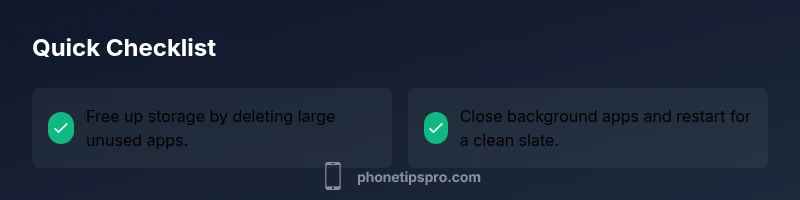
Before diving into tools or settings, try these fast checks to gauge how much impact you can have immediately. Free up space if you have less than a few gigs available, close unnecessary background apps, and perform a fresh restart. Make sure you’re running the latest iOS, as updates often include performance improvements. Reducing motion and transparency can also keep the UI responsive on older devices. If you’re storing a lot of media, offload or remove large videos and photos you don’t need day-to-day. Phone Tips Pro recommends starting with these non-destructive steps to see quick wins without affecting your data. Finally, check battery health to assess throttling risk and plan next steps accordingly.
Steps
Estimated time: 60-90 minutes
- 1
Free up storage
Review large apps and media in Settings > General > iPhone Storage. Offload or delete items you no longer need. A drier storage pool helps iOS run without constantly paging data to disk. Pro tip: back up or offload photos to cloud storage to reclaim space without losing precious memories.
Tip: Back up first and then offload or delete to reclaim the most space quickly. - 2
Check battery health
Navigate to Settings > Battery > Battery Health to see Maximum Capacity and Peak Performance. If capacity is degraded, throttling can reduce speed. Consider replacing the battery at an Apple Store or authorized service provider for a meaningful speed boost.
Tip: Even if the device works, a weak battery can cap performance; plan a replacement if capacity is low. - 3
Update iOS and apps
Go to Settings > General > Software Update to install the latest iOS version. Update essential apps from the App Store so they’re optimized for the current OS. Updates frequently include performance and security improvements.
Tip: Back up before major OS updates to safeguard your data. - 4
Reset settings (not data)
If issues persist, reset all settings via Settings > General > Transfer or Reset iPhone > Reset > Reset All Settings. This clears preferences but preserves your data and media. It can fix misconfigured options that hamper speed.
Tip: This is safer than a factory reset and often resolves subtle config issues. - 5
Consider a backup-and-restore
If the device remains slow after the above steps, back up your iPhone and perform a restore from backup or a clean install of iOS. This can clear stubborn software glitches and give you a fresh baseline.
Tip: Use a recent backup to avoid data loss and verify critical data afterward.
Diagnosis: iPhone feels slow, lags when launching apps, or UI is unresponsive
Possible Causes
- highLow storage leaving little room for operating system and apps
- mediumMany background processes or apps; cache and data buildup
- mediumAging battery causing throttling to protect hardware
- lowOutdated iOS or problematic app updates
Fixes
- easyFree up storage (delete or offload unused apps and media)
- easyClose background apps and restart the device
- easyCheck battery health and consider replacement if needed
- mediumUpdate iOS and reset settings if issues persist
- hardBackup and restore from a recent backup if software issues linger
FAQ
Why is my iPhone slow after updating?
A software update can initially tax resources, especially on older devices. If the update is ongoing, you may see improved speed once indexing completes. If problems persist, review storage, battery health, and app compatibility.
A software update can slow things briefly; if it continues, check storage and battery health, then verify app compatibility.
Will restoring from a backup fix performance issues?
Restoring from a recent backup can remove problematic app data or settings. If the issue is software-related, a clean restore can help. Always back up first and test after restoring to confirm improvement.
A backup restore can fix software glitches if the issue isn’t hardware-related.
How can I quickly check how much storage I have left?
Go to Settings > General > iPhone Storage to see available space and a breakdown by app. This helps identify large culprits and decide what to offload or delete.
Check storage under General > iPhone Storage to spot large apps you can offload.
When should I replace the battery to speed up performance?
If Battery Health shows significantly reduced maximum capacity or you notice unusual throttling, a replacement can restore peak performance. Visit Apple or an authorized service provider for an accurate assessment.
If your battery health is poor and you see throttling, consider replacement for speed gains.
Does turning off Background App Refresh improve speed?
Yes. Disabling Background App Refresh for nonessential apps reduces background data usage and can improve responsiveness. Do this under Settings > General > Background App Refresh.
Turning off background refresh can make your iPhone feel faster.
Is a factory reset necessary to fix slow performance?
Usually not the first option. A factory reset removes all data and apps. Try backups, storage cleanup, and a settings reset first; only consider a factory reset if everything else fails and data is securely backed up.
A factory reset is a last resort after other fixes fail.
Watch Video
Quick Summary
- Free up storage to boost responsiveness
- Monitor battery health to prevent throttling
- Keep iOS apps and OS up to date
- Back up before major fixes or resets