How to Make iPhone Faster: Practical Speed Guide Today
Learn proven steps to speed up your iPhone, from storage cleanup to setting tweaks and updates. Phone Tips Pro offers practical, safe guidance for everyday use.


According to Phone Tips Pro, speed on an iPhone hinges on storage, software, and background activity. To speed up your iPhone, start by freeing storage, updating iOS, and reducing visual effects. Then optimize apps, background activity, and battery usage. This quick guide provides practical steps you can take now to reclaim snappiness, extend battery life, and keep your device running smoothly. No specialized tools required; most changes are reversible, and you can adjust settings as needed.
Why how to make iphone faster matters
If you’re asking how to make iphone faster, you’re not alone—speed affects everything from launching apps to scrolling through photos. The Phone Tips Pro team found that keeping software current, freeing storage, and limiting heavy background tasks are the most impactful changes for everyday performance. As devices age, caches grow and battery health can introduce throttling, which slows processing and app launches. Understanding these factors helps set realistic expectations and frames the fixes you’ll apply in the steps that follow.
Quick Wins You Can Implement Today
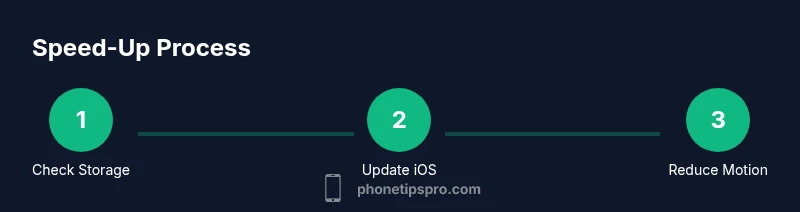
You don’t need to jump into deep system resets to notice a difference. Start with obvious improvements and build from there. First, free up space; second, update iOS and apps; third, minimize background activity and motion effects. These changes can yield noticeable improvements in app launch times, snappiness of menus, and overall responsiveness. The goal is to reclaim headroom for system processes so your iPhone can breathe and respond more quickly.
Free Up Storage and Manage Apps Efficiently
Storage pressure is a primary culprit behind slowing devices. Begin by reviewing large apps and media in Settings > General > iPhone Storage. Offload or delete apps you rarely use, and clear out outdated videos or screenshots you no longer need. Move photos and videos to iCloud or a computer if you want to keep them. Offloading apps preserves app data, meaning you can reinstall later without losing important information. Regularly auditing storage keeps system caches from crowding memory and helps apps launch faster.
Update iOS and Critical Apps for Optimal Performance
Keeping iOS and installed apps up to date is one of the simplest, most effective speed fixes. Updates often include performance optimizations, bug fixes, and security patches that improve stability. Before updating, ensure you have a stable Wi‑Fi connection and enough free storage for the upgrade. After updating, recheck settings that might have been reset or changed by the update, such as Background App Refresh and location services. Phone Tips Pro analysis shows that timely updates consistently lead to smoother operation and fewer crashes.
Reduce Motion, Background App Refresh, and Privacy Controls
Visual effects like motion and parallax can tax the CPU and GPU, especially on older devices. In Settings > Accessibility > Motion, turn on Reduce Motion to cut unnecessary animations. Disable Background App Refresh for apps that don’t need live data, and review which apps have permission to use cellular data in the background. Limiting these activities eases memory pressure, reduces processor workload, and helps your iPhone feel faster in day-to-day tasks.
Battery Health and Charging Habits
Battery health plays a surprising role in perceived speed. When batteries degrade, devices may throttle performance to preserve runtime. Check Battery Health in Settings > Battery > Battery Health to see maximum capacity and peak performance capability. If health is degraded, consider replacing the battery through Apple or an authorized service provider. Also, avoid letting the battery consistently run to near-empty and keep your device charged in regular intervals to maintain consistent performance.
Restarting and Recovery: When to Reset or Restore
If you still notice slowdown after applying the basics, a soft restart can help the system reclaim resources. If problems persist, avoid jumping straight to a full erase; first try Reset All Settings (which preserves data) to reset network, display, and system preferences. A full erase should be a last resort and requires a fresh restore from a backup. Always back up before major changes to protect your data.
Long-Term Maintenance for a Fast iPhone
Create a simple maintenance routine: monitor storage monthly, keep iOS updated, review Background App Refresh quarterly, and check battery health twice a year. Use Focus modes to minimize interruptions during tasks, and limit auto-downloads and app updates to times when you’re on Wi‑Fi and charging. With consistent habits, your iPhone remains responsive and enjoyable to use over time. Phone Tips Pro reminds readers that small, regular tweaks beat large, one-off changes.
Authoritative sources (optional)
Authoritative sources
Tools & Materials
- iPhone with latest iOS installed(Ensure iPhone is signed in to iCloud and backed up before major changes)
- Stable Wi‑Fi connection(Needed for iOS updates and app management)
- Charging cable and power source(Keep device charged during optimizations)
- Sufficient storage space (≥2 GB free)(Needed to allow updates and caches to refresh)
- Computer with iTunes/Finder (optional)(For full backup and restore if you plan a reset)
- Backup plan (iCloud or computer)(Protects data before major changes)
Steps
Estimated time: 60-90 minutes
- 1
Check storage and space hogs
Open Settings > General > iPhone Storage to see which apps and media use the most space. Identify candidates to offload or delete, starting with large videos or unused apps. The goal is to free enough headroom for system processes and new updates.
Tip: Back up before deleting media to avoid data loss. - 2
Offload unused apps
Use the Offload Unused Apps option or manually remove apps you haven’t used in a while. Offloading preserves app data so you can reinstall later without losing information. This reduces memory pressure and improves app launch times.
Tip: Prefer offloading over full deletion to minimize data loss risk. - 3
Clear caches and Safari data
Clear browser caches and Safari history to reclaim storage and reduce cached data that the system may reuse. This can speed up page loads and app resets by freeing memory.
Tip: Clear data on a connected Wi‑Fi network to avoid large downloads. - 4
Update iOS and apps
Check for available iOS updates and install them. Update critical apps from the App Store to ensure compatibility and performance improvements. After updating, review settings that may have been reset.
Tip: Ensure you have enough free space before upgrading. - 5
Reduce motion and background activity
In Settings, enable Reduce Motion and disable Background App Refresh for nonessential apps. This reduces CPU/GPU load and conserves memory, contributing to faster navigation and faster app launches.
Tip: Test changes by rebooting and observing the speed of opening apps. - 6
Review battery settings
Check Battery Health and optimize settings like Low Power Mode to manage resource use during heavy tasks. Replacing a degraded battery can restore peak performance.
Tip: Avoid running on charge cycles that are constantly degraded; consider service if health is poor. - 7
Restart and verify performance
Restart the device to refresh memory and reinitialize system services. After reboot, test core tasks (opening apps, switching between apps) to verify noticeable speed improvements.
Tip: If issues persist, perform a soft reset before considering a factory reset.
FAQ
Will turning off Background App Refresh help speed up my iPhone?
Yes. Disabling or restricting background refresh reduces CPU and memory activity, which can improve responsiveness. Focus on essential apps and re-enable for those you really need.
Disabling background refresh for nonessential apps can noticeably improve responsiveness.
Is deleting apps safe for performance, or should I offload first?
Offloading preserves app data while removing the app itself, reducing storage use without losing settings. If you plan to reuse the app soon, offload rather than delete.
Offload first to keep data safe if you plan to reinstall later.
Should I reset all settings or erase content to fix speed issues?
Reset All Settings is a safer first step that preserves data but resets preferences. A full erase should be a last resort after backing up, as it removes personal data.
Try Reset All Settings before a full erase to keep your information safe.
How often should I update iOS for best speed?
Keep iOS updated when new versions are released and your device supports them. Updates include performance improvements that can noticeably speed up your iPhone.
Install updates as soon as you can, after ensuring you have storage and backup.
Can these steps speed up older iPhone models?
Yes, many steps help older devices by freeing resources and reducing workload. The benefits depend on how extensively the device has been used and its battery health.
Older iPhones can still feel snappier with optimized settings and regular maintenance.
Watch Video
Quick Summary
- Free up storage to improve app launches
- Update iOS and apps promptly for stability
- Reduce motion and background activity for speed
- Monitor battery health to prevent throttling