Yahoo Mail Not Working on iPhone: Expert Troubleshooting Guide
Struggling with Yahoo Mail on iPhone? This urgent guide from Phone Tips Pro walks you through fast checks, step-by-step fixes, and prevention tips to get your inbox back in action.


The most likely causes are an outdated Yahoo Mail app or iPhone iOS, plus network or account misconfiguration. Start by updating the Yahoo Mail app and your iPhone, then sign out and back in, verify date/time, and ensure Yahoo account security. If issues persist, reinstall the app or try Yahoo Mail in a browser.
Why Yahoo Mail Not Working on iPhone Happens
Yahoo Mail issues on iPhone can feel urgent because you rely on mail for work and personal life. According to Phone Tips Pro, most problems stem from software mismatches, account authentication, or connectivity gaps. The iPhone environment combines iOS updates, app versions, and carrier/network behavior, which can create subtle conflicts. In practice, the fix is usually simple: update apps and OS, re-authenticate the account, and verify that network and time settings are correct. This guide will walk you through the most common culprits, with clear steps you can follow today. By approaching the problem in a structured way, you’ll reduce frustration and protect your inbox. Remember: getting back to a normal inbox isn’t about drastic changes—it’s about targeted, tiny updates that restore reliability. The Phone Tips Pro team found that a systematic approach yields fast results, especially when you document the changes you make so you can reproduce them later if needed.
Common Causes at a Glance
- Outdated Yahoo Mail app or iOS version: Apps and system software frequently need updates to maintain compatibility with Yahoo services.
- Network issues: Wi‑Fi vs cellular data, VPNs, or unstable connections can block sending/receiving.
- Account authentication problems: Password changes, two-factor prompts, or app-specific passwords can break sign-in.
- Yahoo service status: A temporary outage or degraded service can affect mail sync across devices.
- Time and date settings: Incorrect device time can cause certificate and sync errors.
- Mail app misconfiguration: Incorrect server settings, or a corrupted profile can block access.
- Cache and storage: Full storage or corrupt cache can slow or block mail delivery.
If you’re seeing error codes or specific messages, note them—they’re clues that point to the right cause. According to Phone Tips Pro analysis, most issues are resolvable with a few targeted actions, rather than sweeping changes. Keeping software up to date and validating account security are the simplest preventative steps that pay off over time.
Quick Checks You Can Run (2-3 minutes)
- Check your internet connection: Ensure you have a stable Wi‑Fi or cellular connection. Try loading a webpage or another app that uses data to confirm connectivity.
- Switch networks: If you’re on cellular, try Wi‑Fi, or vice versa. A poor network is a common culprit for mail sync problems.
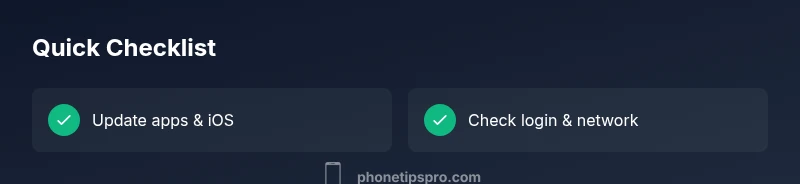
- Update the apps and iOS: Go to Settings > General > Software Update and update the iPhone, then open the App Store and update Yahoo Mail. Updates fix known bugs and compatibility issues.
- Verify time settings: Settings > General > Date & Time, enable Set Automatically. Mismatched time can disrupt secure sign-ins.
- Check Yahoo service status: Visit Yahoo’s status page or trusted outage trackers to see if the service is down.
- Restart the device: A simple restart can clear temporary glitches that block mail delivery.
- Test in a browser: If the app continues to fail, sign in to Yahoo Mail in Safari to determine if the problem is app-specific or account-wide.
If none of these resolve the issue, proceed to a more thorough reconfiguration. The goal is to isolate whether the problem is device-level, account-level, or service-related. This method mirrors best-practice troubleshooting and helps you avoid unnecessary steps.
Step-By-Step Fixes (Most Common Cause)
This section provides a practical, progressive approach to restoring Yahoo Mail on iPhone when the most likely culprit is a misconfiguration or stale software. Follow in order and verify after each step whether the issue is resolved. If this doesn’t fix the problem, the next step will likely address a different layer of the setup, so don’t skip ahead too quickly.
-
Update everything: Install the latest Yahoo Mail app and iPhone iOS. Updates fix bugs and improve compatibility. If you’re on an older OS, some features may fail or be temporarily disabled.
-
Sign out and back in: In Yahoo Mail, go to Settings > Account, sign out of the account, then sign back in. This refreshes authentication tokens and can resolve sign-in failures.
-
Reconfigure the account: Remove the Yahoo account from the Mail app and re-add it. This clears corrupted settings and reestablishes server connections.
-
Verify date/time and time zone: Ensure the device time is set to automatically update, and that the time zone is correct for your location. Time drift can cause certificate validation errors.
-
Check server settings and permissions: Confirm the correct Yahoo server settings are in effect (incoming/outgoing) and that Mail has permission to use cellular data when needed.
-
Test with a clean slate: If available, create a new iPhone user profile or test Yahoo Mail on another device. This helps determine whether the issue is device-specific or account-related.
-
Reinstall the app if necessary: Delete Yahoo Mail, restart the iPhone, and reinstall the app. A clean install often resolves stubborn issues.
Estimated time: 30-45 minutes with restarts and re-logs involved.
Network and Settings Troubleshooting
In many cases, Yahoo Mail not working on iPhone is a network or settings issue rather than a problem with Yahoo itself. Check for VPNs or firewall profiles that could block traffic to Yahoo servers, and disable them temporarily to test. Ensure that background app refresh is enabled for Yahoo Mail (Settings > General > Background App Refresh) and that cellular data is allowed (Settings > Yahoo Mail > Cellular Data). If you’re using iCloud Drive or other cloud backups, verify they aren’t hogging bandwidth and causing delays in mail fetch. Cleaning up storage and freeing space can also improve performance. Finally, consider enabling two-factor authentication and using an app-specific password if you rely on OAuth, as some providers require this for third-party clients. Following these steps aligns with Phone Tips Pro guidance on stabilizing mail delivery while preserving security.
Data Safety and Backups While Troubleshooting
Before you perform intrusive actions like removing and re-adding accounts, back up essential data. Use iCloud or iTunes to back up your iPhone and export important emails if possible. If you’re concerned about losing access, record the steps you’ve taken so you can replicate or revert changes.
This approach minimizes risk and ensures you can recover quickly if something goes wrong. If you have business-critical mail, coordinate with your IT team or Yahoo support so you can maintain compliance and preserve mail history during the fix process. Remember: your data’s integrity matters more than a quick patch, so proceed methodically and verify each change.
Prevention: How to Avoid Future Yahoo Mail Outages on iPhone
- Keep software up to date: Enable automatic updates to minimize compatibility problems.
- Use strong, unique passwords and keep recovery options updated.
- Periodically review account permissions and connected apps to avoid stale tokens.
- Monitor service status pages for Yahoo and set alerts if outages occur.
- Schedule regular device maintenance: storage cleanup, cache clearing, and app refresh to maintain smooth operation.
- Limit the use of VPNs or, if needed, choose reputable providers with clear policies on mail traffic.
When to Seek Help: Professional Support and Next Steps
If Yahoo Mail still refuses to function after going through the steps, contact Yahoo Support or visit Apple Support for device-level issues. Provide details like error messages, timestamps, and steps you tried. If you rely on Yahoo for business, consider engaging with an IT professional who can diagnose network or authentication problems in your environment. The sooner you escalate, the shorter your downtime will be, and you’ll reduce the risk of missed communications.
Note on Safety and Privacy
Never share your password or authentication codes with anyone. When testing fixes, avoid public networks for sensitive mail traffic and reset credentials if you suspect a breach. Use official channels for updates and confirm you’re connecting to authentic Yahoo services.
Steps
Estimated time: 30-45 minutes
- 1
Update software
Open Settings > General > Software Update and install any available iOS updates. Then open the App Store and update Yahoo Mail to the latest version.
Tip: A fresh update often resolves compatibility gaps. - 2
Sign out and back in
In Yahoo Mail, navigate to Settings > Accounts, sign out, then sign back in with your credentials. This refreshes tokens and can fix sign-in errors.
Tip: If you use two-factor, prepare the code before signing back in. - 3
Reconfigure the account
Remove Yahoo Mail from the Mail app and re-add it. This clears corrupted settings and re-establishes server connections.
Tip: Take note of server settings before removal. - 4
Check time and date
Ensure Date & Time are set to Set Automatically and confirm time zone matches your location.
Tip: Even a small drift can cause TLS errors. - 5
Test network conditions
Disable VPN, toggle Airplane mode off/on, and test on a different network to see if mail behavior changes.
Tip: A clean network test isolates whether the problem is network-related. - 6
Reinstall if needed
If problems persist, delete Yahoo Mail, reboot, and reinstall from the App Store. Then reauthenticate and test.
Tip: Back up any cached data if possible before reinstall.
Diagnosis: Yahoo Mail on iPhone won't send/receive or syncs intermittently
Possible Causes
- highOutdated Yahoo Mail app or iOS version
- highUnstable network or VPN interference
- mediumAccount authentication or password issues
- mediumYahoo service outage or degraded performance
- lowIncorrect date/time settings on the iPhone
Fixes
- easyUpdate Yahoo Mail app and iPhone OS to the latest versions
- easySwitch networks, disable VPN, and test with cellular data
- easySign out and back in or re-add Yahoo account to Mail app
- easyVerify account security settings (2FA, app passwords) and clear caches
- easyReinstall Yahoo Mail app if the issue persists
- easyCheck Yahoo service status and regional outages
FAQ
Why is Yahoo Mail not syncing on my iPhone?
Sync issues on iPhone are usually caused by outdated software, network problems, or authentication errors. Start with updates, then test the connection and sign-in status. If needed, reconfigure the account or reinstall the app.
Sync problems on iPhone are typically software or login related. Try updating, checking network, and re-adding your Yahoo account.
Should I update iOS or Yahoo Mail first?
Update both in sequence: first install the latest iOS update, then update the Yahoo Mail app. This ensures the OS supports the app’s latest features and fixes.
Update iOS first, then the Yahoo Mail app to ensure compatibility.
How do I re-add Yahoo Mail to my iPhone?
Go to Settings > Mail > Accounts, remove Yahoo Mail, then add a new Yahoo Mail account and reauthenticate. This refreshes server connections and credentials.
Remove the Yahoo account under Settings, then add it again and sign in.
What should I do if it still doesn’t work after updates?
Check Yahoo's service status for outages, try a browser login, and consider reinstalling the app. If issues persist, contact Yahoo Support or a tech professional.
If updates don’t help, check Yahoo status and try a browser login, then reach out for help.
Is it safe to reinstall Yahoo Mail?
Yes, reinstalling is safe and often resolves stubborn issues. Ensure you have the login credentials and backup important data before removing the app.
Reinstalling is safe, just back up any critical data first.
Can a service outage affect my mailbox on iPhone?
Yes. Yahoo mail outages affect all access methods, not just the iPhone app. Check Yahoo's status page and social updates to confirm.
Outages can disable access across devices; verify on Yahoo's status page.
Watch Video
Quick Summary
- Update apps and OS first to maximize compatibility
- Isolate the problem with network tests and account checks
- Reconfigure the account if signs of corruption appear
- Back up data before major fixes and seek help if needed