Not Getting Mail on iPhone: A Practical Troubleshooting Guide
Urgent, practical guide to not getting mail on iPhone. Learn quick checks, account and server settings, and step-by-step fixes to restore reliable email delivery on iOS today.


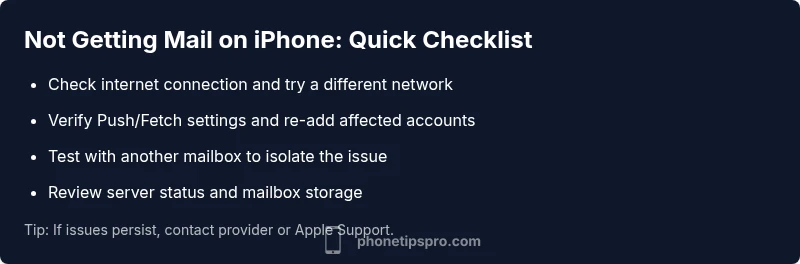
Start with the basics: check your network, refresh the Mail app, and verify the correct accounts are enabled with Push or Fetch enabled. If messages still don\'t arrive, test with another mailbox, confirm server settings, and ensure your iPhone\'s date and time are correct. If issues persist, proceed through the diagnostic flow for deeper fixes.
not getting mail on iphone: Quick checks
According to Phone Tips Pro, not getting mail on iphone is often caused by simple, fixable issues. In this quick section we focus on fast, practical checks you can perform in under a minute. First, confirm you have a stable internet connection — switch between Wi-Fi and cellular data to see if the problem is network-related. If you're using VPNs, disable them temporarily to rule out interference. Check Airplane mode and reboot your iPhone if needed. Ensure the date, time, and time zone are correct because skewed settings can disrupt server synchronization. Finally, verify you are signed into the intended Apple ID and that iCloud Mail (if used) is enabled. These basics often resolve the issue quickly and prevent wasted time, especially when you're trying to regain access to critical messages.
Check Push and Fetch Settings for Your Mail Accounts
Push and Fetch control how and when new messages arrive on your iPhone. Go to Settings > Mail > Accounts and select each account. Turn Push on where available, and choose a Fetch interval that makes sense for you (e.g., Every 15 Minutes or Manually). If an account uses a third-party server, confirm the correct IMAP/SMTP settings and port numbers. After adjusting, force-quit the Mail app and reopen it, then test by sending a test email to your address. This step often clears stuck inbox items and restores near real-time delivery.
Test with a Different Mailbox and In-app Notifications
To isolate the problem, test with another mailbox (or a secondary email account) on the same device. If the other mailbox delivers normally, the issue is likely specific to the original account. Check that in-app notifications are allowed under Settings > Notifications > Mail, and ensure that banner, sounds, and previews are enabled. If you're using VIP mail in the Mail app, verify VIP rules aren't filtering new messages to Junk or Archive unexpectedly.
Common culprits: server outages, storage, and misconfigurations
Server outages or mailbox quota limits can halt delivery even when your device is functioning correctly. Check your provider's status page or social channels for any reported outages. Also review iPhone storage; running low on space can cause apps to misbehave, including Mail. Finally, ensure that the account settings, particularly IMAP/SMTP hostnames and ports, match the provider's recommendations. Mismatched settings are a frequent cause of delayed or missing messages.
Advanced fixes and when to seek help
If the problem persists after the basic steps, take more advanced actions: remove and re-add the affected email account, reset network settings (Settings > General > Transfer or Reset iPhone > Reset > Reset Network Settings), or update iOS to the latest version. Before drastic steps, back up mail data if possible. If all else fails, contact your provider's support or Apple Support; the issue may require server-side changes or deeper device-level troubleshooting that a specialist should handle.
Steps
Estimated time: Estimated total time: 25-40 minutes
- 1
Open Settings and review accounts
Navigate to Settings > Mail > Accounts. Review each account for correct username, password, IMAP/SMTP settings, and whether Mail is enabled. Make a note of any recent password changes that could cause authentication failures.
Tip: Take a screenshot of correct settings for quick reference. - 2
Check Push and Fetch configuration
For each account, ensure Push is enabled if supported and set a Fetch interval. If Push is unavailable, rely on Fetch and set an interval you can tolerate.
Tip: If battery is limited, consider shorter fetch intervals temporarily. - 3
Test delivery with a send/receive cycle
Send a test email to yourself and ask someone else to email you. Observe if new messages appear in the inbox and any delays. This confirms whether the problem is inbound delivery or a broader sync issue.
Tip: Test with both Wi-Fi and cellular data. - 4
Force quit and relaunch the Mail app
Close the Mail app completely (swipe up) and reopen. Check if new messages appear immediately after relaunch. This clears temporary sync glitches.
Tip: Restart the phone if the issue persists. - 5
Re-add the affected account
Remove the problematic account from Settings > Mail > Accounts, then add it back with the correct credentials and server settings. This resolves many authentication and sync problems.
Tip: Back up important mail locally if possible. - 6
Reset network settings
If problems persist, reset network settings via Settings > General > Transfer or Reset iPhone > Reset > Reset Network Settings. Note: this clears saved Wi-Fi passwords.
Tip: Rejoin known networks after the reset. - 7
Update iOS and apps
Ensure iOS and the Mail app are up to date. Software updates fix known bugs and improve mail synchronization.
Tip: Backup before updating. - 8
Escalate to support
If none of the steps restore mail, contact your provider or Apple Support with steps you\'ve tried and any error messages observed.
Tip: Provide timestamps and screenshots to speed up diagnosis.
Diagnosis: Not receiving new emails on iPhone
Possible Causes
- highNo internet connection or flaky network
- highMail account misconfiguration (IMAP/SMTP) or old password
- mediumPush is disabled or Fetch interval too long
- mediumServer outages or mailbox quota reached
- lowDevice storage full or iOS bug
Fixes
- easyToggle Airplane mode and reconnect to a stable network; test by sending/receiving mail
- easyVerify account settings (IMAP/SMTP), re-enter passwords, and switch between Push/Fetch
- easyEnsure Mail app has background refresh permissions and is allowed to fetch new data
- easyCheck mail provider status and webmail access to rule out server issues
- mediumRemove and re-add the email account or reset network settings if needed
- hardConsult provider/Apple Support if issues persist; consider device diagnostics
FAQ
Why am I not getting new emails on my iPhone?
Common causes include connectivity issues, misconfigured account settings, or server problems. Start with a network check and review your account configuration.
Most issues come from network or account settings. Check those first.
What should I do first when mail stops syncing?
Check internet connectivity, ensure Push is enabled, and verify the affected account is active in Settings > Mail > Accounts.
First, check your internet and push settings.
How do I re-add my email account on iPhone?
Remove the account in Settings > Mail > Accounts and add it back with correct credentials. Test after re-adding.
Remove and re-add the account, then test.
Can server outages affect mail delivery on iPhone?
Yes. Outages or mailbox limits can delay or block mail. Check your provider’s status page and webmail access to verify.
Server issues can block mail delivery.
Is it safe to reset network settings?
Resetting network settings is safe but will erase saved Wi-Fi networks and passwords. Reconnect to known networks afterward.
Resetting is safe but you’ll need to reconnect to Wi-Fi.
What if none of the fixes work?
Contact your provider or Apple Support with details of what you tried. They can help with server issues or device diagnostics.
If nothing works, contact support.
Watch Video
Quick Summary
- Verify network and account settings first
- Push/Fetch affect delivery speed
- Re-add account or reset network when stuck
- Check server status and storage before deeper steps