How Long Does iPhone Last on 1 Charge? Practical Guide
Discover how long an iPhone lasts on a single charge, the factors that affect runtime, real-world ranges by model, and practical tips from Phone Tips Pro to maximize battery life.


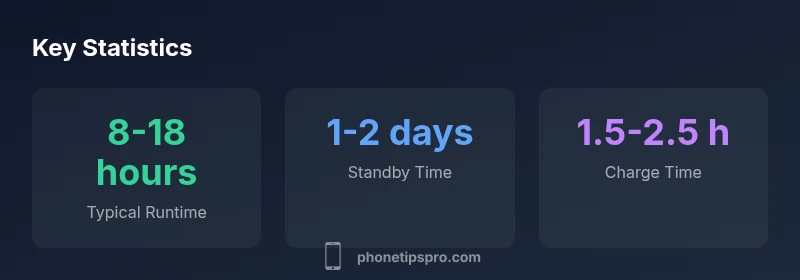
How long does iphone last on 1? On a single charge, runtime varies by model, battery health, and usage. Generally, newer iPhones provide roughly 8-18 hours of mixed use, while older devices sit toward the lower end. For typical daily activity, you can expect about 6-12 hours of screen-on time before recharging.
How long does iphone last on 1
If you’re asking how long does iphone last on 1, the short answer is: it varies a lot depending on the model you own, the health of the battery, and how you use the device. In practice, newer iPhones tend to push beyond the 8-hour mark under mixed usage, while older generations often fall toward the lower end of the spectrum. In this guide, we unpack realistic ranges for common scenarios and offer guidance from Phone Tips Pro to help you set expectations and optimize uptime. The exact number isn’t the same for everyone, but knowing the typical bounds gives you a solid reference point for planning a day with confidence.
Factors that influence runtime on a single charge
Several core variables determine how long an iPhone will last on a single charge. First, model generation matters: newer devices generally have more efficient processors and better battery management, which translates to longer runtime for many users. Battery health is another critical factor; as the battery ages and its maximum capacity declines, the runtime on a single charge typically shortens. Usage patterns are king: streaming, gaming, and high screen brightness drain power faster, while moderate tasks like messaging and email consume less. Network conditions also matter—weak cellular reception can cause the phone to search for a signal, draining the battery more quickly. Background activity, such as app refresh and location services, can silently reduce uptime. Finally, software updates can tweak battery management; staying updated helps optimize efficiency, but new features may also introduce higher power demands.
Real-world scenarios: light use vs heavy use
Consider a typical day for a light user who mainly checks email, browses, and uses a few light apps. In this scenario, many iPhones comfortably reach the mid to upper end of the 8-12 hour range of screen-on time, with standby extending beyond 24 hours in some cases. A heavy user who streams video, plays graphics-intensive games, and uses Location Services frequently may see runtimes shrink toward the lower end, often in the 6-9 hour window. It’s important to remember that screen time is a strong predictor of total runtime. If your activities revolve around heavy media or gaming, plan for shorter intervals between charges.
Practical tips to extend runtime on a single charge
- Enable Low Power Mode during long days or travel to curb background activity and power-hungry processes.
- Turn on Optimized Battery Charging to reduce aging and maximize long-term health.
- Dim the screen and enable Auto-Brightness to avoid unnecessary brightness-induced drain.
- Limit background app refresh and disable unnecessary Location Services when not in use.
- Use Wi‑Fi instead of cellular data where possible to reduce radio activity.
- Update iOS regularly, as software optimizations can boost efficiency.
- If battery health is below 80%, consider a battery replacement to restore near-original runtime.
Phone Tips Pro recommends reviewing these settings periodically, especially after iOS updates or changes in usage patterns.
How to measure your iPhone's current runtime
To get a practical read on how long your iPhone lasts on a charge today, start with Settings > Battery. Look at the last 24 hours and the last 7 days to understand usage patterns, screen-on time, and per-app energy drain. Battery Health (Settings > Battery > Battery Health) informs you about maximum capacity, which helps explain observed runtimes. If life seems shorter than your typical day, compare current usage to earlier weeks to identify tweaks that could help. For a more granular view, track screen-on time versus total battery drain and adjust brightness, background activity, and network settings accordingly.
Measuring and interpreting charging times
Charging time depends on charger type and current battery health. A fast charger on a newer iPhone typically reaches a full 0-100% in roughly 1.5 to 2.0 hours, though older accessories may extend this to around 2.0 to 2.5 hours. If you notice markedly longer charging times, it could indicate aging battery health or a suboptimal charger. Try using a higher-wattage adapter supported by your model and ensure the Lightning or USB-C cable is in good condition. Regularly monitor charging curves to avoid plugging in late at night if you’ll miss a full charge in the morning.
When battery life falls short: troubleshooting and next steps
If you consistently experience short runtimes, start with a battery health check (Settings > Battery > Battery Health). If health is below 80%, plan for a replacement to restore practical runtimes. Otherwise, review running apps and services that consume power, and consider a reset of settings if battery drain persists after updates. For older devices, a battery replacement often yields the most noticeable improvement in daily uptime. Remember, some loss of capacity with age is normal, but proactive management can stretch each charge further.
Typical runtime and charging times by model tier
| Model Range | Typical Runtime (mixed usage) | Charge Time (0-100%) |
|---|---|---|
| Newer iPhone (16/15/14) | 8-18 hours | 1.5-2.0 hours |
| Mid-range (13/12/11) | 7-16 hours | 1.6-2.2 hours |
| Older model (8/SE 2020) | 6-12 hours | 1.8-2.4 hours |
FAQ
What affects iPhone battery life the most?
The most influential factors are screen-on time, app activity, and battery health. High brightness, heavy gaming, and persistent background activity drain power quickly, while good battery health and optimized charging help maintain longer runtimes.
The biggest factors are screen time, apps, and battery health. Bright screens and heavy use drain power fast, while a healthy battery and optimized charging help run longer.
How can I check my battery health on iPhone?
Go to Settings > Battery > Battery Health to see maximum capacity and peak performance capability. If the health is below about 80%, consider a replacement to restore runtime.
Open Settings, tap Battery, then Battery Health to see capacity and performance. If it’s under 80%, a replacement may be worthwhile.
Does battery health affect runtime?
Yes. As battery health declines, the maximum charge capacity reduces, leading to shorter runtimes between charges. Replacing aging cells typically restores much of the original uptime.
Absolutely. Worse battery health usually means shorter runtimes, and a replacement can bring back much of the lost time.
Is it safe to charge overnight?
Charging overnight is generally safe on modern iPhones with optimized charging. It helps protect battery health by limiting charge to near-full only when needed.
Yes, with optimized charging enabled, overnight charging is safe and preserves battery health.
Why does my iPhone drain quickly when using cellular data?
Weak cellular signals force the phone to boost transmit power, which increases drainage. Switching to Wi‑Fi when available and enabling low data usage options can mitigate this.
Poor signal makes your phone work harder, draining battery faster. Use Wi‑Fi when you can and limit background data.
When should I replace the battery?
If battery health is under 80% and runtimes feel noticeably shorter, a replacement is usually worth it. This can restore most of the original daily uptime without changing the device.
If health is under 80% and runtimes have dropped, consider replacing the battery to regain longer use between charges.
“Battery life on a single charge isn’t fixed; it varies with usage, battery health, and settings. Small tweaks can yield meaningful gains.”
Quick Summary
- Check battery health to set expectations.
- Enable optimized charging to reduce wear.
- Reduce screen brightness and limit background apps.
- Switch to Low Power Mode during heavy use.
- Consider battery replacement if health is low.