How to Make iPhone Battery Last Longer
Discover proven steps to extend iPhone battery life with easy settings, smarter charging, and daily habits. This Phone Tips Pro guide explains how to make iphone battery last longer through practical, repeatable actions.


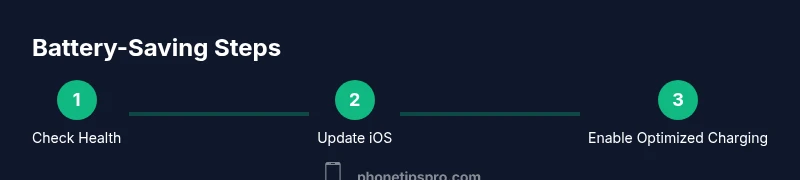
You can make an iPhone battery last longer by combining smarter charging with daily usage tweaks. Start with a quick battery health check and update to the latest iOS, then enable Low Power Mode when appropriate, lower screen brightness, and minimize unnecessary background activity. Use optimized charging and keep your device cool to extend overall battery longevity.
Understand why battery life varies
According to Phone Tips Pro, the best way to start improving iPhone battery life is to understand what drains it. Battery life isn't a fixed figure; it shifts with temperature, how you use the device, and what apps run in the background. Apple studies and independent testing consistently show that activities like background app refresh, persistent location tracking, and bright OLED screens accelerate power drain. By recognizing these factors, you can target the changes that produce the biggest gains. In this guide we focus on practical, actionable steps you can apply today and build on over weeks. The Phone Tips Pro Team emphasizes that the goal is balance: preserve essential features while reducing unnecessary power demand. In short, you don’t have to sacrifice value to get more screen time; you can tune settings to get a longer, healthier battery life.
Check battery health and current software status
Begin by inspecting Battery Health in Settings > Battery > Battery Health. The Maximum Capacity indicator gives a sense of how much life remains; if it shows significant degradation, you may consider planning a replacement. Also review Performance Management status if your iPhone has reduced speed to prevent unexpected shutdowns when the battery ages. Keeping iOS up to date matters because newer releases include efficiency optimizations that improve idle power usage and app performance. Phone Tips Pro's analysis notes that routine software updates can yield measurable gains in battery efficiency. If battery drain starts after an update, consider resetting settings (not data) to reapply power-saving defaults without erasing your content.
Core habits that yield big gains
Small daily choices compound over time. Limit bright screen time by using Auto-Brightness, keep the screen refresh rate at a reasonable level, and reduce the number of apps actively using background processes. Enable Wi‑Fi whenever possible and turn off unnecessary push notifications. These habits reduce power draw without compromising essential functionality. Phone Tips Pro Team highlights that consistency matters more than occasional extreme steps, so integrate these practices into your daily routine.
Optimize display and brightness settings
The display is the most power-hungry component on many iPhone models. Use Auto-Brightness to adapt to ambient light, and set a comfortable brightness level rather than leaving it maxed out. If you frequently use dark mode on OLED screens, you’ll notice energy savings, especially during extended screen time. Review 3D Touch/ haptic feedback settings and reduce motion effects if you’re sensitive to motion; these adjustments can shave a noticeable amount of drain. Implementing these tweaks helps you see longer use between charges while preserving readability and usability.
Manage background activity and app behavior
Background tasks drain battery even when you aren’t actively using the phone. Disable Background App Refresh for apps that don’t need it, limit location access to “While Using the App,” and review app-specific permissions for push notifications. Turning off unnecessary widgets and Siri suggestions can also trim idle power usage. These steps are easiest when done in batches, so pick a few high-drain apps and tune them first.
Smart charging routines that protect longevity
Leverage Optimized Battery Charging to reduce aging by learning your daily charging routine and delaying full charge past 80% until you need it. If you typically charge overnight, this feature can significantly extend battery lifespan by reducing time spent at 100% charge. Avoid exposing the device to heat during charging; remove cases if they trap heat and never charge in direct sunlight. Using a quality charger and, when possible, charging in moderate ambient temperatures yields the best long-term results.
iOS features that help monitor and protect battery
iOS includes several tools designed to optimize battery life. Low Power Mode reduces background activity and slightly lowers peak performance to stretch a charge. The Battery Health tool provides ongoing feedback on capacity and performance management status. Regularly reviewing these features helps you adapt to changing battery conditions and maintain usable runtime without sacrificing essential features like calls and messaging.
Common myths and mistakes to avoid
Common myths include believing brightness alone controls longevity, or that turning off cellular data everywhere will dramatically improve life. In reality, a balance approach matters: maintaining essential connectivity while reducing nonessential background tasks yields better results. Don’t ignore heat, as hot environments accelerate chemical aging. Lastly, avoid attempting to squeeze the last bit of life from a failing battery by running it completely flat; this can degrade cells faster.
Troubleshooting when drain is unusually fast
If drain seems abnormal, first check which apps consume battery in Settings > Battery. Force quit or remove consistently high-usage apps if needed, update or reinstall problematic software, and reset network settings if connectivity issues worsen battery life. If the device still drains unusually, consider a battery health assessment at an Apple Store or authorized service provider. These steps help isolate whether software, settings, or hardware is the root cause.
Long-term care and when to consider replacement
Over time, lithium-ion batteries degrade, reducing peak capacity and efficiency. Plan a replacement if Battery Health shows persistent decline and you notice substantial runtime reductions. Regular maintenance—keeping software current, staying out of extreme temperatures, and following charging best practices—extends the usable life of your iPhone between replacements. A proactive approach minimizes unexpected downtime and keeps your device performing well overall.
Authoritative sources and further reading
For official guidance, refer to Apple’s battery and performance resources and credible energy and consumer safety publications. These sources help corroborate best practices and offer deeper explanations of how charging, battery aging, and device temperature affect overall lifespan.
Tools & Materials
- iPhone with the latest iOS(Ensures access to the newest battery-saving features)
- Original charging cable (Lightning or USB-C)(Use Apple's-certified cable to prevent heating and inefficiency)
- Power adapter (5W+ or 18W+ depending on model)(Stable power source helps maintain safe charging temp)
- Access to Settings app(Needed to adjust battery, display, and background settings)
Steps
Estimated time: 20-40 minutes
- 1
Check battery health and update iOS
Open Settings > Battery > Battery Health to review capacity and performance. If degradation is evident, plan replacement; ensure iOS is up to date for efficiency improvements. This step sets a baseline for what you’re optimizing.
Tip: Regularly check for updates; each release often includes power management tweaks. - 2
Enable Low Power Mode when appropriate
Activate Low Power Mode during long days or heavy screen use. This reduces background activity and visual effects to extend uptime without disabling essential features.
Tip: Use Quick Settings or Control Center for easy toggling during travel or long meetings. - 3
Enable Auto-Brightness and manage screen brightness
Turn on Auto-Brightness so the display adapts to ambient light, reducing manual brightness adjustments. Lower the baseline brightness too when indoors to save power.
Tip: Avoid max brightness in dim environments; it wastes energy without improving readability. - 4
Limit Background App Refresh
Navigate to Settings > General > Background App Refresh and disable for apps that don’t need to run in the background. This limits wakeups and data transfers that drain battery.
Tip: Keep it enabled for essential apps like maps or messaging if you rely on real-time updates. - 5
Enable Optimized Battery Charging
Enable Optimized Battery Charging to reduce aging by delaying full charge until you typically need power. This feature learns your routine for smarter charging.
Tip: If your schedule changes, toggle this feature off temporarily to adjust routine tracking. - 6
Review Location Services and push notifications
Limit location access to ‘While Using the App’ where possible, and disable unnecessary push notifications. Location requests and constant alerts consume power.
Tip: For navigation apps, keep location on only during active use. - 7
Maintain cool charging and operation temperature
Charge in a cool, ventilated area and remove bulky cases that trap heat while charging. Heat accelerates battery aging and reduces charger efficiency.
Tip: Avoid charging in direct sun or in hot cars.
FAQ
Does brightness alone determine battery life?
Brightness affects energy use, but other factors like background activity and temperature also matter. Balancing brightness with readability yields the best results.
Brightness matters, but other factors matter too; balance it with background activity and temperature.
Is Low Power Mode good for gaming?
Low Power Mode reduces processing load and battery drain, but it may limit performance in demanding games. Use it when you need longer uptime rather than peak power.
Low Power Mode can extend battery life, but it may reduce performance in games.
Will charging with a case on affect charging?
Cases can trap heat, which may slow charging efficiency and accelerate wear if the device overheats. If you notice warmth, remove the case during charging.
If it heats up, take off the case while charging.
Should I replace the battery or upgrade the device?
If Battery Health is significantly degraded and you rely on long uptime, replacing the battery can restore most of the original runtime. Otherwise, upgrading may offer broader benefits.
Consider a battery replacement if you rely on long uptime; otherwise, a new device could be better.
Does Background App Refresh drain battery even when not in use?
Yes, background tasks can wake and refresh apps, draining power. Disabling it for non-essential apps helps conserve energy.
Background tasks drain energy; disable unnecessary ones to save.
Does 5G use more battery life than 4G?
5G can use more power in certain conditions, especially in weak signals. When possible, switch to LTE in low-signal areas to conserve battery.
5G can drain more in weak networks; switch to LTE where the signal is poor.
Watch Video
Quick Summary
- Check battery health before changing habits
- Enable Low Power Mode during heavy use
- Tune brightness and background activity for savings
- Use Optimized Battery Charging to slow aging
- Monitor temperature to prevent heat-related drain