How to Treat iPhone Battery: A Practical Guide for 2026
A practical, step-by-step guide to treating your iPhone battery in 2026—check health, enable optimized charging, manage heat, and know when to replace for longevity.


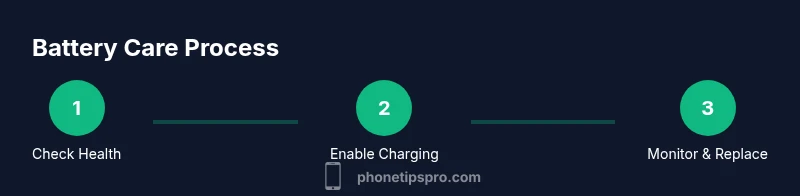
This guide shows you how to treat your iPhone battery to maximize health and longevity. You’ll learn to check battery health, enable optimized charging, reduce heat, adjust settings for efficiency, and recognize when replacement is needed. Follow these practical steps to extend endurance and preserve peak performance over time.
Understanding iPhone Battery Health
According to Phone Tips Pro, battery health is the maximum capacity your iPhone battery can deliver relative to when it was new. Lithium-ion cells gradually lose capacity with each cycle, which means you’ll notice shorter screen-on time as months pass. Understanding this helps you make informed decisions about charging, settings, and replacement timing. In practice, a healthy battery should sustain a typical day without noticeably throttling performance or generating excessive heat. By starting with a clear picture of health, you can tailor habits that slow degradation and preserve peak performance. Regular checks empower you to spot changes early and act before performance dips become noticeable. Phone Tips Pro analysis shows that small, consistent adjustments—like enabling optimized charging and avoiding exposure to high heat—can meaningfully extend usable life. As you follow the steps in this guide, you’ll build a routine that keeps your device reliable longer.
Core Principles for Treating Your Battery
Treating your iPhone battery well is about setting you up for long-term reliability, not quick fixes. Here are core principles to keep in mind:
- Heat is the enemy: keep your device cool, especially during charging and heavy use.
- Avoid deep discharges: letting a battery run to 0% frequently accelerates wear.
- Use official or Apple-certified accessories: third-party gear can cause inefficiencies or safety risks.
- Leverage iOS features: optimized charging and battery health tools help manage wear.
- Update regularly: software updates include energy-management improvements.
- Balance performance and longevity: sometimes a small trade-off is acceptable for lasting health.
These principles guide every practical choice from daily use to charging habits. By anchoring actions in evidence-based practices, you’ll maximize the time between replacements while preserving performance.
Daily Habits that Protect Battery Longevity
Small daily choices add up to big gains in battery longevity. Implement these habits to reduce unnecessary wear:
- Dim the screen or enable auto-brightness to keep brightness within an efficient range.
- Use Low Power Mode when battery is low or when you don’t need full performance.
- Close or restrict power-hungry background apps, especially in hot environments.
- Keep your iPhone out of hot cars and direct sun; heat accelerates degradation.
- Schedule charging to avoid long, constant high-voltage exposure; prefer steady charging periods.
Over time, these habits reduce heat generation, limit runtime spikes, and help Battery Health stay closer to its original capacity. Implementing them gradually is easier than trying to overhaul every setting at once. When used consistently, they become part of your daily routine and yield tangible benefits.
Optimized Charging and What It Means
Optimized Battery Charging is a feature designed to reduce battery aging by learning your daily charging routine and delaying full-charge completion past 80% until you need it. This reduces the time your battery spends at high voltage, which helps preserve capacity. To enable it, go to Settings > Battery > Battery Health and toggle on Optimized Battery Charging. If you’re frequently plugged in overnight, this feature is particularly valuable because it adapts to your patterns and minimizes unnecessary wear. Note that this is a learning system; give it a few days to settle into your routine and monitor any changes in charging behavior.
Heat Management: Keeping Your iPhone Cool
Heat is a major accelerant of battery wear. Keeping your device cool during charging and use is one of the simplest, most effective longevity tactics. Practical steps include removing bulky cases during intense tasks or charging, avoiding charging on soft surfaces that trap heat, and ensuring adequate airflow around the device. If your iPhone feels unusually warm during charging, stop charging for a while, move it to a cooler spot, and check for apps running in the background that might be generating extra heat. Consistent heat management translates to slower capacity loss over time and steadier performance.
How Software Can Help: iOS Features
iOS includes several battery-focused features that help protect health without sacrificing usability. In Settings > Battery you’ll find Battery Health, which shows the maximum capacity and peak performance capability. Enable Low Power Mode when you don’t need full performance to extend time between charges. Review Battery Usage to identify apps that drain power abnormally and adjust usage or update the app. Regular software updates may also include efficiency improvements that benefit battery management. By integrating these features into your routine, you can optimize energy use with minimal manual adjustments.
Practical Charging Scenarios and Settings
Different daily scenarios call for different charging approaches. At home, use a steady, Apple-certified charger and consider enabling Optimized Battery Charging. On the go, a portable USB-C charger with a reliable cable can keep you powered without forcing your battery to full capacity too often. If you’re going to be away from power for an extended period, plan charging windows to avoid long periods of high voltage and heat. For those who work near power sources all day, you may rely more on Low Power Mode and screen brightness controls to minimize drain. The key is consistency: make smart charging a regular habit rather than a one-off adjustment.
When Replacement Becomes Necessary
Battery health naturally declines over time. A practical threshold many users consider is when maximum capacity falls significantly below its original level, often around 80% for noticeable performance impact. If you notice rapid drain, unexpected shutdowns, or swelling, seek professional assessment and consider a battery replacement. Replacements are safest when performed by authorized services using genuine parts. Keeping a close eye on health metrics and scheduling a replacement before performance becomes severely degraded helps maintain reliability.
Monitoring and Reassessing Battery Health Over Time
Battery health is not static; it changes with how you use your iPhone. Periodically reassess Health and Battery Performance, especially after software updates or changes in charging habits. Phone Tips Pro analysis shows that monitoring trends over weeks rather than days provides a clearer picture of aging, enabling timely decisions about replacements. Set reminders to review these metrics every 4–8 weeks and adjust habits as needed. Regular check-ins help you stay ahead of declines and keep your device performing well for longer.
Tools & Materials
- Apple-certified USB-C charger(Choose wattage recommended by Apple for your model.)
- USB-C to Lightning cable(Use original or MFi-certified cable to ensure safe charging.)
- iPhone with latest iOS update(Ensures Battery Health features and energy management are up to date.)
- Optional: MagSafe charger(便利 for hands-free charging and minor convenience.)
Steps
Estimated time: 15-30 minutes
- 1
Check current battery health
Open Settings, tap Battery, then Battery Health to view Maximum Capacity and Peak Performance Capability. Note any warnings about degraded performance and track changes over time.
Tip: Record the Health percentage in a notebook or notes app for trend tracking. - 2
Enable Optimized Battery Charging
Navigate to Settings > Battery > Battery Health and toggle on Optimized Battery Charging. This helps slow capacity loss by reducing time spent at 100%.
Tip: Give the feature a few days to learn your routine before judging its impact. - 3
Adjust charging environment
Charge in a cool, well-ventilated area. If possible, remove the case during charging to dissipate heat and reduce thermal load.
Tip: Avoid charging on soft surfaces like blankets that trap heat. - 4
Manage screen brightness and background activity
Enable auto-brightness and limit background refresh for apps you don’t need constantly updating. This reduces drain during the day.
Tip: Use Lock Screen notifications sparingly to minimize wake-ups. - 5
Plan charging windows
Rather than leaving the phone plugged in all day, plan shorter, moderate charging sessions to maintain healthy voltage levels.
Tip: If overnight charging is necessary, rely on Optimized Battery Charging to minimize wear. - 6
Check for overheating indicators
If the device becomes unusually warm, pause charging and investigate potential culprits like power-hungry apps or environmental heat.
Tip: Restart the device to clear any runaway background processes if heat persists. - 7
Know when to replace
If Battery Health approaches 80% max capacity and you notice significant performance loss, schedule a replacement with an authorized service.
Tip: Back up data before any battery replacement process.
FAQ
How do I check my iPhone battery health?
Go to Settings > Battery > Battery Health to view Maximum Capacity and Peak Performance. This area will show whether your battery needs replacement soon.
Open Settings, tap Battery, then Battery Health to view capacity and performance status.
Is Optimized Battery Charging effective?
Yes. It learns your daily charging pattern and holds the charge at 80% until you need it, reducing aging from repeated full charges.
Yes, enable Optimized Battery Charging in Battery Health to reduce wear.
Can charging overnight damage my battery?
With Optimized Battery Charging enabled, overnight charging is safer and less wearful. If not enabled, avoid keeping the device at 100% for long periods.
Overnight charging is safer with Optimized Battery Charging on.
When should I replace the iPhone battery?
Consider replacement when Maximum Capacity drops near or below 80% or if you notice unexpected shutdowns, swelling, or very short daily use.
Replace when capacity nears 80% or you notice signs of wear.
Does battery health affect performance?
Yes. Poor health can trigger throttling or reduced peak performance; iOS may adjust performance based on health metrics.
Battery health can influence performance; see Battery Health for details.
Will updates improve battery life?
Software updates often include energy-management improvements that optimize how power is used and can extend battery life overall.
Keeping iOS up to date can help battery efficiency.
Watch Video
Quick Summary
- Regularly check Battery Health to monitor capacity.
- Enable Optimized Battery Charging to slow aging.
- Keep the device cool; heat accelerates wear.
- Replace battery when health falls significantly or performance degrades.