How to Tell When iPhone Is Fully Charged: A Practical Guide
Discover practical, step-by-step methods to know when your iPhone is fully charged. Learn indicators, Settings checks, and how Optimized Battery Charging affects the finish.


By monitoring the battery icon, charging status, and iOS battery health indicators, you can confirm when your iPhone is fully charged. Key signals include a full green battery icon, a 100% status in Settings > Battery, and charging stopping or slowing. If Optimized Battery Charging is on, expect a brief finish near 100% after a short learning phase.
How iPhone Charging Works: A Quick Primer
According to Phone Tips Pro, understanding how iPhone charging works helps you tell when it's fully charged and extends battery life. Modern iPhones use a smart battery management system that monitors voltage, temperature, and charging current. The system aims to protect cells and maximize longevity by pacing the charge, especially during the final phase near full capacity. When you plug in your device, the charger supplies power, the battery management unit evaluates conditions, and the system decides how aggressively to push current. Although you may see the charging indicator light up and the battery fill, the device may hold off on the final top-off until it detects a safe, optimal moment to finish. This behavior is especially noticeable with Optimized Battery Charging, which learns your daily routine and times the last portion of charging to minimize wear. By understanding these mechanisms, you’ll be better equipped to interpret what you see on screen and how to tell when iphone is fully charged in real life.
Being aware of these basics helps you differentiate between a quick top-up and a genuine end point. If you want a reliable check, combine the visual cues with a quick Settings confirmation rather than relying on a single signal.
Visual Indicators on the Lock Screen
The lock screen and status bar provide the most immediate cues about charging progress. You’ll typically see a lightning bolt icon overlaying the battery when the device is charging. As the battery fills, the icon visually progresses toward a full fill. Some iOS versions also show the battery percentage in the status bar when Battery Percentage is enabled in Settings. When the device reaches full charge, the icon stops pulsing and the percentage reads 100%, and the charging bolt may disappear. This combination—full battery fill, 100% readout, and the absence of the charging bolt—is the most straightforward quick check for “fully charged.” Keep in mind that in certain situations (like when Optimized Battery Charging is active), the final completion moment might occur slightly after 100% appears on screen.
The Battery Icon in Different iOS Versions
Across iOS updates, the battery icon can vary in how it displays charging status. In some versions, you’ll see a percentage next to the battery; in others, you’ll rely on the icon fill and the presence of a charging bolt. Some models also show an on-screen confirmation when 100% has been reached. If you’ve enabled Battery Percentage (Settings > Battery), you’ll get a precise numeric readout in addition to the icon. If you use widgets or Home Screen cards, look for the 100% readout and the absence of the charging bolt as indicators of a finished charge. In all cases, the most dependable signals come from a combination of the icon state and the 100% label when available.
Checking 100% in Settings and Battery Usage
To verify a full charge with certainty, open Settings > Battery. If your device supports it, enable Battery Percentage to see the exact percent beside the icon. Then, compare this with the live charging status shown at the top of the screen. The 100% readout should appear when the device is done charging. For further confirmation, review Battery Health (Settings > Battery > Battery Health) to understand how much charge capacity remains, which helps contextualize why 100% may feel different on older devices. If you notice 100% but the device remains warm or continues to draw power, it may be finishing a small top-off cycle under Optimized Battery Charging.
Factors That Can Delay Reaching 100%
There are several factors that can affect how quickly your iPhone reaches a complete end state at 100%. Temperature is a major variable; charging in a hot environment can slow the final phase to protect cells. Battery health also plays a role; devices with lower Maximum Capacity may cycle differently, taking longer to top off. Background activity, screen brightness, or heavy app usage during charging can draw current away from charging, delaying the moment you see 100%. If you routinely use the device while charging, you may notice more variability in the finish time. Finally, Optimized Battery Charging, designed to reduce wear, can deliberately slow the last portion of charging and finish later than you expect.
The Impact of Lighting, Temperature, and Usage
Environment matters: keep the iPhone away from direct heat sources and ensure it’s on a cool, hard surface while charging. Ambient temperatures above 35°C (95°F) can hamper efficiency and prolong the final top-off, while very cold conditions can also impact performance. The device’s placement within a bag, pocket, or soft surface can trap heat and slow charging. Usage during charging—watching videos, gaming, or GPS navigation—also consumes power, making the charger work harder and potentially delaying the 100% state. If you routinely charge in a heated car or outdoors, expect more variance in finish times and consider letting the phone sit on a cool surface after plugging in.
Using Optimized Battery Charging: Pros and Cons
Optimized Battery Charging is designed to extend battery life by reducing the time the battery spends at 100% charge. It analyzes your charging patterns and typically finishes charging closer to the time you regularly unplug. This can mean you see 100% a bit later than a simple, unchecked top-off, but it’s beneficial for long-term health. If you need a hard 100% readout for a specific task, temporarily disabling Optimized Battery Charging in Settings > Battery (where available) can help, but remember to re-enable it to preserve battery longevity. The goal is to balance immediate readiness with long-term health.
Troubleshooting When It Seems Stuck at 99%
A common frustration is the device lingering at 99% for longer than expected. Often this is the final slow top-off that Optimized Battery Charging performs to protect the battery. Try these checks: ensure the charger and cable are not damaged, move to a cooler environment, and consider temporarily turning off Optimized Battery Charging to observe whether the finish accelerates. If the phone remains at 99% after an hour, test with a different charger and cable to rule out accessory issues. If the problem persists, a software update or battery calibration (via a full discharge/charge cycle) may help, but avoid deep discharges too frequently.
Quick Practical Steps to Verify Charge (Putting It All Together)
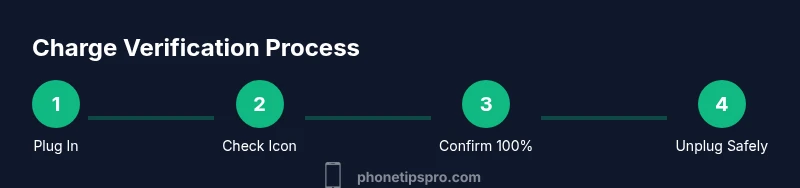
- Plug in with a reliable charger and outlet. Wait a few minutes for the system to respond and show charging activity.
- Check the battery icon fill, the presence of a charging bolt, and the percentage (if enabled).
- If you see 100%, unplug and monitor for a short period to check stability.
- If it’s not 100%, try another charger or cable, and consider temporarily disabling Optimized Battery Charging for troubleshooting.
- Finally, keep the device cool and minimize heavy usage during the final top-off to ensure accuracy.
Final Note: Why the Finish Matters for Battery Health
The “fully charged” moment is not just about readiness for use; it’s a signal about long-term battery health. Reaching 100% quickly and staying there at all times can increase wear, whereas a managed finish minimizes strain on cells. Phone Tips Pro recommends using Optimized Battery Charging as a default, ensuring you tilt toward longevity while still having access to full power when you need it. Remember that battery behavior can vary with model, iOS version, and individual usage patterns, so use a combination of indicators for the best accuracy.
What to Do Next
Once you’re comfortable with the indicators, create a simple routine: check the charge in the morning, enable Battery Percentage for precision, and let Optimized Battery Charging handle the final top-off. This approach provides both immediate readiness and long-term battery health benefits. If you want a handy reference, use the quick checks described here and supplement them with the settings and indicators in Battery Health for context.
Tools & Materials
- Official Apple charging cable(Choose the correct cable for your iPhone model (Lightning or USB-C))
- Wall charger(Prefer a charger rated 18W or higher for faster, stable charging)
- iPhone device(Ensure it’s powered on and accessible for checks)
- Settings access(Needed to view Battery and Battery Health details)
- Optional: Alternate charger/cable(Useful if you suspect a faulty accessory)
Steps
Estimated time: 15-20 minutes
- 1
Connect your iPhone to a charger
Plug the iPhone into a reliable charger and outlet. Ensure the cable is firmly connected and the charger is delivering power. This kickstarts the charging cycle and sets the stage for accurate indicators.
Tip: Use a wall outlet rather than a laptop USB port for more stable, faster charging. - 2
Observe the charging indicator
Look for the charging bolt on the battery icon and watch the fill level increase. In some models, you’ll see a percentage next to the icon once you enable Battery Percentage.
Tip: If the bolt isn’t visible, check the cable and outlet connection or try a different charger. - 3
Enable exact percentage reading
If your device supports it, go to Settings > Battery and turn on Battery Percentage to see precise progress alongside the icon.
Tip: If you cannot enable the readout, rely on the visual fill and the 100% readout when available. - 4
Confirm 100% in Settings
Open Settings > Battery to verify 100% once the device completes the top-off cycle. Cross-check with Battery Health for context on capacity.
Tip: Consider taking a quick screenshot to track changes over time for personal battery health awareness. - 5
Unplug when you reach 100%
As soon as you confirm 100%, unplug to minimize heat exposure and potential wear. Stop charging if you observe unusual heat.
Tip: If Optimized Battery Charging is enabled, the finish may occur slightly after 100%—that’s by design. - 6
Test with an alternate charger if necessary
If the device stalls around 99% for a long period, try a different charger or cable to rule out accessory issues.
Tip: Check the cable for frays and inspect the outlet for stability; faulty hardware often masquerades as a software issue. - 7
Review Optimized Battery Charging settings
Navigate to Settings > Battery (and Battery Health) to understand how Optimized Battery Charging influences finish timing and battery wear.
Tip: Temporarily disabling it can help troubleshoot, but re-enable it for ongoing longevity. - 8
Re-check after a brief wait
If still not showing 100%, wait 10–20 minutes and re-check. Environmental factors may cause minor delays in the final top-off.
Tip: Avoid heavy usage during the final phase to maintain consistency.
FAQ
Does the iPhone always show 100% when fully charged?
Usually yes, but Optimized Battery Charging can delay the final top-off until you’re about to use the device. In some cases the readout may lag slightly behind the actual finish depending on settings and temperature.
Usually the display shows 100% when full, but Optimized Battery Charging can delay the final top-off until you’re ready to unplug.
Why does my iPhone stop charging at 80%?
Optimized Battery Charging aims to reduce aging by delaying the final top-off. The device may hold at around 80% for long periods before completing to 100% depending on your regimen and temperature.
Optimized Battery Charging delays the last part of charging to extend battery life, which can make you see 80% temporarily.
How can I check if Optimized Battery Charging is on?
Go to Settings > Battery Health and look for Optimized Battery Charging. If available, toggle it on or off to see how it affects finishing times.
Open Settings, then Battery Health to see if Optimized Battery Charging is enabled and adjust if needed.
Is it safe to leave iPhone plugged in overnight?
Yes, modern iPhones are designed for overnight charging with safeguards in place, including Optimized Battery Charging. Avoid exposing the device to heat sources and ensure the environment is cool.
Yes, it’s generally safe, especially with Optimized Battery Charging, but keep the device in a cool place.
What should I do if my iPhone shows 99% for a long time?
This can happen due to the final slow top-off or temperature. Wait longer, check environmental conditions, and try another charger if it persists. A software update can also help if this is a recurring issue.
If it stays at 99% for a long time, wait a bit longer, check heat, and try a different charger if needed.
Does the percentage reading reflect battery capacity?
The percentage shows current charge state. Battery Health or Maximum Capacity reflects overall health and can influence how fast the device reaches 100%, but they are not the same reading.
Percent is current charge; Maximum Capacity is battery health. They serve different purposes.
Watch Video
Quick Summary
- Check the battery icon and 100% status for confirmation.
- Enable Battery Percentage in Settings for precise readings.
- Use a reliable charger and keep the device cool during charging.
- Understand Optimized Battery Charging’s role in finishing times.
- If 99% persists, troubleshoot accessories and environment before concluding.