Why Does iPhone Stop Charging When Hot? Quick Troubleshooting Guide
Learn why your iPhone stops charging when hot, how to safely cool it, and proven steps to prevent overheating. Troubleshooting guide for safe charging and battery health.


Charging pauses when iPhone temperatures exceed safe limits. The device’s thermal protection activates to avoid battery damage, so charging can stop until it cools. To fix, move to a cooler area, remove the case, turn off heavy apps, and try charging again. If temperatures stay high, inspect the charger and cables or seek support.
What happens when iPhone overheats during charging
When an iPhone gets very hot, iOS activates thermal safeguards to protect the battery and internal components. You may notice the screen dimming, performance throttling, or a warning that heat is too high. The charging process can pause or slow dramatically until the device cools to a safer range. This behavior is designed to prevent long-term damage and preserve battery health. Common heat sources include direct sun exposure, a hot room, heavy app activity, or a malfunctioning charger. If you see a heat warning, stop using the device and begin a safe cooling routine before attempting to charge again. Over time, repeated overheating can degrade battery health, making prevention even more important.
Quick checks to do right now
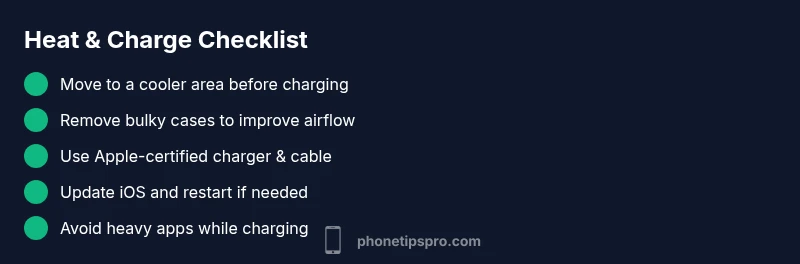
Start with simple, low-effort checks. Check the ambient temperature and move the phone to a cooler area away from sunlight or heat sources. Remove any bulky case that traps heat and ensure the charging port is clean and unobstructed. Try another charger and cable that are Apple-certified or MFi-certified, as third-party accessories can generate extra heat. If the device continues to feel hot, pause charging for a few minutes and reassess. Regularly, keeping the device out of direct heat and using the original charger can dramatically reduce overheating incidents.
Safe cooling steps and best practices
Cool the iPhone gradually rather than exposing it to cold or ice, which can cause condensation and potential damage. Place it on a cool, ventilated surface, away from fans blowing directly on it, and avoid charging in a car on a hot day. If you must charge indoors, use a fan or air conditioning to lower the ambient temperature. After cooling, recheck the charger connection and ensure the cable is not frayed. For many users, these steps restore normal charging without additional troubleshooting.
Software vs hardware: how to diagnose charging heat
Determine whether the heat issue comes from software or hardware. Update iOS to the latest version, as Apple often fixes battery management bugs that cause overheating. Monitor battery health in Settings > Battery > Battery Health to see if degraded cells could contribute to excess heat. Check for apps running in the background that drive heavy processing and disable or close them. If the problem persists even after updates, it may indicate a hardware fault in the battery, charging port, or the charger itself.
Long-term prevention: habits to avoid overheating
Adopt charging habits that minimize heat buildup. Avoid charging in direct sunlight or hot environments, and refrain from using power-intensive apps while charging. Prefer gradual charging schedules and enable Optimized Battery Charging (iOS feature) to reduce heat during the final charging stage. Always use Apple-certified accessories and replace aging cables or adapters promptly. Regular maintenance, such as cleaning the port and updating software, helps prevent heat-related charging interruptions.
Steps
Estimated time: 20-40 minutes
- 1
Cool the device in a cooler area
Move the iPhone to an air-conditioned room or shaded area. Do not place it in the fridge or freezer, as rapid cooling can cause condensation. Gently fan or ventilate the space to speed cooling, then reassess the temperature before attempting to charge again.
Tip: Keep a comfortable room temperature (around 70-75°F / 21-24°C) while charging. - 2
Remove bulky case and clean the port
Take off any protective case that traps heat and inspect the charging port for lint or debris. Use a soft brush or toothpick carefully to remove particles. Reconnect the charger and verify a solid connection before retrying charging.
Tip: A clean port improves charging efficiency and reduces heat buildup. - 3
Test with a different charger and cable
Connect a known-good, Apple-certified charger and cable. If the phone charges normally, the issue was likely the accessory. If it still overheats, the problem may lie with the device itself or the battery.
Tip: Avoid third-party adapters that lack MFi certification. - 4
Update software and restart
Check for iOS updates in Settings > General > Software Update and install any available updates. Restart the iPhone after the update to ensure battery management systems reset properly.
Tip: Regularly updating software can fix heat-management bugs. - 5
Monitor behavior after cooling
Plug the charger back in and observe if charging resumes normally. If it stops again, take note of environmental conditions and usage patterns to identify consistent heat sources.
Tip: Keep a simple log of temperatures and charging times for pattern detection. - 6
Seek professional help if issues recur
If overheating persists after following steps, contact Apple Support or an authorized service provider. A battery or charging port issue may require hardware repair or replacement.
Tip: Do not attempt battery replacement yourself.
Diagnosis: iPhone stops charging when hot
Possible Causes
- highThermal protection triggered by high ambient or device temperature
- mediumPhone case trapping heat or poor airflow
- lowFaulty or non-certified charger/cable
- lowSoftware issues with battery management
Fixes
- easyMove to a cooler environment and remove the case to improve airflow
- easyTry a different Apple-certified charger and cable
- easyUpdate iOS and restart the device to fix software issues
- easyIf overheating continues, contact Apple Support for hardware assessment
FAQ
Why does my iPhone stop charging when it gets hot?
The device prevents charging to protect the battery and electronics from heat damage. When it cools down, charging can resume. This is a safety feature built into iPhone battery management.
The iPhone stops charging to protect the battery from heat. Once it cools, charging can resume.
Can I use fast charging when the phone is hot?
Fast charging generates more heat, which can trigger thermal protection. If you notice heat, avoid fast charging until the device cools and the temperature stabilizes.
Fast charging can worsen heat. Let the phone cool first, then try slower charging.
What should I do immediately if the phone is hot during charging?
Move the phone to a cooler place, remove the case, and unplug the charger. Give it time to cool before attempting to charge again. If it repeatedly overheats, check the charger and consider updating software or seeking support.
Move to a cool area, unplug, and inspect accessories. If it keeps overheating, seek help.
Could a faulty charger cause overheating while charging?
Yes, a damaged or non-certified charger can generate extra heat and trigger thermal protection. Try a different, certified charger and cable to rule this out.
A bad charger can cause heat. Try a known-good, certified charger.
Does battery health affect charging under heat?
Lower battery health can lead to more heat during charging. Check Battery Health in settings and consider battery maintenance if the capacity is reduced.
Poor battery health can contribute to overheating during charging.
When should I contact Apple Support for charging heat issues?
If overheating persists after trying safe cooling steps and a different charger, contact Apple Support or visit an authorized service provider. Ongoing heat can indicate hardware issues.
If it keeps overheating, contact Apple Support for a hardware check.
Watch Video
Quick Summary
- Cool the iPhone in a ventilated area before charging again
- Use Apple-certified accessories to minimize heat
- Update software to fix heat-management issues
- If overheating remains, seek official support