Troubleshooting iPhone Overheating: Quick Guide
Learn urgent, practical steps to stop your iPhone from overheating, with diagnostic flow, step-by-step fixes, and safe practices to protect your battery and performance.


Run through these quick steps to address overheating: 1) pause intensive tasks and close background apps, 2) remove the case and move to a cooler environment, 3) avoid charging while using the device, 4) check for software updates, and 5) test with a different charger. If the device stays hot, contact support.
Why heat happens and why it matters
Why do iphones get hot? According to Phone Tips Pro, modern iPhones generate heat when the CPU and GPU work hard during demanding tasks, when radios stay active (cellular, GPS, Bluetooth), or during charging. Heat itself isn’t always dangerous, but prolonged or repeated overheating can throttle performance, shorten battery life, and, in rare cases, affect internal components. The key is to distinguish normal warmth from heat that feels excessive or lasts longer than a few minutes after a task ends. In many cases, environmental conditions—direct sun, high ambient temperatures, or a phone inside a warm pocket—play a significant role. A simple mental model: if the device gets uncomfortably hot to touch, pause, cool, and reassess. Throughout this guide, you’ll see practical steps you can take immediately and smarter habits to prevent recurrence.
Quick checks you can perform now
Start with the basics before diving into deeper diagnostics. Keep the device out of direct sunlight and away from heat sources. Remove the protective case to improve heat dissipation, and turn on Airplane Mode for a few minutes if you’re rapidly taxing the system. Close all heavy apps, especially games and video editors, and disable features you aren’t using, such as Visual Effects in iOS, background app refresh, and location services for nonessential apps. If you’re charging, consider unplugging and letting the battery settle at room temperature. Finally, make sure you are running the latest iOS version, and verify that you’re using a reputable charger and cable. These small steps can dramatically reduce heat in most everyday scenarios.
When overheating flags a potential problem
Some symptoms indicate a deeper issue: the device remains hot even after a simple screenshot or messaging session, the back of the phone feels hot to the touch after hours of use, or you notice rapid battery drain alongside heat. In such cases, it’s important to map symptoms to likely causes: heavy processing, charging while in use, software glitches, or aging batteries. Distinguishing between transient warmth and persistent heat helps you apply the right fix and decide whether to seek professional service.
Diagnostic flow: symptom to diagnosis to solutions
This flow helps you reason through overheating without guesswork. Start with the symptom: Is the heat tied to heavy apps or to charging? If it's only during games or camera work, the cause is likely CPU/GPU load. If it happens while charging, look at the charger and battery health. If it occurs randomly, software or background processes could be involved. The next step is to test fixes in order of ease and impact, watching for temperature changes after each step. If the problem persists after simple steps, you may need to inspect battery health or schedule service.
Step-by-step fixes for the most common causes
Apply fixes in order of simplicity and impact. First, reduce load: close apps, disable background refresh, and lock the device for a few minutes. Next, physically cool the device by removing the case and moving to shade or indoors. Then, update iOS and app versions, reset settings if needed, and test with a known-good charger. If heat remains, inspect battery health and consider professional service. Finally, review usage habits to minimize long sessions of heavy processing.
Safety, warnings, and when to seek professional help
Do not attempt to open the device or puncture the battery if it feels swollen or venting. Battery swelling can be dangerous and should be handled by authorized technicians. If overheating persists despite all recommended steps, contact Apple Support or an authorized service provider. Prolonged heat can degrade battery health and performance, so don’t ignore warning signs. Always back up data before any service, and avoid third-party repair shops that lack proper certification.
Prevention: long-term habits to keep temperatures calm
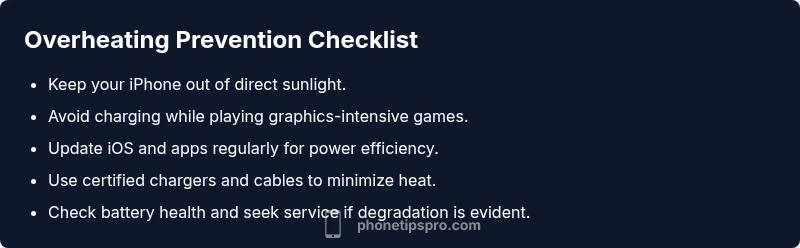
Adopt prevention habits to reduce the chances of overheating. Keep the iPhone out of direct sun, avoid using power-intensive apps for extended periods in hot environments, and enable Low Power Mode during long sessions. Use a high-quality charger and avoid fast charging while not necessary. Regularly check battery health in Settings > Battery > Battery Health. Clear storage to prevent the device from working harder due to background tasks, and keep iOS updated for better power management and bug fixes.
Monitoring and follow-up: what to watch after fixes
After applying fixes, monitor the temperature during typical use. If you still observe overheating during idle or light use, log which apps were active and the time of day; this helps identify rogue processes. Reassess battery health after several charge cycles. If temperatures stay elevated, schedule a diagnostic with Apple Support. With consistent care, overheating becomes a rare event rather than a recurring problem.
Steps
Estimated time: 25-45 minutes
- 1
Pause heavy tasks and close apps
Close all running apps, disable background refresh, and limit screen brightness to reduce heat. Use Low Power Mode during lengthy sessions to curb background activity.
Tip: If you can, let the device rest for a few minutes after closing apps. - 2
Cool the device physically
Remove the case and place the iPhone in a shaded, cool area. Do not put it in a fridge or freezer; sudden temperature changes can cause condensation.
Tip: Avoid placing on heat-safe surfaces that trap warmth. - 3
Check charging habits
Unplug from chargers if the device is hot. When charging, avoid using power-intensive apps; use the original charger or certified accessories.
Tip: Use a charger with proper wattage to minimize extra heat. - 4
Update and reset
Install the latest iOS update and update apps. If issues persist, reset network settings or all settings to rule out software glitches.
Tip: Back up data before performing resets. - 5
Test with a different charger
Use a known good charger and cable to rule out charging accessories as the heat source.
Tip: Avoid cheap third-party chargers that aren’t certified. - 6
Assess battery health
Go to Settings > Battery > Battery Health to check maximum capacity and performance management. If capacity is significantly degraded, plan for service.
Tip: Schedule professional service if you notice rapid heat and reduced battery life.
Diagnosis: Phone feels unusually hot during regular use
Possible Causes
- highHeavy CPU/GPU load from apps or games
- mediumCharging while using the device
- lowAmbient temperature too high
- lowBattery degradation or failing battery
Fixes
- easyClose background apps and stop background tasks
- easyAvoid charging while using the phone; let it cool first
- easyUpdate iOS and all apps; reset network settings if needed
- hardCheck battery health and consider battery replacement if degraded
FAQ
Why does my iPhone overheat during normal use?
Even during normal use, iPhones can heat up due to background processes, network activity, or high screen brightness. If it’s frequent, review active apps and software updates. Persistent heat warrants further checks for battery health or service.
iPhones can heat up from background tasks and high brightness; if it happens often, check apps and updates, and consider checking battery health or reaching out to support.
Is overheating dangerous for my iPhone?
Short-term heat is usually not dangerous, but prolonged overheating can damage components and reduce battery life. Avoid extreme temperatures and seek professional help if the device remains hot after cooling.
Short-term heat isn’t usually dangerous, but persistent overheating can harm components and battery life. If it keeps getting hot, contact support.
Can an iOS update fix overheating problems?
Yes, software updates include power-management improvements that can reduce overheating. Always install the latest iOS version and keep apps updated to ensure optimal efficiency.
Software updates include better power management, so keep iOS and apps up to date to help prevent overheating.
Does using a phone case cause more heat?
A bulky or insulating case can trap heat. If your phone runs hot, try removing the case during heavy use or charging and see if temperature decreases.
A heavy case can trap heat; remove it during heavy tasks or charging to see if temps drop.
When should I replace the battery?
If Battery Health indicates significant degradation and heat persists, replacement is often the best option to restore performance and reduce overheating risk.
If battery health is poor and heat continues, consider a replacement to restore performance.
What should I do if the phone is swollen or smells like burning?
If you notice swelling or a strong burning odor, stop using the device and contact Apple Support or visit an authorized service provider immediately.
If you see swelling or a burning smell, stop using it and contact support right away.
Watch Video
Quick Summary
- Identify whether heat is task- or charging-related
- Use a logical fix sequence from easy to hard
- Battery health matters for long-term cooling
- Seek professional help if heat persists after fixes
- Prevention reduces future overheating risks