How to Get Out iPhone SIM Card: A Practical Removal Guide
A practical step-by-step guide to safely removing an iPhone SIM card, covering tools, model variations, and troubleshooting tips from Phone Tips Pro for confident service changes.


In this guide you’ll learn how to safely remove the SIM card from an iPhone, whether you’re swapping service or troubleshooting a tray issue. You’ll need a SIM ejector tool (or a paperclip) and a clean workspace. Note model variations: nano-SIM vs eSIM may affect the steps. If you’re unsure, consult your carrier or Apple support for model-specific guidance.
Why you might need to remove the SIM card
Removing the SIM card is a routine task with several legitimate reasons. You might be swapping carriers, moving to a new device, troubleshooting network connectivity, or preparing the phone for service changes during travel. The physical SIM tray is usually accessible on the iPhone’s side or, in some regions, not at all if the device uses eSIM only. According to Phone Tips Pro, understanding when to remove the card helps prevent tray damage and keeps the device clean. Always handle the SIM card by its edges to avoid scratches on the contacts. If you notice corrosion, dust, or sticky residue on the tray, stop and clean it carefully or seek carrier assistance. In 2026, model differences persist: some regions or models favor eSIM or hybrid configurations, which affects whether a physical removal is required. Before you touch anything, verify whether your model includes a SIM tray or relies entirely on eSIM. This prevents frustration if you discover there is no physical SIM slot. By planning ahead, you reduce the risk of dropping the card into the phone or bending the tray.
Tools and materials you’ll need
Before you start, gather these tools and supplies to make removal smooth and safe.
- SIM ejector tool or a straight paperclip, essential for opening the tray.
- A clean, lint-free microfiber cloth to wipe the tray and card edges.
- A small tray or sectioned container to hold the SIM card so it won’t get lost.
- Optional replacement SIM card for carrier swap or test.
- A soft, dry workspace free of dust and magnets, since magnets can affect some components.
Notes:
- If you don’t have a SIM ejector tool, a thin paperclip works; straighten one end and gently insert into the hole. Do not twist or pry aggressively.
- Work on a flat surface and wash hands to avoid fingerprints on the tray.
Model considerations: nano-SIM, eSIM, and regional differences
Many iPhone models still ship with a nano-SIM tray in many regions, but several US models and newer variants rely on eSIM as the primary or sole method to store cellular service. If your device has a physical tray, you’ll remove the nano-SIM card only when you need to swap carriers or move to a different device. If your model uses eSIM exclusively, you won’t have a physical SIM tray to eject, and you’ll manage your cellular plans in Settings > Cellular. Always check the model’s official specifications or your carrier’s guidance for the correct process. For devices with both options, follow the eSIM setup flow if you’re converting from a physical SIM to an eSIM, and preserve any physical SIM if you plan to reuse it later with another device.
Common mistakes and how to avoid them
Common mistakes include forcing the ejector tool, touching the gold contacts, or letting the SIM card fall into the phone or along the sides of the tray. To avoid damage, keep the device powered off, hold the card by its edges, and ensure your workspace is clean and dry. If the tray feels sticky or difficult to eject, stop and inspect for debris. Never use magnets or metal tools near the screen or battery area. If you drop a tiny screw or misplace the tray, don’t panic—carefully retrace steps and use a flashlight to locate dropped items. By taking time to prepare and handle the tray gently, you protect internal components and maintain device longevity.
Reinstalling a SIM card or moving to eSIM
If you’re re-inserting the same SIM, align the card with the tray’s notches and slide it in gently until it sits flush. For transitions to an eSIM, you’ll typically scan a QR code or enter details in Settings > Cellular > Add Cellular Plan. In some regions, carriers require you to activate the eSIM via their app or support line. After reassembly, power on the device and verify service by checking signal bars and attempting a call or data connection. If service doesn’t appear, revisit the carrier settings and confirm the correct plan is active.
Safety and maintenance reminders
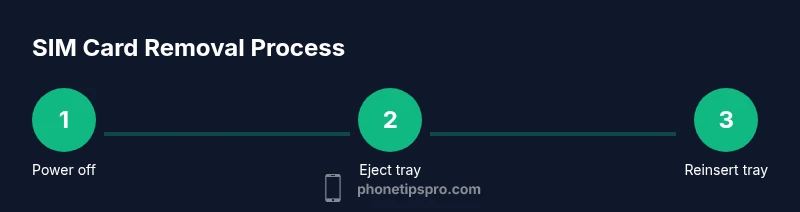
Always power down before removing or inserting SIM cards to reduce the risk of shorting or moisture ingress. Avoid handling the SIM card near liquids, and keep the tray and card away from dust while you work. After completing the task, wipe your hands and the workspace to prevent transferring oils to the device. If you’re traveling and need to switch SIMs, consider a small protective case for the tray area to minimize the chance of misplacement.
Tools & Materials
- SIM ejector tool or paperclip(Essential for opening the tray; use a straightened paperclip if needed)
- Microfiber cloth(Lightly wipe the tray and SIM edges to remove dust)
- Small tray or container(Keep the SIM card safe while swapping or inspecting)
- Replacement SIM card (optional)(For carrier swap or testing after removal)
- Quiet, clean workspace(Minimize risk of losing small parts)
Steps
Estimated time: 8-12 minutes
- 1
Locate the SIM tray
Identify where the SIM tray is located on your iPhone. On most models this is on the side of the device. If you’re unsure, refer to your model’s manual or Apple support page. Visualize the tray’s position and avoid applying force on other parts of the device.
Tip: Check for any recessed spring-loaded mechanism—don’t press too hard. - 2
Power off the iPhone
Power down the device completely before removing the SIM to prevent short circuits or data issues. A fully powered-off state also helps you avoid accidental button presses during the eject process.
Tip: If you’re in a hurry, a quick hold of the power button and volume button combo will begin the shutdown sequence. - 3
Prepare the ejector tool
If you have a dedicated SIM ejector tool, use it. If not, straighten a paperclip and insert only the end designed to fit the eject hole. Do not insert the tool at an angle or apply lateral pressure.
Tip: Keep the tool clean and dry; moisture can cause corrosion over time. - 4
Eject the SIM tray
Insert the ejector into the hole and apply a steady, gentle pressure until the tray pops out. Hold the device securely to prevent it from tipping.
Tip: If the tray doesn’t emerge, double-check the hole alignment and ensure you’re using the right tool size. - 5
Remove the SIM card
Carefully lift the SIM card from the tray by its edges. Do not touch the gold contacts. Place the card into a safe area or the provided tray.
Tip: Avoid bending the card; that can render it unusable. - 6
Inspect and clean
Inspect the SIM card and tray for dust, scratches, or debris. If needed, wipe gently with a microfiber cloth and dry the tray before reinsertion.
Tip: If there’s visible damage or corrosion, replace the SIM card at your carrier’s store. - 7
Reinsert or replace the SIM
If reusing the same SIM, place it back into the tray in the correct orientation. If you’re switching to a new SIM, insert it in the same orientation and seat the tray firmly.
Tip: Make sure the notches align so the tray sits flush. - 8
Reinsert the tray and power on
Slide the tray back into the device until it rests flush. Power on the iPhone and verify service by observing signal bars, making a test call, or checking data connectivity.
Tip: If you don’t see service, check carrier settings, and verify the correct SIM plan is active.
FAQ
Do iPhones always have a SIM tray?
Most iPhones still include a nano-SIM tray in many regions, but some newer models and many US variants rely on eSIM. Check your device specifications to know whether you have a physical SIM slot.
Most iPhones still have a SIM tray in many regions, but some models use eSIM only. Check your device specs to confirm.
SIM tray won’t eject?
Ensure you’re using the correct ejector tool and inserting it straight into the hole. Power off first, then apply gentle pressure. If it still won’t eject, avoid forcing it and contact support.
Make sure you’re using the right tool and apply gentle straight pressure. If it won’t eject, don’t force it and seek help.
Can I remove the SIM while the phone is on?
It’s best to power off the device before removing the SIM to prevent electrical shorting or data issues. If you must remove in an emergency, act with extreme care and slowly.
Power off the phone before removing the SIM to avoid damage.
What should I do if the SIM card is damaged?
If the SIM card is scratched or not recognized, replace it with a new one from your carrier. They can reactivate your service on the new card or transfer the eSIM if applicable.
If damaged, replace the SIM with a new one from your carrier and reactivate service.
What if I have an eSIM-only iPhone?
If your iPhone relies on an eSIM, there is no physical SIM to remove. Manage cellular plans in Settings > Cellular and follow your carrier's instructions to activate or transfer plans.
If you have an eSIM-only iPhone, manage plans in Settings and follow carrier instructions to activate.
Watch Video
Quick Summary
- Power down before removing SIM to prevent damage
- Use the正确 ejector tool and handle the card by the edges
- Check if the model supports eSIM-only operation
- Reinsert the tray until flush and verify service