How to Find and Unhide Apps Hidden on iPhone
Learn practical steps to locate apps hidden on iPhone, understand why apps vanish, and safely restore access with App Library, Spotlight, Screen Time, and re-downloads.


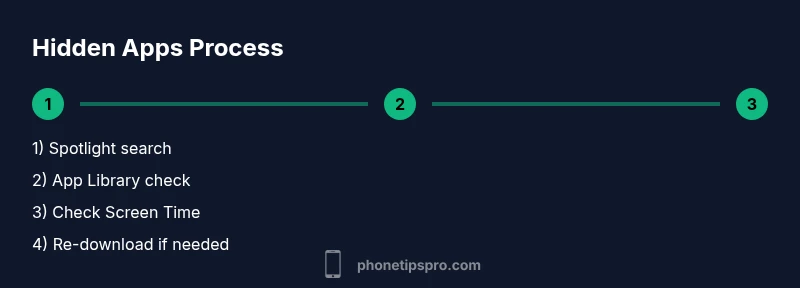
You can locate apps hidden on iPhone by checking Spotlight search, App Library, and Screen Time restrictions. Start with Spotlight or the App Library's search, then verify restrictions and re-download if needed. This guide walks you through each step to regain access quickly.
Understanding why apps seem hidden on iPhone
According to Phone Tips Pro, there are several legitimate reasons an app might disappear from your home screen or appear missing from your device. The term app hidden on iphone is common when users reorganize screens, enable Screen Time restrictions, or offload apps to save space. In many cases, you're not losing data; the app is simply out of sight or restricted by a setting. Start by parsing whether the app is simply moved to the App Library, whether its home screen page has been hidden, or if the app was offloaded. Spotting the difference between hidden and uninstalled can save you time and help you recover quickly. This section will outline the most common hiding methods and how to verify each one. We'll also cover built-in iOS features that contribute to the perception that an app is hidden, including App Library organization, home screen layout, and account-based controls like Screen Time. By understanding these mechanisms, you can confidently locate any app quickly and restore it to your preferred home screen arrangement.
Locating apps using the App Library and home screen
Phone Tips Pro notes that App Library is designed to keep apps organized, while your Home Screen can hide them from view. On iPhone, you can reach App Library by swiping left until you reach the last page; the search bar at the top helps locate a specific app quickly. If an app is still not visible on the Home Screen, you can long-press the app icon in App Library and drag it back to the Home Screen, or use the drag to move it to a desired page. The App Library sorts apps by category automatically, but you can search for the exact name to locate it even if you've forgotten where you placed it. Also, keep in mind built-in apps often cannot be uninstalled; they can still be hidden from the Home Screen but remain accessible in App Library and Settings. This approach gives you a reliable path to bring back any missing app without reinstalling.
Using Spotlight search to uncover elusive apps
Spotlight search is a fast way to locate apps, settings, and content across your iPhone. To use it, swipe down on the Home Screen to reveal the search field, then type the app's name or a partial name. If the app appears in results, tap it to open or long-press to reveal more actions like Show App on the Home Screen. If Spotlight doesn't show the app, verify that the app is installed on this device and not hidden by a restriction or by being offloaded. Spotlight also surfaces settings and system suggestions, so you can jump directly to the correct settings page to adjust visibility. Regularly using Spotlight can reduce time wasted hunting windows and menus when an app seems to vanish.
Checking Screen Time restrictions and privacy controls
Phone Tips Pro emphasizes that Screen Time and Content & Privacy Restrictions can hide or restrict apps, including some built-in apps. Navigate to Settings > Screen Time > Content & Privacy Restrictions. Look under Allowed Apps and App Limits; ensure the app is allowed or not restricted. If you see the app grayed out or missing, toggle the relevant controls to enable it. Also check the always allowed list on iOS where you can ensure essential apps remain accessible at all times. If you modified a Family Sharing setup, verify that the screening rules apply to your device and not another family member's. After you adjust restrictions, return to the Home Screen or App Library and verify that the app reappears. The goal is to confirm whether the missing app is due to a policy rather than a temporary UI glitch.
Verifying installation status and re-downloading as needed
Sometimes, the app is still installed but not visible because it was offloaded or hidden in a specific page. Open the App Store and check the Purchased tab to confirm if the app is installed on your device. If you see a cloud icon next to the app, tap it to re-download; ensure you are signed in with the Apple ID that originally installed the app. If the app is not in Purchased, search for it in the App Store and reinstall. After installation, you can press and hold the app icon to move it back to your Home Screen or to a preferred folder. For apps you've deleted intentionally, you can re-download anytime. This step confirms the app's status and ensures you won't confuse it with a missing file.
Restoring visibility and organizing your Home Screen to prevent future hiding
Once you locate the app, it's worth reorganizing to prevent future confusion. Create a consistent Home Screen layout by grouping similar app types, using folders, and keeping essential apps on the first two pages. Consider enabling show on Home Screen for critical apps, or adjusting show in App Library settings if you inadvertently hide items. Periodically review Screen Time settings to ensure no accidental restrictions apply to nonessential apps. You can also use the Reset Home Screen Layout option as a last resort; note this will restore default arrangement, not install status. The goal is to maintain a predictable arrangement so you can locate apps quickly, even if you hide some folders for decluttering.
Tools & Materials
- iPhone with internet access (Wi-Fi or cellular)(Ensure you have access to Settings and App Store)
- Settings app(Needed to adjust Screen Time and Content & Privacy Restrictions)
- App Store access(Required to re-download apps if removed)
- Knowledge of the app name(Helps locate via Spotlight or App Library search)
- Apple ID credentials(Needed to re-download from Purchased or App Store)
Steps
Estimated time: 8-12 minutes
- 1
Open Spotlight search
Swipe down on the Home Screen to reveal Spotlight. Type the app's name (or a partial name) and press Enter to search. If found, tap the result to open or long-press for more options.
Tip: If Spotlight doesn't show the app, confirm the app is installed and not restricted by Screen Time. - 2
Check App Library and drag back to Home Screen
Swipe to the App Library (last page) and use the search bar to find the app. If it appears, press and hold the icon and drag it onto the Home Screen for quick access.
Tip: You can also organize by pulling into a specific folder during the drag. - 3
Review Screen Time restrictions
Go to Settings > Screen Time > Content & Privacy Restrictions. Check Allowed Apps and App Limits to ensure the app is allowed. If disabled, enable it.
Tip: If the app is restricted under Always Allowed, remove it from restrictions to ensure visibility. - 4
Re-download or reinstall from App Store
Open the App Store, tap your profile, choose Purchased, and locate the app. If you see a cloud icon, tap to re-download. If not in Purchased, search and install.
Tip: Verify you’re signed in with the correct Apple ID. - 5
Return to Home Screen and organize
After re-adding the app, move it to a preferred page or folder to prevent it from getting lost again. Use Edit Home Screen to rearrange.
Tip: Create a small, predictable layout to speed future searches.
FAQ
Can an iPhone app be hidden without deleting it?
Yes. Apps can be hidden by removing them from the Home Screen, placing them in App Library, or restricting access via Screen Time. They remain installed unless you delete them.
Yes, apps can be hidden without deleting them by using App Library, home screen rearrangement, or Screen Time restrictions.
Where can I find apps that seem hidden from the Home Screen?
Start with Spotlight search and then check App Library. If still missing, review Screen Time restrictions. Built-in apps can be hidden from the Home Screen but are accessible in App Library.
Use Spotlight and App Library, then check Screen Time to reveal hidden items.
How do I unhide an app from App Library?
Open App Library, locate the app, press and hold, then drag it to the Home Screen. Alternatively, set it to Always Show in Settings if available.
Find it in App Library, then move it back to the Home Screen.
Do Screen Time restrictions hide built-in apps?
Screen Time can restrict or hide certain apps. Check Content & Privacy Restrictions and Allowed Apps to restore visibility.
Screen Time can hide apps; adjust restrictions to reveal them.
Is resetting the Home Screen layout a solution?
Resetting the Home Screen layout restores the default arrangement but does not reinstall missing apps. Use it if layout is cluttered.
Resetting the layout can help when you’re reorganizing, but it won’t reinstall apps.
Will offloading or deleting apps make them disappear permanently?
Offloading hides the app but can be re-downloaded. Deleting removes it; you’ll need to reinstall from App Store or Purchased.
Offloading hides apps temporarily; re-download from App Store when needed.
Watch Video
Quick Summary
- Use Spotlight to locate missing apps
- Check App Library and drag to Home Screen
- Review Screen Time restrictions for hidden apps
- Re-download from App Store if needed
- Organize Home Screen to prevent future hiding