How to Hide Apps on iPhone: A Step-by-Step Guide for 2026
Learn how to hide apps on iPhone using App Library, home screen pages, and privacy settings. Step-by-step methods, tips, and safety considerations to keep your device tidy and private in 2026.


Yes. You can hide apps on iPhone by using the App Library, removing apps from the Home Screen, and concealing home screen pages. You can also limit visibility in Spotlight and adjust Screen Time restrictions. This guide shows practical steps for iOS 14 through iOS 16 and beyond, so you can tailor privacy to your needs.
Why you might want to hide apps on iPhone
If you’re asking can you hide apps on iphone, the answer is yes, and the reasons vary. People hide apps to reduce clutter, protect sensitive information, or tailor their device for a family or shared environment. According to Phone Tips Pro, the most common approach is to leverage the iPhone’s App Library and Home Screen customization. This gives you control without deleting apps or signing out of accounts. Hiding apps can be especially useful for keeping work tools separate from personal apps, or safeguarding private apps from curious eyes on shared devices. By understanding where apps live and how iPhone presents them, you can maintain a clean, efficient device while preserving access to everything you need. The goal is to create a frictionless experience where you only see what you want when you want it, without compromising data security or usability.
wordCount": 210
Tools & Materials
- iPhone with iOS 14 or later(Update to the latest stable version for the best hiding options.)
- Apple ID signed in on the device(Needed for settings changes and app-library interactions.)
- Optional: Screen Time passcode(Useful if you want to prevent others from changing restrictions.)
- Stable Wi‑Fi or cellular connection(Not strictly required, but handy for updating apps during the process.)
Steps
Estimated time: 15-25 minutes
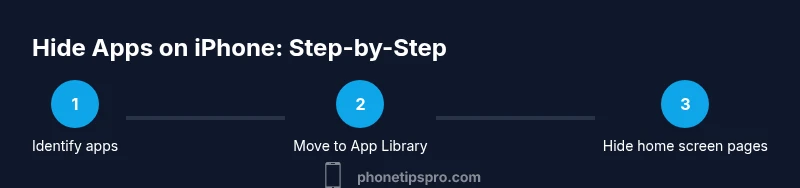
- 1
Identify which apps to hide
Review your Home Screen and App Library to decide which apps you want hidden. Prioritize apps that contain sensitive data, or ones you rarely use in public spaces. This step sets the scope so you don’t waste time hiding apps you actually want quick access to.
Tip: Tip: Start with a small group first to test the effect before hiding more. - 2
Move apps to App Library or remove from Home Screen
Long-press an app icon, then choose Remove App > Move to App Library. This keeps the app installed but removes it from the Home Screen. If you prefer, you can also re-arrange the Home Screen by deleting entire pages that hold hidden apps.
Tip: Pro tip: Use the App Library search to access a hidden app quickly when needed. - 3
Hide Home Screen pages containing sensitive apps
Enter jiggle mode on the Home Screen, tap the page dots at the bottom, and uncheck the pages you want hidden. The apps still exist on the device but won’t appear on the visible Home Screen pages you use daily.
Tip: Why: This keeps your primary Home Screen clean while preserving access when you need it. - 4
Disable Show in Spotlight and Siri suggestions for hidden apps
Go to Settings > Siri & Search, select the hidden app, and disable Show in Search, Show in Suggestions, and Include in Shortcuts. This reduces discovery when others glance at your device or use voice queries.
Tip: Pro tip: This is especially useful on shared devices to minimize accidental openings. - 5
Consider Screen Time restrictions for extra privacy
If you’re sharing a device, enable Content & Privacy Restrictions and optionally set a Screen Time passcode. This prevents changes to app visibility and access settings by others who use your iPhone.
Tip: Warning: Don’t forget the passcode or you may lock yourself out of changing settings later. - 6
Test visibility and adjust as needed
Exit editing mode and test both the Home Screen and App Library to ensure hidden apps are not easily discoverable. Ask a trusted friend or family member to try locating the apps to confirm the settings are effective.
Tip: Note: Some apps may still show up in the App Store or updates; this is normal and doesn't mean they’re visible on your Home Screen.
FAQ
Can you hide apps on iPhone without deleting them?
Yes. You can move apps to the App Library or remove them from the Home Screen, and you can hide Home Screen pages. The apps remain installed and accessible from App Library or re-enabled Home Screen pages.
Yes. You can hide apps without deleting them by using App Library and Home Screen options.
Will hidden apps still receive updates or notifications?
Hidden apps can still receive updates and notifications unless you turn off their alerts. Hiding primarily changes visibility, not the app’s ability to run in the background.
Hidden apps can still update and notify unless alerts are disabled.
Can I hide built-in iPhone apps?
Built-in apps can’t be deleted, but you can hide them from the Home Screen by removing the page(s) that contain them and by restricting search visibility where possible.
You can hide built-in apps from the Home Screen, though you can’t delete them.
How do I unhide an app from App Library or Home Screen?
To unhide, move the app back to the Home Screen from App Library or re-enable the Home Screen page that was hidden. You can also re-enable Show in Search for the app in Settings.
Move the app back from App Library to the Home Screen to unhide it.
Does hiding apps affect battery life or performance?
Hiding apps has no direct impact on battery life or performance. Battery usage depends on how the app runs in the background and how often it updates, not on whether it’s visible.
Hiding apps doesn’t affect battery life directly; it’s about visibility, not background activity.
Will others see hidden apps if they use my iPhone briefly?
If a user knows how to access App Library or unhide hidden pages, they can see the apps. Consider combining visibility controls with a passcode and Screen Time restrictions for better privacy.
Someone who knows where to look can reveal hidden apps if safeguards aren’t in place.
Watch Video
Quick Summary
- Hide apps using App Library for clean Home Screens
- Protect visibility by hiding Home Screen pages
- Limit discovery with Spotlight and Siri adjustments
- Use Screen Time restrictions for extra privacy
- Test thoroughly to ensure the desired level of privacy