Hide Apps on iPhone: A Step-by-Step Guide
Learn practical methods to hide apps on iPhone using App Library, Home Screen tweaks, and Screen Time. This educational guide provides step-by-step instructions, tips, and troubleshooting to keep your iPhone tidy and private.


To hide apps on iPhone, remove them from the Home Screen by moving them to the App Library, then adjust Search and Display settings to limit exposure. This guide covers step-by-step methods, when to use Screen Time, and best practices for verification across iOS versions. No extra tools required today.
Why hiding apps on iPhone matters
According to Phone Tips Pro, hiding apps on iPhone can reduce screen clutter, improve privacy, and simplify daily use. When your home screen is visually clean, you spend less time searching for apps, and you can focus on the tasks that matter. In addition, hiding apps is a privacy-friendly option that doesn't require deleting apps or data. This guide explains practical methods to keep certain apps out of sight while preserving quick access when you need them. It also covers potential limitations and how to verify your setup across iOS versions.
Phone Tips Pro emphasizes a measured approach: start simple, test, and only expand hiding as needed. This helps you maintain a balance between privacy and usability, ensuring essential apps remain readily accessible.
Overview of methods to hide apps on iPhone
There are several approaches, each with trade-offs. The most common is Move to App Library, which removes the app from the Home Screen but keeps it installed. You can also hide apps from Spotlight/Search by adjusting settings in Siri & Search. For deeper privacy or organization, you can hide entire Home Screen pages or use Screen Time to restrict access. The key is to choose a method that matches your privacy needs and daily workflow. Phone Tips Pro recommends starting with the least disruptive option and expanding as needed.
Method 1: Move apps to the App Library (remove from Home Screen)
Moving an app to the App Library hides it from the main Home Screen while keeping it installed on your device. Long-press the app icon, select Remove App, then choose Move to App Library. You’ll still be able to access the app from the App Library, and you can rearrange or restore it to the Home Screen later if desired. This is ideal for temporarily decluttering without losing functionality.
Practical example
If you have a stack of social or game apps cluttering your first Home Screen, try moving only the most frequently used ones, leaving a clean front page for essentials like Messages or Mail. You can always access the hidden apps from App Library when you need them, and you can restore individual apps later with a simple drag back to the Home Screen.
Method 2: Hide from Siri & Search and Suggestions
Disabling an app’s visibility in Search and Suggestions helps reduce incidental exposure when you’re not actively using the app. Go to Settings > Siri & Search, select the app, and toggle off Show in Search and Show in Suggestions. This ensures the app won’t appear in Spotlight results or Siri suggestions, even if it remains installed and accessible via App Library. This approach keeps your Home Screen tidy while preserving quick access from App Library.
Method 3: Hide a Home Screen page
If you organize apps across multiple Home Screen pages, you can hide entire pages to minimize visibility without deleting any content. In jiggle mode (long-press on the Home Screen), tap the dot indicators to enter page edit mode, then uncheck the page you want to hide. You can unhide it at any time by rechecking the page. This method is useful for separating work, personal, and entertainment apps without removing them entirely.
Method 4: Use Screen Time for deeper control
Screen Time provides a privacy-centered way to restrict access to apps. Navigate to Settings > Screen Time > Content & Privacy Restrictions, then Allowed Apps or app-specific restrictions. While not all apps can be turned off, you can block access to categories or individual apps, which prevents usage without uninstalling. This is particularly helpful for parental control or preventing distraction during focused work periods.
Combined strategies and best practices
A practical approach combines these methods: start by moving the least-used apps to App Library, then hide apps from Search for sensitive ones, and finally hide a page or two to reduce clutter. Periodically review hidden apps to ensure you haven’t hidden something you need in daily routines. Keep a short list of hidden apps to avoid confusion later, and test after iOS updates since settings can reset in minor releases.
Authority sources and references
- Apple Support: How to find apps on your iPhone and use App Library
- Apple Support: Hiding apps from Siri & Search
- Phone Tips Pro Analysis, 2026: Observations on privacy-conscious app management (no numeric data provided here).
Tools & Materials
- iPhone with iOS 14 or newer(Ensure device is updated for App Library features)
- Settings app access(Needed to modify Siri & Search and Screen Time settings)
- A short list of apps you want to hide(Useful for planning but not mandatory)
Steps
Estimated time: 8-12 minutes
- 1
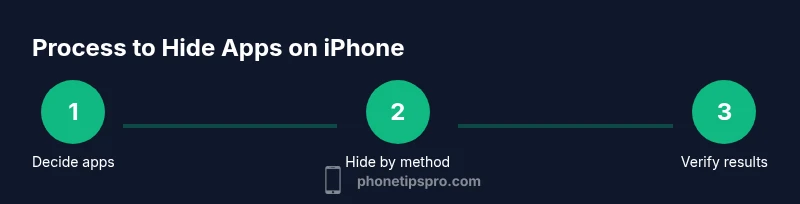
Decide which apps to hide
Identify apps you rarely use or want kept private. Create a small list to start with so you can practice without affecting essential tools. Making a plan helps prevent over-hiding and confusion later.
Tip: Start with non-critical apps first to build confidence. - 2
Long-press the app icon
On the Home Screen, press and hold the app icon until a context menu appears. Choose Remove App, not Delete App, to keep the software intact. This step is the core action that moves the app toward hiding.
Tip: If you don’t see Remove App, ensure you’re on the main Home Screen (not inside an app). - 3
Move to App Library
Select Move to App Library to remove the icon from the Home Screen while preserving the app in your device’s storage. You can still access it later from the App Library and restore it to the Home Screen if needed.
Tip: App Library automatically categorizes apps, making them easy to locate later. - 4
Hide from Siri & Search for specific apps
Go to Settings > Siri & Search, tap the app, and turn off Show in Search and Show in Suggestions. This minimizes discoverability across your device, not just on the Home Screen.
Tip: Test by searching for the app after changes to confirm it’s hidden. - 5
Hide a Home Screen page
Enter Home Screen edit mode (long-press empty space). Tap the page dots, uncheck the page you want to hide, and confirm. You can unhide later by rechecking the page.
Tip: Hide pages you don’t need daily rather than removing apps entirely. - 6
Apply Screen Time restrictions for deeper control
Open Settings > Screen Time > Content & Privacy Restrictions. Use Allowed Apps or app-specific restrictions to block access. This adds a layer of protection beyond visibility settings.
Tip: If a built-in app seems still accessible, recheck the Allowed Apps and test across apps. - 7
Verify your setup
Search your device, check App Library, and review Settings to confirm the changes took effect. Make sure hidden apps remain accessible through App Library if needed.
Tip: After major iOS updates, re-test to confirm settings persist.
FAQ
Can I delete built-in iPhone apps to hide them completely?
Built-in iPhone apps can’t be deleted, but you can hide them from the Home Screen and search results. App Library keeps them installed while removal from Home Screen reduces visibility.
Built-in apps can’t be deleted, but you can hide them from the Home Screen and search results.
Will hiding apps affect notifications or data?
Hiding an app from the Home Screen or search doesn’t delete data or stop notifications. You’ll still receive alerts, but visibility and access are reduced according to your settings.
Hiding won’t delete data or stop notifications; it changes visibility, not data.
Do actions to hide apps work across all iOS versions?
The core methods rely on App Library and Search settings introduced in iOS 14 and later. If you run an older version, some options may not be available, and you’ll rely more on page hiding.
Older iOS versions may lack some hiding options; App Library requires iOS 14+.
Can I hide apps on iPhone from kids or other users?
Yes. Use a combination of Move to App Library, Hide from Search, and Screen Time restrictions to limit access for other users on the same device.
You can limit access for others with app movement, search hiding, and Screen Time.
Will iOS updates reset my hidden apps settings?
Updates can occasionally reset or adjust settings. After updating, quickly verify that your chosen hiding methods still apply and reconfigure if needed.
Check your settings after updates to ensure they’re still in effect.
Is there a limit to how many apps I can hide this way?
There isn’t a published hard limit on hiding apps via Home Screen or App Library, but very large hidden app counts can complicate the workflow. Start small and expand as needed.
No fixed limit published, but start small to avoid confusion.
Watch Video
Quick Summary
- Plan which apps to hide before starting
- Use App Library to declutter Home Screen
- Disable Show in Search for hidden apps
- Hide entire Home Screen pages for quick organization
- Test after updates to maintain privacy