Can You Lock Apps on iPhone? A Practical Guide
Learn how to limit access to iPhone apps using built-in tools like Screen Time and Guided Access. This step-by-step guide covers setup, scenarios, troubleshooting, and best practices for parents and power users.


Can you lock apps on iPhone? Yes—though iOS doesn’t offer a true per-app password. You can approximate app-locking by using Screen Time app limits, Downtime, and an end-time passcode, or temporarily lock into a single app with Guided Access. These built-in tools deliver practical access control without external software today.
Can You Lock Apps on iPhone? What 'Locking' Means on iOS
According to Phone Tips Pro, iPhone users often search for a true per-app lock. The reality is that iOS doesn't offer a native per-app password feature. However, you can effectively limit access to apps by using Screen Time and Guided Access. These built-in tools provide robust controls that can simulate app-lock behavior for most everyday needs. Understanding the difference between these options helps you choose the right approach for your situation.
Native Tools: Screen Time, Downtime, and App Limits
Apple's Screen Time is designed to help you manage how you use your device, not to lock individual apps with a separate password. However, by combining App Limits, Downtime, and a Screen Time passcode, you can create boundaries that closely resemble an app lock. App Limits can restrict usage by app or by category, while Downtime restricts access outside scheduled hours. The key is to configure a passcode that prevents casual bypass and to assign Always Allowed apps carefully.
Guided Access: Locking into a Single App
Guided Access is a specialized feature intended for classrooms, demonstrations, or short-term focus sessions. When activated for a single app, it prevents you from switching to other apps until you exit the session. This toolbox-style feature is not designed for long-term parental controls, but it is perfect for when you need to lock the device to one app during a study period or a guided activity.
Family and Parental Controls: Family Sharing and Restrictions
If you share devices with children, Family Sharing can help you enforce boundaries from a separate organizer account. Screen Time settings can be managed for family members, with the parent able to adjust limits and restrictions remotely. This makes it easier to ensure that your child spends time on designated apps and avoids distraction from others.
Practical Scenarios: When and How to Use These Tools
For routine protection, set App Limits and Downtime to create boundaries around app usage. For a focused session, enable Guided Access for a single app. In both cases, ensure the Screen Time passcode is strong and kept secret. Regularly review your settings to adapt to changing routines and apps.
Common Pitfalls and Myths About App Locking on iPhone
Many users assume you can lock individual apps with separate passwords, which isn’t supported by iOS. Third-party tools cannot reliably lock other apps due to system restrictions. Always rely on Screen Time and Guided Access for reliable control, and beware that iOS updates can occasionally reset or alter these settings.
What to Test and Monitor
After configuring restrictions, perform a quick test by attempting to open a restricted app and noting the prompt. Verify that the passcode prompt appears and that the app cannot be overridden. Periodically recheck after OS updates or app changes to maintain consistent behavior.
Tools & Materials
- iPhone with the latest iOS(Ensure your device is up to date for the latest Screen Time features)
- Settings app access(You will configure Screen Time and Guided Access here)
- Apple ID / iCloud access(Important for syncing Screen Time and Family Sharing)
- Optional: Family Sharing setup(Useful when restricting a child’s device)
- Pen and password manager (optional)(Store passcodes securely)
Steps
Estimated time: 25-40 minutes
- 1
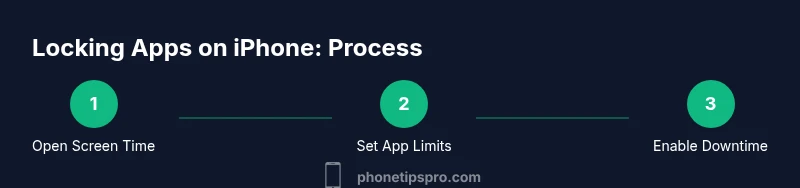
Open Screen Time settings
Open the Settings app and tap Screen Time to access usage controls. This is the starting point for all app-restriction configurations.
Tip: If Screen Time isn’t visible, enable it via Settings > Screen Time > Turn On Screen Time - 2
Turn on Screen Time
Tap Turn On Screen Time and follow the prompts to establish a baseline for usage limits.
Tip: Choose this even if you’re testing; you can adjust later - 3
Set a Screen Time Passcode
Create a passcode that only you know to prevent others from changing settings.
Tip: Use a distinct code from your device unlock to avoid confusion - 4
Add App Limits for specific apps
In App Limits, select the desired apps or categories and set a daily limit. This is how you enforce an effective lock on usage.
Tip: Choose a reasonable limit to start; you can refine later - 5
Enable Downtime
Set a schedule during which only allowed apps can be used, helping to enforce breaks or study times.
Tip: During Downtime, only apps in Always Allowed will be usable - 6
Configure Always Allowed
Choose essential apps that can be used during Downtime, if needed.
Tip: Limit this to essential tools to maximize restriction - 7
Optional: Set up Guided Access for a single app
Go to Settings > Accessibility > Guided Access, and enable it with a passcode. This locks the device to a single app during a session.
Tip: Triple-click the side button to start; end by triple-clicking again
FAQ
Can I lock individual apps with a password on iPhone?
Not natively. iPhone doesn’t offer per-app passwords. Use Screen Time and Guided Access to restrict or lock usage.
iPhone doesn't have per-app passwords; use Screen Time or Guided Access to restrict apps.
What is Guided Access and when should I use it?
Guided Access locks the device to a single app for a session, preventing access to other apps until you exit the session. This is ideal for focus or demonstrations.
Guided Access locks you into one app for a short session.
Can Screen Time be bypassed by removing the SIM or restarting?
If set up correctly, Screen Time requires the passcode to disable or change limits, reducing bypass risk.
Screen Time prompts for the passcode to disable; do not share it.
Do parents need the Family Sharing setup to use these controls?
Family Sharing is optional but helpful for managing a child's device from a separate organizer account.
Family Sharing makes management easier for families.
Will a device update reset all Screen Time settings?
Software updates typically preserve Screen Time settings, but it's wise to verify after major updates.
After updates, double-check that restrictions stay in place.
Is there any risk using Guided Access on sensitive apps?
Guided Access is generally safe but ensure you exit properly; misconfiguration may trap you in an app.
Be careful to exit Guided Access to avoid lockouts.
Watch Video
Quick Summary
- Screen Time lets you restrict app usage with limits and downtime.
- Guided Access locks the device to one app temporarily.
- End-to-end boundaries require a Screen Time passcode to avoid bypass.
- Test your setup to ensure restrictions work as intended.