How to Block Apps on iPhone: A Practical Guide
Learn how to block apps on iPhone using Screen Time, Downtime, and Guided Access. This step-by-step guide covers per-app blocks, category limits, and troubleshooting for focused iPhone usage.


Learn how to block apps on iPhone using Screen Time, Downtime, and Guided Access. This guide covers steps to block specific apps, groups, or all apps, plus safety tips and troubleshooting. You’ll need an iPhone running iOS 15 or later and your Apple ID. Follow the steps for a focused, distraction-free device.
Why block apps on iPhone
If you’re exploring how to block app on iphone, you’re aiming for better focus, healthier device use, and fewer distractions. According to Phone Tips Pro, a structured approach to app blocking can help you reclaim productive time without sacrificing access to essential tools. This section explains the core ideas behind app-blocking and why it matters for students, professionals, and families alike. You’ll learn the common tools iPhone users rely on and how each one serves different goals—from stopping procrastination to safeguarding digital wellbeing during work hours. Remember that no single method fits every situation, so the best plan often layers several techniques for the exact outcome you want.
Overview of the main tools for blocking apps on iPhone
Apple’s Screen Time suite provides granular controls for individual apps, app categories, and overall device time. Downtime creates structured windows when most apps are unavailable, while Content & Privacy Restrictions add a layer of policy control that can prevent installation or usage of apps in certain contexts. Guided Access offers a temporary lock to a single app, ideal for presentations or focused tasks. Family Sharing can extend these controls across devices used by dependents. Each method has strengths and trade-offs, so understanding when to apply which tool is key to a robust blocking strategy.
Tools & Materials
- iPhone with the latest iOS(Update to the newest software to ensure Screen Time features are available and stable.)
- Apple ID signed in on the device(Needed to configure Screen Time settings and Family Sharing if used.)
- Reliable internet connection(Needed for syncing Screen Time data and confirming restrictions across devices.)
- Screen Time passcode(Create a distinct passcode to prevent changes or bypassing blocks.)
- Optional: another trusted device(Helpful for managing Family Sharing or reviewing settings remotely.)
Steps
Estimated time: 25-40 minutes
- 1
Open Settings and locate Screen Time
Unlock your device and tap Settings, then locate Screen Time. This is the hub where you’ll set per-app limits, downtime, and restrictions. If Screen Time isn’t visible, ensure you’re on iOS 15 or later and sign in with your Apple ID.
Tip: If Screen Time isn’t enabled yet, enable it for your account before proceeding. - 2
Turn on Screen Time for the profile you want to block
Choose whether you’re applying limits to yourself or a family member. If you’re setting up for a child, enable Family Sharing and configure settings from the parent device.
Tip: For a personal device, you can still enable Screen Time and apply restrictions without Family Sharing. - 3
Create a Screen Time passcode
Set a unique passcode to prevent changes to limits. Do not reuse your device unlock code. This step is critical to keep blocks effective.
Tip: Record the passcode in a safe place separate from the device if possible. - 4
Add App Limits for specific apps
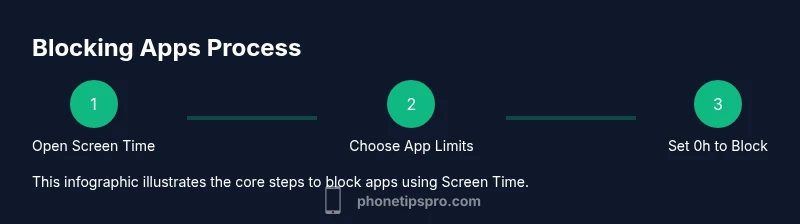
Tap App Limits, Add Limit, then select the exact apps or categories to block. Set the daily limit to 0 hours and 0 minutes to enforce a hard block during the selected period.
Tip: Starting with a conservative block (e.g., 0h) helps you gauge impact before adjusting. - 5
Configure Downtime for broader control
Enable Downtime to restrict most apps during specific hours. Mark essential apps as Always Allowed if you need access for emergencies or work.
Tip: Schedule Downtime to align with study hours, work blocks, or evening wind-down routines. - 6
Adjust Always Allowed and Allowed Apps
In the Screen Time menu, manage which apps can be used freely. Removing non-essential apps from Always Allowed strengthens the block.
Tip: Keep only essential apps in Always Allowed to minimize friction during blocks. - 7
Enable Content & Privacy Restrictions (optional)
Turn on Content & Privacy Restrictions to restrict installing or deleting apps, in-app purchases, and explicit content if needed.
Tip: This adds a policy layer that complements app-time controls but may require additional setup. - 8
Consider Guided Access for focused sessions
If you need a temporary focus session on one app, enable Guided Access and start a session when needed. This locks the device to a single app until you end the session.
Tip: Know the triple-click gesture to activate Guided Access quickly. - 9
Test and verify the blocks
Close Settings and attempt to open blocked apps to confirm restrictions work. If something slips through, revisit App Limits and Downtime settings.
Tip: Ask a friend or family member to test a block to ensure it’s enforceable.
FAQ
Can I block apps on iPhone without a passcode?
Screen Time can block apps without a passcode, but to prevent changes you should enable a Screen Time passcode. Without a passcode, anyone with access to Settings could modify the limits.
Yes, you can block apps with Screen Time, but for true protection, set a Screen Time passcode to prevent changes.
Will these blocks apply to Family Sharing users?
Blocks can be configured per user or per family member. When Family Sharing is enabled, you manage restrictions from the organizer’s device and push them to linked devices.
Yes—Family Sharing lets you control blocks across multiple devices from one place.
Can I temporarily unblock an app for a short time?
Yes. You can adjust App Limits or Downtime for a window and then revert to the previous restrictions when the window closes.
Absolutely; you can extend or retract limits on the fly as needed.
Are built-in iPhone apps blockable?
Many built-in apps can be restricted via App Limits or Downtime, but some may remain accessible due to system design. You cannot delete built-in apps, but you can limit their usage.
You can limit most built-in apps, but you can’t remove them entirely from the device.
What happens if I forget the Screen Time passcode?
If you forget the Screen Time passcode, you’ll need to recover or reset it through your Apple ID or device settings, depending on iOS version. Check Apple Support guidance for the exact recovery path.
If you forget it, follow the recovery steps in Settings or Apple Support guidance.
Will blocking apps affect notifications?
Blocking apps restricts usage time, but notifications may still appear unless you disable them within each app’s notification settings or extend the block to an overall focus mode.
Block times reduce usage, but notifications could still come through unless you tweak per-app settings.
Watch Video
Quick Summary
- Start with Screen Time for precise per-app blocking.
- Downtime complements App Limits by blocking broad time windows.
- Guard changes with a dedicated Screen Time passcode.
- Guided Access is ideal for single-app focus sessions.
- Test thoroughly and adjust rules as needed.